1. Introduction and Overview
This manual provides comprehensive instructions for the AYWHP BN59-01432A Solar Voice Remote Control, designed as a universal replacement for Samsung Smart TVs. This remote offers advanced features such as voice control, dual charging capabilities (solar and USB-C), and dedicated quick access buttons for popular streaming services.
Key Features:
- Voice Control: Seamlessly control your Samsung Smart TV using voice commands.
- Eco-Friendly Charging: Integrated solar panel for continuous charging, reducing the need for battery replacement.
- USB-C Charging: Supports fast USB-C charging for convenience.
- Quick Access Buttons: Dedicated buttons for Netflix, Disney+, Prime Video, and Samsung TV Plus.
- Multi-View Functionality: Easily switch to multi-view mode for enhanced multitasking.
- Wide Compatibility: Compatible with 2023 Samsung Neo QLED 8K Smart TVs and other Samsung models.

Image: Front and back view of the BN59-01432A Solar Voice Remote Control, showcasing its sleek design and solar panel on the rear. A microphone icon indicates its voice control capability.
2. Setup and Pairing
Follow these steps to set up and pair your new AYWHP BN59-01432A remote control with your Samsung Smart TV.
Initial Charging:
Before first use, it is recommended to fully charge the remote control. The remote features both a solar panel and a USB-C port for charging.
- Solar Charging: Place the remote with the solar panel facing a light source (natural or artificial).
- USB-C Charging: Connect a USB-C cable to the port on the bottom of the remote and plug it into a USB power adapter (not included) or a TV's USB port.

Image: A close-up view highlighting the solar panel on the back of the remote and the USB-C charging port located at the bottom edge, illustrating the dual charging options.
Pairing with Your TV:
The remote control typically pairs automatically with compatible Samsung Smart TVs. If it does not, follow these steps:
- Ensure your TV is powered on.
- Point the remote control towards your Samsung Smart TV.
- Press and hold the Return button and the Play/Pause button simultaneously for approximately 8 seconds.
- A pairing message should appear on your TV screen, indicating successful connection.
3. Operating Instructions
Familiarize yourself with the functions of each button on your remote control for optimal use.

Image: A detailed diagram illustrating the layout of the remote control buttons and their primary functions, including Power, Voice Assistant, Volume, Channel, and navigation controls.
Button Functions:
- Power: Press to turn the TV on or off.
- Color/Number button (123): Press this button to display the colored buttons window and the virtual numeric pad alternately.
- Play/Pause: When pressed, playback controls appear. Use these controls to manage media content.
- Voice Assistant (Microphone icon): Press and hold to activate the voice assistant (e.g., Bixby). Say a command and then release the button.
- Volume (VOL +/-): Move the button up or down to adjust the volume. Press for 1 second or more to mute the sound or access Accessibility Shortcuts.
- Smart Hub (Home icon): Returns to the Home Screen.
- Channel (CH +/-): Move the button up or down to change the channel. Press for 1 second or more to see the Guide screen.
- Select (Center button): Selects or runs a focused item. When pressed while watching a broadcast program, detailed program information appears.
- Directional Pad (Up/Down/Left/Right): Moves the focus and changes the values seen on the TV's menu.
- Return (Back arrow): Returns to the previous menu. When pressed for 1 second or more, the running function is terminated.
- Quick Access Buttons: Dedicated buttons for Netflix, Disney+, Prime Video, and Samsung TV Plus provide instant access to these streaming services.
Using Voice Control:
The remote's integrated voice recognition technology allows for easy control of your Samsung Smart TV.
- Press and hold the Voice Assistant button (microphone icon).
- Speak your command clearly into the remote's microphone.
- Release the button once you have finished speaking.
- Examples: "Volume down 30%", "Open Netflix", "Switch to HDMI 1".
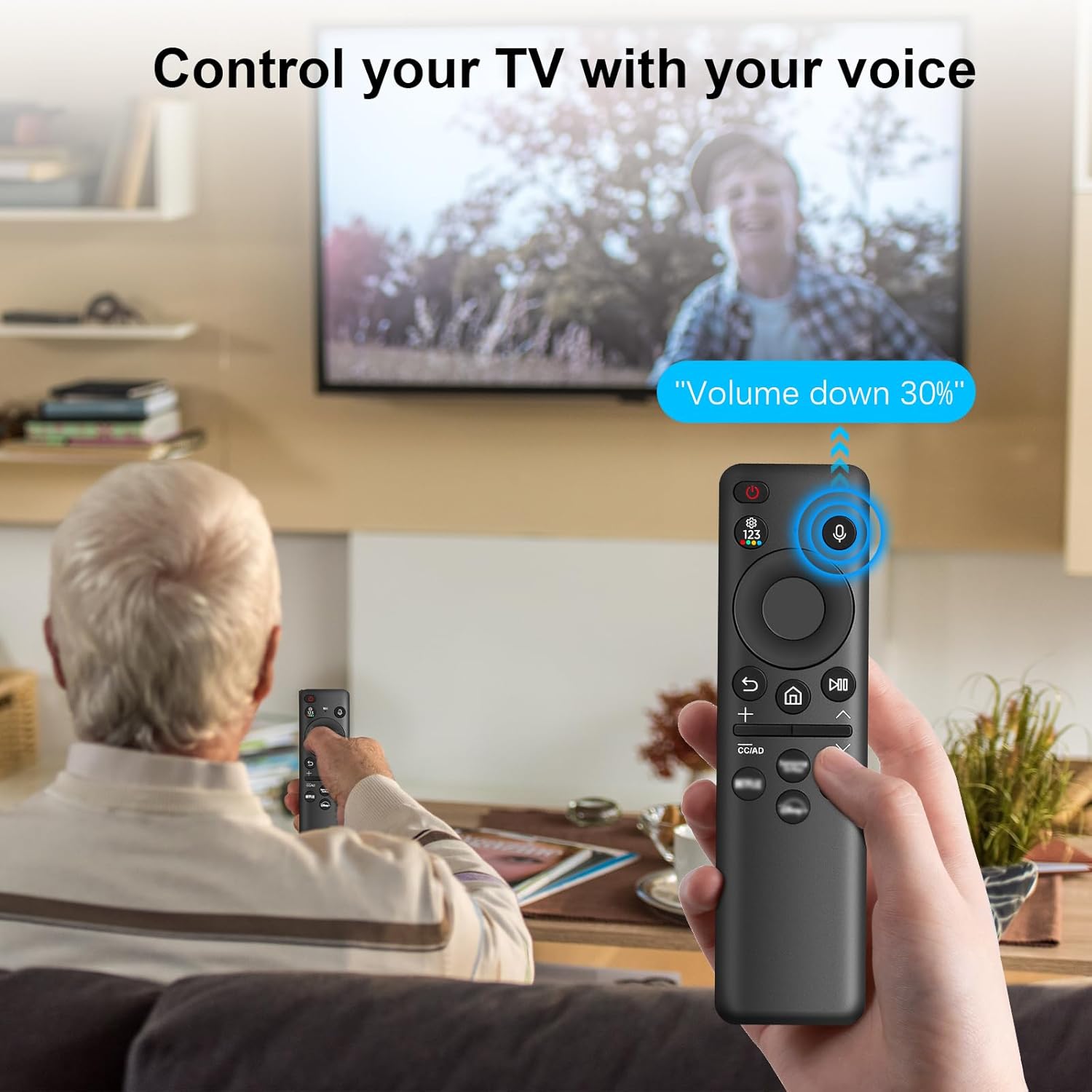
Image: A user holding the remote control and speaking into it, with a speech bubble on the TV screen indicating a voice command like "Volume down 30%", demonstrating the voice control feature.
Multi-View Function:
Access the multi-view mode with a single press for multitasking or enjoying multiple content streams simultaneously.
4. Maintenance
Proper care and maintenance will ensure the longevity and optimal performance of your remote control.
Charging:
The remote control is designed for eco-friendly and convenient charging.
- Solar Charging: The built-in solar panel on the back of the remote continuously charges the internal lithium-ion battery when exposed to light. Ensure the solar panel is not obstructed.
- USB-C Charging: For faster charging or when light is unavailable, use a standard USB-C cable to connect the remote to a power source.
Cleaning:
To clean the remote control, use a soft, dry cloth. Do not use liquid cleaners, sprays, or abrasive materials, as these can damage the remote's surface or internal components.
Storage:
Store the remote in a cool, dry place away from direct sunlight or extreme temperatures when not in use for extended periods.
5. Troubleshooting
If you encounter issues with your remote control, refer to the following common problems and solutions.
| Problem | Possible Cause | Solution |
|---|---|---|
| Remote not responding to TV. | Not paired, low battery, obstruction, out of range. | Ensure remote is charged. Re-pair the remote (see Section 2). Remove any obstructions between remote and TV. Ensure you are within operating range (up to 1 meter for Bluetooth). |
| Voice control not working. | Microphone blocked, voice assistant not active, TV settings. | Ensure nothing is covering the microphone. Press and hold the Voice Assistant button firmly. Check your TV's voice assistant settings. |
| Remote not charging via solar panel. | Insufficient light, faulty panel. | Place the remote in a brighter area. If the issue persists, charge via USB-C. If neither works, the panel might be faulty. |
| Buttons are unresponsive or delayed. | Low battery, interference. | Charge the remote fully. Move away from other electronic devices that might cause interference. |
| Remote not compatible with my TV. | Incorrect model, older TV. | This remote is designed for Samsung Smart TVs, especially 2023 Neo QLED models. Verify your TV model's compatibility. It is not compatible with Samsung LR remote controls. |

Image: The remote control displayed alongside two Samsung Neo QLED TVs, indicating its compatibility with 2023 models such as 65QN800C, 75QN800C, 85QN800C, 65QN900C, 75QN900C, and 85QN900C.
6. Specifications
Detailed technical specifications for the AYWHP BN59-01432A Solar Voice Remote Control.
| Feature | Specification |
|---|---|
| Brand | AYWHP |
| Model Number | BN59-01432A |
| Dimensions (L x W x H) | 142mm x 40.64mm x 10.16mm (5.6 x 1.6 x 0.4 inches) |
| Weight | 50 grams |
| Battery Type | Lithium-ion (included and rechargeable) |
| Charging | Solar Panel, USB-C |
| Connectivity Technology | Bluetooth |
| Special Features | Voice Search |
| Compatible Devices | Samsung Smart TVs (especially 2023 Neo QLED series) |
| Maximum Range | 1 Meter (Bluetooth) |
| Color | Black |

Image: A diagram showing the precise dimensions of the remote control: 5.6 inches (142mm) in length, 1.6 inches (40.64mm) in width, and 0.4 inches (10.16mm) in thickness.
7. Warranty and Support
For warranty information and customer support, please refer to the documentation provided with your purchase or contact the manufacturer directly.
Contact Information:
- Please visit the official AYWHP website for the most up-to-date support resources, FAQs, and contact details.
- If purchased through a retailer, refer to their customer service for assistance regarding returns or exchanges.