
1. Product Overview
The ErGear Height Adjustable Desk is an electric standing desk designed for computer workplaces, offering excellent stability and ergonomic flexibility. It features a sturdy steel frame with aviation lifting column connections, ensuring a firm foundation even at full height. The desk includes a memory function for convenient height adjustments and comes with a practical storage bag.

Image 1.1: The ErGear Height Adjustable Desk in a typical office setup, showcasing its sleek design and ample workspace for multiple monitors and accessories.
2. Safety Information
Important Safety Warning: To ensure safe operation and prevent damage, please adhere to the following guidelines:
- Do not exceed the maximum weight capacity of 80 kg (176 lbs) on the desk surface. Overloading can lead to instability and potential damage to the lifting mechanism.
- Keep children and pets away from the desk during operation to prevent accidents.
- Ensure there are no obstructions in the desk's path when adjusting height. Check for cables, chairs, or other objects that could be pinched or damaged.
- Do not sit or stand on the desk.
- Unplug the desk from the power outlet before cleaning or performing any maintenance.
- If the desk malfunctions or makes unusual noises, discontinue use immediately and consult the troubleshooting section or contact customer support.

Image 2.1: Illustration demonstrating the desk's robust 80KG load capacity, emphasizing the importance of not exceeding this limit for safe and reliable performance.
3. Package Contents
Before assembly, please verify that all components listed below are present and undamaged. If any parts are missing or damaged, contact customer support.
- Desktop Surface (1)
- Lifting Columns/Legs (2)
- Feet/Bases (2)
- Control Panel (1)
- Control Box (1)
- Power Adapter & Cable (1)
- Storage Bag (1)
- Hardware Kit (Screws, Allen wrenches, Cable ties)
- Instruction Manual (This document)
4. Setup and Assembly
Assembly typically requires two people. Follow these general steps. Refer to the included assembly diagram for detailed instructions specific to your model.
- Prepare Workspace: Clear a large, flat area for assembly. Lay down a blanket or cardboard to protect the desktop surface from scratches.
- Attach Lifting Columns to Desktop: Carefully place the desktop upside down. Attach the lifting columns to the pre-drilled holes on the underside of the desktop using the provided screws.
- Attach Feet to Lifting Columns: Secure the feet/bases to the bottom of the lifting columns.
- Install Control Box and Control Panel: Mount the control box to the designated area under the desktop. Connect the control panel to the control box, and then connect the lifting columns to the control box. Ensure all cables are securely connected and routed neatly.
- Install Storage Bag: Attach the storage bag to the side of the desk as desired, typically using hooks or clips provided.
- Connect Power: Plug the power adapter into the control box and then into a wall outlet.
- Initial Calibration (if required): Some models may require an initial calibration. Refer to the specific assembly diagram for your model for details on how to perform this. Typically, this involves pressing and holding the "Down" button until the desk reaches its lowest point and slightly retracts.

Image 4.1: Close-up view of the desk's side storage pockets, demonstrating their capacity for organizing various office supplies and documents. These pockets are typically attached during assembly.
5. Operating Instructions
5.1. Height Adjustment
The ErGear Height Adjustable Desk features an electric lifting system for smooth and precise height adjustments.
- To Raise the Desk: Press and hold the "Up" arrow button (▲) on the control panel. The desk will move upwards. Release the button when the desired height is reached.
- To Lower the Desk: Press and hold the "Down" arrow button (▼) on the control panel. The desk will move downwards. Release the button when the desired height is reached.
5.2. Memory Function
The desk's memory function allows you to save and recall preferred sitting and standing heights.
- To Save a Height Setting:
- Adjust the desk to your desired height using the Up/Down buttons.
- Press the "M" (Memory) button. The display may flash or show "S-".
- Within a few seconds, press one of the numbered preset buttons (1, 2, 3, or 4) to save the current height to that position. The display will confirm the save (e.g., "S-1").
- To Recall a Saved Height:
- Simply press the corresponding numbered preset button (1, 2, 3, or 4). The desk will automatically move to the saved height.

Image 5.1: Visual representation of the desk's adjustable height range, illustrating movement from a minimum of 71cm to a maximum of 119cm, allowing users to set ideal sit or stand positions.
6. Maintenance
Regular maintenance helps ensure the longevity and smooth operation of your ErGear desk.
- Cleaning: Wipe the desktop surface and legs with a soft, damp cloth. Avoid harsh chemicals or abrasive cleaners that could damage the finish.
- Cable Management: Periodically check and organize cables to prevent tangling or interference with the lifting mechanism. Use the provided cable ties if necessary.
- Inspection: Regularly inspect all screws and connections to ensure they are tight. Retighten if necessary.
- Weight Distribution: Distribute weight evenly on the desktop to prevent strain on the lifting mechanism.
7. Troubleshooting
If you encounter issues with your ErGear desk, refer to the following common troubleshooting steps:
| Problem | Possible Cause | Solution |
|---|---|---|
| Desk does not move. | Power cable disconnected; Overload; Motor protection activated. | Check power connections. Reduce weight on desk. Unplug for 20 minutes, then plug back in. |
| Desk moves unevenly or makes unusual noise. | Loose connections; Obstruction; Uneven weight distribution. | Check all screws and connections. Remove any obstructions. Redistribute weight evenly. |
| Error code displayed (e.g., E01, E02). | Specific malfunction or sensor issue. | Refer to the specific error code in your detailed assembly manual or contact customer support. Often, a power cycle (unplug, wait 20s, plug in) can resolve temporary errors. |
| Memory function not working. | Incorrect saving procedure. | Ensure you press "M" then the preset number within the specified time. Repeat the saving process. |
If the problem persists after trying these solutions, please contact ErGear customer support.
8. Specifications
| Feature | Detail |
|---|---|
| Brand | ErGear |
| Model Number | 7B-N1-UK |
| Product Dimensions | 120 cm (Width) x 60 cm (Depth) x 70-119 cm (Height) |
| Weight | 17.86 kg |
| Material | Tempered Glass, Alloy Steel |
| Colour | Black |
| Max Load Capacity | 80 kg (176 lbs) |
| Special Features | Adjustable height, Memory function |
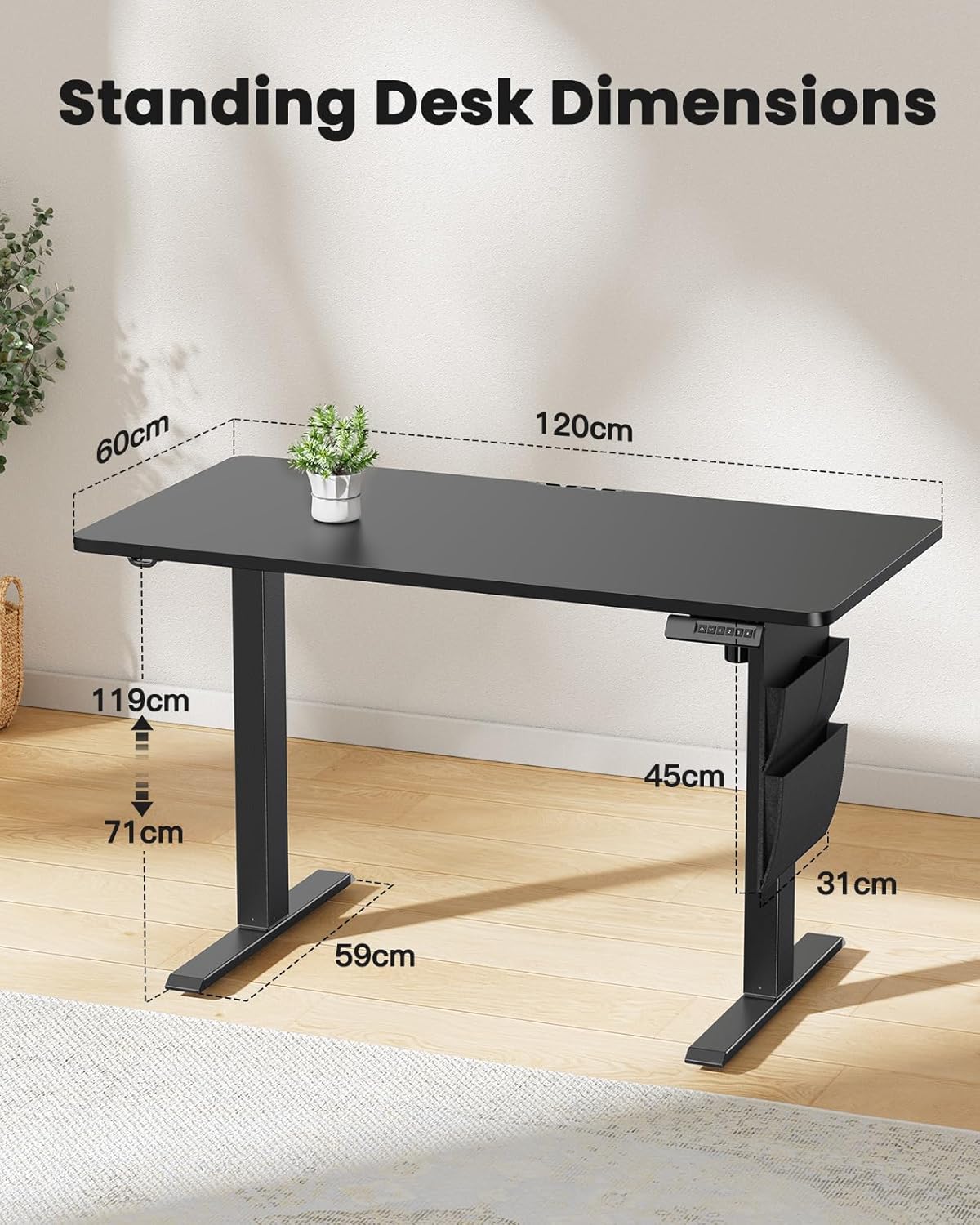
Image 8.1: Detailed diagram illustrating the key dimensions of the ErGear standing desk, including desktop width (120cm), depth (60cm), and height range (71cm to 119cm).
9. Warranty and Support
ErGear products are designed for durability and performance. For any questions, technical assistance, or warranty claims, please contact ErGear customer support.
- Return Policy: This product is eligible for a refund or replacement within 30 days of purchase, as per standard policy.
- Contact Information: Please refer to the contact details provided on the ErGear official website or your purchase documentation for the most up-to-date support channels.


