
1. Product Overview
This manual provides detailed instructions for the installation, operation, and maintenance of your Jingelsye 9-inch touch screen car radio. This unit is designed to replace the factory stereo in Dodge Ram 1500 and 2500 models manufactured between 2013 and 2018. It features a high-definition IPS touch screen, wireless CarPlay and Android Auto, GPS navigation, 5G WiFi, Bluetooth, FM radio, DSP sound processing, and supports steering wheel controls.
Important Compatibility Note: This unit is only compatible with vehicles equipped with manual air conditioning (AC) controls. It will not fit vehicles with automatic AC systems.
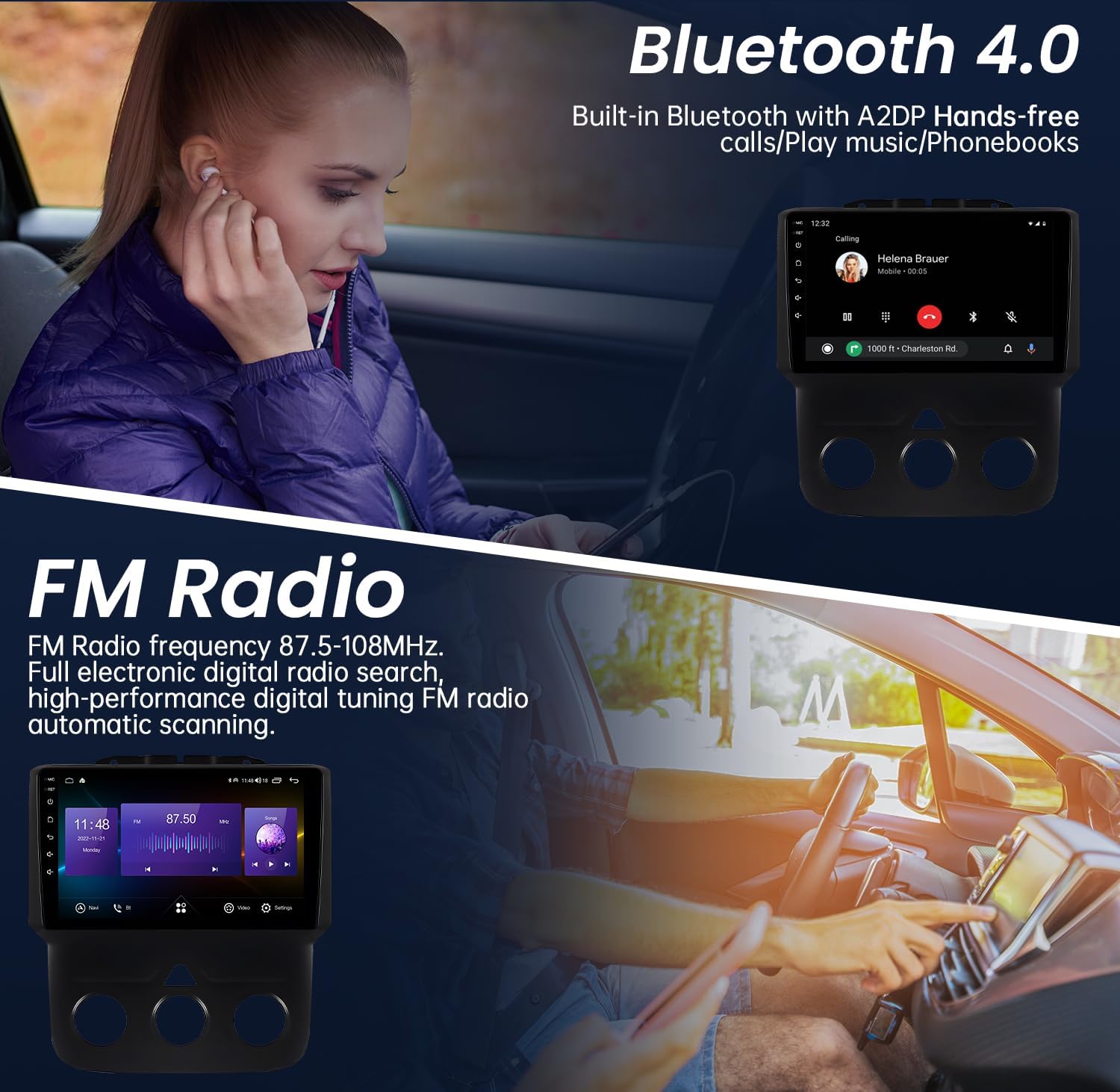
Image: Compatibility chart illustrating which Dodge Ram 2013-2018 dashboard configurations are compatible (manual AC) and incompatible (automatic AC) with the car radio.
2. What's in the Box
Please verify that all components are present before beginning installation:
- 1x Head Unit (9-inch touch screen car radio)
- 1x Backup Camera (AHD 1080P with night vision)
- 1x Reversing Cable
- 1x CanBus Decoder
- 1x Crowbar (for trim removal)
- 1x Power Cord
- 1x RCA Cable
- 2x USB Cables
- 1x GPS Module
- 1x Microphone
- 1x Radio Antenna Adapter

Image: A visual representation of all included accessories and cables, such as the head unit, backup camera, CanBus, GPS module, and various wiring harnesses.
3. Setup and Installation
Professional installation is recommended. Disconnect the vehicle's battery before starting. Refer to your vehicle's service manual for specific dashboard disassembly instructions.
- Dashboard Disassembly: Carefully remove the factory radio and surrounding trim using the provided crowbar or appropriate tools.
- Wiring Connections:
- Connect the main power harness to the vehicle's wiring. The included CanBus adapter is essential for retaining factory features and providing necessary signals (ACC, headlights, reverse).
- Connect the GPS module and route the antenna to a location with a clear view of the sky (e.g., dashboard, A-pillar).
- Connect the radio antenna adapter.
- Connect the USB cables and route them to a convenient location (e.g., glove box, center console).
- If installing the backup camera, route the video cable from the camera to the head unit and connect the camera's power to the vehicle's reverse light circuit.
- Connect the RCA cables for external amplifiers or video outputs if applicable.
- Test Functionality: Before reassembling the dashboard, reconnect the battery and power on the unit. Test all functions: touch screen, radio, Bluetooth, GPS, CarPlay/Android Auto, and backup camera (if installed).
- Reassembly: Once all functions are verified, carefully reassemble the dashboard trim and secure the head unit.
Video: A demonstration of connecting the various cables and harnesses to the back of the car radio unit, including the power cable, RCA cables, and USB connections.
4. Operating Instructions
4.1. Wireless CarPlay / Android Auto
This unit supports wireless Apple CarPlay and Android Auto for seamless smartphone integration.
- Ensure Bluetooth and Wi-Fi are enabled on your smartphone.
- On the car radio, navigate to the CarPlay or Android Auto application.
- Follow the on-screen prompts to pair your phone via Bluetooth. Once paired, the system will automatically establish a Wi-Fi connection for CarPlay/Android Auto functionality.
- You can now access navigation, music, calls, and messages directly from the car radio's screen using voice commands (Siri/Google Assistant) or touch controls.

Image: The car radio display showing the user interface for Wireless CarPlay and Android Auto, with icons for phone, music, maps, and other applications.
Video: A demonstration of the 9-inch car radio's features, including its touch screen responsiveness and integration with vehicle controls, specifically for Dodge Ram 1500 2500 models.
4.2. GPS Navigation
The unit includes a built-in GPS module with pre-loaded North America maps. It supports both online and offline navigation applications.
- Access the navigation app from the main menu.
- For offline maps, ensure they are downloaded to the unit's internal storage.
- For online navigation, connect to a 5G WiFi network (e.g., via mobile hotspot).
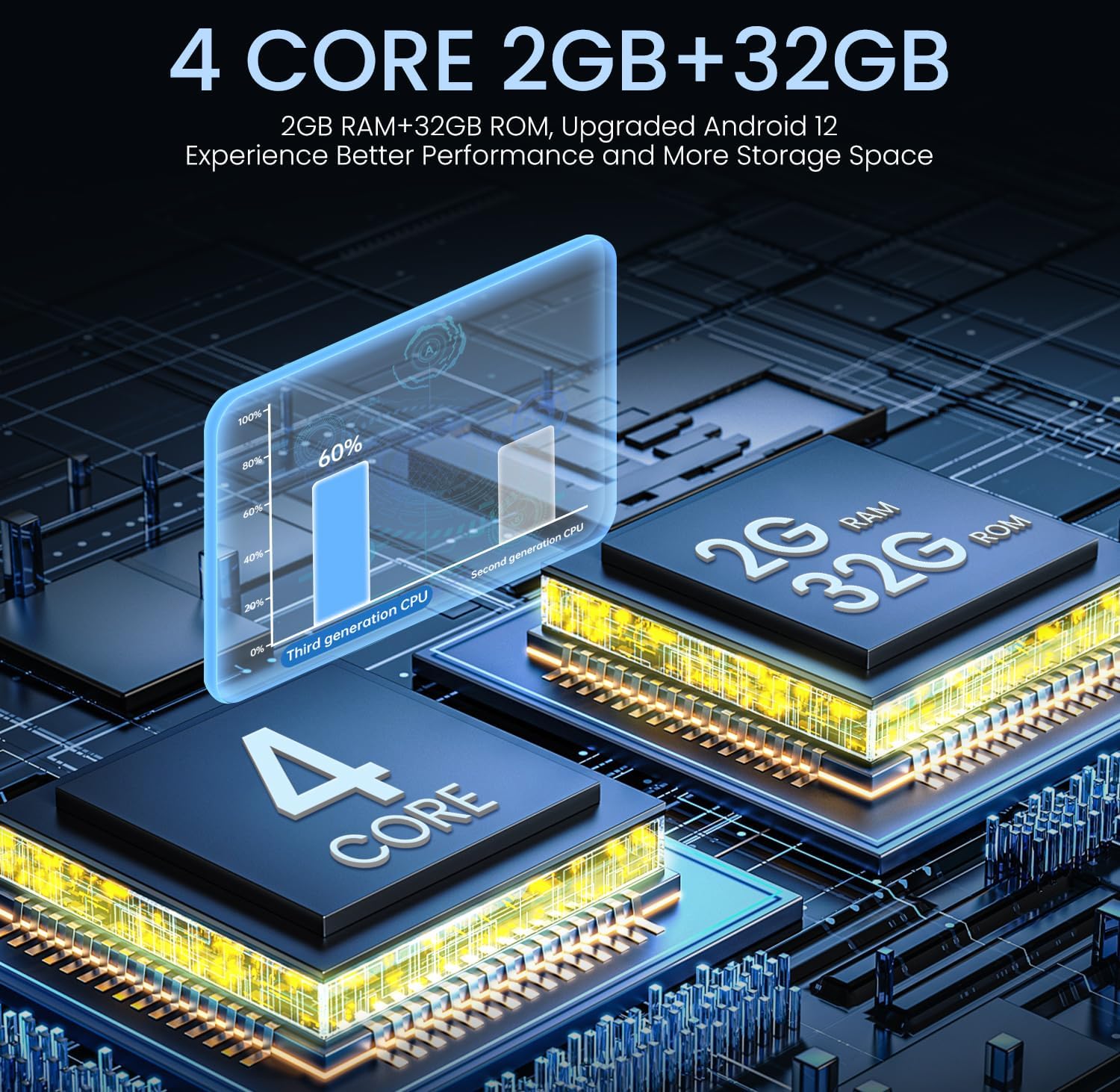
Image: The car radio displaying a GPS navigation map, alongside an illustration of its WiFi connectivity for downloading apps and accessing online content.
4.3. 5G WiFi Connectivity
Connect the car radio to a Wi-Fi network to access online features, download apps, and stream content.
- Go to Settings > Network > Wi-Fi.
- Select your desired Wi-Fi network and enter the password if required.
4.4. Bluetooth Hands-Free Calling and Music Streaming
Pair your smartphone via Bluetooth for hands-free calls and audio streaming.
- Enable Bluetooth on your phone and the car radio.
- On the car radio, search for available devices and select your phone.
- Confirm the pairing code on both devices.
- Once connected, you can make/receive calls and play music through the car's speakers.
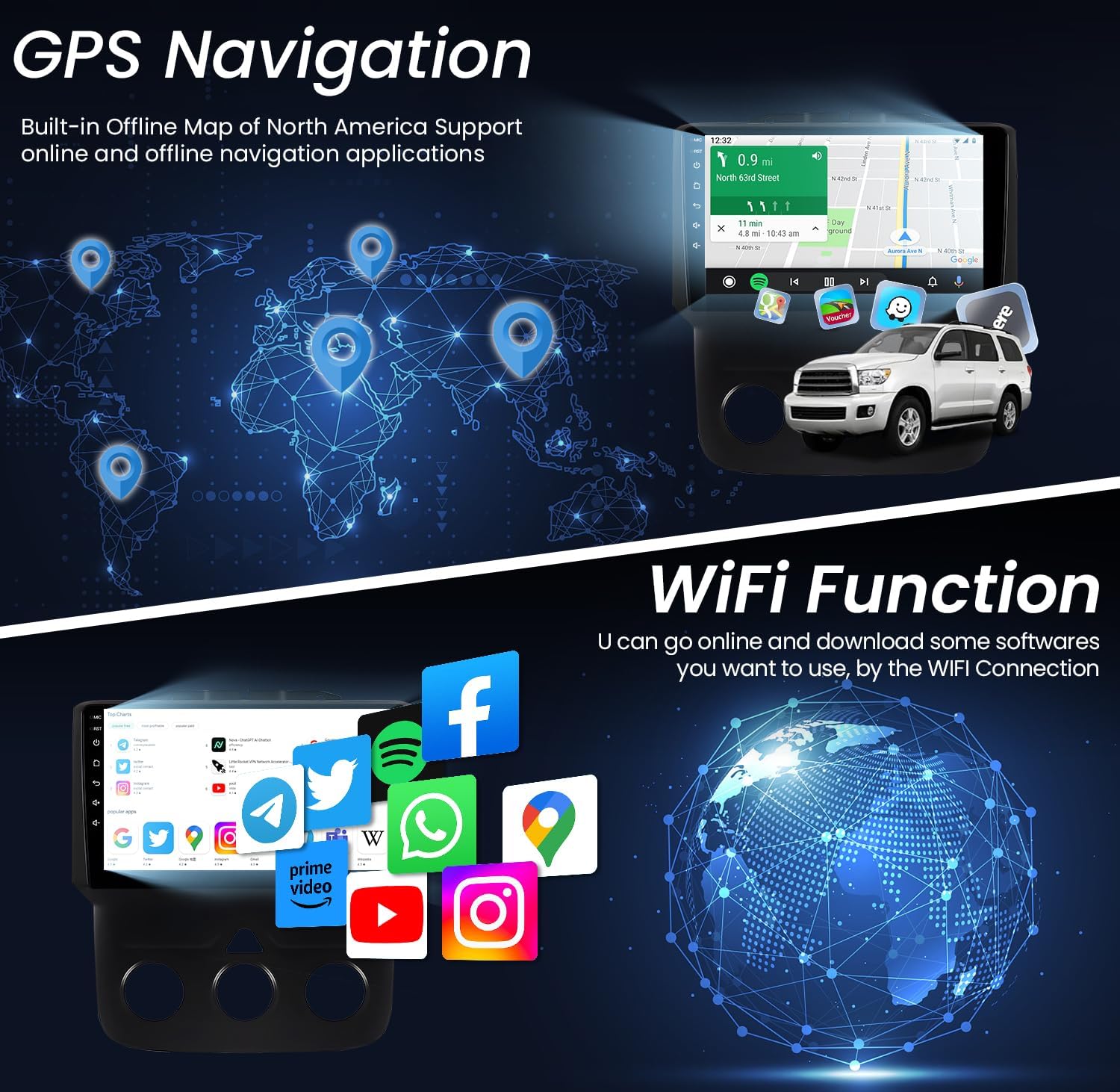
Image: The car radio displaying a Bluetooth call interface and an FM radio tuner, illustrating hands-free communication and audio entertainment features.
4.5. FM Radio with RDS
Tune into your favorite FM radio stations with RDS (Radio Data System) support.
- Select the FM Radio application from the main menu.
- Use the touch screen to scan for stations or manually tune to a frequency.
- RDS provides station information, song titles, and traffic announcements where available.
4.6. DSP Sound Tuning
Utilize the built-in Digital Sound Processor (DSP) to customize your audio experience.
- Access the DSP settings from the audio menu.
- Adjust equalizer settings, balance, fader, and subwoofer levels to optimize sound quality.
Video: A demonstration of the DSP sound tuning features of the car radio, showing equalizer adjustments and sound field controls for an enhanced audio experience.
4.7. Steering Wheel Control (SWC)
The unit supports your vehicle's original steering wheel controls for convenient operation.
- After installation with the CanBus decoder, the steering wheel controls should function automatically.
- If not, navigate to the SWC settings in the unit's menu to manually map the buttons.

Image: An illustration showing how the car radio integrates with the vehicle's steering wheel controls, allowing for safe and convenient operation of media and calls while driving.
4.8. Mirror Link
Mirror Link allows you to cast your smartphone's screen to the car radio display.
- Connect your phone via USB or Wi-Fi (depending on phone model and app).
- Open the Mirror Link application on the car radio and follow the pairing instructions.
4.9. HD Reverse Camera
The included AHD 1080P backup camera provides a clear view when reversing.
- When the vehicle is shifted into reverse gear, the display will automatically switch to the camera view.
- The camera features night vision for improved visibility in low-light conditions.

Image: The car radio display showing the clear, wide-angle view from the HD reverse camera, complete with parking guidelines, assisting with safe parking maneuvers.
5. Specifications
| Brand | Jingelsye |
| Model | 4Core 2GB RAM +32GB ROM 9 inches |
| Screen Size | 9 Inches |
| Display Type | LED IPS Touch Screen |
| Resolution | 1280x800 |
| Processor | 4-Core CPU |
| RAM | 2GB |
| Internal Storage | 32GB |
| Operating System | Android (Upgraded Android 12) |
| Connectivity | Bluetooth 4.0, 5G Wi-Fi, USB |
| Special Features | Wireless CarPlay, Android Auto, GPS Navigation (North America maps), FM/RDS Radio, DSP, HiFi Audio, SWC, Mirror Link, 1080P Backup Camera |
| Audio Output Mode | Stereo |
| Vehicle Service Type | Truck (Dodge Ram 1500/2500 2013-2018 with Manual AC) |
| Item Weight | 3.72 Pounds |
| Item Dimensions (L x W x H) | 11.3"L x 4.92"W x 12.13"H |

Image: A close-up of the 9-inch 1280x800 IPS touchscreen, highlighting its high resolution and vibrant color display compared to lower resolution screens.

Image: An illustration depicting the internal architecture of the car radio, emphasizing its 4-core processor, 2GB RAM, and 32GB ROM for smooth operation and storage.
6. Maintenance
To ensure the longevity and optimal performance of your car radio, follow these maintenance guidelines:
- Screen Cleaning: Use a soft, lint-free cloth to gently wipe the touch screen. For stubborn smudges, slightly dampen the cloth with water or a screen-safe cleaner. Avoid harsh chemicals or abrasive materials.
- Software Updates: Periodically check for available software updates through the unit's settings menu (requires Wi-Fi connection). Updates can improve performance, add features, and fix bugs.
- Cable Connections: Ensure all cables are securely connected. Loose connections can lead to intermittent issues.
- Environmental Conditions: Avoid exposing the unit to extreme temperatures, direct sunlight for prolonged periods, or excessive moisture.
7. Troubleshooting
If you encounter issues with your car radio, refer to the following common problems and solutions:
| Problem | Possible Cause | Solution |
|---|---|---|
| Unit does not power on | Loose power connection, blown fuse, incorrect wiring. | Check all power connections. Inspect vehicle fuses and the unit's fuse. Verify wiring according to the installation guide. |
| No sound | Volume too low, mute activated, incorrect audio settings, loose speaker wires. | Increase volume, check mute status. Verify audio output settings (balance/fader). Ensure speaker wires are properly connected. |
| Touch screen unresponsive or slow | Software glitch, excessive background apps, screen protector interference. | Restart the unit. Close unnecessary applications. Ensure screen protector is properly applied or remove it for testing. |
| CarPlay/Android Auto not connecting | Bluetooth/Wi-Fi off on phone, incorrect pairing, phone software issue. | Ensure Bluetooth and Wi-Fi are active on your phone. Forget and re-pair the device. Update phone's operating system. |
| GPS signal lost or inaccurate | GPS antenna obstructed or disconnected, outdated map data. | Ensure GPS antenna has a clear view of the sky and is securely connected. Update map data if necessary. |
| Steering wheel controls not working | CanBus not connected, incorrect SWC settings. | Verify CanBus decoder is correctly installed. Check SWC settings in the unit's menu for proper mapping. |
If the problem persists after attempting these solutions, please contact Jingelsye customer support for further assistance.
8. Warranty and Support
For warranty information, technical support, or service inquiries, please refer to the warranty card included with your product or contact Jingelsye customer service directly. Keep your purchase receipt as proof of purchase.
Jingelsye Customer Service:
- Refer to the contact information provided in your product packaging.
- Visit the official Jingelsye website for support resources and contact details.