1. Introduction
Thank you for purchasing the AKAI 55 Inch 4K Ultra HD Smart QLED Google TV. This manual provides essential information for the safe and efficient operation of your new television. Please read it thoroughly before use and retain it for future reference.
This television combines a stunning 4K Ultra HD QLED display with the power of Google TV, offering a vast array of entertainment options, smart features, and immersive audio with Atmos Sound technology.
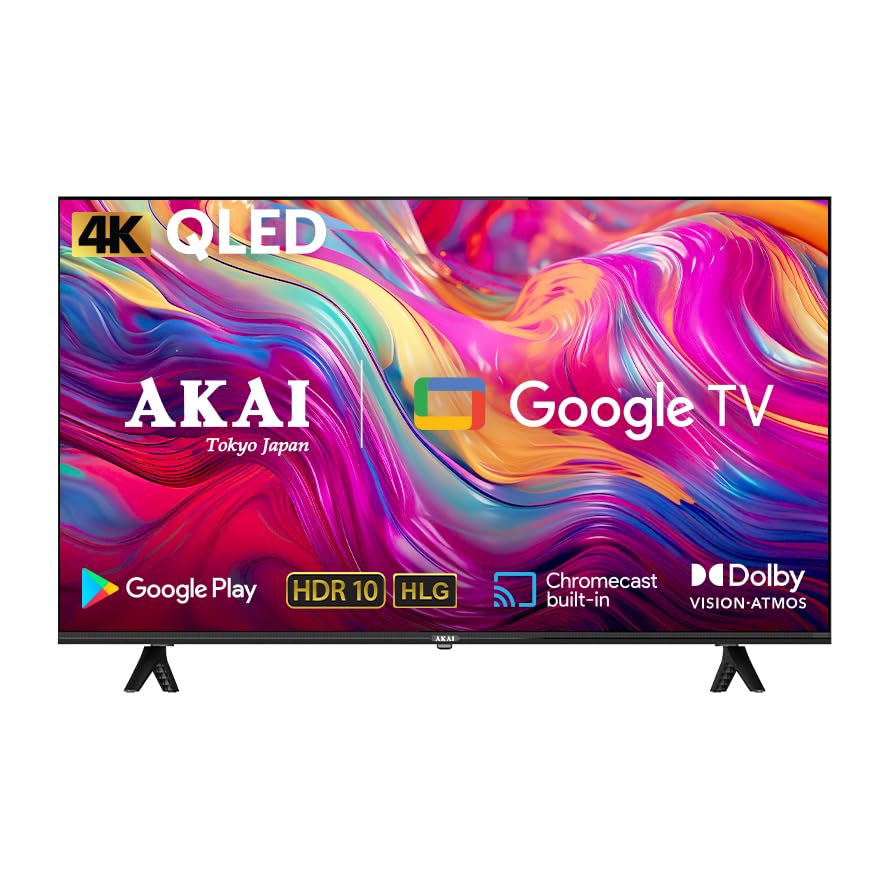
Image 1.1: Front view of the AKAI 55 Inch 4K Ultra HD Smart QLED Google TV, highlighting key features.

Image 1.2: Overview of the AKAI QLED Google TV's advanced features and sleek design.
2. Safety Information
Please read and follow all safety instructions carefully to prevent electric shock, fire, or damage to the television.
- Power Source: Ensure the television is connected to a power supply within the specified voltage range (100 Volts).
- Ventilation: Do not block ventilation openings. Allow adequate space around the television for proper airflow.
- Water and Moisture: Do not expose the television to rain or moisture. Do not place objects filled with liquids, such as vases, on the television.
- Cleaning: Unplug the television before cleaning. Use a soft, dry cloth. Do not use liquid cleaners or aerosol cleaners.
- Placement: Place the television on a stable, level surface or mount it securely to a wall using appropriate mounting hardware.
- Lightning: During lightning storms or when unused for long periods, unplug the television from the power outlet.
- Servicing: Do not attempt to service this product yourself. Refer all servicing to qualified service personnel.
3. Package Contents
Verify that all items listed below are included in your package:
- AKAI 55 Inch 4K Ultra HD Smart QLED Google TV
- Remote Control
- Power Cables
- Wall Mount Bracket
- Table Mount Stands
- User Manual (this document)
4. Setup
4.1 Physical Installation
Depending on your preference, you can either mount your TV on a wall or place it on a table using the provided stands.
4.1.1 Table Mount Installation
- Carefully place the TV screen-down on a soft, flat surface to prevent damage.
- Attach the table mount stands to the designated slots on the bottom of the TV using the screws provided. Ensure they are securely fastened.
- Place the TV on a stable, level surface.
4.1.2 Wall Mount Installation
For wall mounting, use the provided wall mount bracket. It is recommended to have this installation performed by qualified personnel to ensure safety and proper mounting.
- Refer to the separate wall mount installation guide for detailed instructions.
- Ensure the wall can support the weight of the TV (approximately 14.6 kg).
- Securely attach the wall mount bracket to the wall and then to the TV.
4.2 Initial Power On and Connections
- Connect the power cable to the TV's power input and then to a wall outlet.
- Connect any external devices (e.g., set-top box, gaming console) to the HDMI or USB ports.
- Press the power button on the TV or remote control to turn it on.
4.3 Network Connection
To access Smart TV features and Google TV, connect your television to the internet.
- From the home screen, navigate to Settings.
- Select Network & Internet.
- Choose your Wi-Fi network from the list and enter the password if prompted.
- Alternatively, connect an Ethernet cable to the LAN port on the TV for a wired connection.
4.4 Google TV Setup
Follow the on-screen instructions to complete the initial Google TV setup, which includes:
- Signing in with your Google Account.
- Accepting terms and conditions.
- Setting up voice assistant (Google Assistant).
- Installing recommended apps.

Image 4.1: Google TV offers personalized entertainment with individual user profiles.
5. Operating Instructions
5.1 Remote Control Functions
The included remote control allows you to navigate your TV's features. Key buttons include:
- Power: Turns the TV on/off.
- Google Assistant: Activates voice control.
- Navigation Pad: For menu navigation.
- OK/Enter: Confirms selections.
- Back/Home: Returns to previous screen or home menu.
- Volume +/-: Adjusts volume.
- Channel +/-: Changes channels.
- Input: Selects input source (HDMI, USB, etc.).
- App Shortcuts: Direct access to popular streaming services.
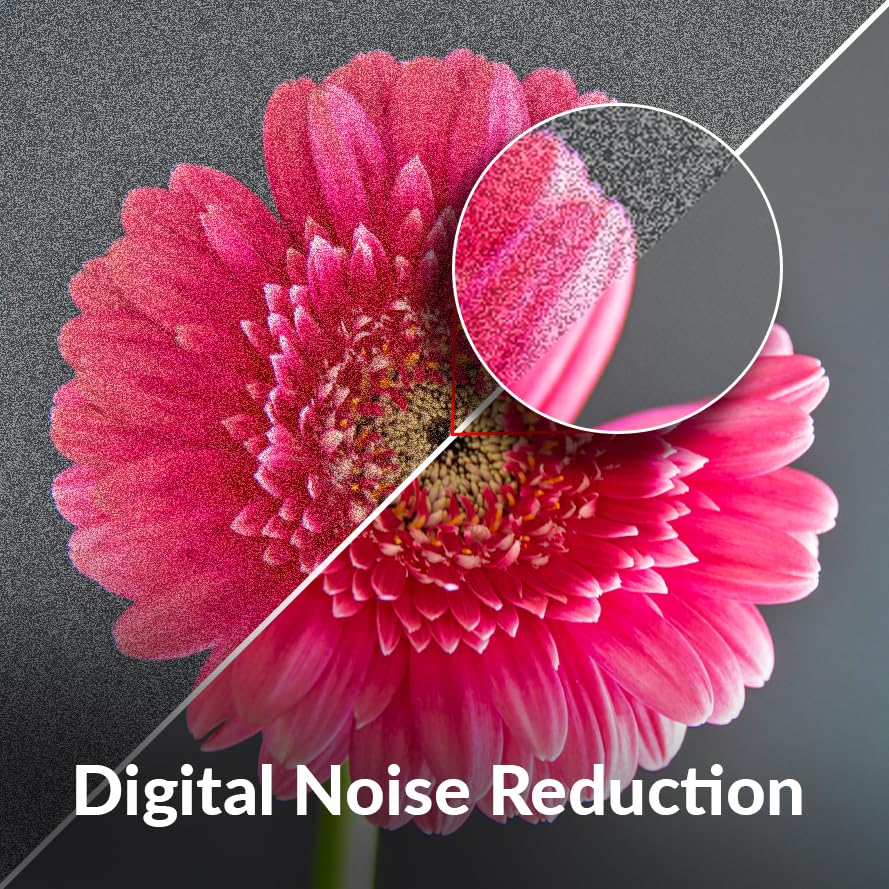
Image 5.1: Using the remote control for voice commands with Google Assistant.
5.2 Basic TV Functions
- Changing Channels: Use the CH+/- buttons or enter channel numbers directly.
- Adjusting Volume: Use the VOL+/- buttons.
- Selecting Input Source: Press the 'Input' button to cycle through HDMI, USB, and other connected devices.
5.3 Smart TV Features (Google TV)
Your AKAI QLED TV runs on Google TV, providing a personalized and intuitive smart TV experience.
- Google Assistant: Use voice commands via the remote to search for content, control smart home devices, and get information.
- Google Play Store: Download and install thousands of apps, games, and streaming services.
- Chromecast Built-in: Cast content directly from your smartphone, tablet, or computer to the TV.
- Personalized Recommendations: Google TV learns your preferences and suggests content tailored to you.
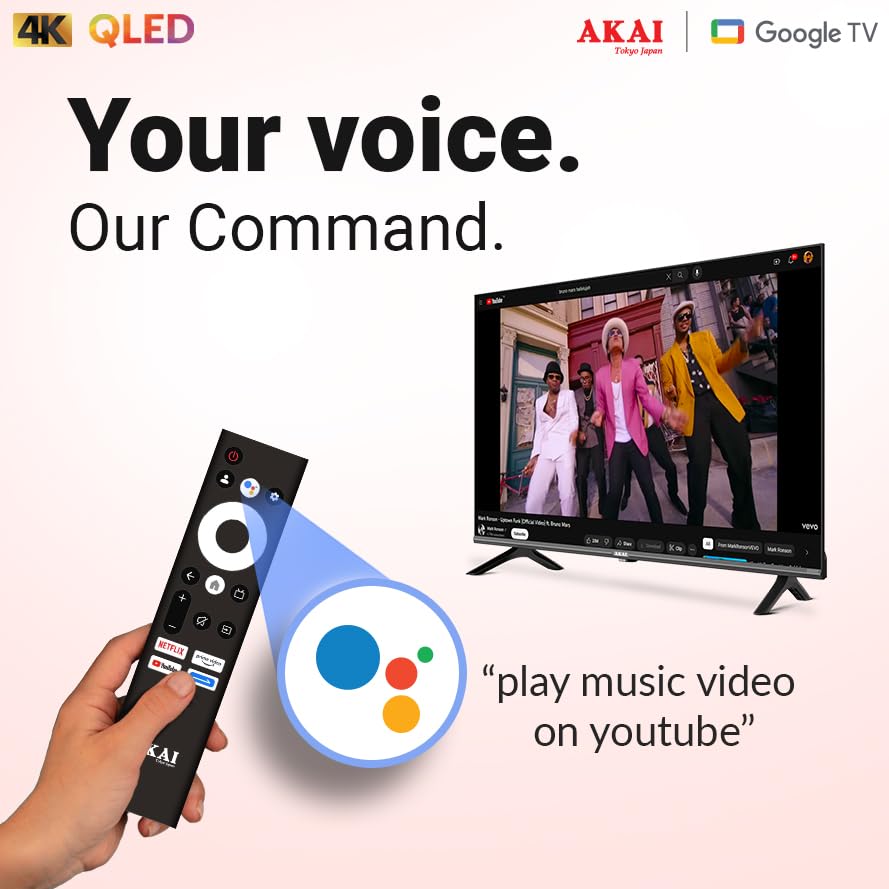
Image 5.2: Access to over 10,000+ apps through Google TV.
5.4 Audio and Video Settings
Optimize your viewing and listening experience through the TV's settings menu.
- Picture Modes: Select from various preset picture modes (e.g., Standard, Vivid, Movie, Game) or customize settings like brightness, contrast, color, and sharpness.
- QLED Display Technology: Experience vibrant colors and enhanced brightness.
- HDR 10 & HLG: For compatible content, these technologies deliver superior contrast and color depth.
- Dolby Vision: Provides dynamic metadata for scene-by-scene optimization of picture quality.
- MEMC (Motion Estimation, Motion Compensation): Improves motion clarity for fast-paced scenes.
- Sound Modes: Choose from preset audio modes (e.g., Standard, Music, Movie, Speech) or adjust equalizer settings.
- Atmos Sound: Enjoy immersive, multi-dimensional audio for a cinematic experience.
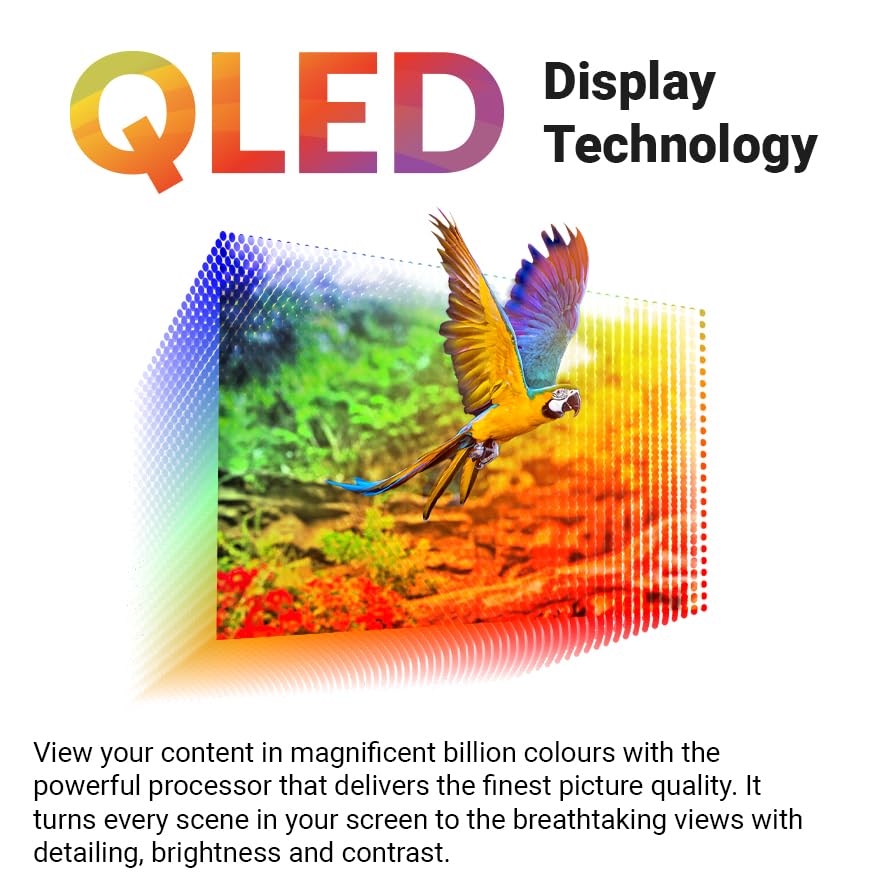
Image 5.3: QLED technology delivers billions of colors for a detailed and vibrant picture.

Image 5.4: Visual comparison demonstrating the enhanced color and clarity of QLED displays.
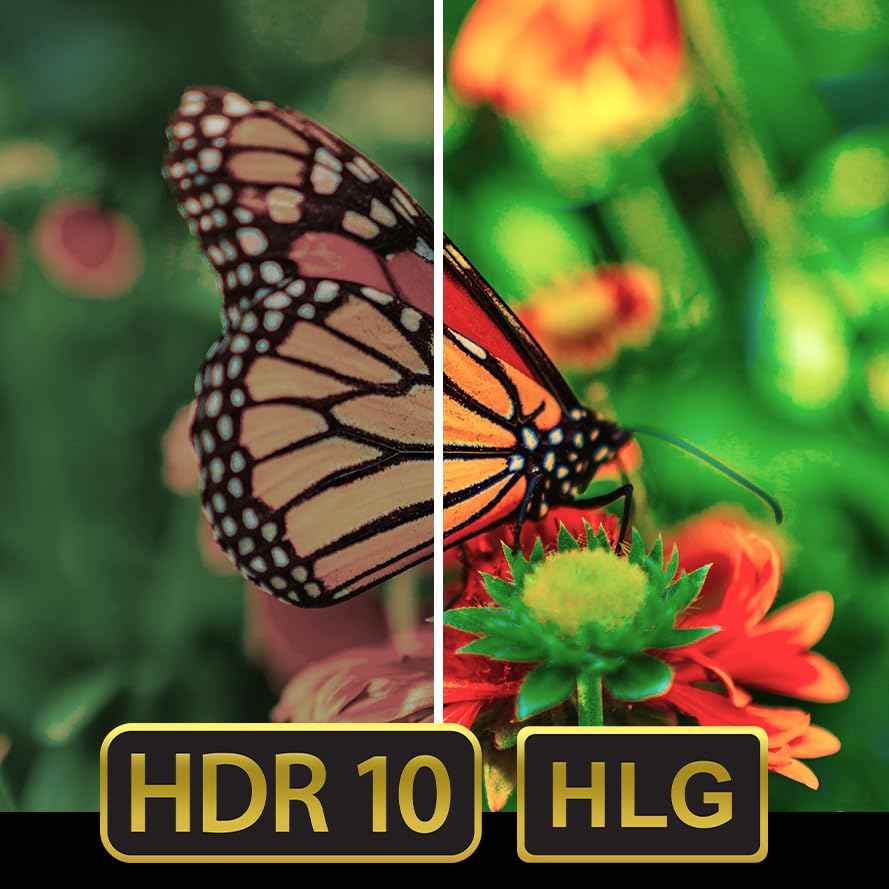
Image 5.5: HDR 10 and HLG technologies provide superior image quality with greater detail in highlights and shadows.
Image 5.6: Dolby Vision enhances screen visuals for a more lifelike experience.

Image 5.7: Digital Noise Reduction feature improves picture clarity by reducing visual artifacts.

Image 5.8: The bezel-less design offers maximal entertainment, complemented by immersive Dolby Audio.
6. Maintenance
6.1 Cleaning the TV
- Always unplug the TV before cleaning.
- Use a soft, dry, lint-free cloth to gently wipe the screen and cabinet.
- For stubborn marks, lightly dampen the cloth with water or a specialized screen cleaner (ensure it's safe for QLED screens) and wipe gently.
- Do not use abrasive cleaners, waxes, or solvents as they can damage the finish.
6.2 General Care
- Avoid placing heavy objects on the TV.
- Keep the TV away from direct sunlight and heat sources.
- Ensure proper ventilation to prevent overheating.
7. Troubleshooting
If you encounter issues with your TV, refer to the following common problems and solutions:
| Problem | Possible Cause | Solution |
|---|---|---|
| No power | Power cable disconnected; Power outlet not working. | Check power cable connection; Try a different outlet; Ensure power switch is on. |
| No picture, but sound is present | Incorrect input source selected; Loose HDMI/AV cable. | Press 'Input' button on remote to select correct source; Check cable connections. |
| No sound, but picture is present | Volume muted or too low; Incorrect audio output setting. | Unmute or increase volume; Check audio settings in TV menu. |
| Remote control not working | Batteries depleted; Obstruction between remote and TV. | Replace batteries; Remove any obstructions; Ensure remote is pointed at the TV's IR sensor. |
| Wi-Fi connection issues | Incorrect password; Router issues; TV too far from router. | Re-enter Wi-Fi password; Restart router; Move TV closer or use a Wi-Fi extender. |
If the problem persists after trying these solutions, please contact AKAI customer support.
8. Specifications
| Feature | Detail |
|---|---|
| Brand | AKAI |
| Model | AL55GQU-SFWS |
| Screen Size | 55 Inches (139 cm) |
| Display Technology | QLED |
| Resolution | 3840x2160 Pixels (4K Ultra HD) |
| Refresh Rate | 60 Hz |
| Operating System | Google TV |
| Memory Storage Capacity | 16 GB |
| RAM | 2 GB |
| Special Features | Atmos Sound, Google TV, MEMC, QLED TV, HDR 10, Bezelless Design |
| Connectivity Technology | Wi-Fi, USB, HDMI |
| Total USB Ports | 2 |
| Voltage | 100 Volts |
| Wattage | 150.00 W |
| Product Dimensions (LxWxH) | 9.4 x 71.8 x 122.6 cm |
| Item Weight | 14.6 kg |
| Viewing Angle | 178 Degrees |
| Image Contrast Ratio | 1200:1 |
9. Warranty and Support
9.1 Warranty Information
Your AKAI 55 Inch 4K Ultra HD Smart QLED Google TV comes with a manufacturer's warranty. Please refer to the warranty card included in your package for specific terms, conditions, and duration. Keep your purchase receipt as proof of purchase for warranty claims.
For detailed warranty policy, you may visit the official AKAI website or contact customer support.
9.2 Customer Support
If you require technical assistance, have questions about your product, or need to report a fault, please contact AKAI customer support. Contact details can typically be found on the official AKAI website or on the warranty card.
When contacting support, please have your TV model number (AL55GQU-SFWS) and serial number ready.


