
1. Introduction
This manual provides essential information for the installation, operation, and maintenance of your XFX Speedster SWFT319 AMD Radeon RX 6800 Gaming Graphics Card. Please read this manual thoroughly before installation to ensure proper setup and optimal performance.
The XFX Speedster SWFT319 AMD Radeon RX 6800 is a high-performance gaming graphics card featuring the AMD RDNA 2 architecture. It is designed to deliver exceptional gaming experiences with its 16GB GDDR6 memory and advanced cooling solution.
2. Safety Information
- Always disconnect power from your computer before installing or removing any components.
- Wear an anti-static wrist strap or frequently touch a grounded metal object (like your computer case) to discharge static electricity before handling the graphics card. Static discharge can damage electronic components.
- Handle the graphics card by its edges. Avoid touching the gold PCI Express connector or the components on the circuit board.
- Ensure your computer case has adequate airflow to prevent overheating.
- Do not expose the graphics card to moisture or extreme temperatures.
- Keep out of reach of children.
3. Package Contents
Verify that your package contains the following items:
- XFX Speedster SWFT319 AMD Radeon RX 6800 Gaming Graphics Card
- Instruction Manual (this document)
Note: Additional accessories such as power adapters or display cables may vary by region or retailer.
4. Product Overview
The XFX Speedster SWFT319 AMD Radeon RX 6800 is engineered for high-performance gaming. It features a robust cooling system and ample memory to handle demanding applications and games.

Figure 4.1: XFX Speedster SWFT319 AMD Radeon RX 6800 Gaming Graphics Card and Retail Packaging. This image displays the graphics card alongside its product box, highlighting the branding and model information.
Key Features:
- Chipset: AMD Radeon RX 6800
- Memory: 16GB GDDR6
- Cooling: XFX Triple Fan Cooling Solution
- Boost Clock: Up to 2190 MHz
- Architecture: AMD RDNA 2

Figure 4.2: Angled view of the graphics card. This image provides a perspective view of the XFX Speedster SWFT319, showcasing its three large cooling fans and part of the heatsink assembly.
Component Identification:
- PCI Express Connector: Connects the card to the motherboard's PCIe slot.
- Display Outputs: Multiple DisplayPort and HDMI ports for connecting monitors.
- Power Connectors: Requires external power from the power supply unit (PSU).
- Cooling Fans: Three fans for efficient heat dissipation.
- Backplate: Provides structural rigidity and additional cooling.

Figure 4.3: Top view of the graphics card. This image highlights the top edge of the card, clearly showing the two 8-pin power connectors required for operation.
5. System Requirements
Before installing your graphics card, ensure your system meets the following minimum requirements:
- Motherboard: PCI Express-compliant motherboard with one x16 graphics slot.
- Power Supply: Minimum 650-700 Watt power supply with two 8-pin PCIe power connectors. Higher wattage is recommended for overclocking or systems with multiple power-hungry components.
- System Memory: 8GB system memory (RAM) minimum, 16GB recommended.
- Operating System: Windows 10 64-bit or Windows 11 64-bit. Linux distributions with appropriate driver support are also compatible.
- Processor: AMD Ryzen 3rd generation or newer, or Intel Core i5 10th generation or newer equivalent.
- Display: Monitor with DisplayPort or HDMI input.
6. Installation Guide
6.1. Pre-Installation Steps
- Power Off: Shut down your computer completely and disconnect the power cable from the wall outlet.
- Open Case: Remove the side panel of your computer case to access the motherboard.
- Static Discharge: Ground yourself by touching an unpainted metal surface on your computer chassis to discharge any static electricity. Consider wearing an anti-static wrist strap.
- Remove Old Graphics Card (if applicable): If you are replacing an existing graphics card, carefully disconnect any power cables and display cables. Unscrew the retention screw(s) holding the card in place and press the PCIe slot release clip. Gently pull the old card straight out of the slot.
6.2. Physical Installation
- Locate PCIe Slot: Identify an available PCI Express x16 slot on your motherboard. This is typically the longest slot.
- Remove Slot Covers: Remove the metal slot covers from the back of your computer case that correspond to the PCIe slot(s) the graphics card will occupy. The XFX Speedster SWFT319 is a triple-slot card.
- Insert Graphics Card: Align the graphics card with the PCIe x16 slot. Press down firmly and evenly until the card is fully seated in the slot and the retention clip clicks into place.
- Secure Card: Secure the graphics card to the computer case with the appropriate screw(s).
- Connect Power: Connect two 8-pin PCIe power cables from your power supply to the corresponding power connectors on the top edge of the graphics card. Ensure they are fully seated.

Figure 6.1: Backplate of the graphics card. This image shows the robust backplate design, which aids in structural integrity and heat dissipation, crucial for proper installation and long-term use.
6.3. Driver Installation
- Close Case & Reconnect Power: Replace the computer case side panel and reconnect the power cable to the wall outlet.
- Connect Display: Connect your monitor to one of the display outputs (DisplayPort or HDMI) on the graphics card.
- Boot System: Power on your computer.
- Download Drivers: Navigate to the official AMD website (www.amd.com/en/support) and download the latest drivers for your AMD Radeon RX 6800 graphics card.
- Install Drivers: Follow the on-screen instructions to install the AMD Software Adrenalin Edition. It is recommended to perform a clean installation to avoid conflicts with previous drivers.
- Restart: Restart your computer after the driver installation is complete.
7. Operating Your Graphics Card
7.1. Connecting Displays
Your XFX Speedster SWFT319 graphics card supports multiple display outputs. Connect your monitor(s) using DisplayPort or HDMI cables. For optimal performance, use high-quality cables.
7.2. AMD Software Adrenalin Edition
The AMD Software Adrenalin Edition provides a comprehensive suite of tools for managing your graphics card. This software allows you to:
- Monitor GPU performance and temperatures.
- Adjust game settings for optimal performance and visual quality.
- Update graphics drivers.
- Utilize features like AMD FreeSync, Radeon Anti-Lag, and Radeon Boost.
Refer to the AMD Software Adrenalin Edition documentation for detailed instructions on using these features.
8. Maintenance
Regular maintenance helps ensure the longevity and optimal performance of your graphics card.
8.1. Cleaning
- Dust Removal: Periodically clean dust from the graphics card's fans and heatsink fins using compressed air. Ensure the computer is powered off and unplugged before cleaning. Hold the fan blades gently to prevent them from spinning rapidly during cleaning, which can damage the bearings.
- Case Airflow: Ensure your computer case has good airflow to prevent dust buildup and maintain optimal operating temperatures.
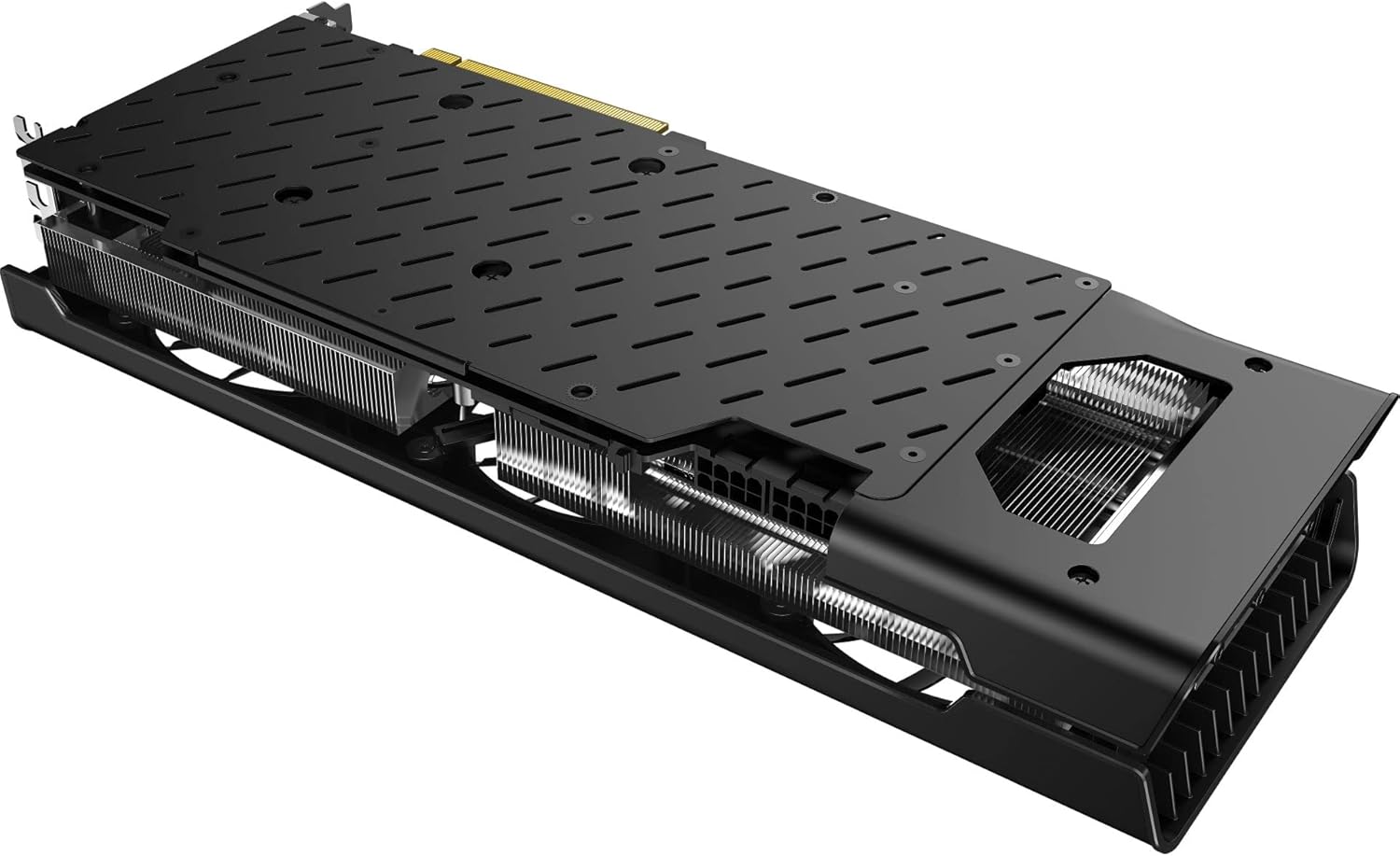
Figure 8.1: Bottom view of the graphics card. This image reveals the extensive heatsink fins, which are critical for dissipating heat and should be kept clear of dust for efficient cooling.
9. Troubleshooting
If you encounter issues with your graphics card, refer to the following common problems and solutions:
9.1. No Display Output
- Check Cables: Ensure all display cables (DisplayPort/HDMI) are securely connected to both the graphics card and the monitor.
- Check Power: Verify that the two 8-pin PCIe power connectors are firmly seated in the graphics card and connected to the PSU.
- Reseat Card: Power off your PC, unplug it, and reseat the graphics card in its PCIe slot.
- Monitor Input: Ensure your monitor is set to the correct input source.
9.2. Driver Issues or Instability
- Reinstall Drivers: Perform a clean installation of the latest drivers from the official AMD website. Use a utility like Display Driver Uninstaller (DDU) in Safe Mode to completely remove old drivers before installing new ones.
- Check OS Updates: Ensure your operating system is fully updated.
9.3. Poor Performance or Overheating
- Monitor Temperatures: Use AMD Software Adrenalin Edition or third-party tools to monitor GPU temperatures during operation.
- Improve Airflow: Ensure adequate airflow within your PC case. Clean dust from fans and heatsinks.
- Power Supply: Verify your PSU meets the recommended wattage for the graphics card and other system components.
- Game Settings: Reduce in-game graphics settings if performance is consistently low.
10. Specifications
Detailed technical specifications for the XFX Speedster SWFT319 AMD Radeon RX 6800 Gaming Graphics Card:
| Feature | Specification |
|---|---|
| Model Number | RX-68XLAQBD9 |
| Graphics Coprocessor | AMD Radeon RX 6800 |
| Chipset Brand | AMD |
| Graphics Card RAM Size | 16 GB GDDR6 |
| Memory Speed | 16 GHz |
| Max Screen Resolution | 3840x2160 |
| Video Output Interface | DisplayPort, HDMI |
| Cooling Solution | XFX Triple Fan |
| Item Weight | 3.76 pounds |
| Package Dimensions | 17.76 x 8.94 x 4.88 inches |
| Manufacturer | XFX |
| ASIN | B0DFMMF59C |
| Date First Available | August 29, 2024 |
11. Warranty and Support
XFX products are manufactured to the highest quality standards. For information regarding your product's warranty, please refer to the warranty card included with your product or visit the official XFX website.
11.1. Technical Support
For technical assistance, driver downloads, or further product information, please visit the official XFX support website:
When contacting support, please have your product model number (RX-68XLAQBD9) and serial number ready.