

1. Introduction
This manual provides detailed instructions for the installation, operation, and maintenance of your Mrolik T57 Portable 7-inch CarPlay Screen. This device is designed to enhance your driving experience by integrating wireless Apple CarPlay and Android Auto functionalities, offering navigation, communication, and entertainment features on a high-definition touchscreen display.

Figure 1.1: Front view of the Mrolik T57 Portable CarPlay Screen.

Figure 1.2: Rear view of the Mrolik T57 Portable CarPlay Screen, showing ventilation and product label.
2. Package Contents
Verify that all items listed below are included in your package:
- 1x Mrolik T57 CarPlay Screen
- 1x Cigarette Charger (12V car power adapter)
- 1x AUX Cable
- 1x Product Manual
- 1x Suction Mount Bracket
- 1x Adhesive Bracket
- 1x Bracket Fixing Sticker

Figure 2.1: Included accessories and main unit.
3. Setup and Installation
3.1 Mounting Options
The Mrolik T57 offers two primary mounting methods to suit your vehicle's interior:
- Suction Mount Bracket: Ideal for windshield mounting. Ensure the surface is clean and dry before application.
- Adhesive Bracket: Suitable for dashboard mounting. This mount is intended for a clean, flat surface and may not be reusable after removal.
Tighten all joints securely after positioning the screen to prevent movement. Ensure the screen does not obstruct your view of the road or interfere with vehicle controls.

Figure 3.1: Two types of mounting brackets and their installation methods.
3.2 Power Connection
Connect the provided cigarette charger to your vehicle's 12V power outlet and to the Mrolik T57 unit. The device requires continuous power from the 12V car power adapter during use. The unit is compatible with 12-24V vehicle systems.
4. Initial Setup and Connectivity
4.1 Wireless Apple CarPlay Connection
- Open the CarPlay application on the Mrolik T57 screen.
- On your iPhone, turn on Wi-Fi first, then Bluetooth.
- Search for the device named "F800_91174704" in your iPhone's Bluetooth settings and connect.
- Once connected, CarPlay will automatically launch on the screen.
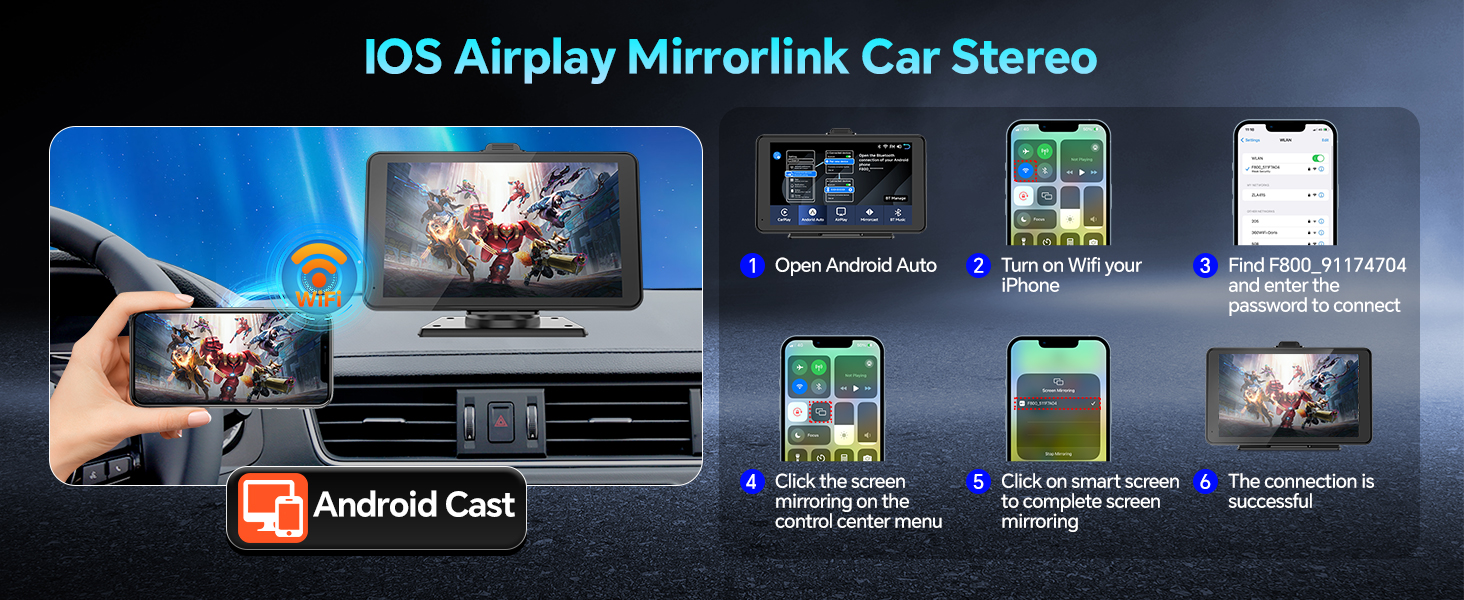
Figure 4.1: Wireless Apple CarPlay connection steps.
4.2 Wireless Android Auto Connection
- Select the "Android Auto" option on the Mrolik T57 screen.
- Open Bluetooth on your Android phone and select "F800_91174704".
- Wait for a few minutes for the device name to appear and connect.
- Once connected, Android Auto will launch on the screen.

Figure 4.2: Wireless Android Auto connection steps.
5. Operating Instructions
5.1 Audio Output Options
The Mrolik T57 offers four ways to output audio:
- Built-in Speaker: Audio plays directly from the device's integrated speaker.
- Bluetooth: Connect the Mrolik T57 to your car's stereo system via Bluetooth for audio output.
- FM Transmitter: Tune the Mrolik T57 and your car radio to the same unused FM frequency to transmit audio wirelessly. Audio quality may vary based on radio reception.
- AUX Input: Use the included AUX cable to connect the Mrolik T57 directly to your car's AUX input for a wired audio connection.
Figure 5.1: Available audio output methods.
5.2 Voice Control
Utilize Siri or Google Assistant for hands-free control of navigation, music, calls, and other supported functions. Ensure your smartphone's voice assistant is enabled.
- Activate by saying "Hey Siri" or "Hey Google" (if enabled on your phone).
- Issue commands such as "Navigate to [destination]", "Play [song/artist]", or "Call [contact]".

Figure 5.2: Voice control functionality for navigation and media.
5.3 GPS Navigation
Access live GPS navigation through your connected smartphone's mapping applications (e.g., Google Maps, Apple Maps, Waze). The screen displays real-time map information, traffic updates, and turn-by-turn directions.
5.4 Mirror Link (Apple Airplay & Android Cast)
The Mirror Link feature allows you to mirror your smartphone's screen onto the Mrolik T57 display. This is useful for viewing content not natively supported by CarPlay or Android Auto.
- Apple Airplay: For iOS devices, select the Airplay option on the screen, then enable screen mirroring on your iPhone and select the device.
- Android Cast: For Android devices, select the Android Cast option, then enable screen mirroring on your Android phone and select the device.

Figure 5.3: Mirror Link for displaying smartphone content.
5.5 Hands-free Calling
When connected via CarPlay or Android Auto, you can make and receive calls directly from the Mrolik T57 screen using your smartphone's cellular service. This feature helps maintain focus on driving by eliminating the need to handle your phone.

Figure 5.4: Hands-free calling feature.
5.6 Split-Screen Functionality
The split-screen mode allows you to view two applications simultaneously, such as navigation and music playback, for a customized driving experience.
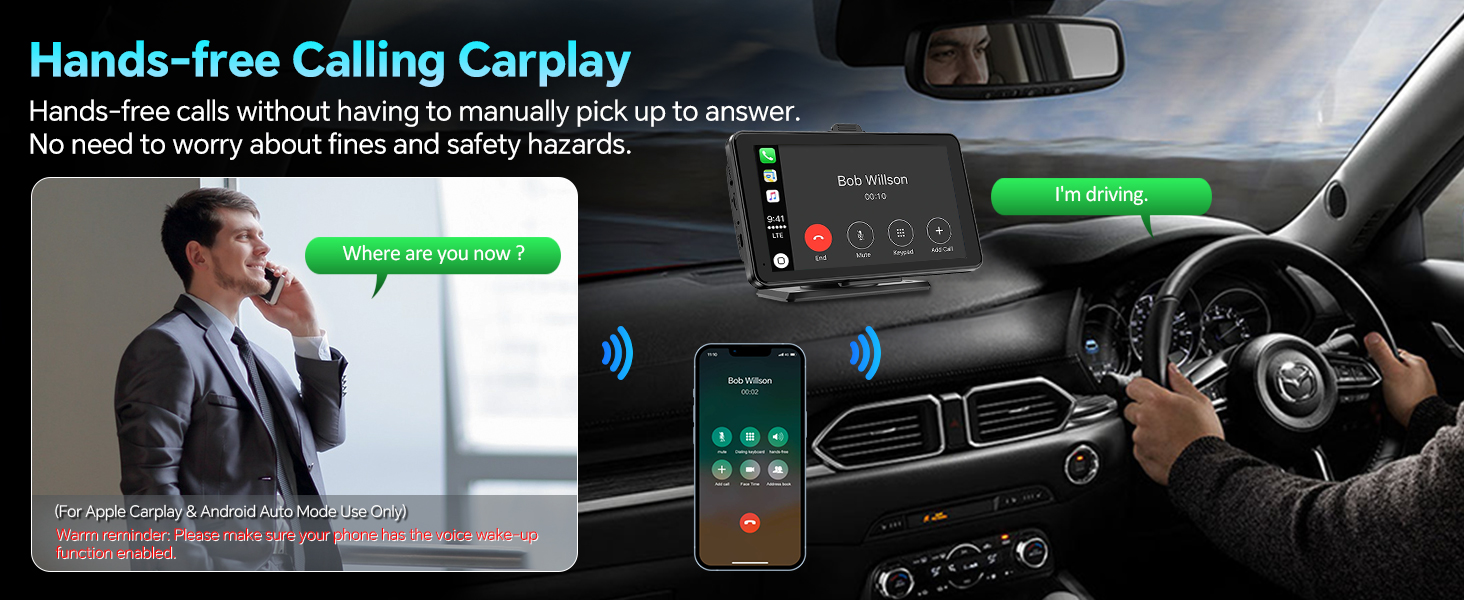
Figure 5.5: Split-screen display for multitasking.
5.7 Screen Settings
- Brightness Adjustment: The screen supports custom brightness settings. Access this option through the device's settings menu.
- Screen Saver: To reduce power consumption, the system can automatically turn off the screen if no operations are performed within a set time (e.g., 1, 2, or 3 minutes). This feature can be configured in the settings.
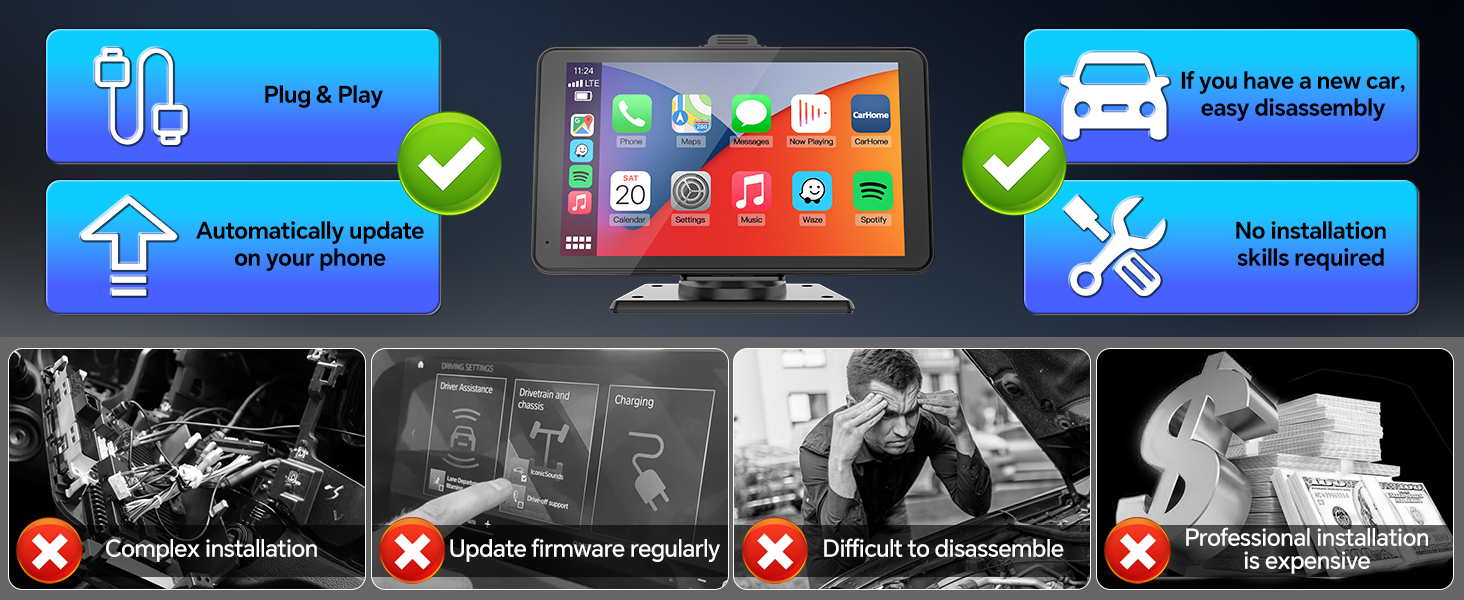
Figure 5.6: Screen saver function for power efficiency.
6. Maintenance
To ensure the longevity and optimal performance of your Mrolik T57 CarPlay Screen, follow these maintenance guidelines:
- Cleaning: Use a soft, lint-free cloth to clean the screen. For stubborn smudges, slightly dampen the cloth with water or a screen-safe cleaner. Avoid harsh chemicals or abrasive materials.
- Environmental Conditions: Avoid exposing the device to extreme temperatures, direct sunlight for prolonged periods, or excessive moisture. Display visibility may be reduced in direct sunlight or when wearing polarized glasses.
- Storage: If removing the device from your vehicle, store it in a cool, dry place.
7. Troubleshooting
If you encounter issues with your Mrolik T57, refer to the following common problems and solutions:
| Problem | Possible Cause / Solution |
|---|---|
| Device does not power on. | Ensure the cigarette charger is securely connected to both the device and the vehicle's 12V outlet. Verify the vehicle's power outlet is functional. |
| Cannot connect to Wireless CarPlay/Android Auto. | Ensure Wi-Fi and Bluetooth are enabled on your smartphone. Confirm the device name "F800_91174704" is selected in your phone's Bluetooth settings. Restart both the Mrolik T57 and your smartphone. |
| Poor audio quality via FM Transmitter. | Tune both the Mrolik T57 and your car radio to an unused FM frequency. Avoid frequencies used by local radio stations. Static may occur in areas with strong radio interference. |
| No sound or low volume via AUX. | Ensure the AUX cable is fully inserted into both the Mrolik T57 and your car's AUX input. Check the volume levels on both the device and your car stereo. Verify your car stereo's input is set to AUX. |
| Screen mirroring not working. | Ensure your phone and the Mrolik T57 are connected via Wi-Fi. For iOS, use Apple Airplay. For Android, use Android Cast. Confirm screen mirroring is enabled on your smartphone. |
8. Specifications
| Feature | Detail |
|---|---|
| Model Number | T57 Carplay |
| Brand | Mrolik |
| Screen Size | 7 inches |
| Display Type | HD Touchscreen |
| Connectivity Technology | Auxiliary, Bluetooth, Wi-Fi |
| Controller Type | Touch |
| Special Features | Voice Control, GPS Navigation, Apple CarPlay, Screen Mirroring, Split-Screen Functionality |
| Compatible Devices | Audio Amplifier, Mobile Phone |
| Power Input | 12-24V (via cigarette charger) |
| Audio Output Mode | Stereo, Surround, Mono |
| Dimensions | 22.7 x 15 x 7.9 cm |
| Weight | 710 g |
9. Warranty and Support
9.1 Warranty Information
Mrolik offers a 90-day return or exchange policy for any reason. The product also comes with continuous lifetime after-sales and technical support.
9.2 Contact Support
For technical assistance or warranty claims, please contact Mrolik customer support. Refer to the contact information provided with your purchase or on the official Mrolik website.
Manufacturer Contact Information: Room 706, Unit 22 # 2, Nanshui Central Park Jiujiang City Jiangxi Province three hundred and thirty-two thousand CN