
DOOGEE V40 Rugged Smartphone Unlocked 5G
DOOGEE V40 Rugged Smartphone User Manual
Model: V40 | Brand: DOOGEE
1. Introduction
Thank you for choosing the DOOGEE V40 Rugged Smartphone. This device is engineered for exceptional durability and performance, making it suitable for various demanding conditions. It combines advanced technology with robust construction to provide a reliable mobile experience. This manual will guide you through the setup, operation, and maintenance of your new smartphone.
2. Safety Information
Please read this section carefully before using your device to ensure safe and proper operation. Failure to follow these guidelines may result in injury, damage to the device, or voiding of the warranty.
- Water and Dust Resistance: While the DOOGEE V40 is rated IP68, IP69K, and MIL-STD-810H for water, dust, and drop resistance, it is not indestructible. Ensure all port covers are securely closed before exposing the device to water or dust. Avoid prolonged submersion or exposure to high-pressure water jets.
- Temperature: Do not expose the device to extreme temperatures (below -40°C or above +70°C). This can damage the battery and internal components.
- Battery: Do not attempt to replace the battery yourself. Only authorized service centers should perform battery replacement. Avoid puncturing, heating, or disassembling the battery.
- Charging: Use only DOOGEE-approved chargers and cables. Unapproved accessories may cause fire, explosion, or other hazards.
- Repairs: Do not attempt to repair the device yourself. Unauthorized repairs will void the warranty and may cause further damage.
- Disposal: Dispose of the device and its battery responsibly according to local regulations. Do not dispose of them with household waste.
3. Package Contents
Verify that all items are present in your DOOGEE V40 package:
- 1 x DOOGEE V40 5G Cellphone
- 1 x Type-C USB Cable
- 1 x Charger (33W Fast Charger)
- 1 x Packing Box
- 1 x User Manual and Warranty Card
- 1 x Screen Protector Accessories (including thick protective film)

Image: Contents included in the DOOGEE V40 retail box.
4. Product Overview
Familiarize yourself with the physical components and key features of your DOOGEE V40 Rugged Smartphone.

Image: Front and back view of the DOOGEE V40 Rugged Smartphone.
4.1 Key Components
- Display: 6.78-inch FHD+ IPS display with 120Hz refresh rate for smooth visuals and responsive touch.
- Rear Camera System: Features a 108MP main camera, 20MP night vision camera, and an 8MP ultra-wide/macro camera.
- Front Camera: 16MP Ultra HD front camera for high-quality selfies and video calls.
- Side-mounted Fingerprint Sensor: Integrated into the power button for quick and secure unlocking.
- USB Type-C Port: For charging and data transfer.
- SIM/TF Card Slot: Supports dual 5G SIM cards and a TF card for expandable storage up to 2TB.
4.2 Core Technologies

Image: Illustration of the 4nm MediaTek Dimensity 7300 Octa-core 5G Chip.
- Processor: Powered by the 4nm MediaTek Dimensity 7300 Octa-core 5G chip, ensuring powerful performance and energy efficiency.
- Memory & Storage: Equipped with 12GB Basic RAM (expandable to 32GB with virtual expansion) and 512GB ROM, supporting up to 2TB TF card expansion.

Image: Visual representation of the 12GB RAM and 512GB ROM with expansion capabilities.
- Battery: A large 8680mAh battery provides extended usage, complemented by 33W fast charging.
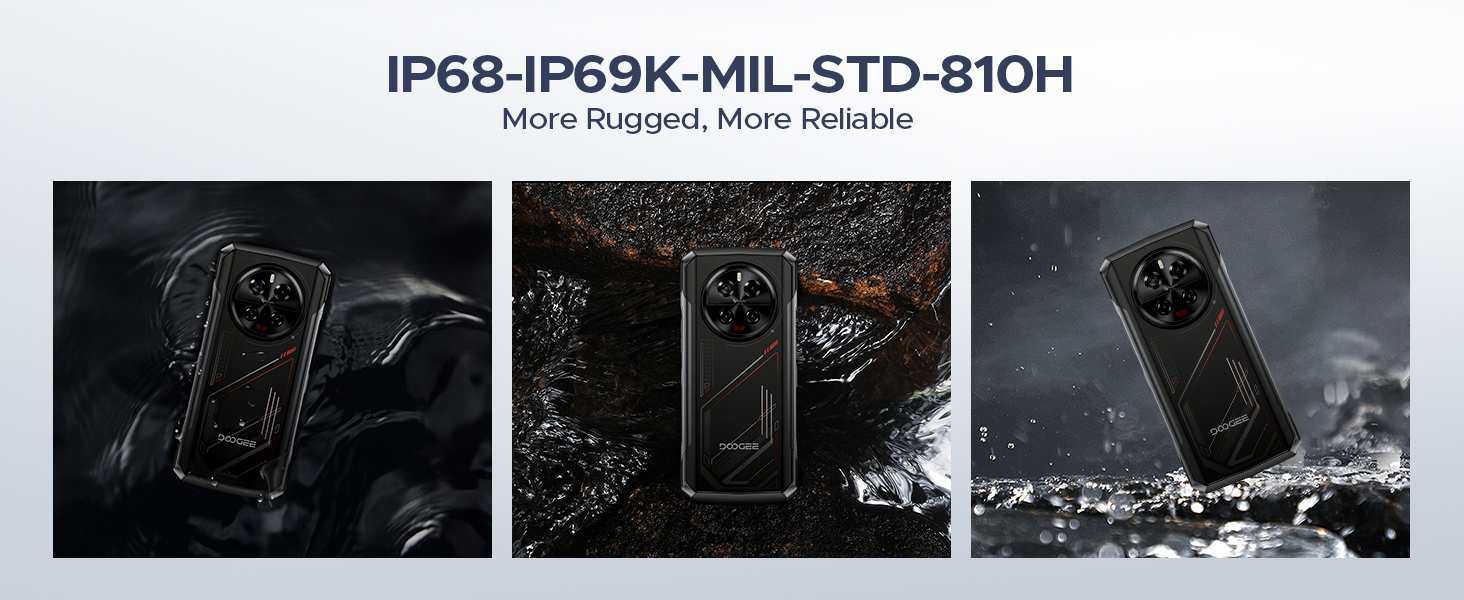
Image: The 8680mAh large battery with 33W fast charging capability.
- Operating System: Runs on the latest Android 14 with DOOGEE OS 4.0, offering enhanced features like Game Mode, App Cloning, and Dynamic Capsule.

Image: Overview of the new DOOGEE OS 4.0 based on Android 14.
4.3 Durability Features

Image: The DOOGEE V40 demonstrating its IP68, IP69K, and MIL-STD-810H durability in various environments.
The DOOGEE V40 is built to withstand harsh conditions, certified with:
- IP68: Water and dust resistant.
- IP69K: Resistant to high-pressure, high-temperature water jets.
- MIL-STD-810H: Military-grade durability against drops, shocks, and extreme temperatures.
5. Setup
5.1 SIM and TF Card Installation
- Locate the SIM card tray on the side of the device.
- Insert the SIM ejector tool (or a small paperclip) into the small hole next to the tray and press firmly until the tray pops out.
- Carefully pull out the tray.
- Place your Nano-SIM cards and/or TF card into the designated slots on the tray. Ensure the gold contacts are facing down and the cards are correctly oriented.
- Gently push the tray back into the slot until it is flush with the device.
5.2 Initial Power On and Setup Wizard
- Press and hold the Power button (located on the side) until the DOOGEE logo appears.
- Follow the on-screen instructions to complete the initial setup. This typically includes selecting your language, connecting to a Wi-Fi network, setting up your Google account, and configuring security features like fingerprint or Face ID.
5.3 Charging the Device
Before first use, it is recommended to fully charge your DOOGEE V40. Connect the provided Type-C USB cable to the phone's charging port and the other end to the 33W fast charger. Plug the charger into a power outlet. The battery indicator on the screen will show the charging status.
6. Operating Instructions
6.1 Basic Navigation
- Touchscreen Gestures: Tap to select, swipe to scroll, pinch to zoom.
- Power Button: Press to wake/sleep the screen, press and hold to power off or restart.
- Volume Buttons: Adjust media volume, call volume, and ringtone volume.
6.2 Calls and Messaging
- Making Calls: Open the Phone app, enter the number, and tap the call icon.
- Sending Messages: Open the Messages app, start a new conversation, enter the recipient and your message.
6.3 Camera Usage
The DOOGEE V40 features a versatile camera system:

Image: Overview of the DOOGEE V40's camera system and Morpho Imaging Algorithm.
- Open Camera App: Tap the Camera icon on your home screen or app drawer.
- Switch Modes: Swipe left or right on the screen to switch between Photo, Video, Night Vision, Macro, and other modes.
- Take Photos/Videos: Tap the shutter button to capture a photo or start/stop video recording.
- Zoom: Pinch in or out on the screen to adjust zoom.
Video: DOOGEE V40 Android 14 Rugged Smartphone, Gaming Phone. This video demonstrates the phone's performance and gaming capabilities.
Video: DOOGEE V40 Rugged Phone, 200MP AI Camera+20MP Night Vision. This video highlights the advanced camera features of the phone.
6.4 Connectivity
- Wi-Fi: Connect to Wi-Fi networks via Settings > Network & internet > Wi-Fi. Supports Wi-Fi 6E for fast and stable connections.
- Bluetooth: Pair with Bluetooth devices via Settings > Connected devices > Bluetooth. Supports Bluetooth 5.4.
- NFC: Enable NFC for contactless payments (Google Pay) and quick data sharing via Settings > Connected devices > Connection preferences > NFC.
6.5 Security Features
- Fingerprint Unlock: Register your fingerprints via Settings > Security & privacy > Device unlock > Fingerprint unlock.
- Face ID: Set up face recognition for convenient unlocking via Settings > Security & privacy > Device unlock > Face unlock.
6.6 Battery Management
- Power Saving Mode: Activate battery saver to extend battery life when needed via Settings > Battery > Battery Saver.
- Reverse Charging (OTG): Use your DOOGEE V40 as a power bank to charge other devices. Connect the devices using an OTG cable.

Image: The DOOGEE V40's OTG reverse charging capability, allowing it to charge other devices.
6.7 DOOGEE OS 4.0 Features
- Game Mode (No Disturb): Optimize your gaming experience by minimizing distractions.
- App Cloning: Run multiple instances of the same app, useful for managing different accounts.
- Drama Mode (Video): Enhance video viewing experience.
- Dynamic Capsule: Provides quick access to notifications and system information.
7. Maintenance
Proper maintenance will extend the lifespan of your DOOGEE V40.
- Cleaning: Use a soft, lint-free cloth to clean the screen and body. For stubborn dirt, slightly dampen the cloth with water. Avoid harsh chemicals or abrasive materials.
- Software Updates: Regularly check for and install system updates via Settings > System > System update. Updates provide new features, security patches, and performance improvements.
- Battery Care: Avoid fully discharging the battery frequently. For long-term storage, charge the device to about 50% and store it in a cool, dry place.
- Storage Management: Periodically clear unnecessary files and apps to free up storage space and maintain optimal performance.
8. Troubleshooting
If you encounter issues with your DOOGEE V40, try the following solutions before contacting support:
| Problem | Possible Solution |
|---|---|
| Device won't turn on | Ensure the battery is charged. Connect to the charger and wait a few minutes before attempting to power on again. If it still doesn't turn on, try holding the Power button for 10-15 seconds. |
| Battery drains quickly | Close unused apps running in the background. Reduce screen brightness. Turn off Wi-Fi, Bluetooth, or GPS when not in use. Check battery usage in Settings to identify power-hungry apps. |
| Apps are crashing or freezing | Restart the app. Clear the app's cache and data (Settings > Apps > [App Name] > Storage > Clear cache/Clear data). Update the app to the latest version. If the problem persists, uninstall and reinstall the app. |
| Cannot connect to Wi-Fi/Mobile Network | Restart the device. Toggle Wi-Fi/Mobile Data off and on. Check if Airplane Mode is enabled. For Wi-Fi, restart your router. For mobile network, ensure SIM card is properly inserted and you have signal. |
| Fingerprint sensor not working | Ensure your finger is clean and dry. Re-register your fingerprints in Settings. |
| Device is slow or unresponsive | Clear cache, uninstall unnecessary apps, and free up storage space. Restart the device. As a last resort, perform a factory reset (back up your data first). |
Video: DOOGEE V40 5G Rugged Phone, 36GB+512GB Android 14. This video showcases the phone's overall performance and features.
9. Specifications
Detailed technical specifications for the DOOGEE V40 Rugged Smartphone:
| Feature | Specification |
|---|---|
| Model Name | V40 Rugged Smartphone Unlocked 5G |
| Operating System | Android 14 |
| CPU Model | MediaTek Dimensity 7300 Octa-core (4nm) |
| RAM | 12GB (expandable to 32GB) |
| Internal Storage (ROM) | 512GB |
| Expandable Storage | Up to 2TB via TF card |
| Display Size | 6.78 Inches |
| Display Resolution | 2560 x 1440 (FHD+) |
| Refresh Rate | 120 Hz |
| Main Camera | 108MP |
| Night Vision Camera | 20MP |
| Ultra-wide/Macro Camera | 8MP |
| Front Camera | 16MP |
| Battery Capacity | 8680mAh |
| Charging | 33W Fast Charging |
| Durability Ratings | IP68, IP69K, MIL-STD-810H |
| Connectivity | 5G, Dual SIM, Wi-Fi 6E, Bluetooth 5.4, NFC |
| Item Weight | 13.3 ounces |
| Color | RED |
Video: DOOGEE V40 Rugged Smartphone 5G Unlocked, NFC/WiFi 6E/Face ID. This video highlights the connectivity and security features.
10. Warranty and Support
Your DOOGEE V40 Rugged Smartphone comes with a limited warranty. Please refer to the 'Manual and Warranty Card' included in your package for detailed terms and conditions, including warranty period and coverage.
For technical support, troubleshooting assistance, or warranty claims, please visit the official DOOGEE website or contact their customer service. Keep your purchase receipt as proof of purchase for warranty services.
Video: DOOGEE V40 Rugged Phone 5G, Android 14 Rugged Smartphone. This video provides a general overview of the phone's capabilities.
Video: DOOGEE V40 Rugged SmartPhone Unlocked with 1.47" Rear Screen. This video highlights the unique rear screen feature.
Related documentsV40 Rugged Smartphone Unlocked 5G


Ask a question about this manual
Ask about setup, troubleshooting, compatibility, parts, safety, or missing instructions. Manuals+ will review the question and use this page’s manual context to help answer it.