
TOPDON Phoenix Lite 3
TOPDON Phoenix Lite 3 Diagnostic Scan Tool User Manual
Model: Phoenix Lite 3
1. Introduction
The TOPDON Phoenix Lite 3 is an advanced diagnostic scan tool designed for automotive professionals and enthusiasts. This 2025 upgraded version of the Phoenix Lite 2 offers comprehensive vehicle diagnostics, including advanced ECU coding, Topology Mapping, and support for CAN-FD protocols. It is engineered to provide in-depth insights and extensive functionality for modern vehicle systems.
This manual provides detailed instructions on setting up, operating, maintaining, and troubleshooting your Phoenix Lite 3 device to ensure optimal performance and longevity.
2. Package Contents and Setup
Upon unboxing your TOPDON Phoenix Lite 3, verify that all components are present. The standard package includes the Phoenix Lite 3 tablet, an MDCI Dongle, various OBDII and OBDI adapter cables, battery clamps, a cigarette lighter cable, fuses, USB cables, and a power supply with multiple adapters.
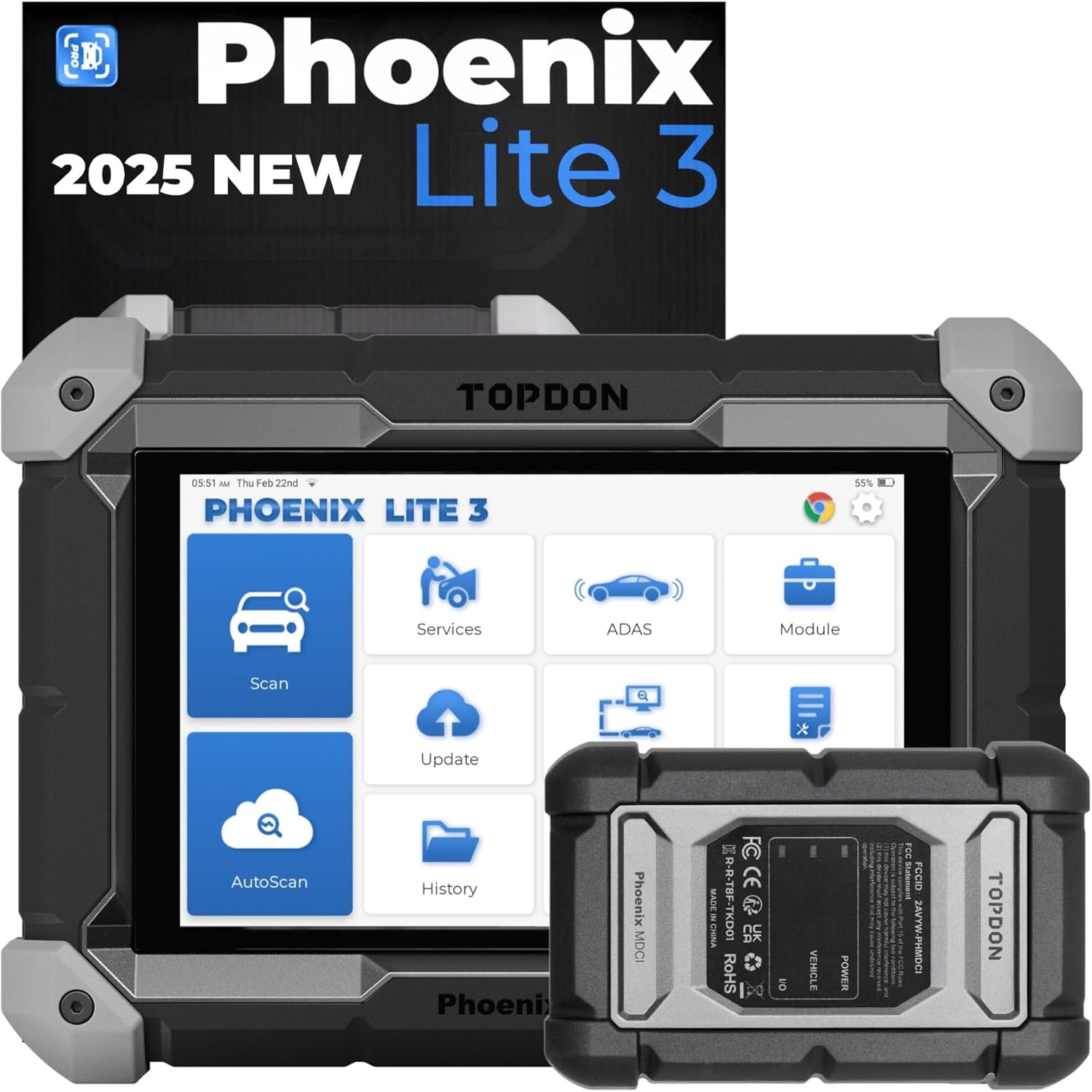
Figure 2.1: The TOPDON Phoenix Lite 3 diagnostic tablet and its accompanying MDCI dongle.
2.1 Initial Setup and Power On
- Charge the Device: Before first use, fully charge the Phoenix Lite 3 using the provided power adapter.
- Power On: Press and hold the power button located on the side of the tablet until the TOPDON logo appears on the screen.
- Wi-Fi Connection: Follow the on-screen prompts to connect the device to a stable Wi-Fi network. This is crucial for software updates and online functions.
- Software Updates: After connecting to Wi-Fi, navigate to the "Update" section on the main menu to download and install the latest software. Regular updates ensure optimal performance and compatibility with new vehicle models.
2.2 Connecting to a Vehicle
The Phoenix Lite 3 connects to vehicles via the MDCI Dongle, which communicates wirelessly with the tablet.
- Locate OBD-II Port: Identify the vehicle's OBD-II diagnostic port, typically located under the dashboard on the driver's side.
- Connect MDCI Dongle: Plug the MDCI Dongle into the vehicle's OBD-II port. Ensure a secure connection.
- Establish Communication: The MDCI Dongle will automatically pair with the Phoenix Lite 3 tablet. A successful connection will be indicated on the tablet's screen.
- Vehicle Identification: Use the "AutoScan" feature for quick VIN recognition and automatic system scanning.
Video 2.1: An unboxing and overview of the TOPDON Phoenix Lite 3, demonstrating its components and initial setup steps.
3. Operating the Phoenix Lite 3
The Phoenix Lite 3 offers a user-friendly interface with various diagnostic and service functions.
3.1 Full Systems Diagnostic & Active Testing
This tool can access and diagnose all available vehicle systems, including engine, transmission, ABS, airbag, and more. Active testing allows for commanding vehicle components to perform specific functions for quick troubleshooting.

Figure 3.1: The Phoenix Lite 3 interface showing options for OE-Level Full System Diagnostics, including ECM, TCM, ABS, TPMS, SRS, ACC, EPS, BMS, EPB, AC, and IC systems.
3.2 Topology Mapping
Topology Mapping provides a visual representation of the vehicle's communication network, allowing for quick identification of faulty modules and understanding system interdependencies. This feature streamlines the diagnostic process.
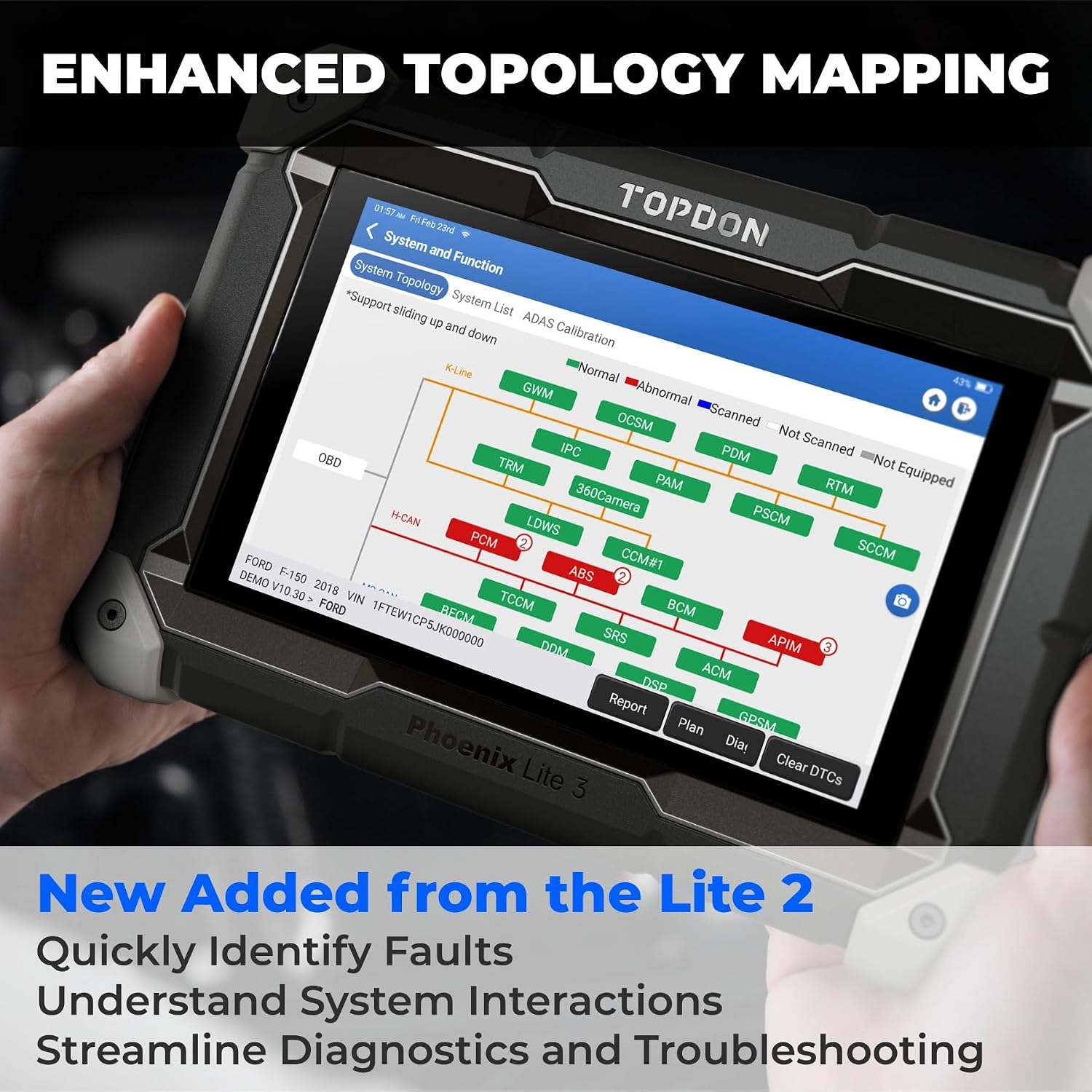
Figure 3.2: The Phoenix Lite 3 screen showing an enhanced topology map, which helps in quickly identifying faults and understanding system interactions within the vehicle's network.
3.3 ECU Online Coding
This function allows for advanced coding tasks such as ECU replacement matching, coding, and unlocking hidden features for a wide range of vehicle brands, including VW, SEAT, SKODA, PORSCHE, and BMW.

Figure 3.3: An illustration of the advanced ECU coding feature, enabling users to unlock hidden features, customize OE-settings, and code/match components.
3.4 35+ Maintenance Services
The Phoenix Lite 3 provides an extensive suite of over 35 maintenance and reset functions to assist with routine vehicle servicing. Key services include:
- Oil Reset
- EPB (Electronic Parking Brake) Reset
- ABS Bleeding
- Injector Coding
- EGR (Exhaust Gas Recirculation) Reset
- A/F (Air/Fuel) Learning
- AdBlue Reset
- TPMS (Tire Pressure Monitoring System) Reset
- SAS (Steering Angle Sensor) Adjustment
- BMS (Battery Management System) Reset
- Throttle Relearn
- DPF (Diesel Particulate Filter) Regeneration

Figure 3.4: A visual representation of some of the 35+ maintenance services available on the Phoenix Lite 3, including ABS Bleeding, Inject Coding, Oil Reset, DPF Regeneration, TPMS Reset, Throttle Relearn, SAS Adjustment, and BMS Reset.
3.5 CAN-FD Protocol Support
The Phoenix Lite 3 supports the latest CAN-FD protocol, enabling diagnostics on newer vehicle models from manufacturers such as GM (many 2021+ models), VAG (Audi, Volkswagen, Porsche), Mercedes-Benz (select recent models), and BMW (newer series).

Figure 3.5: The Phoenix Lite 3 and its MDCI dongle, highlighting support for the CAN-FD protocol across various vehicle brands.
3.6 Bi-Directional Control
This feature allows the tool to send commands to vehicle components and monitor their operation, facilitating quick and accurate troubleshooting. Examples include testing oil injectors, windows, windshield wipers, and brake lights.

Figure 3.6: Examples of bi-directional control functions, such as testing oil injectors, windows, windshield wipers, and brake lights.
3.7 FCA AutoAuth and Data Management
The Phoenix Lite 3 supports FCA AutoAuth for secure access to protected FCA vehicle systems. It also offers robust data reporting and sharing capabilities, allowing users to generate and export diagnostic reports.
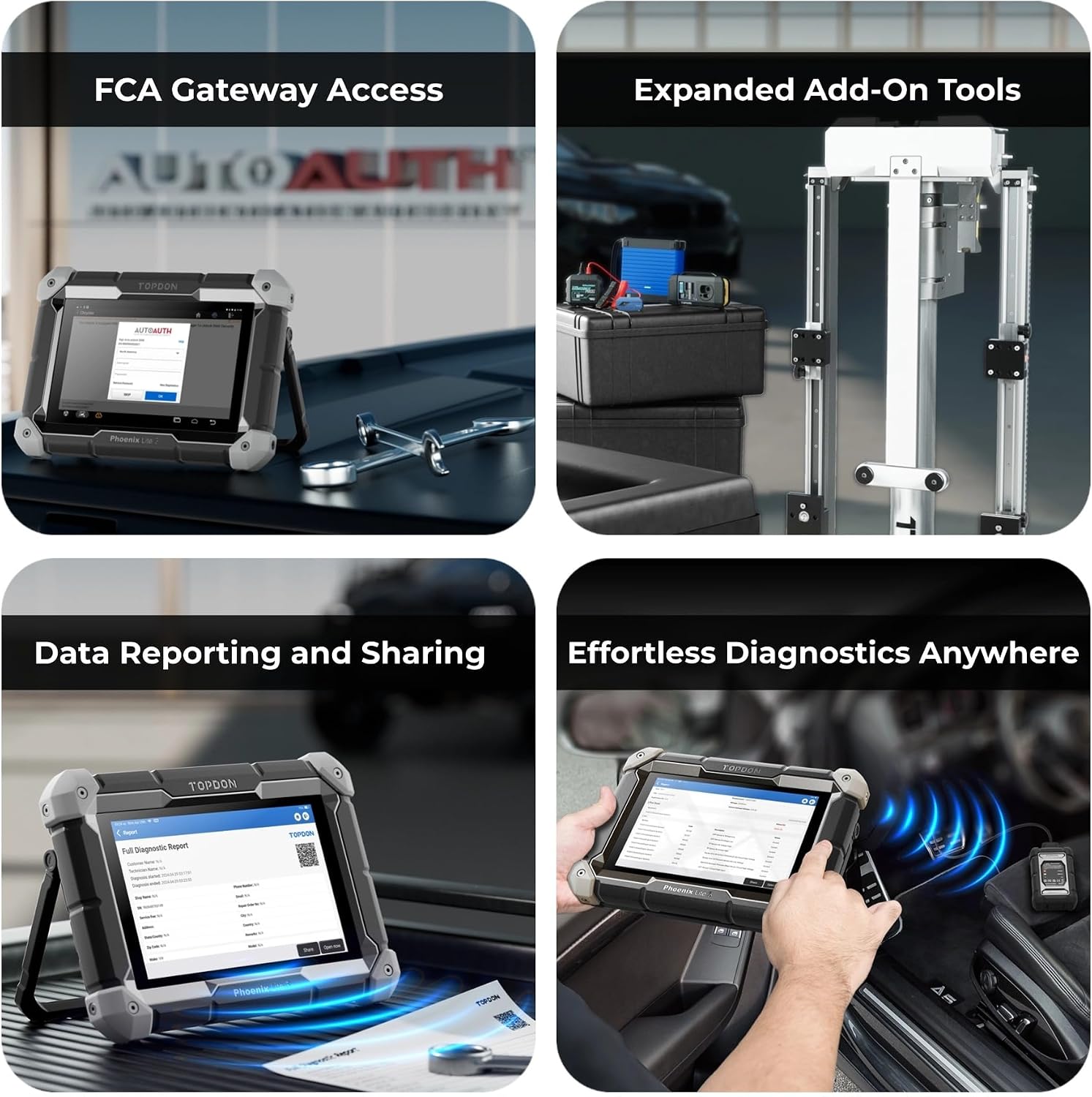
Figure 3.7: Features including FCA Gateway Access, expanded add-on tools compatibility, data reporting and sharing, and effortless wireless diagnostics.
4. Maintenance
Proper maintenance ensures the longevity and optimal performance of your Phoenix Lite 3.
- Software Updates: Regularly check for and install software updates via Wi-Fi. TOPDON provides two years of free updates from the date of purchase. Continued updates beyond this period may require a subscription.
- Cleaning: Use a soft, damp cloth to clean the tablet screen and body. Avoid abrasive cleaners or solvents.
- Battery Care: To prolong battery life, avoid extreme temperatures and store the device with a partial charge if not used for extended periods.
- Storage: Store the device and its accessories in the provided carrying case in a dry, cool environment when not in use.
5. Troubleshooting
This section addresses common issues you might encounter with your Phoenix Lite 3.
| Problem | Possible Cause | Solution |
|---|---|---|
| Device does not power on. | Low battery; power button not held long enough; hardware issue. | Charge the device for at least 30 minutes. Press and hold the power button for 5-10 seconds. If issue persists, contact TOPDON support. |
| Cannot connect to vehicle. | MDCI Dongle not properly connected; vehicle ignition off; MDCI Dongle not paired; software glitch. | Ensure MDCI Dongle is securely plugged into OBD-II port. Turn vehicle ignition to ON position. Restart the Phoenix Lite 3 and MDCI Dongle. Check for software updates. |
| Wi-Fi connection issues. | Incorrect password; out of range; network interference. | Verify Wi-Fi password. Move closer to the Wi-Fi router. Try connecting to a different network if available. |
| Slow performance. | Too many applications running; low storage; outdated software. | Close unnecessary applications. Clear cache/data if possible. Perform a software update. |
6. Specifications
- Brand: TOPDON
- Model: Phoenix Lite 3
- Product Dimensions: 7.2"L x 1.99"W x 10.16"H
- Item Weight: 2.61 pounds
- Operating System: Android 10.0
- Display Resolution: 1280x800
- Automotive Fit Type: Universal Fit
- Batteries: 1 Lithium Ion battery required (included)
- Country of Origin: China
7. Warranty and Support
TOPDON is committed to providing high-quality products and excellent customer service. The Phoenix Lite 3 comes with a standard warranty as per regional regulations. Additionally, extended protection plans are available for purchase to cover your device for longer periods.
For technical support, troubleshooting assistance, or warranty inquiries, please visit the official TOPDON website or contact their customer service team. TOPDON aims to support customers from initial problem identification to resolution.
For more information, visit: TOPDON Official Store
Related documentsPhoenix Lite 3


Ask a question about this manual
Ask about setup, troubleshooting, compatibility, parts, safety, or missing instructions. Manuals+ will review the question and use this page’s manual context to help answer it.