
Introduction
This manual provides instructions for the setup, operation, and maintenance of your RadioShack Wireless Gaming Mouse. Please read this manual thoroughly before using the product to ensure proper function and longevity.
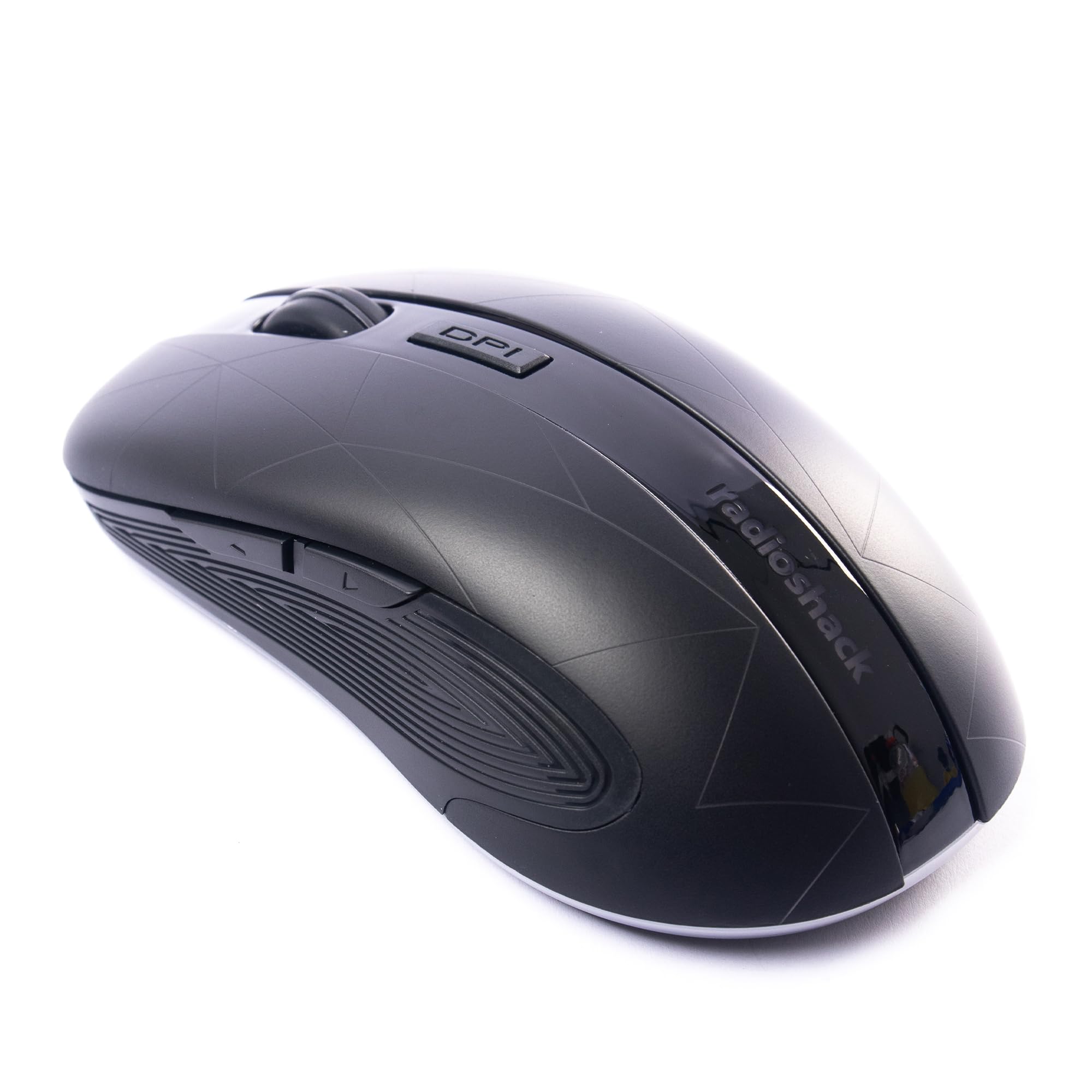
Image: The RadioShack Wireless Gaming Mouse, showcasing its ergonomic design and button layout.
Package Contents
Verify that all items are present in the package:
- 1 x RadioShack Wireless Gaming Mouse
- 1 x USB Nano Receiver
- 1 x Charging Cable

Image: An infographic detailing the contents of the product package, including the wireless gaming mouse.
Setup
- Charge the Mouse: Before first use, connect the mouse to a USB power source using the provided charging cable. The LED indicator will show charging status.
- Locate the USB Nano Receiver: The USB nano receiver is typically stored in a compartment on the underside of the mouse for convenience.
- Connect the Receiver: Insert the USB nano receiver into an available USB port on your computer (laptop or desktop).
- Power On the Mouse: Locate the power switch on the underside of the mouse and slide it to the "ON" position.
- Driver Installation: The mouse is plug-and-play. Your operating system (Windows, Mac, Linux, Chrome OS) should automatically detect and install the necessary drivers.

Image: The wireless gaming mouse shown alongside its compact USB nano receiver, ready for connection.
Operating Instructions
Basic Functionality
The mouse operates like a standard wireless mouse. Move the mouse to control the cursor on your screen. Use the left and right click buttons for primary and secondary actions, respectively. The scroll wheel allows for vertical scrolling.
Adjusting DPI (Sensitivity)
The mouse features an adjustable DPI setting, allowing you to change cursor sensitivity. Press the DPI button located behind the scroll wheel to cycle through available DPI settings (800, 1200, 1600, 2400). Each press will change the sensitivity, indicated by a brief LED flash.

Image: A side view of the mouse, illustrating the location of the DPI button for sensitivity adjustments.
Programmable Buttons
This mouse is equipped with 6 programmable buttons, including customizable side buttons. For advanced customization and macro assignments, you may need to download specific software from the RadioShack support website (if available). Refer to the software's instructions for detailed programming steps.

Image: The wireless gaming mouse from an angle, clearly showing the side buttons which can be programmed for various functions.
Charging the Mouse
The mouse uses a built-in rechargeable Lithium Ion battery. When the battery is low, the LED indicator may flash or change color. Connect the provided charging cable to the mouse's charging port and to a USB power source (e.g., computer USB port, USB wall adapter). The LED will indicate charging status and turn off or change color when fully charged.
A full charge typically provides several hours of use, depending on usage patterns.
Maintenance
- Cleaning: Use a soft, dry cloth to clean the mouse. For stubborn dirt, a slightly damp cloth can be used, ensuring no moisture enters the device.
- Storage: When not in use for extended periods, turn off the mouse to conserve battery life. Store the USB nano receiver inside the mouse's compartment to prevent loss.
- Avoid Extreme Conditions: Do not expose the mouse to extreme temperatures, direct sunlight, or high humidity.
Troubleshooting
| Problem | Solution |
|---|---|
| Mouse not responding |
|
| Lag or intermittent connection |
|
| Cursor movement is erratic or imprecise |
|
Specifications
- Model Number: 2604789
- Connectivity: 2.4 GHz Wireless
- Buttons: 6 (Programmable)
- DPI Settings: 800, 1200, 1600, 2400 (Adjustable)
- Movement Detection: Optical
- Battery: 1 Lithium Ion (Rechargeable, included)
- Operating Range: Up to 10 meters
- Compatibility: Windows, Mac, Linux, Chrome OS
- Dimensions: 4.9" x 2.6" x 1.5"
- Weight: 6.2 ounces
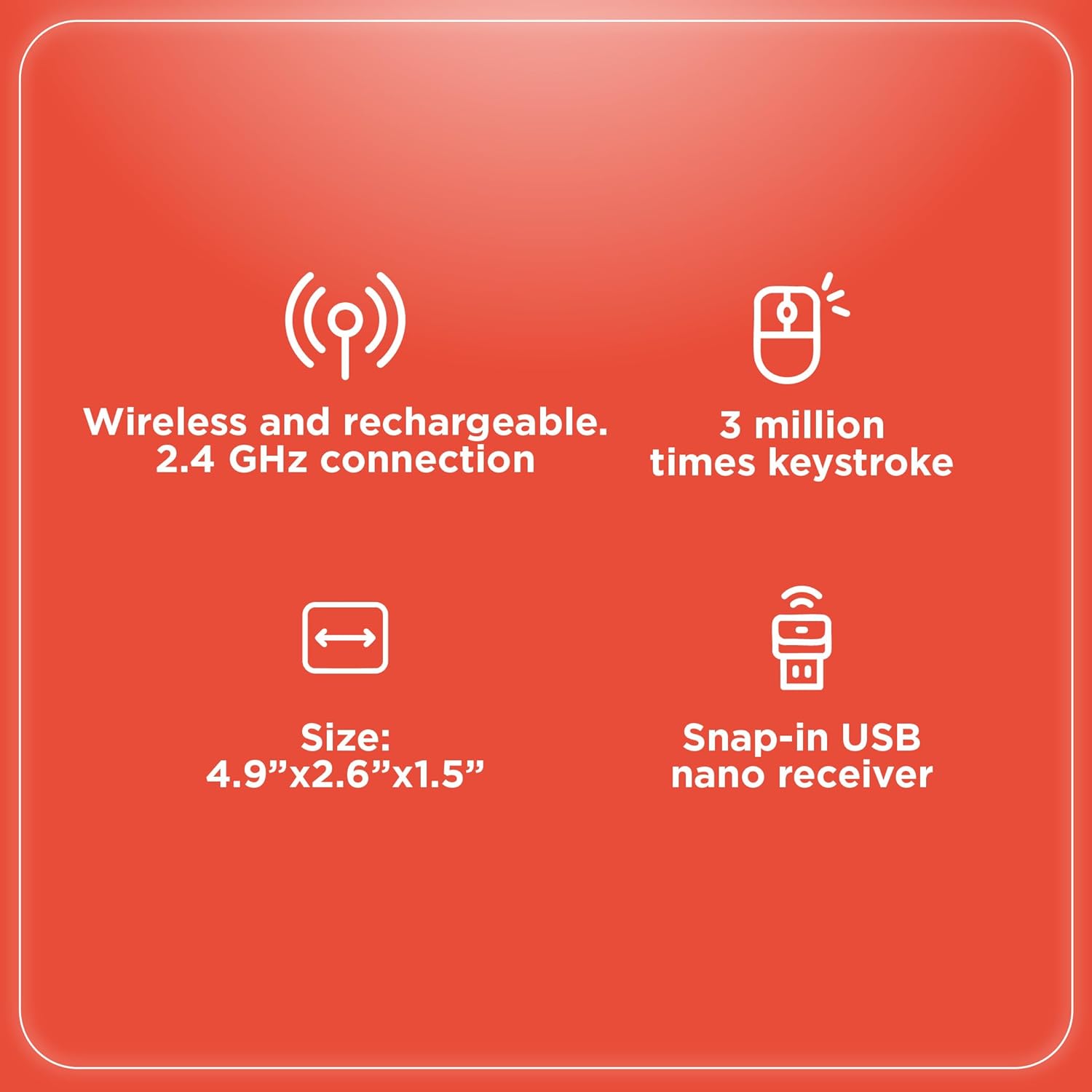
Image: An infographic summarizing key specifications of the wireless gaming mouse, including connectivity, battery, and dimensions.
Warranty and Support
For warranty information and technical support, please refer to the official RadioShack website or contact their customer service. Keep your purchase receipt as proof of purchase for warranty claims.
Manufacturer: RadioShack
Date First Available: August 28, 2024


