
1. Introduction
The Thermaltake TH240 V2 Ultra EX ARGB AIO Cooler is an all-in-one liquid cooling solution designed for high-performance CPU cooling. It features a 2.1-inch TFT-LCD display on the water block, allowing for real-time system monitoring and customizable graphics. The cooler incorporates MagForce 2.0 magnetic connection for simplified fan daisy-chaining and addressable RGB lighting for aesthetic customization. This manual provides essential information for the proper installation, operation, and maintenance of your cooler.

Image: The Thermaltake TH240 V2 Ultra EX ARGB AIO Cooler, showcasing its radiator, two vibrant ARGB fans, and the water block with an active LCD display indicating liquid temperature.
2. Safety Information
Please read and understand all safety instructions before installing or operating this product. Failure to follow these instructions may result in damage to the product, personal injury, or voiding of the warranty.
- Ensure your computer system is powered off and unplugged from the wall outlet before installation.
- Handle components with care to avoid damage. Avoid touching electrical contacts.
- Do not open the sealed liquid cooling loop. Tampering with the loop can cause leaks and void the warranty.
- Keep the product away from water, moisture, and extreme temperatures.
- Use only the provided accessories and mounting hardware.
- If any liquid leakage is observed, immediately power off your system and disconnect it from the power source. Contact customer support.
3. Package Contents
Verify that all components listed below are present in your package. If any items are missing or damaged, please contact your retailer or Thermaltake customer support.
- TH240 V2 Ultra EX ARGB AIO Cooler (Radiator with two 120mm ARGB fans, integrated pump/water block with LCD)
- Intel Mounting Bracket (LGA 1851/1700/1200/115X)
- AMD Mounting Bracket (AM5/AM4)
- Backplate for Intel Sockets
- Mounting Screws and Standoffs
- Fan Screws
- Thermal Paste (pre-applied or in a syringe)
- USB 2.0 Header Cable
- ARGB Sync Cable
- Fan Power Cables (if not integrated)

Image: An overview of the accessories and mounting hardware included with the Thermaltake TH240 V2 Ultra EX ARGB AIO Cooler, such as brackets, screws, and cables.
4. Setup and Installation
Follow these steps carefully to install your Thermaltake TH240 V2 Ultra EX ARGB AIO Cooler. Refer to your motherboard and PC case manuals for specific instructions regarding component placement and cable routing.
4.1. Preparation
- Ensure your system is powered off and unplugged.
- Remove your PC case side panel.
- Clear any obstructions around the CPU socket and the intended radiator mounting location.
4.2. CPU Backplate and Standoffs Installation
- Identify the correct backplate for your CPU socket (Intel or AMD).
- Place the backplate behind the motherboard, aligning the holes with the CPU socket mounting holes.
- From the front of the motherboard, screw in the appropriate standoffs for your CPU socket type into the backplate. Tighten them securely by hand.
4.3. Water Block Installation
- Ensure the thermal paste is applied to the CPU IHS (Integrated Heat Spreader). If not pre-applied on the cooler, apply a pea-sized amount to the center of the CPU.
- Align the water block with the standoffs and gently place it onto the CPU.
- Secure the water block using the provided thumb nuts or screws, tightening them in a diagonal pattern until snug. Do not overtighten.
4.4. Radiator and Fan Installation
- Determine the optimal mounting location for the 240mm radiator in your PC case (e.g., top, front).
- Mount the radiator to the case using the provided fan screws. Ensure proper airflow direction (intake or exhaust) based on your case's cooling design.
- The fans feature MagForce 2.0 magnetic connection for easy daisy-chaining. Connect the fans to each other and then to the radiator.
4.5. Cable Connections
- Connect the water block's USB 2.0 header cable to an available USB 2.0 header on your motherboard. This is essential for LCD control and software communication.
- Connect the pump power cable (usually 3-pin or SATA power) to the designated AIO_PUMP or CPU_FAN header on your motherboard. Consult your motherboard manual.
- Connect the fan power cables to available fan headers on your motherboard or a fan controller. The MagForce 2.0 design simplifies this.
- For ARGB lighting synchronization, connect the ARGB cable from the cooler to a 5V 3-pin addressable RGB header on your motherboard.
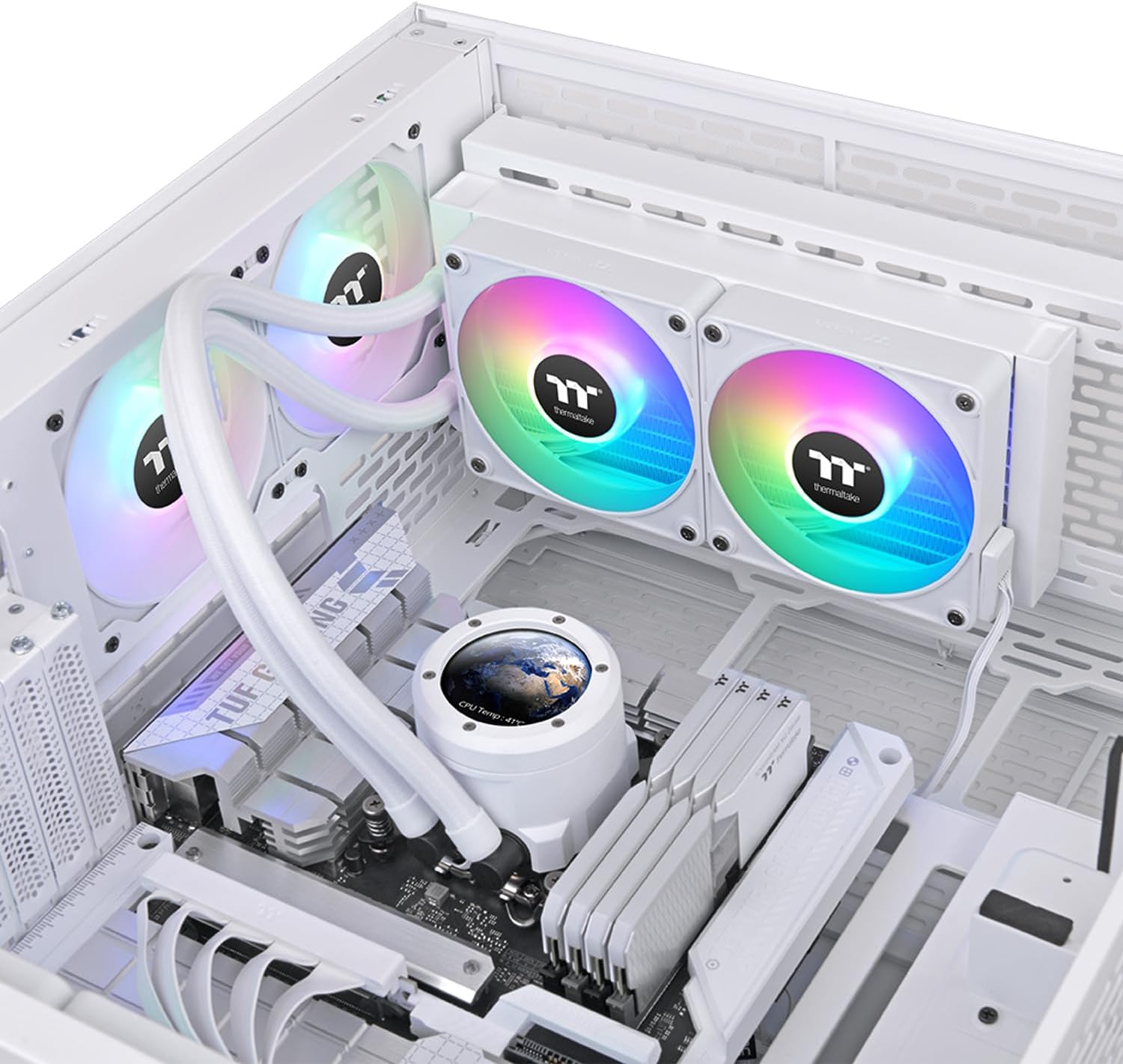
Image: The Thermaltake TH240 V2 Ultra EX ARGB AIO Cooler installed within a PC case, illustrating the placement of the water block on the CPU and the radiator with fans mounted.

Image: A complete PC build featuring the Thermaltake TH240 V2 Ultra EX ARGB AIO Cooler, demonstrating its integration into a high-performance system.
5. Operating the Cooler and LCD Display
Once installed, the TH240 V2 Ultra EX ARGB AIO Cooler operates automatically, regulating CPU temperature. The integrated 2.1-inch TFT-LCD display and ARGB lighting offer additional functionality and customization.
5.1. LCD Display Functionality
The 2.1-inch TFT-LCD water block display (480x480 resolution) can show various system information and custom content:
- Real-time System Information: Monitor CPU temperature, liquid temperature, fan speed, pump speed, and other vital system statistics.
- Customizable Graphics: Upload custom images, GIFs, or videos to personalize the display.
- Weather Information: Display current weather conditions (requires internet connection and software setup).

Image: Multiple views of the water block's 2.1-inch LCD display, showcasing its ability to present system statistics, liquid temperature, and personalized graphics.
5.2. TT RGB PLUS 2.0 Software Control
To fully utilize the LCD display and ARGB lighting features, download and install the Thermaltake TT RGB PLUS 2.0 software from the official Thermaltake website. This software allows you to:
- Configure LCD display content and settings.
- Adjust fan and pump speeds.
- Customize ARGB lighting effects and synchronize with other compatible components.
- Monitor system performance and temperatures.
5.3. Fan Operation
The included 120mm fans are designed for optimal airflow and static pressure. Their speed is controlled by the motherboard's fan headers or through the TT RGB PLUS 2.0 software, adjusting dynamically based on CPU temperature to maintain efficient cooling and acoustic performance.

Image: A detailed close-up of the two ARGB fans mounted on the radiator, emphasizing their design and the vibrant addressable RGB lighting.
6. Maintenance
Regular maintenance helps ensure optimal performance and longevity of your AIO cooler.
- Dust Removal: Periodically clean dust from the radiator fins and fan blades using compressed air or a soft brush. Ensure fans are not spinning during cleaning.
- Cable Management: Ensure all cables are neatly routed and not obstructing airflow or fan blades.
- Software Updates: Keep the TT RGB PLUS 2.0 software updated to the latest version for new features, bug fixes, and compatibility improvements.
- Leak Inspection: While AIOs are sealed, occasionally inspect the tubing and connections for any signs of leakage, especially after moving the system.
7. Troubleshooting
If you encounter issues with your Thermaltake TH240 V2 Ultra EX ARGB AIO Cooler, refer to the following common problems and solutions:
| Problem | Possible Cause | Solution |
|---|---|---|
| High CPU Temperatures | Poor thermal paste application, loose water block, insufficient airflow, pump failure. | Reapply thermal paste, re-seat water block, check fan orientation, ensure pump is powered and running (check software). |
| Fans Not Spinning / No RGB | Loose power/ARGB cables, incorrect motherboard header, software issue. | Check all cable connections (fan, ARGB, power), ensure connected to correct motherboard headers, restart TT RGB PLUS 2.0 software, update drivers. |
| LCD Display Not Working | USB 2.0 header cable disconnected, software not running, driver issue. | Verify USB 2.0 cable connection to motherboard, ensure TT RGB PLUS 2.0 software is running, reinstall software/drivers. |
| Unusual Noise from Cooler | Air bubbles in loop (new installation), fan rubbing, pump noise. | Orient radiator to ensure pump is not the highest point (allows air to collect in radiator), check for cable interference with fans, if pump noise persists, contact support. |
If the issue persists after attempting these solutions, please contact Thermaltake customer support for further assistance.
8. Specifications
Detailed specifications for the Thermaltake TH240 V2 Ultra EX ARGB AIO Cooler:
| Feature | Specification |
|---|---|
| Product Dimensions | 13"L x 8.1"W x 5.4"H |
| Brand | Thermaltake |
| Power Connector Type | 3-Pin |
| Voltage | 12 Volts |
| Wattage | 8.59 watts |
| Cooling Method | Water |
| Compatible Devices | Desktop (Intel LGA 1851/1700/1200/115X, AMD AM5/AM4) |
| Noise Level | 28.5 dB (fans) |
| Material | Acrylonitrile Butadiene Styrene, Copper, Aluminum, Glass, Stainless Steel, Tempered |
| Maximum Rotational Speed | 3300 RPM (pump) |
| LCD Display | 2.1-inch TFT-LCD, 480x480 resolution |
| Fan Type | 120mm ARGB with MagForce 2.0 Magnetic Connection |
9. Warranty and Support
Thermaltake products are manufactured to the highest quality standards. This product is covered by a manufacturer's warranty against defects in materials and workmanship. The specific warranty period may vary by region and product type. Please retain your proof of purchase for warranty claims.
For detailed warranty information, technical support, or to register your product, please visit the official Thermaltake website or contact their customer service department.
Thermaltake Official Website: www.thermaltake.com
Thermaltake Store on Amazon: Visit the Thermaltake Store


