
Lenovo M410
Lenovo Legion M410 Wireless RGB Gaming Mouse User Manual
Model: M410 (GY51P80851)
Introduction
This manual provides detailed instructions for setting up, operating, maintaining, and troubleshooting your Lenovo Legion M410 Wireless RGB Gaming Mouse. Please read this manual thoroughly before using the product to ensure optimal performance and longevity.

Figure 1: Lenovo Legion M410 Wireless RGB Gaming Mouse
The Lenovo Legion M410 is a high-performance wireless gaming mouse designed for precision and an immersive gaming experience. It features a 16,000 DPI sensor, customizable RGB lighting, and a long-lasting rechargeable battery.
Package Contents
Verify that all items are present in your package:
- Lenovo Legion M410 Wireless RGB Gaming Mouse
- 2.4 GHz USB Wireless Receiver
- USB-A to USB-C Charging Cable (180 cm)
- User Manual (this document)
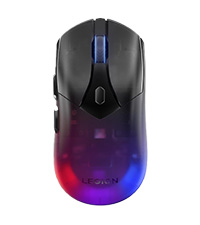
Figure 2: Included accessories with the Lenovo Legion M410 mouse.
The package includes the gaming mouse, a compact USB receiver for wireless connectivity, and a durable USB-C charging cable.
Product Features and Components
The Lenovo Legion M410 mouse is equipped with several features designed to enhance your gaming and productivity:
- 6 Programmable Buttons: Includes Left Click, Right Click, Scroll Wheel, DPI Switch, and two Side Buttons.
- High-Precision Sensor: Pixart 3335 sensor with up to 16,000 DPI, 400 IPS, and 40g acceleration.
- On-the-fly DPI Switch: Easily adjust DPI settings in 5 levels for quick in-game sensitivity changes.
- 2-Zone RGB Lighting: Dynamic and customizable RGB lighting zones.
- Wireless and Wired Connectivity: 2.4 GHz wireless connection and USB-C wired mode for charging and play.
- Long Battery Life: Up to 53 hours of play with RGB off, powered by an 800mAh rechargeable battery.
- Ergonomic Design: Symmetrical medium-large size, optimized for palm grip.
- PTFE Mouse Feet: For smooth gliding and control on various surfaces.
- NVIDIA Reflex Compatible: Provides competitive edge for quicker reactions.
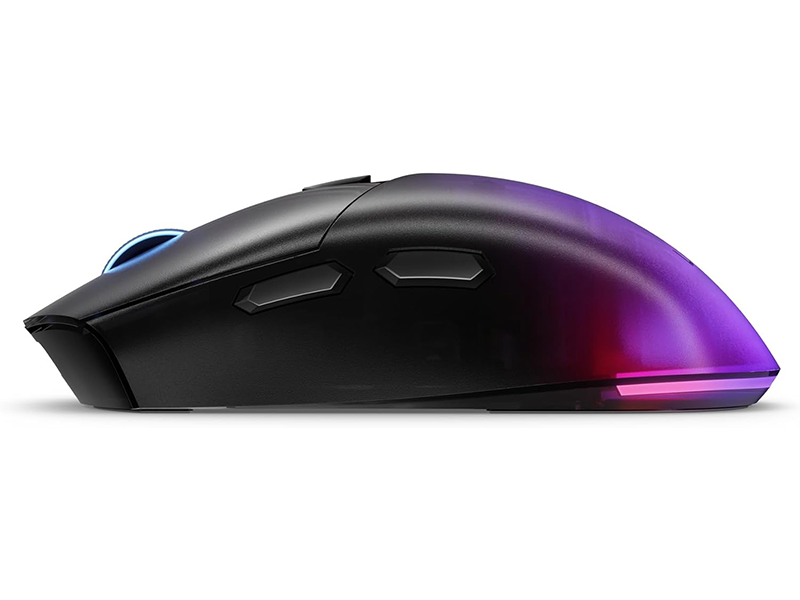
Figure 3: Key features and button layout of the M410 mouse.
This diagram highlights the mouse's 6 programmable buttons, the on-the-fly DPI switch, and the adjustable 2-zone RGB lighting, along with the PTFE feet for optimal glide.
Setup
1. Charging the Mouse
Before first use, it is recommended to fully charge the mouse.
- Connect the USB-C end of the charging cable to the port on the front of the mouse.
- Connect the USB-A end of the charging cable to an available USB port on your computer or a USB wall adapter.
- The RGB lighting will indicate charging status. Once fully charged, the lighting may change or turn off.

Figure 4: USB-C charging port location.
The USB-C port is conveniently located at the front of the mouse for easy charging and wired connectivity.
2. Connecting Wirelessly (2.4 GHz)
For wireless operation, use the included 2.4 GHz USB wireless receiver.
- Locate the 2.4 GHz USB wireless receiver. It may be stored in a compartment on the underside of the mouse.
- Plug the USB wireless receiver into an available USB port on your computer.
- Ensure the mouse is powered on. The computer should automatically detect the mouse.
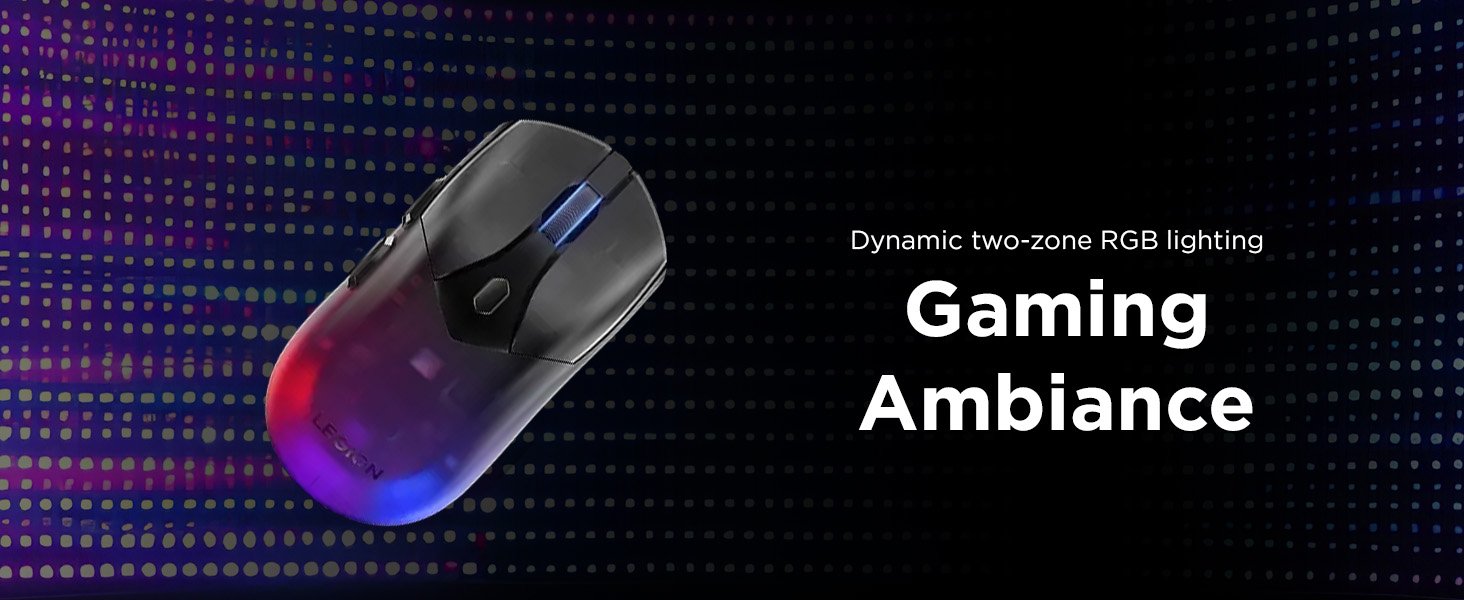
Figure 5: Wireless receiver and charging cable setup.
This image shows how to connect the wireless receiver to your computer and the charging cable to the mouse.
3. Connecting Wired
The mouse can also be used in wired mode, which simultaneously charges the battery.
- Connect the USB-C end of the charging cable to the mouse.
- Connect the USB-A end of the charging cable to an available USB port on your computer.
- The mouse will function as a wired mouse and charge its battery.
4. Software Installation (Lenovo Legion Accessory Central)
To unlock full customization options for your mouse, including button remapping, DPI levels, polling rate, and RGB lighting effects, download and install the Lenovo Legion Accessory Central software from the official Lenovo support website.
- Visit the official Lenovo support website.
- Search for "Lenovo Legion Accessory Central" or navigate to the support page for your M410 mouse.
- Download and install the software following the on-screen instructions.
Operating Instructions
1. Powering On/Off
The power switch is located on the underside of the mouse. Slide the switch to the 'ON' position to power on the mouse and to 'OFF' to power it off.
2. Adjusting DPI (Sensitivity)
The M410 features an on-the-fly DPI switch button, located behind the scroll wheel. Press this button to cycle through the preset DPI levels. You can customize these levels using the Lenovo Legion Accessory Central software.
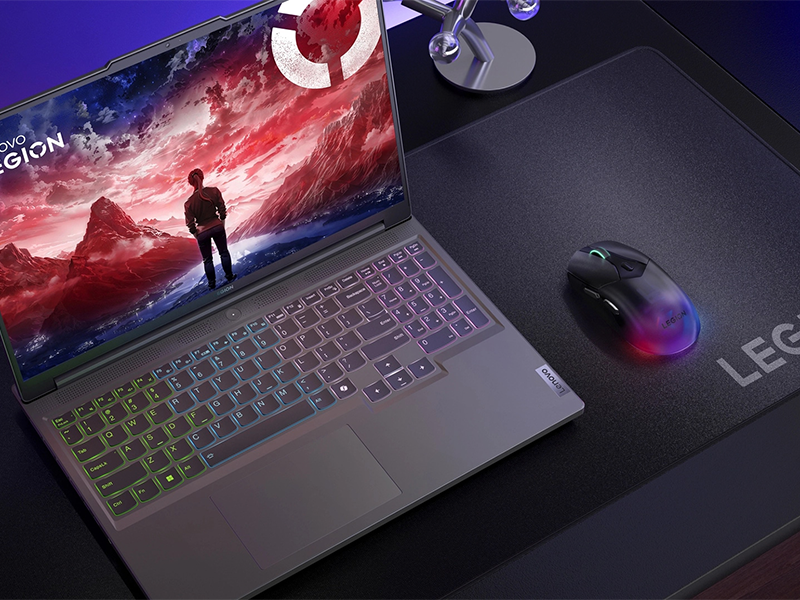
Figure 6: DPI switch button location.
The DPI switch button allows for quick adjustments to mouse sensitivity during use, essential for different gaming scenarios.
3. Customizing RGB Lighting
The M410 features dynamic 2-zone RGB lighting. To customize lighting effects, colors, and brightness, use the Lenovo Legion Accessory Central software. The mouse also supports Microsoft Dynamic Lighting.
4. Button Customization
All 6 buttons on the M410 mouse can be remapped to perform different functions, macros, or keyboard shortcuts using the Lenovo Legion Accessory Central software. Refer to the software's help section for detailed instructions on creating and assigning custom profiles.
Maintenance
1. Cleaning the Mouse
To maintain optimal performance and appearance:
- Disconnect the mouse from your computer before cleaning.
- Use a soft, lint-free cloth slightly dampened with water or a mild cleaning solution.
- Avoid using harsh chemicals, abrasive cleaners, or solvents.
- Clean the sensor area on the underside of the mouse periodically with a cotton swab to prevent tracking issues.
2. Battery Care
To maximize battery lifespan:
- Avoid fully discharging the battery frequently.
- Store the mouse in a cool, dry place when not in use for extended periods.
- If storing for a long time, charge the battery to about 50% before storage.
Troubleshooting
| Problem | Possible Cause | Solution |
|---|---|---|
| Mouse not responding (Wireless) | Low battery; Receiver not connected; Interference; Mouse not powered on. | Charge the mouse; Ensure receiver is securely plugged in; Try a different USB port; Move closer to receiver; Turn mouse ON. |
| Mouse not responding (Wired) | Cable not connected properly; Faulty USB port/cable. | Ensure cable is securely connected to mouse and computer; Try a different USB port; Try a different USB-C cable. |
| Inaccurate tracking or cursor lag | Dirty sensor; Unsuitable surface; Low battery. | Clean the optical sensor; Use a mouse pad or suitable surface; Charge the mouse. |
| RGB lighting not working | Software issue; Lighting turned off. | Check Lenovo Legion Accessory Central settings; Ensure lighting is enabled. |
| Buttons not responding | Software issue; Hardware malfunction. | Check button assignments in Lenovo Legion Accessory Central; Restart computer; If problem persists, contact support. |
Specifications
| Feature | Detail |
|---|---|
| Model Name | Lenovo Legion M410 |
| Item Model Number | GY51P80851 |
| Connectivity | 2.4 GHz Wireless (USB Receiver), Wired (USB-C) |
| Sensor | Pixart 3335 Optical Sensor |
| DPI (Dots Per Inch) | Up to 16,000 (5-level adjustable) |
| IPS (Inches Per Second) | 400 |
| Acceleration | 40g |
| Buttons | 6 (Programmable) |
| RGB Lighting | 2-Zone Dynamic RGB |
| Battery Type | Rechargeable Lithium Polymer |
| Battery Capacity | 800mAh |
| Battery Life | Up to 53 hours (RGB off) |
| Cable Length | 180 cm (USB-A to USB-C) |
| Weight | Approximately 100 grams (3.52 ounces) |
| Dimensions (L x W x H) | 127.79 mm x 65 mm x 39 mm (5.03 x 2.56 x 1.54 inches) |
| Hardware Platform | PC, Mac |
| Operating System Compatibility | Windows, macOS |
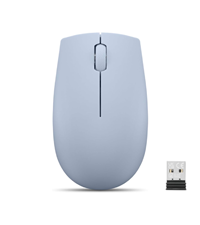
Figure 7: Mouse dimensions.
The diagram provides precise measurements of the mouse, indicating its length, width, and height.
Warranty and Support
For warranty information, technical support, and additional resources, please visit the official Lenovo support website or contact Lenovo customer service. Keep your proof of purchase for warranty claims.
Lenovo Support Website: www.lenovo.com/support
Related Documents - M410
 |
Lenovo Legion M410 Wireless RGB Gaming Mouse User Manual Official user guide for the Lenovo Legion M410 Wireless RGB Gaming Mouse, detailing features, setup, DPI settings, button functions, LED indicators, software information, safety precautions, and regulatory compliance. |
 |
Lenovo Legion 5 User Guide: Setup, Features, and Support Comprehensive user guide for Lenovo Legion 5 (15-inch and 17-inch) laptops. Covers setup, hardware features, Windows 10 operation, power management, troubleshooting, and support resources. |
 |
Lenovo Legion 5 and Legion 5i Hardware Maintenance Manual Comprehensive hardware maintenance manual for Lenovo Legion 5 (15-inch) and Legion 5i (15-inch) laptops, detailing service procedures, safety information, and component replacement for models including 83M0, 83F1, 83F0, 83N2, and 83LY. |
 |
Lenovo Legion Y545 Series User Guide - Setup, Features, and Support Comprehensive user guide for the Lenovo Legion Y545 Series laptops, covering setup, hardware features, system settings, security, troubleshooting, and support. Learn about your device's capabilities and how to use it effectively. |
 |
Lenovo Legion M600 Wireless Gaming Mouse Setup and Features Guide to setting up and using the Lenovo Legion M600 Wireless Gaming Mouse, including DPI settings, connectivity options (Bluetooth, USB), and software. Learn about its features and specifications. |
 |
Lenovo Legion M220 Wireless RGB Gaming Mouse Quick Start Guide Get started with your Lenovo Legion M220 Wireless RGB Gaming Mouse. This guide provides setup instructions, DPI settings, RGB lighting controls, and battery status indicators. |
Ask a question about this manual
Ask about setup, troubleshooting, compatibility, parts, safety, or missing instructions. Manuals+ will review the question and use this page’s manual context to help answer it.