
1. Introduction
Welcome to the Lucyd Lyte (2025 Version) Smart Glasses. These smart eyewear combine advanced audio technology with light-adaptive photochromic lenses, offering a seamless blend of style and functionality. This manual provides essential information for setting up, operating, and maintaining your new smart glasses.

Image: Lucyd Lyte Eclipse Smart Glasses banner, showcasing the product and its branding.
2. What's in the Box
Your Lucyd Lyte Smart Glasses package includes the following items:
- Lucyd Audio Glasses
- Slip Case
- Cleaning Cloth
- Manual (this document)
- Quick Start Guide
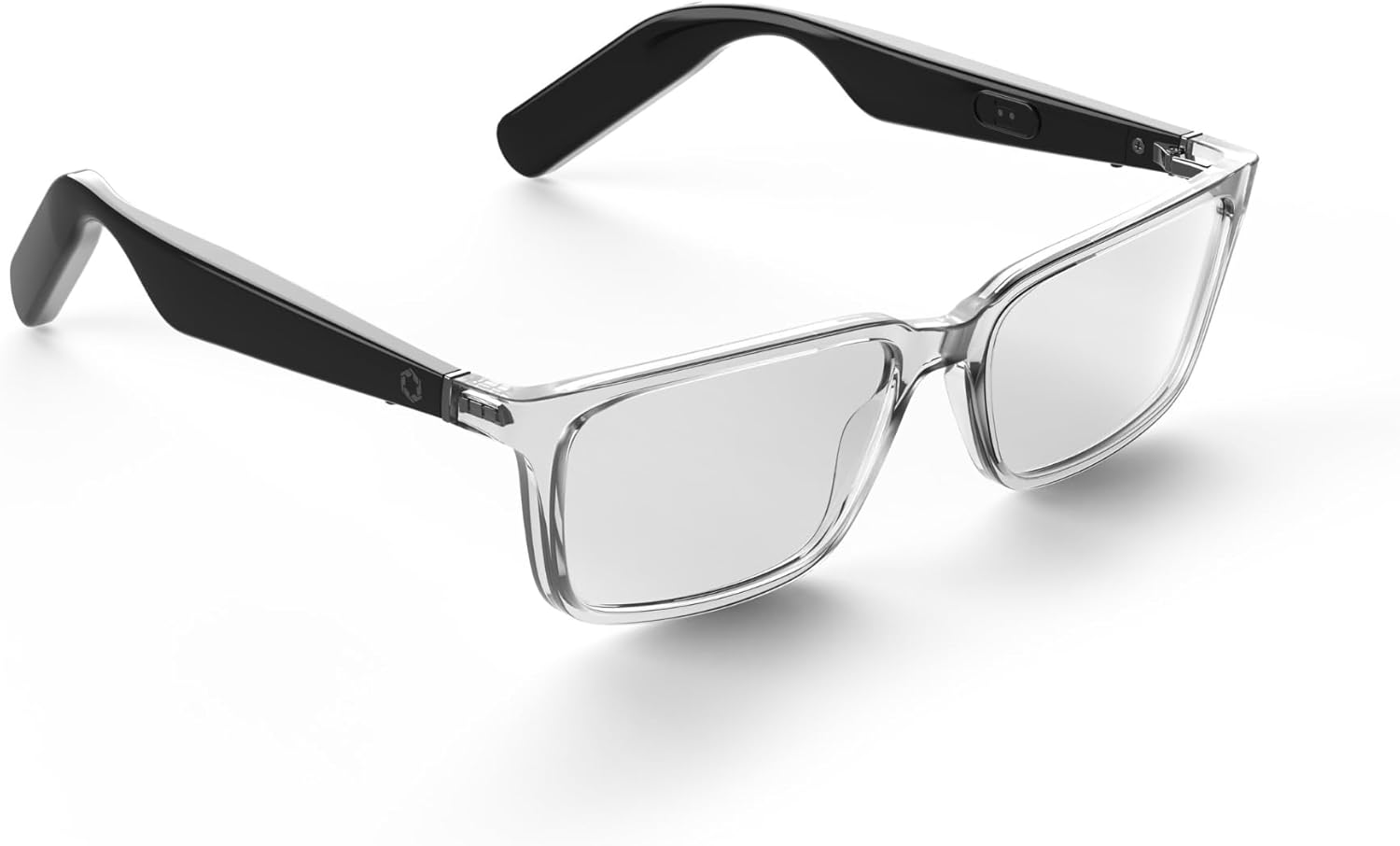
Image: A pair of Lucyd Lyte Smart Glasses, shown from a front-side angle, highlighting their design.
3. Setup
3.1. Charging Your Glasses
Before initial use, fully charge your Lucyd Lyte Smart Glasses. The glasses are equipped with two Lithium-Ion batteries. Connect the provided charging cable to the charging port on the glasses and to a compatible USB power source. A full charge provides approximately 12 hours of music/talk time.

Image: An icon representing 'All Day Connection' with a lightning bolt symbol, indicating battery life.
3.2. Bluetooth Pairing
To connect your Lucyd Lyte Smart Glasses to your smartphone or other Bluetooth-enabled device:
- Ensure your glasses are charged and powered on.
- Activate Bluetooth on your device.
- Search for available Bluetooth devices.
- Select 'Lucyd Lyte' from the list to pair.
- Once paired, you will hear an audio confirmation.
4. Operating Instructions
4.1. General Controls
Your Lucyd Lyte Smart Glasses feature integrated controls for various functions. Specific button locations and functions are detailed in the Quick Start Guide. Common functions include:
- Power On/Off
- Volume Adjustment
- Play/Pause Music
- Answer/End Calls
- Activate Voice Assistant

Image: Three icons depicting core functionalities: playing music, taking hands-free calls, and using voice assistants.
4.2. Audio and Calls
The open-ear speakers provide immersive sound while maintaining situational awareness. The integrated microphone allows for clear, hands-free communication during calls.

Image: An icon representing 'Immersive Sound' with sound waves emanating from a speaker symbol.
4.3. Voice Assistant and AI Features
Your Lucyd Lyte Smart Glasses support voice assistant integration, including Siri. They also feature AI-powered capabilities, allowing connection to services like ChatGPT for instant information and assistance.

Image: An icon representing 'AI Powered Features' with a stylized, interconnected symbol.
4.4. Photochromic Lenses
The photochromic lenses automatically adapt to changing light conditions. They transition from clear indoors to a darker tint outdoors when exposed to UV light, providing optimal vision and UV400 protection. The Eclipse photochromic lenses tint black in sunlight and feature an anti-reflective coating.
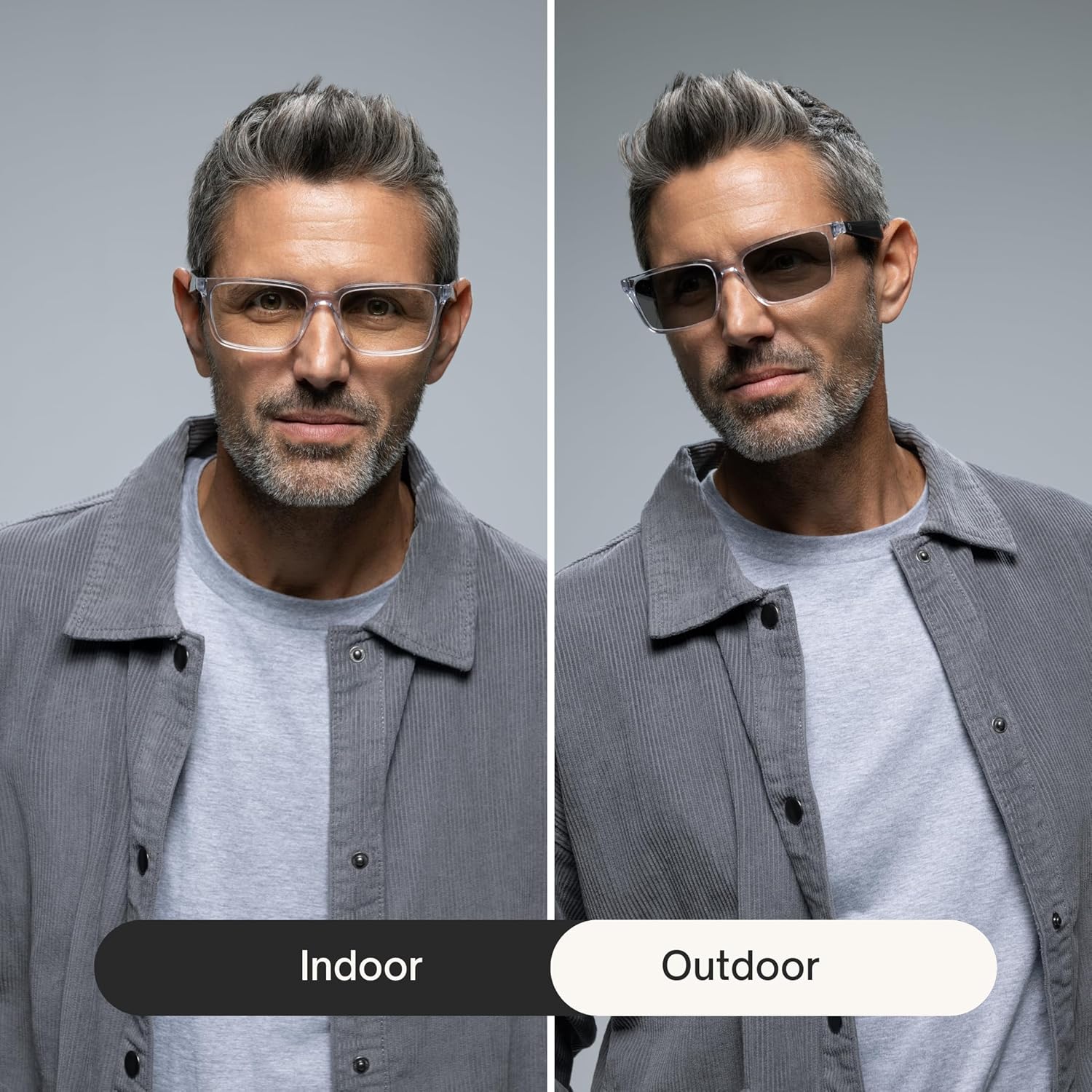
Image: A split image showing a person wearing Lucyd Lyte Smart Glasses indoors with clear lenses, and outdoors with the lenses tinted dark, demonstrating the photochromic feature.
5. Maintenance
5.1. Cleaning
Use the provided cleaning cloth to gently wipe the lenses and frame. For stubborn smudges, lightly dampen the cloth with water or a lens-safe cleaning solution. Avoid harsh chemicals or abrasive materials.
5.2. Storage
When not in use, store your Lucyd Lyte Smart Glasses in the provided slip case to protect them from scratches and damage. Avoid exposing them to extreme temperatures or direct sunlight for prolonged periods.
6. Troubleshooting
If you encounter issues with your Lucyd Lyte Smart Glasses, refer to the following common solutions:
- No Power: Ensure the glasses are fully charged. Connect them to a power source and wait a few minutes before attempting to power on.
- Bluetooth Disconnection: Verify Bluetooth is enabled on your device. Try unpairing and re-pairing the glasses. Ensure the glasses are within the Bluetooth range of your device.
- No Sound/Low Volume: Check the volume levels on both the glasses and your connected device. Ensure the glasses are properly paired.
- Lenses Not Tinting: Ensure the glasses are exposed to sufficient UV light (natural sunlight). Photochromic lenses react to UV, not just brightness.
- Physical Damage: The frames are made from TR90 material for durability and feature spring hinges for a better fit. However, avoid excessive force or bending to prevent damage.

Image: A person wearing Lucyd Lyte Smart Glasses, with text overlay indicating 'TR90 Adjustable & Durable'.

Image: A person wearing Lucyd Lyte Smart Glasses, with text overlay indicating 'Spring Hinges Better Fit'.
7. Specifications
| Model Number | LCD006-35 |
| Product Dimensions | 5.43 x 2.24 x 5.31 inches |
| Item Weight | 11.7 ounces (0.33 Kilograms) |
| Batteries | 2 Lithium Ion batteries (included) |
| Connectivity Technology | Bluetooth |
| Wireless Communication Standard | Bluetooth |
| Special Features | Open Ear Speakers & Microphone, Photochromic Lenses |
| Lens Type | Eclipse photochromic, tints black in sunlight. Anti-reflective, UV400 |
| Frame Material | TR90 (Adjustable & Durable) |
8. Safety Information
Please read and follow these safety guidelines to ensure safe operation and prevent damage:
- Do not attempt to disassemble or modify the glasses.
- Keep away from water and moisture.
- Avoid exposing to extreme temperatures (hot or cold).
- Use only the provided charging cable.
- Do not use while operating heavy machinery or driving if it distracts you.
- The open-ear design allows ambient sound, but always be aware of your surroundings.
9. Warranty and Support
For warranty information and customer support, please refer to the documentation included with your purchase or visit the official Lucyd website. If you experience any issues not covered in this manual, contact Lucyd customer service for assistance.


