
Lenovo LEF0HN003EUS
Lenovo All-in-One AIO Desktop User Manual
Model: LEF0HN003EUS
1. Introduction
This manual provides essential information for the setup, operation, maintenance, and troubleshooting of your Lenovo All-in-One (AIO) Desktop. This system integrates the computer components and monitor into a single unit, offering a compact and efficient computing solution. It features a 23.8-inch Full HD display, a 13th Gen Intel U300 Processor, 16GB DDR5 RAM, and a 1TB PCIe NVMe SSD, running on Windows 11 Pro.
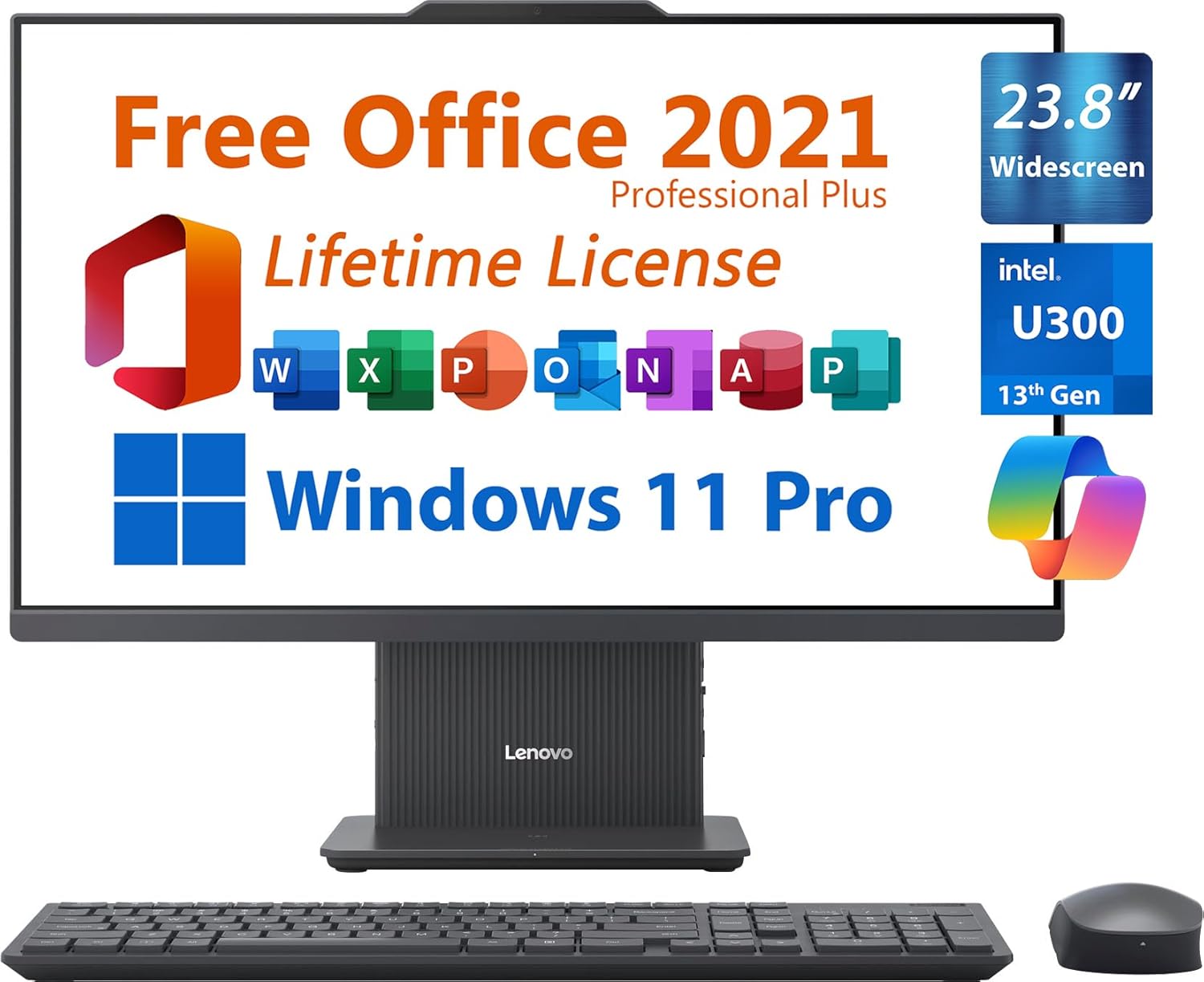
Figure 1.1: Lenovo All-in-One Desktop with Wireless Keyboard and Mouse
The system comes pre-installed with Microsoft Office 2021 Professional Plus and includes a wireless keyboard and mouse for immediate use. Its design emphasizes a borderless display and low blue light features for user comfort.
2. Setup
2.1 Unpacking and Placement
- Carefully remove the desktop, wireless keyboard, and wireless mouse from the packaging.
- Place the AIO desktop on a stable, flat surface with adequate ventilation around the unit.
2.2 Connecting Peripherals
- Power Connection: Connect the 90W Smart AC power adapter to the Power DC-in port (4) on the rear of the desktop and then to a power outlet.
- Wireless Keyboard and Mouse: Locate the USB receiver for the wireless keyboard and mouse. Insert this receiver into any available USB-A port (5 or 7) on the desktop. The keyboard and mouse should automatically connect.
- Optional External Devices: Connect any other desired peripherals such as external hard drives, printers, or additional monitors to the appropriate ports.

Figure 2.1: Port Layout and Connections
2.3 Initial Power On
- Press the Power button (2) located on the side of the desktop.
- Follow the on-screen instructions to complete the Windows 11 Pro setup. This may include connecting to a Wi-Fi network, setting up user accounts, and configuring privacy settings.
3. Operating Instructions
3.1 Windows 11 Pro Overview
Your Lenovo AIO Desktop runs on Windows 11 Pro, offering a secure and productive environment. Familiarize yourself with the Start Menu, Taskbar, and File Explorer for navigation. Windows 11 Pro includes features for enhanced security and management, suitable for both personal and business use.
3.2 Using Microsoft Office 2021
The system comes with Microsoft Office 2021 Professional Plus pre-installed and activated. This suite includes Word, Excel, PowerPoint, Outlook, OneNote, Publisher, and Access. To use these applications, simply locate them in the Start Menu and launch them. No product key is required for activation.
3.3 Copilot AI Chat
Utilize the integrated Copilot AI chat assistant for various tasks, including information retrieval, content generation, and system assistance. Access Copilot through the Taskbar icon or by pressing the Windows key + C.
3.4 Webcam and Audio
The integrated 5MP webcam features an E-Shutter for privacy. To use the webcam, slide the E-Shutter open. The desktop also includes dual array digital microphones and 2 x 3W stereo speakers by Harman for clear audio communication and playback.
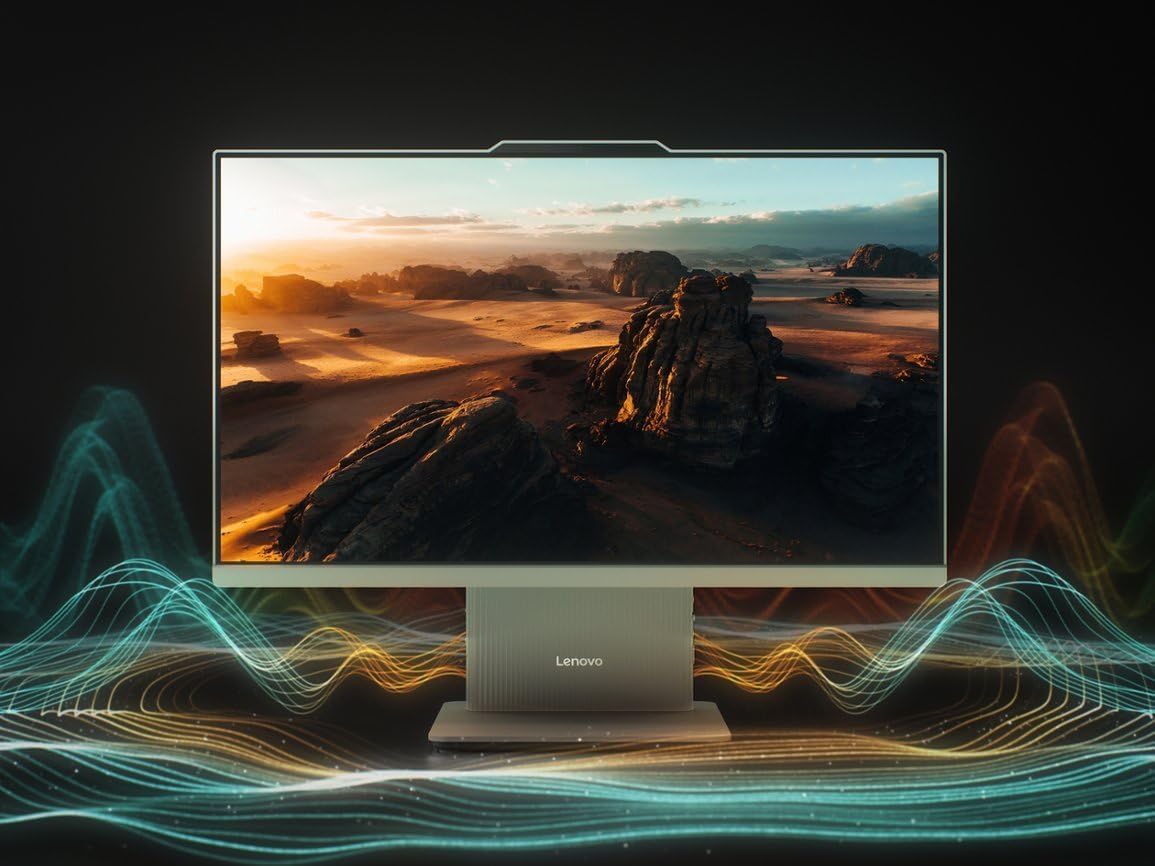
Figure 3.1: Display and Audio Features
4. Maintenance
4.1 Cleaning the Desktop
- Screen: Use a soft, lint-free cloth specifically designed for electronic screens. Dampen the cloth slightly with water or a screen cleaner solution. Do not spray liquid directly onto the screen.
- Chassis: Wipe the exterior surfaces with a soft, dry cloth. For stubborn marks, a slightly damp cloth can be used.
- Keyboard and Mouse: Use a soft brush or compressed air to remove dust and debris from between keys. Wipe surfaces with a slightly damp cloth if necessary.
4.2 Software Updates
- Regularly check for and install Windows updates to ensure system stability, security, and performance.
- Keep device drivers updated. This can often be done through Windows Update or by visiting the Lenovo support website.
4.3 System Backup
Periodically back up your important data to an external drive or cloud storage to prevent data loss in case of system failure.
5. Troubleshooting
5.1 No Power
- Ensure the power adapter is securely connected to both the desktop and a working power outlet.
- Verify the power outlet is functional by plugging in another device.
5.2 Display Issues
- If the screen is blank, ensure the desktop is powered on.
- Check display settings in Windows if the resolution or scaling appears incorrect.
5.3 Wireless Keyboard/Mouse Not Responding
- Check the battery levels of the keyboard and mouse and replace if necessary.
- Ensure the USB receiver is properly inserted into a USB port. Try a different USB port.
- Restart the desktop.
5.4 Slow Performance
- Close unnecessary applications running in the background.
- Check for and install any pending Windows updates.
- Run a disk cleanup and defragmentation (for HDD, though SSDs manage this differently).
- Scan for malware or viruses.
6. Specifications
| Feature | Specification |
|---|---|
| Processor | 13th Gen Intel U300 Processor (5 Cores, 6 Threads, up to 4.4 GHz) |
| Operating System | Windows 11 Pro |
| Graphics Card | Intel UHD Graphics (Integrated) |
| Display | 23.8" FHD (1920 x 1080) IPS, Anti-Glare, Non-Touch, 100Hz, 250 nits |
| Memory (RAM) | 16 GB DDR5, 5200 MHz |
| Storage | 1 TB M.2 PCIe NVMe SSD |
| Wireless Connectivity | Wi-Fi 6 2x2 AX & Bluetooth 5.2 |
| Webcam | 5MP with E-Shutter |
| Audio | High Definition (HD) Audio, 2 x 3W stereo speakers by Harman |
| Ports | 1x USB-C 3.2 Gen 2 (Data Only), 2x USB 2.0 Type-A, 1x USB 3.2 Gen 2 Type-A, 1x Power Connector, 1x Headset (combo) port, 1x HDMI-in, 1x HDMI-out 2.1 TMDS, 1x Ethernet (RJ45) |
| Dimensions (H x W x D) | 16.97 x 21.2 x 7.56 inches (431 x 539 x 192 mm) |
| Weight | 13.23 lbs (6 kg) |
| Power Adapter | 90W Smart AC |
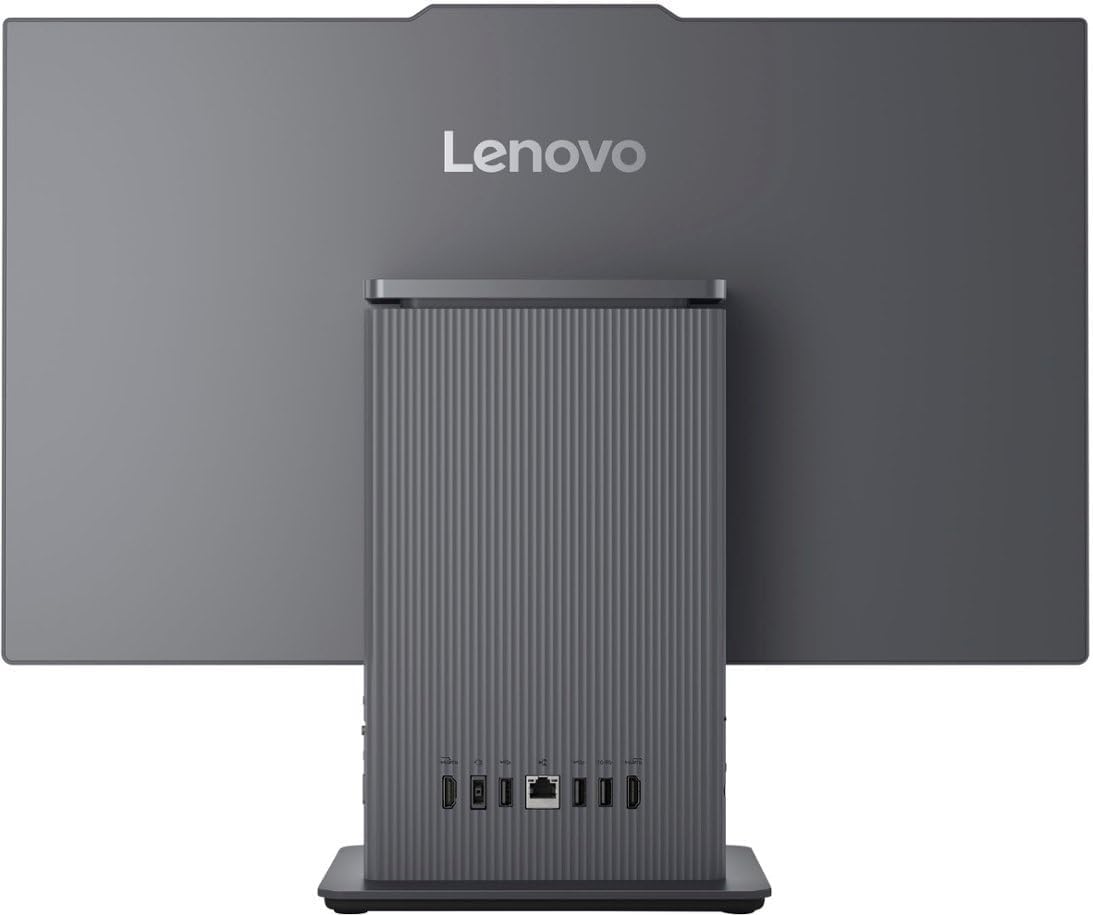
Figure 6.1: Rear View with Port Layout
7. Warranty and Support
7.1 Warranty Information
This Lenovo All-in-One Desktop comes with a one-year seller warranty. Please retain your proof of purchase for warranty claims. For specific terms and conditions, refer to the documentation provided at the time of purchase.
7.2 Return Policy
A 30-day return policy is applicable from the date of purchase. Please consult your retailer's return policy for detailed instructions and conditions.
7.3 Technical Support
For technical assistance, driver downloads, or further support, please visit the official Lenovo support website or contact their customer service. Have your product model number (LEF0HN003EUS) and serial number ready when contacting support.