
Boult Boult Q
Boult Q Over Ear Bluetooth Headphones User Manual
Model: Boult Q
Introduction
Thank you for choosing Boult Q Over Ear Bluetooth Headphones. This manual provides essential information for setting up, operating, maintaining, and troubleshooting your new headphones. Please read it thoroughly to ensure optimal performance and longevity of your device.

Image: Boult Q Over Ear Bluetooth Headphones in Beige, showcasing the sleek design and comfortable earcups.
What's in the Box
Your Boult Q Headphones package should contain the following items:
- Q Headphones
- Type-C Fast Charging Cable
- User Manual
- Warranty Card
Product Overview
The Boult Q headphones are designed for an immersive audio experience with advanced features. Familiarize yourself with the key components:
- 40mm Bass Drivers: Deliver deep, rich bass and clear audio.
- Zen™ ENC Mic: Ensures crystal-clear calls by reducing background noise.
- Easy Controls: Intuitive buttons for volume, playback, and calls.
- Foldable Design: For easy portability and storage.
- Memory Foam Ear Cushions: Provide comfort for extended listening sessions.

Image: An infographic highlighting key features of the Boult Q headphones, including 40mm bass drivers, BT v5.4, ENC calling, 70 hours battery, and EQ modes.

Image: Close-up of Boult Q headphones showing memory foam ear cushions, emphasizing comfort.
Setup
Charging Your Headphones
Before first use, fully charge your Boult Q headphones. Use the provided Type-C Fast Charging Cable.
- Connect the Type-C end of the cable to the charging port on the headphones.
- Connect the USB-A end to a compatible USB power adapter (not included) or a computer's USB port.
- The LED indicator will show charging status. A full charge takes approximately 60 minutes.
A 10-minute charge provides up to 10 hours of playtime.

Image: Boult Q headphones illustrating 70 hours total battery backup and fast charging capability (10 mins charge = 10 hours playtime).
Bluetooth Pairing
Pair your Boult Q headphones with your device for wireless audio.
- Ensure the headphones are powered off.
- Press and hold the power button until the LED indicator flashes blue and red, indicating pairing mode.
- On your device (smartphone, tablet, laptop), enable Bluetooth and search for available devices.
- Select "Boult Q" from the list of found devices.
- Once connected, the LED indicator will turn solid blue or off, depending on the model.
The headphones feature Bluetooth 5.4 for stable connections and faster pairing with 'Blink & Pair' technology.
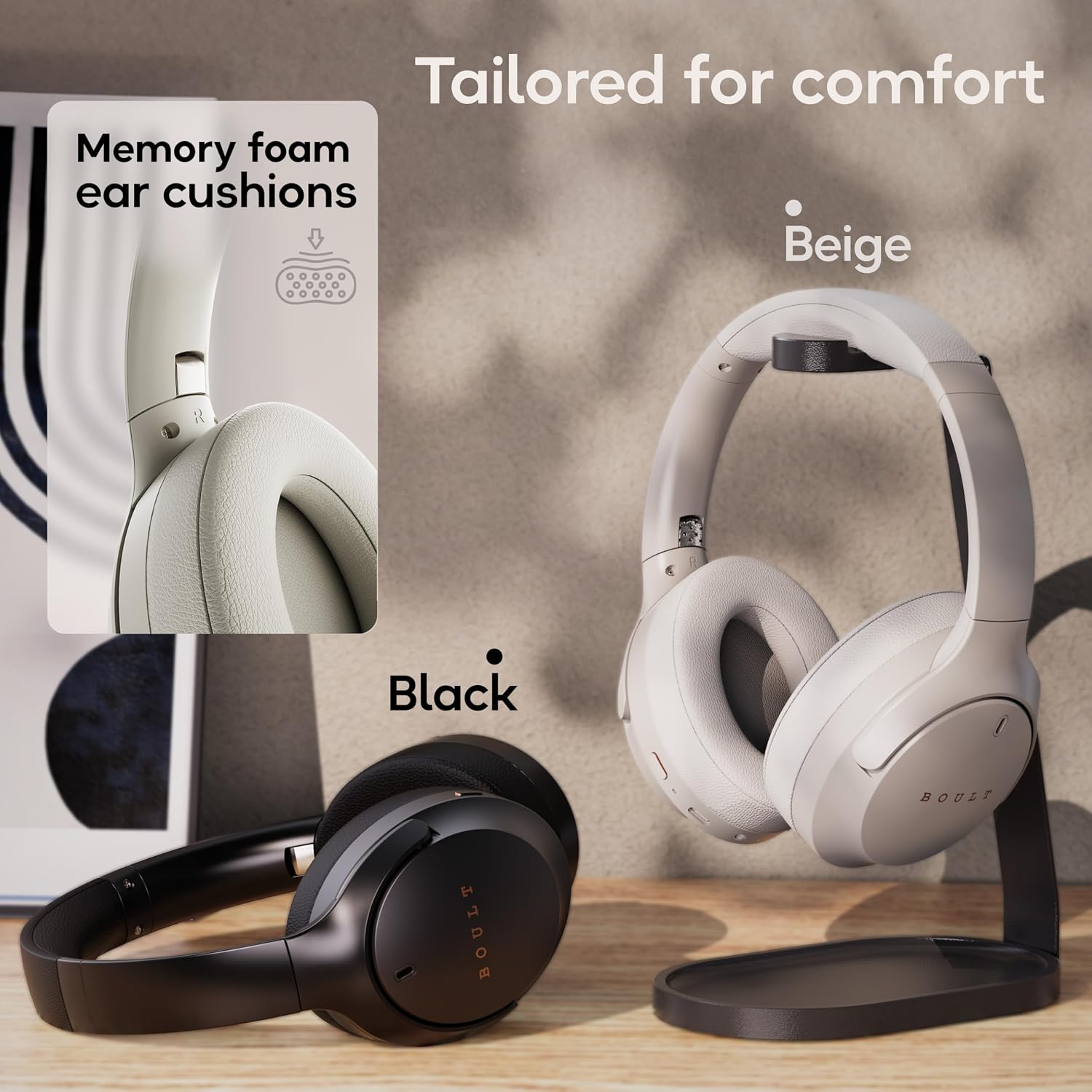
Image: Boult Q headphones highlighting Bluetooth 5.4 connectivity and 'Blink & Pair' for effortless and fast pairing.
Operating Your Headphones
Power On/Off
- Power On: Press and hold the power button for 3 seconds.
- Power Off: Press and hold the power button for 5 seconds.
Music Playback
- Play/Pause: Single press the multi-function button.
- Next Track: Double press the multi-function button.
- Previous Track: Triple press the multi-function button.
- Volume Up: Short press the '+' button.
- Volume Down: Short press the '-' button.
EQ Modes
Customize your audio experience with 4 distinct EQ modes:
- Bass: Enhances low frequencies for powerful sound.
- Rock: Optimized for rock music with punchy drums and guitars.
- Pop: Balanced sound profile suitable for pop music.
- Vocal: Emphasizes vocal clarity for podcasts and audiobooks.
Switch between modes using the dedicated EQ button.

Image: Boult Q headphones illustrating the four available EQ modes: Bass, Rock, Pop, and Vocal.
Calling
The Zen™ ENC Mic ensures clear communication during calls.
- Answer/End Call: Single press the multi-function button.
- Reject Call: Press and hold the multi-function button for 2 seconds.

Image: Close-up of Boult Q headphones highlighting the Zen™ ENC Mic for unmatched clarity in calls.
AUX Option (Wired Mode)
Connect your headphones via the AUX cable for wired listening, even when the battery is low or if you prefer a wired connection.
- Insert one end of a 3.5mm audio cable (not included) into the AUX port on the headphones.
- Connect the other end to your audio source's 3.5mm jack.

Image: Boult Q headphones demonstrating seamless switching between wired and wireless playback options.
Voice Assistant
Activate your device's voice assistant (Google Assistant, Siri, etc.) directly from your headphones.
- Activate Voice Assistant: Press and hold the multi-function button for 2 seconds.
Combat™ Gaming Mode
Experience ultra-low latency of 60ms for an enhanced gaming experience.
- Activate Gaming Mode: Refer to the specific button combination in your quick start guide or product packaging.

Image: Boult Q headphones showcasing Combat™ Gaming Mode with 60ms ultra-low latency, ideal for mobile gaming.
Dual Device DSP
Benefit from Dual Stream DSP technology for simultaneous dual instruction audio processing, ensuring swift and synchronous audio transfer. This feature provides adaptive audio equalization for a finely tuned listening experience.

Image: Boult Q headphones illustrating 16-bit simultaneous dual-audio processing with Dual Stream™ DSP for seamless VoIP calls and adaptive audio equalization.
Maintenance
To ensure the longevity and optimal performance of your Boult Q headphones, follow these maintenance guidelines:
- Cleaning: Wipe the headphones with a soft, dry cloth. Do not use harsh chemicals or abrasive materials.
- Storage: When not in use, store the headphones in a cool, dry place, away from direct sunlight and extreme temperatures. Utilize the foldable design for compact storage.
- Water Resistance: The headphones are IPX5 rated, meaning they are sweatproof, water-resistant, and splashproof. Avoid submerging them in water or exposing them to heavy rain.

Image: Boult Q headphones highlighting IPX5 rating for sweatproof, water-resistant, and splashproof protection, along with Voice Assistant compatibility.
Troubleshooting
If you encounter issues with your Boult Q headphones, refer to the following common solutions:
- No Power: Ensure the headphones are fully charged. Connect to a power source and check the charging indicator.
- Cannot Pair:
- Ensure Bluetooth is enabled on your device and the headphones are in pairing mode (flashing blue/red LED).
- Move the headphones closer to your device.
- Forget/remove "Boult Q" from your device's Bluetooth list and try pairing again.
- Restart both the headphones and your device.
- No Sound:
- Check the volume levels on both the headphones and your connected device.
- Ensure the headphones are properly paired and connected.
- If using AUX, ensure the cable is fully inserted and functional.
- Poor Call Quality:
- Ensure the microphone is not obstructed.
- Move to a quieter environment to reduce background noise.
- Check your device's network signal.
- Intermittent Connection:
- Ensure there are no obstacles between the headphones and your device.
- Keep within the 10-meter Bluetooth range.
- Avoid strong electromagnetic interference.
Specifications
| Feature | Specification |
|---|---|
| Model Name | Boult Q |
| Connectivity Technology | Wireless, Bluetooth |
| Bluetooth Version | 5.4 |
| Bluetooth Range | 10 Metres |
| Audio Driver Size | 40 Millimetres |
| Playtime | Up to 70 Hours |
| Charging Time | 60 Minutes |
| Headphones Jack | Type-C Fast Charging Jack |
| Water Resistance Level | IPX5 (Water Resistant) |
| Item Weight | 205 Grams |
| Control Type | Touch, Voice, Button |
| Noise Control | Passive Noise Cancellation |
| Compatible Devices | Cellphones, Gaming Consoles, Tablets, iPhone, Laptops, Desktops, Android |
Warranty & Support
Your Boult Q Over Ear Bluetooth Headphones come with a 1 Year Warranty from the date of purchase.
To avail of the extended warranty and for any support queries, please register your product on the official Boult website. For further assistance, refer to the contact information provided on your warranty card or visit the Boult support page online.
Please retain your purchase receipt for warranty claims.
Related documentsBoult Q


Ask a question about this manual
Ask about setup, troubleshooting, compatibility, parts, safety, or missing instructions. Manuals+ will review the question and use this page’s manual context to help answer it.