
1. Setup
This section provides detailed instructions for installing your LASERTAIL 8-Core Car Stereo Radio in your Toyota RAV4 (2007-2012).
1.1 Package Contents
Before beginning installation, verify that all components are present in the package:
- Car radio and Frame (1)
- AHD rear view camera (1)
- Installation kit (1)
- Function instruction (1)
- Installation instruction (1)
- Power Cable
- Original car USB cable
- RCA Cable
- USB Cable (6-pin)
- USB Cable (4-pin)
- GPS Cable
- External Microphone
- Rearview camera extension cable
- Frame removal tool


1.2 Wiring and Installation
Follow these steps to connect the wiring harness and install the car stereo:
- Connect the Power Cable: Attach the main power cable to the corresponding port on the head unit.
- Connect RCA Cables: Plug in the RCA cables for audio and video inputs/outputs.
- Connect USB Cables: Attach the 4-pin and 6-pin USB adapter cables to the head unit.
- Connect Radio Antenna: Securely connect the radio antenna.
- Connect GPS Antenna: Plug in the GPS antenna.
- Connect Microphone: Attach the external microphone for hands-free calling.
- Connect Canbus (if applicable): If your vehicle requires a Canbus, connect the 8-pin connector to the Canbus module, then connect the module to the head unit.
- Connect Reversing Video Input Cable: Connect the reversing video input cable to the head unit.
- Connect Backup Camera: Connect the AHD backup camera. The red cable from the camera should connect to the backup light "+" and the yellow signal cable to the reversing video input cable. The unit's Bluetooth & WiFi antenna and the Reverse Camera Cable are bundled together. Insert the camera RCA into the 10-pin port.
- Amplifier Connection: If the original car has an amplifier, connect the two blue wires from the power cable. If not, this step is not necessary.


Installation Videos:
Video: This video demonstrates the process of plugging the wiring harness into the car radio unit, showing each connection step-by-step.
Video: This video provides a visual guide on connecting the backup camera to the car stereo system, detailing the necessary wiring.
2. Operating Instructions
Learn how to use the various features of your LASERTAIL 8-Core Car Stereo Radio.
2.1 Wireless CarPlay and Android Auto
Seamlessly integrate your smartphone with the car stereo for navigation, music, messages, and calls using Siri/Google voice control or the touchscreen.


CarPlay/Android Auto Connection Videos:
Video: This video demonstrates how to connect wireless Android Auto to the car stereo system.
Video: This video demonstrates how to connect wireless CarPlay to the car stereo system.
2.2 GPS Navigation
The built-in GPS module supports online and offline map navigation, allowing you to plan your trips effectively.

2.3 Bluetooth 5.0 and 5Ghz WiFi
Enjoy stable and clear hands-free calls with Bluetooth 5.0. Connect to 5Ghz WiFi to download apps from the Google Play Store at high speeds.


2.4 Audio Features
The stereo includes a built-in AM/FM/RDS radio and a Digital Signal Processor (DSP) with 48 EQ bands, 8 sound effects, and bass boost for a customized audio experience.


Function Display Video:
Video: This video showcases the various functions and display options of the Toyota RAV4 radio for models 2007-2011.
Common Settings Video:
Video: This video guides users through some common settings that can be adjusted on the car stereo unit.
3. Maintenance
To ensure optimal performance and longevity of your car stereo, follow these general maintenance guidelines:
- Screen Cleaning: Use a soft, lint-free cloth to gently wipe the touchscreen. For stubborn smudges, slightly dampen the cloth with water or a screen-safe cleaner. Avoid harsh chemicals or abrasive materials.
- Software Updates: Periodically check for software updates through the system settings to ensure you have the latest features and bug fixes.
- Cable Connections: Ensure all cables remain securely connected to prevent intermittent issues. Avoid pulling on cables forcefully.
- Environmental Care: Protect the unit from extreme temperatures, direct sunlight for prolonged periods, and excessive moisture.
4. Troubleshooting
This section addresses common issues you might encounter with your car stereo. For persistent problems, please contact customer support.
4.1 Common Issues and Solutions
- Steering Wheel Control Does Not Work:
- Check if the serial port cable (8-pin) is correctly inserted.
- If there is a CANBUS box on the power cable, there is no need to learn the SWC. Check "Canbus agreement" in settings. If it is not there, you may need to learn the SWC.
- Can Not Turn On: Please refer to the installation instructions and contact technical support if the issue persists.
- No Sound:
- Make sure you have connected the amplifier control wire.
- Check that the "select canbus agreement" setting is correct.
- Check the audio wiring for disconnection or poor contact.
- Abnormal or Distorted Reverse Camera Display: Go to Setting > Reverse > Reversing system selection and select "NTSC".
- Reset Factory Settings: Reset code is 7890. Some apps will be lost after reset; refer to the instruction manual for re-download or contact support. Resetting is generally not recommended.
- Set Speed Unit (KPH-MPH): Go to Car Setting > Plugin > Speed unit.
- Change TEMP Unit: Go to Setting > Original > TEMP norm > Centigrade.


Troubleshooting Video:
Video: This video provides an essential troubleshooting guide to fix 90% of common issues encountered with the car stereo.
5. Specifications
| Feature | Detail |
|---|---|
| Item Weight | 3.94 pounds |
| Package Dimensions | 11.73 x 9.65 x 6.02 inches |
| Item Model Number | 6d7536b4-e1f2-49fa-81d9-50c1c491949c |
| Display Size | 9 Inches |
| Screen Size | 9 Inches |
| Operating System | Android 12 |
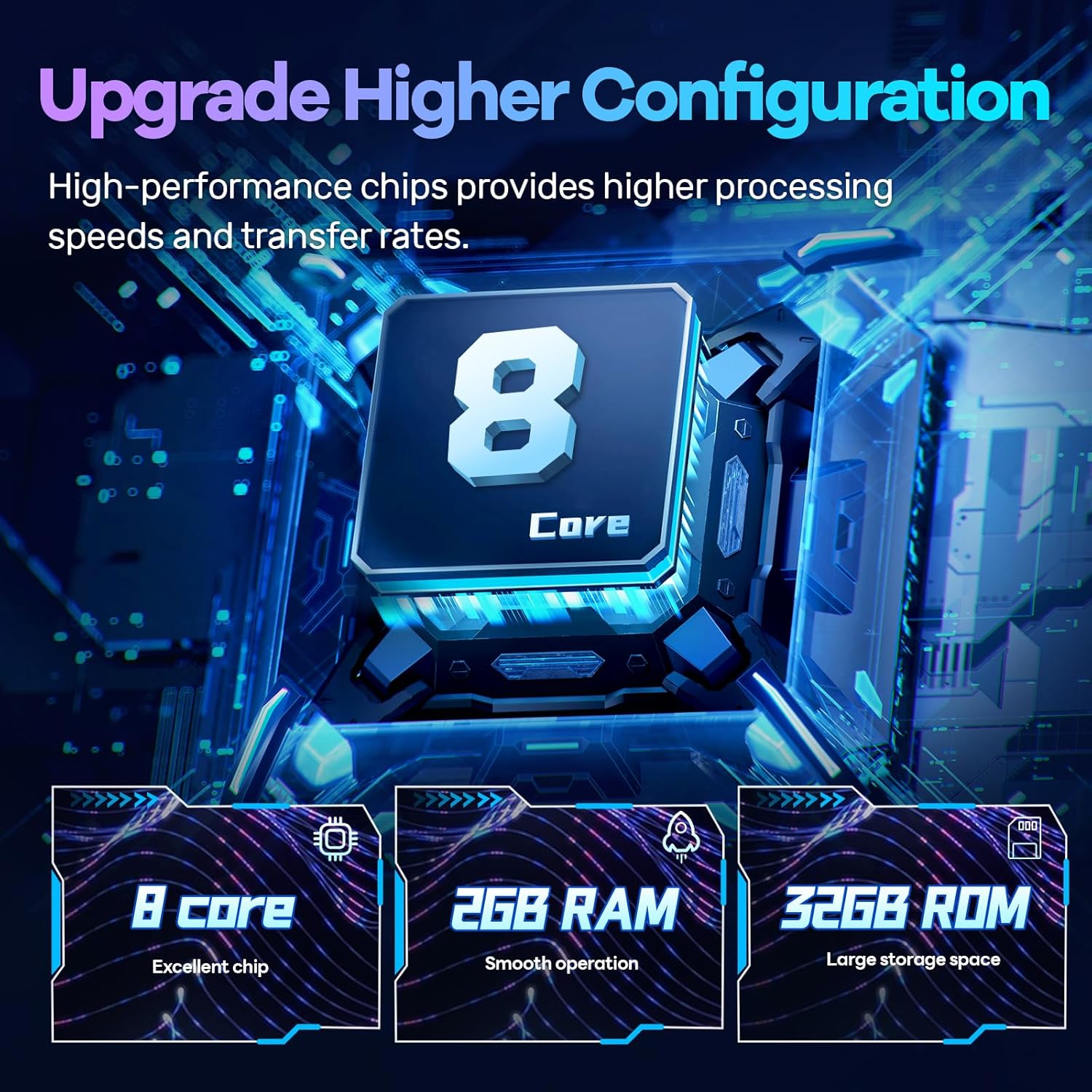
| Processor | 8-Core |
| RAM | 2GB DDR4 |
| ROM | 32GB |
| Display Resolution | 1280*720P |
| Connectivity Technology | USB, 5Ghz WiFi, Bluetooth 5.0 |
| Special Features | Android Auto, Apple CarPlay, GPS Navigation, Touchscreen, DSP 48EQ, Split screen display, Voice Assistant, Mirror Link, Backup Camera |
| Audio Output Mode | Stereo |
| Compatible Devices | Smartphone |
| Control Method | Touch, Voice |
| Vehicle Service Type | SUV (Toyota RAV4 2007-2012) |


6. Warranty
The LASERTAIL 8-Core Car Stereo Radio comes with a 1-Year Warranty from the date of purchase. This warranty covers manufacturing defects and malfunctions under normal use. Please retain your proof of purchase for warranty claims.
7. Support
For technical assistance, troubleshooting, or any questions regarding your LASERTAIL 8-Core Car Stereo Radio, please contact our customer support team. You can find contact information in the included Function Instruction manual or by visiting the LASERTAIL store on Amazon.
When contacting support, please provide the following information:
- Order ID
- Car model and year
- Detailed description of the problem