
Fyearfly Fyearflyi7rc16we4g
User Manual: Smart Digital Door Viewer
Brand: Fyearfly | Model: ED 300PD
1. Introduction
This manual provides comprehensive instructions for the installation, operation, maintenance, and troubleshooting of your Fyearfly 1080P WiFi Video Peephole. Please read this manual carefully before using the product to ensure proper functionality and safety.
2. Setup Guide
2.1 Package Contents
Before installation, please verify that all components listed below are included in your package:
- 1 x Display Unit
- 1 x Peephole Camera (Memory card not included)
- 1 x Mounting Bracket
- 8 x Installation Screws
- 2 x Washers
- 1 x Power Cable
- 2 x Instruction Manuals

Figure 2.1: Included Components
This image displays all the parts you should find in the product packaging, including the main display unit, the peephole camera, the mounting bracket, various screws and washers for installation, and the power cable.
2.2 Installation Steps
Follow these steps to install your Smart Digital Door Viewer:
- Prepare the Door: Ensure your door has a suitable peephole opening with a diameter of approximately 14-50 mm (0.55-1.97 inches). The door thickness should be between 35-120 mm (1.38-4.72 inches).
- Install the Peephole Camera: Insert the peephole camera through the door from the outside. Ensure the camera is oriented correctly.
- Attach Mounting Bracket: From the inside of the door, secure the mounting bracket over the camera's cable, aligning it with the camera's threads.
- Secure the Camera: Use the provided screws to firmly attach the camera to the mounting bracket.
- Connect the Display Unit: Connect the cable from the peephole camera to the corresponding port on the display unit.
- Mount the Display Unit: Attach the display unit to the mounting bracket.
- Power On: Connect the power cable to the display unit and a power source to charge the built-in battery.
3. Operating Instructions
3.1 Initial Setup and WiFi Connection
To set up your Smart Peephole and connect it to WiFi:
- Reset Device: Press and hold the reset button on the device for a few seconds until you hear a voice prompt.
- Mobile App Connection: Open the mobile application (available for Android and iOS). Use the app to scan the QR code displayed on the doorbell's screen.
- Follow Voice Prompts: Continue to follow the voice prompts from the device and instructions within the mobile app to complete the network configuration.

Figure 3.1: WiFi Remote Monitoring
This image illustrates how the door viewer's display and a connected smartphone can both show the live feed, demonstrating the remote monitoring capability via WiFi.
3.2 Key Features and Functions
Your Smart Digital Door Viewer offers a range of advanced features:
- WiFi Connection: View visitors on your smartphone or tablet, enabling remote monitoring and interaction.
- Two-Way Intercom: Communicate with visitors at your door using the built-in intercom system, which includes noise reduction for clear audio.
- 1080P Camera and LCD Screen: Equipped with a 1080P camera and a 150° wide-angle lens. The 4.3-inch TFT LCD color display provides clear AHD images and videos.
- Automatic Day/Night Vision: The camera automatically switches visual sensitivity between day and night modes (adjustable, effective distance about 2 meters) for clear viewing in various lighting conditions.
- Motion Detection (PIR Sensor): The PIR motion sensor automatically detects human movement, triggering push notifications and video recordings within seconds. This provides 24-hour monitoring for enhanced home security.
- Snapshots and Video Recording: Capture HD snapshots and record videos, which can be stored on a small memory card (up to 128GB, not included) or directly on your phone.
- Voice Support: The device supports English and Chinese voice prompts for network configuration and operation.

Figure 3.2: Live View Display
This image shows the clear visual output on the 4.3-inch LCD display of the Fyearfly Smart Digital Door Viewer, demonstrating its ability to provide a sharp image of the person at the door.
4. Maintenance
4.1 Battery Care
The device features a built-in 5000mAh lithium battery, offering up to 30 days of standby time (based on 3-5 calls per day). Recharge the battery conveniently via USB when the low battery warning appears.
4.2 Cleaning
To maintain optimal performance and image clarity:
- Gently wipe the camera lens and LCD screen with a soft, dry, lint-free cloth.
- Avoid using abrasive cleaners, solvents, or aerosol sprays, as these can damage the surfaces.
- Ensure no moisture enters the device's ports or openings.
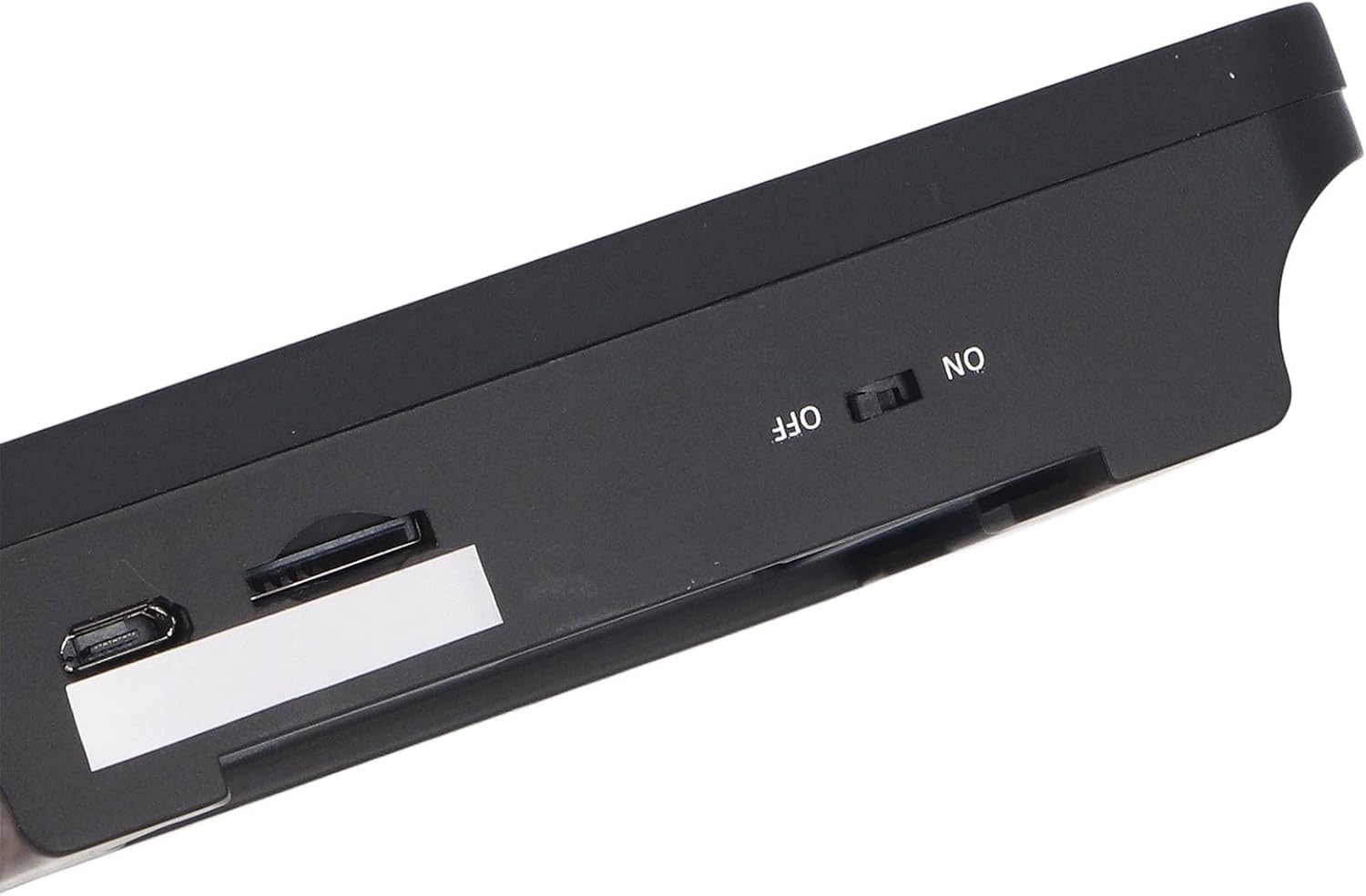
Figure 4.1: Charging Port and Power Switch
This image provides a close-up view of the side of the display unit, highlighting the USB charging port for convenient power replenishment and the power switch to turn the device on or off.
5. Troubleshooting
If you encounter issues with your Smart Digital Door Viewer, please refer to the following common problems and solutions:
- Connectivity Issues: If the device struggles to connect to your WiFi network or the display speed is slow, ensure your mobile network condition is stable.
- WiFi Username Restrictions: Avoid using WiFi usernames (SSIDs) that are longer than 32 characters or contain special symbols or Chinese characters. Such usernames can interfere with successful connection.
- No Image/Poor Image Quality: Check if the camera lens is clean and free from obstructions. Ensure sufficient lighting for clear night vision.
- Device Not Responding: Try pressing and holding the reset button for a few seconds to restart the device.
- Battery Drains Quickly: Ensure the device is fully charged. Frequent motion detection alerts or continuous live viewing can consume more power.
If the problem persists after trying these solutions, please contact customer support.
6. Product Specifications
| Specification | Detail |
|---|---|
| Item Type | Video Peephole Doorbell |
| Brand | Fyearfly |
| Model | ED 300PD |
| Operating System | for LiteOS |
| Lens Pixel | 1080P |
| Screen Size | 4.3 inch IPS LCD |
| APP Support | Android, iOS |
| Battery Capacity | 5000mAh Lithium battery (built-in) |
| Wide Angle | 150° |
| Features | Infrared Night Vision, Automatic Photo Capture, Intercom Monitoring, Motion Detection |
| External Storage | Max. 128GB memory card (not included) |
| Supported Door Thickness | Approx. 35-120 mm / 1.38-4.72 inches |
| Language Support | English, Chinese |
| Suitable Door Hole Diameter | Approx. 14-50 mm / 0.55-1.97 inches |
| Operating Temperature | -20~55℃ |
| Product Dimensions (L x W x H) | 19 x 13 x 8 cm |
| Item Weight | 634 g |
| ASIN | B0DFHDTVJ1 |
7. Warranty and Support
Information regarding product warranty and customer support is not available in the provided data. Please refer to the product packaging or the seller's website for details on warranty coverage and how to obtain support.
8. Official Product Videos
No official product videos were provided in the available data for embedding.
Ask a question about this manual
Ask about setup, troubleshooting, compatibility, parts, safety, or missing instructions. Manuals+ will review the question and use this page’s manual context to help answer it.