
1. Introduction
The Gustard X30 is a high-performance Network Streaming Digital-to-Analog Converter (DAC) designed to deliver exceptional audio fidelity. It incorporates advanced technologies such as quad ES9039SPRO DAC chips, ES9311Q linear regulators, and an XMOS XU216 USB interface. The X30 supports various streaming protocols including Roon, Airplay, DLNA, UPnP, and NAA, making it a versatile component for any high-fidelity audio system. This manual provides essential information for setting up, operating, and maintaining your Gustard X30.
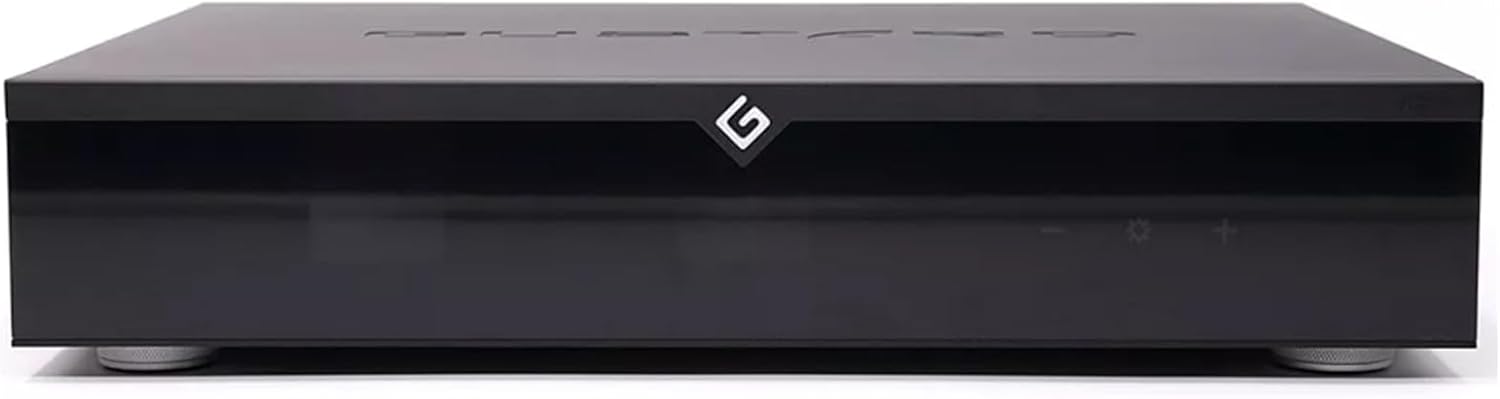
Figure 1: Front view of the Gustard X30 Network Streaming DAC.

Figure 2: Front panel display of the Gustard X30, showing input and status.
2. Setup
2.1 Unpacking and Placement
Carefully remove the Gustard X30 from its packaging. Place the unit on a stable, level surface away from direct sunlight, heat sources, and excessive moisture. Ensure adequate ventilation around the unit.
2.2 Rear Panel Connections
The rear panel of the X30 provides various input and output options for connecting to your audio system and network.

Figure 3: Detailed view of the Gustard X30 rear panel, illustrating all input and output ports.
- Power Supply Input: Connect the provided power cable to the unit and a suitable AC outlet.
- Voltage Switching: Ensure the 220V/110V switch is set correctly for your region's mains voltage before connecting power. Incorrect voltage setting can damage the unit.
- Digital Inputs:
- USB Input: Connect to a computer or digital audio source via USB.
- Coaxial Input: For S/PDIF coaxial digital audio sources.
- Optical Input: For S/PDIF optical digital audio sources.
- AES Input: For professional AES/EBU digital audio sources.
- Clock Input: For external 10M clock synchronization.
- LAN Input: For network connection to enable streaming functions.
- IIS Input (x2 via HDMI): For high-quality IIS digital audio signals.
- Analog Outputs:
- RCA Stereo Output: Unbalanced analog output for connecting to amplifiers or preamplifiers.
- XLR Stereo Balanced Output: Balanced analog output for connecting to compatible professional audio equipment.
- SD Card Reader: For local media playback.
- Trigger IN/OUT: For system integration with other compatible devices.
2.3 Network Connection
Connect an Ethernet cable from your router or network switch to the LAN input on the X30's rear panel. This enables network streaming features like Roon, Airplay, DLNA, UPnP, and NAA.
3. Operating Instructions
3.1 Front Panel Controls
The front panel features a display area and touch controls for basic operation.

Figure 4: Diagram of the X30 front control panel, indicating standby switch, display areas, remote reception, and touch controls.
- Standby Switch: Powers the unit on or off.
- Display Area: Shows current input, sample rate, and other status information.
- Remote Control Reception: Infrared receiver for the remote control.
- Touch Area: Provides tactile controls for navigation and settings.
3.2 Remote Control
The included remote control allows convenient adjustment of volume, input selection, filter modes, and other settings from a distance.
3.3 Network Streaming Functions
The X30 supports various network streaming protocols. Once connected to your network via the LAN port, you can access streaming platforms and services through compatible applications.
- Roon: Integrate with your Roon core for high-quality audio playback.
- Airplay: Stream audio wirelessly from Apple devices.
- DLNA/UPnP: Access media servers on your local network.
- NAA (Network Audio Adapter): For advanced network audio setups.

Figure 5: Example of network streaming interface on mobile and tablet devices, demonstrating music playback control.
3.4 Passive Analog Preamplifier
The X30 features an R2R volume control for lossless signal adjustment. It can be directly connected to active monitoring speakers or power amplifiers. A fixed output level option is also available. Volume adjustments are conveniently made via the remote control.

Figure 6: Internal view highlighting the XMOS XU216 chip and the passive analog preamplifier circuit.
3.5 DSP Digital Filtering
The X30 incorporates a high-performance anti-aliasing noise algorithm using a dedicated DSP platform. It offers 4 DSD filters, 3 PCM filters, and NOS mode support. This technology reduces aliasing noise in the digital domain audio band through upsampling and noise shaping, resulting in improved sound quality.

Figure 7: Internal view showcasing the DSP digital filter chip, responsible for advanced audio processing.
3.6 Clock Management and FPGA
The X30 utilizes a local OCXO clock and supports external 10M clock input. An FPGA programmable logic chip manages clock functions, 2nd PLL digital shaping, DOP demodulation, and PCM/DSD depop switching. These technologies minimize jitter and enhance sound quality.

Figure 8: Internal view displaying the FPGA programmable logic chip and the OCXO constant temperature crystal oscillator.
4. Maintenance
To ensure the longevity and optimal performance of your Gustard X30, follow these maintenance guidelines:
- Cleaning: Use a soft, dry cloth to clean the exterior of the unit. Avoid abrasive cleaners or solvents.
- Ventilation: Ensure that the ventilation openings are not obstructed. Do not place objects on top of the unit that could block airflow.
- Power: Disconnect the power cable from the wall outlet if the unit will not be used for an extended period.
- Firmware Updates: Periodically check the manufacturer's website for firmware updates to ensure your unit has the latest features and performance enhancements.
5. Troubleshooting
If you encounter issues with your Gustard X30, refer to the following common troubleshooting steps:
- No Power:
- Check if the power cable is securely connected to both the unit and the wall outlet.
- Verify the 220V/110V voltage switch on the rear panel is set correctly.
- Check the fuse on the rear panel. Replace if blown (refer to a qualified technician).
- No Sound Output:
- Ensure the correct input source is selected on the X30.
- Verify that your amplifier or active speakers are powered on and set to the correct input.
- Check all audio cables (RCA, XLR) for secure connections.
- If using the preamplifier function, ensure the volume is not set to minimum or muted.
- Network Streaming Issues:
- Confirm the Ethernet cable is properly connected to the LAN port.
- Restart your network router and the X30.
- Ensure your streaming application (Roon, Airplay, etc.) is correctly configured to recognize the X30.
- Distorted Sound:
- Check the source audio file quality.
- Ensure all connections are secure and free from interference.
- Try different digital filter settings to see if it resolves the issue.
If the problem persists, please contact customer support for further assistance.
6. Specifications
The Gustard X30 Network Streaming DAC features advanced components and capabilities:

Figure 9: Detailed specifications table for the Gustard X30, outlining supported formats and interfaces.
- DAC Chips: 4x ESS ES9039SPRO
- Linear Regulators: ES9311Q
- USB Chip: XMOS XU216
- Supported PCM (USB/IIS/Streamer): 44.1kHz-768kHz, 16bit-32bit
- Supported DSD (USB/IIS/Streamer): DSD64-DSD512 (Native), DSD64-DSD256 (DoP)
- Supported MQA (USB/IIS/Streamer): Full decoding
- Supported PCM (AES/Coaxial/Optical): 44.1kHz-192kHz, 16bit-24bit
- Supported DSD (AES/Coaxial/Optical): DSD64 (DoP)
- Supported MQA (AES/Coaxial/Optical): Full decoding
- Network Streaming: Roon, Airplay, DLNA, UPnP, NAA
- Preamplifier: Passive Analog Preamplifier with R2R volume control
- Digital Filtering: 4 DSD filters, 3 PCM filters, NOS mode
- Clock: Local OCXO, supports external 10M clock input
- Outputs: RCA Stereo, XLR Stereo Balanced
- Inputs: USB, Coaxial, Optical, AES, Clock, LAN, 2x IIS (via HDMI), SD Card
- Maximum Supply Voltage: 230 Volts (AC)
- Number of Channels: 2
7. Warranty and Support
Auinshifiman provides quality assurance for the Gustard X30. During the coverage period and under normal use, any quality issues will be addressed through replacement or repair services, with related costs covered. For technical support, troubleshooting assistance, or warranty claims, please contact your retailer or Auinshifiman customer service.


