
viqee S24
viqee S24 5G Unlocked Smartphone User Manual
Model: S24
Introduction
This manual provides detailed instructions for the safe and efficient use of your viqee S24 5G Unlocked Smartphone. Please read this manual thoroughly before operating your device to ensure optimal performance and longevity. Keep this manual for future reference.
1. Getting Started
1.1 Package Contents
Verify that all items are present in your product package:

Figure 1.1: Contents of the viqee S24 package, including the phone, USB cable, charger, headset, screen protector, mobile manual, and SIM ejector tool.
- viqee S24 Smartphone
- USB Cable
- Charger Head (one of four types)
- Headset
- Screen Protector
- Mobile Manual
- Card Pin (SIM ejector tool)
- Mobile Phone Cases
1.2 SIM Card and SD Card Installation
Your viqee S24 supports dual SIM cards and a dedicated micro SD card for expandable storage. Follow these steps to install your cards:
- Locate the SIM card tray on the side of the phone.
- Insert the provided card pin into the small hole next to the tray to eject it.
- Carefully pull out the SIM card tray.
- Place your Nano-SIM cards into the designated slots (SIM1 and SIM2).
- If using, place your micro SD card into its dedicated slot.
- Gently push the tray back into the phone until it clicks into place.

Figure 1.2: Illustration of the dual SIM and micro SD card tray for the viqee S24.
1.3 Initial Power On and Setup
- Press and hold the Power button (located on the right side of the phone) until the screen lights up.
- Follow the on-screen prompts to complete the initial setup, including language selection, Wi-Fi connection, Google account login, and security settings.
- Ensure your phone is sufficiently charged before first use.
2. Basic Operation
2.1 Power On/Off and Restart
- Power On: Press and hold the Power button until the viqee logo appears.
- Power Off: Press and hold the Power button for a few seconds, then tap "Power off" on the screen.
- Restart: Press and hold the Power button for a few seconds, then tap "Restart" on the screen.
2.2 Screen Navigation and Gestures
The viqee S24 operates on Android 13.0, offering intuitive navigation. Common gestures include:
- Tap: Select an item or open an app.
- Swipe: Scroll through lists or switch between home screens.
- Pinch: Zoom in or out on photos and web pages.
- Long Press: Access contextual menus or move app icons.
2.3 Calls and Messaging
- Making a Call: Open the Phone app, enter the number, and tap the call icon.
- Answering a Call: Swipe up on the green answer icon when a call comes in.
- Sending a Message: Open the Messages app, tap "Start chat," enter the recipient and message, then tap send.
2.4 Camera Usage
The S24 features a 64MP front camera and a 12MP rear camera. To use the camera:
- Open the Camera app.
- Tap the shutter button to take a photo.
- Switch between front and rear cameras using the camera flip icon.
- Explore various modes like Portrait, Video, and Panorama.
2.5 Security Features: Face ID and Fingerprint Unlock
Enhance your phone's security with biometric authentication:
Face ID:
- Go to Settings > Security & privacy > Face unlock.
- Follow the on-screen instructions to register your face.
- The phone uses zero-light face recognition for secure unlocking even in low light.

Figure 2.1: The viqee S24 features zero-light face recognition for secure unlocking.
Fingerprint Unlock:
- Go to Settings > Security & privacy > Fingerprint unlock.
- Follow the prompts to register your fingerprint on the in-screen sensor.
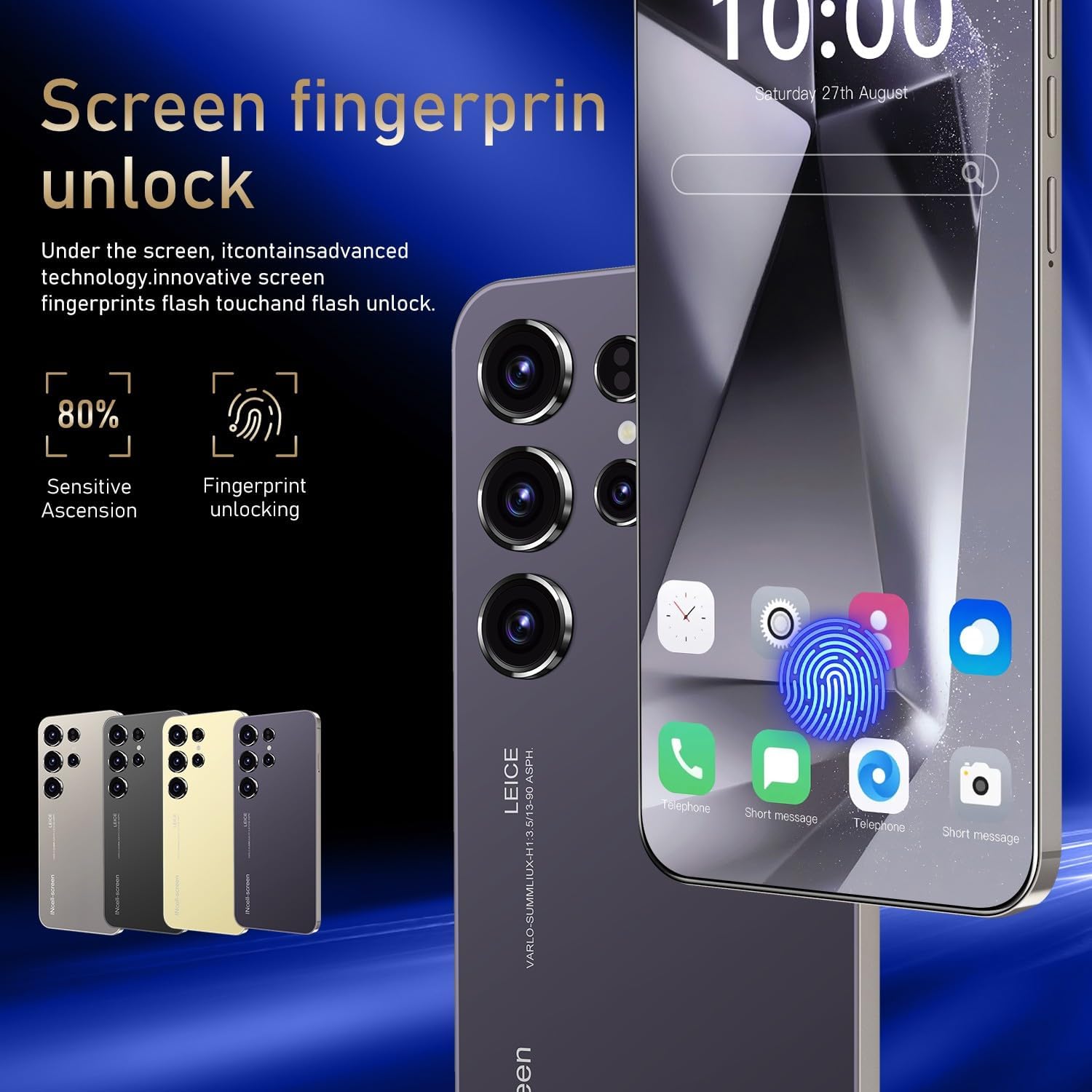
Figure 2.2: The viqee S24 utilizes an advanced in-screen fingerprint sensor for quick and secure access.
2.6 GPS Navigation
The viqee S24 includes GPS functionality for navigation. Use pre-installed map applications or download your preferred navigation app from the Google Play Store. The device supports high positioning accuracy for reliable guidance.

Figure 2.3: The viqee S24 provides reliable GPS navigation for travel and location services.
3. Care and Maintenance
- Cleaning: Use a soft, lint-free cloth to clean the screen and body of the phone. Avoid using harsh chemicals or abrasive materials.
- Battery Care: To prolong battery life, avoid extreme temperatures. Do not let the battery fully discharge frequently. Use the original charger and cable.
- Software Updates: Regularly check for and install system updates to ensure your phone has the latest features and security patches. Go to Settings > System > System update.
- Water Resistance: This device is not rated for water resistance. Avoid exposure to liquids.
4. Troubleshooting Common Issues
| Problem | Solution |
|---|---|
| Phone does not turn on | Ensure the battery is charged. Connect the phone to the charger for at least 15 minutes, then try powering on again. |
| Poor network signal | Check if your SIM card is properly inserted. Move to an area with better network coverage. Restart the phone. |
| Screen is unresponsive | Force restart the device by holding the Power button for approximately 10-15 seconds. |
| Apps crashing or freezing | Clear the cache of the problematic app (Settings > Apps > [App Name] > Storage > Clear cache). If the issue persists, uninstall and reinstall the app. |
| Battery drains quickly | Reduce screen brightness, close unused apps running in the background, disable unnecessary features like GPS or Bluetooth when not in use. Check battery usage in Settings to identify power-hungry apps. |
5. Product Specifications
| Feature | Detail |
|---|---|
| Model Name | S24 |
| Operating System | Android 13.0 |
| Screen Size | 6.3 Inches |
| Resolution | 2340 x 1080 |
| RAM Memory | 4 GB |
| Memory Storage Capacity | 128 GB |
| Cellular Technology | 5G |
| Battery Capacity | 6000 Amp Hours |
| Front Camera | 64MP |
| Rear Camera | 12MP |
| Item Weight | 4.4 ounces |
| Connectivity Technologies | 5G, Wireless |
| GPS | True |
| Manufacturer | viqee |
6. Warranty and Support
6.1 Product Warranty
Your viqee S24 smartphone is covered by a limited manufacturer's warranty against defects in materials and workmanship. Please refer to the warranty card included in your package for specific terms, conditions, and duration. This warranty does not cover damage caused by misuse, accidents, unauthorized modifications, or normal wear and tear.
6.2 Customer Support
For technical assistance, troubleshooting, or warranty claims, please contact viqee customer support. You can find contact information on the official viqee website or through the support section of your device's settings. When contacting support, please have your product model (S24) and purchase information ready.
Visit the official viqee store for more information: viqee Store on Amazon
Ask a question about this manual
Ask about setup, troubleshooting, compatibility, parts, safety, or missing instructions. Manuals+ will review the question and use this page’s manual context to help answer it.