Introduction
The NearStream V02AF 1080P Webcam is designed to deliver sharp and clear video for various applications, including online conferencing, livestreaming, and content creation. It features a 1080p FHD 2-megapixel CMOS sensor and comes with an adjustable metal tripod stand for optimal positioning. The webcam offers effortless plug-and-play setup and advanced software control for a customized user experience.
Setup
1. Assembling the Tripod
The webcam comes with an extendable metal tripod. The tripod offers adjustable height from 10.2 inches to 17 inches. It features a 1/4-inch mounting screw for compatibility with the V02AF webcam.
- Attach the webcam to the 1/4-inch mounting screw on the tripod's ball-head adapter.
- Adjust the tripod height by unscrewing the locking mechanism, extending the pole, and then re-tightening it.
- Utilize the ball-head adapter for 360-degree rotation and 90-degree tilt to achieve your desired camera angle.

Image: NearStream V02AF Webcam attached to its adjustable tripod stand.
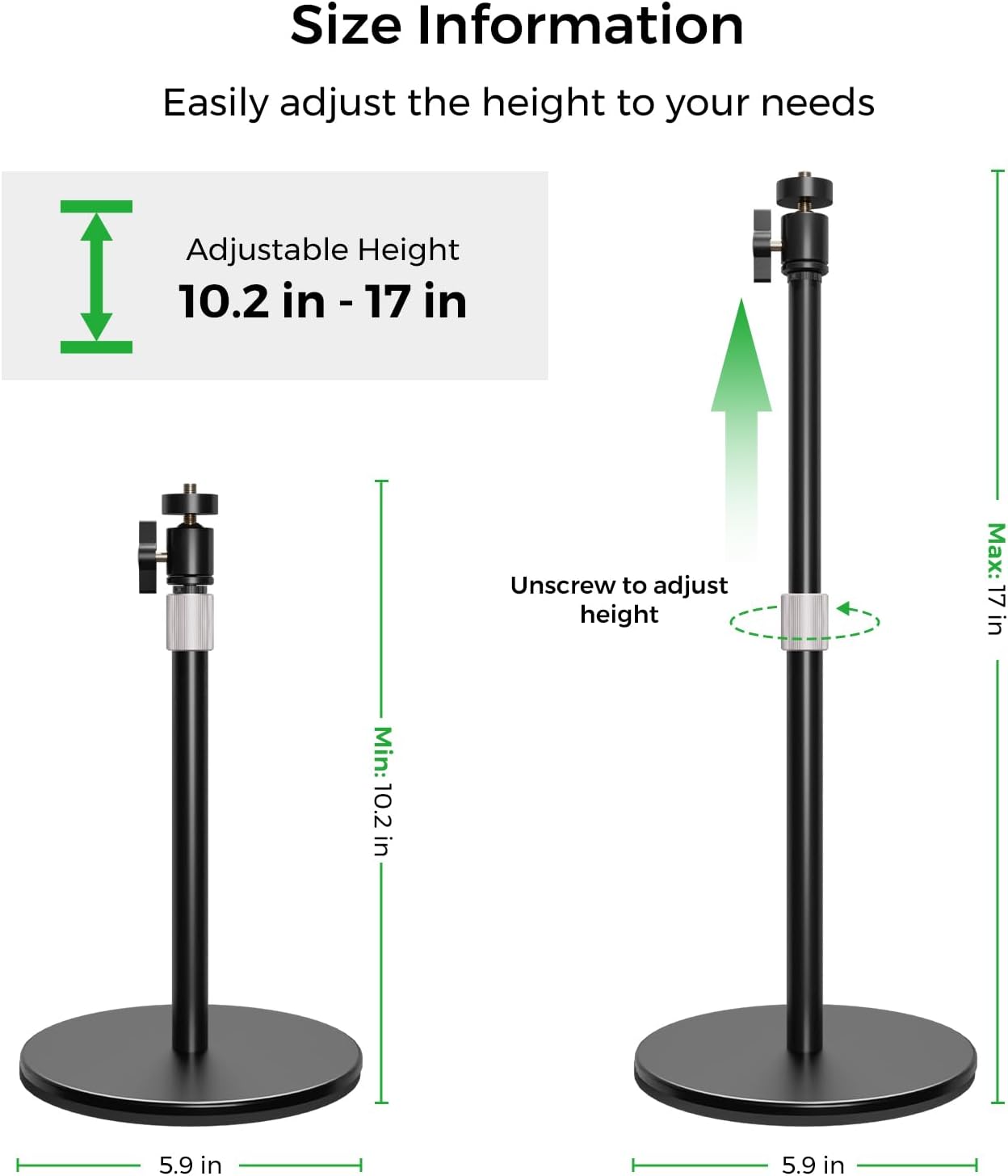
Image: Diagram illustrating the adjustable height of the tripod stand, ranging from 10.2 inches to 17 inches.
2. Connecting to Your Computer
The NearStream V02AF webcam is designed for plug-and-play functionality, requiring no additional drivers.
- Connect the provided USB cable from the webcam to an available USB port on your computer.
- Your computer should automatically detect the webcam.
- In your video conferencing or streaming software, select "V02AF" as your webcam and microphone source.
Operating
1. NearSync Software Control
For advanced customization, use the NearSync software (available for download from the official NearStream website).
- Launch the NearSync software after connecting your webcam.
- Adjust the Field of View (FOV) to your preference (e.g., 60°, 75°, 90°).
- Fine-tune image settings such as saturation, brightness, contrast, and hue.
- Control vertical and horizontal orientations for precise framing.

Image: Screenshot of the NearSync software interface showing various image and camera settings.

Image: Diagram illustrating different field of view options (60°, 75°, 90°) for the webcam.
2. Auto Focus
The webcam features intelligent auto-focus technology to ensure your image remains sharp and clear, even when showcasing objects.

Image: A hand holding a business card in front of the webcam, demonstrating the auto-focus capability.
3. High SNR Noise Cancelling Microphone
The webcam is equipped with a high SNR (Signal-to-Noise Ratio) noise-canceling microphone. This technology uses a compressed neural network to intelligently filter out background noise, delivering crystal-clear audio during your calls and streams.

Image: Close-up of the webcam, highlighting the microphone with a visual representation of sound waves and noise filtering.
Maintenance
To ensure optimal performance and longevity of your NearStream V02AF webcam, follow these maintenance guidelines:
- Cleaning the Lens: Gently wipe the webcam lens with a soft, lint-free cloth. Avoid using harsh chemicals or abrasive materials that could scratch the lens.
- Cleaning the Body: Use a dry or slightly damp cloth to clean the body of the webcam and tripod. Do not immerse the device in water.
- Storage: When not in use, store the webcam and tripod in a cool, dry place away from direct sunlight and extreme temperatures.
- Cable Care: Avoid bending or twisting the USB cable excessively to prevent damage.
Troubleshooting
If you encounter issues with your NearStream V02AF webcam, try the following troubleshooting steps:
- Webcam Not Detected: Ensure the USB cable is securely connected to both the webcam and your computer. Try plugging it into a different USB port. Restart your computer.
- Poor Video Quality: Check your lighting conditions. Ensure the webcam lens is clean. Verify that your video conferencing software is set to 1080p resolution. Use the NearSync software to adjust image settings.
- No Audio/Poor Audio: Confirm that "V02AF" is selected as the microphone source in your software. Check your computer's audio settings to ensure the microphone is not muted and volume is adequate.
- Tripod Instability: Ensure all locking mechanisms on the tripod are tightened. Place the tripod on a flat, stable surface.
Specifications
| Feature | Detail |
|---|---|
| Brand | NearStream |
| Model Name | V02AF |
| Photo Sensor Technology | CMOS |
| Video Capture Resolution | 1080p |
| Special Feature | Low Light |
| Connectivity Technology | USB |
| Tripod Height Adjustment | 10.2" to 17" |
| Tripod Mounting Screw | 1/4-inch |
Warranty and Support
For warranty information or technical support, please refer to the documentation included in your product packaging or visit the official NearStream website. Keep your purchase receipt for warranty claims.
