
iLovBee B87
iLovBee B87 Mechanical Keyboard
User Manual
Introduction
The iLovBee B87 is a 75% compact mechanical keyboard designed for an optimal typing and gaming experience. It features a gasket-mounted design, hot-swappable switches, customizable RGB backlighting, and a versatile volume knob. This manual provides essential information for setting up, operating, maintaining, and troubleshooting your iLovBee B87 keyboard.
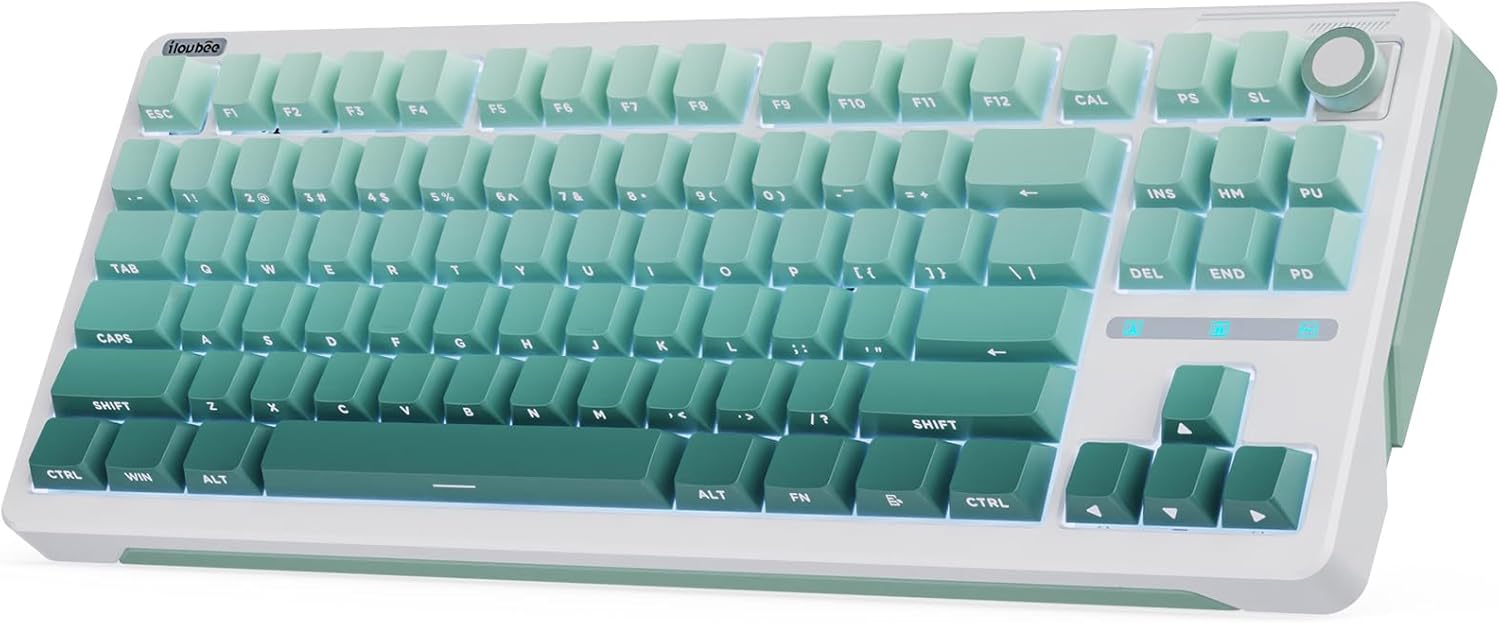
Image: The iLovBee B87 mechanical keyboard in gradient green, showcasing its 75% layout and integrated knob.
Package Contents
Please verify that all items are present in the package:
- iLovBee B87 Keyboard x 1
- Spare Switches x 3
- 2-in-1 Key & Switch Puller x 1
- Type-C Cable x 1
- User's Manual x 1
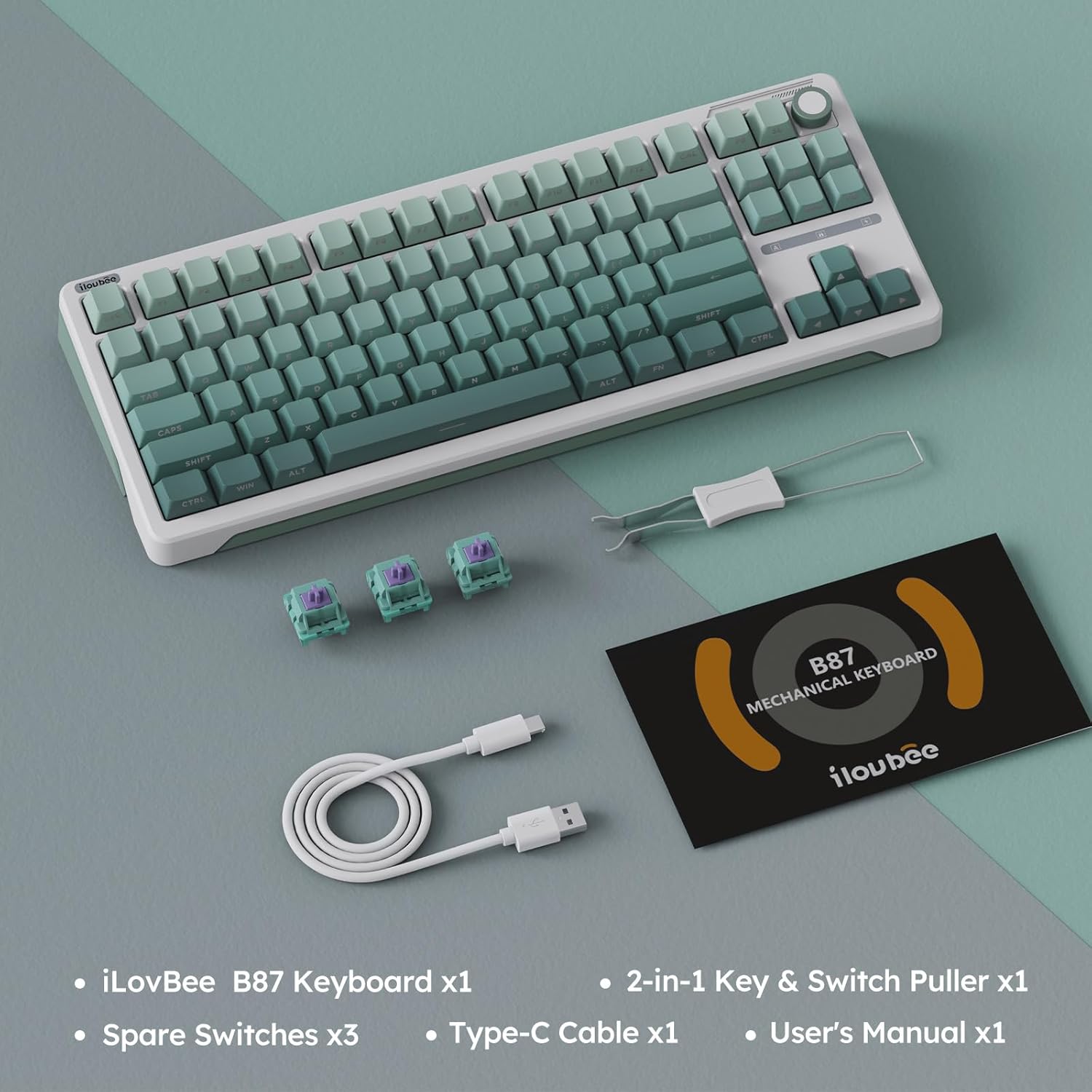
Image: All items included in the iLovBee B87 keyboard package, neatly laid out.
Setup Guide
- Connect the Keyboard:
Locate the USB-C port on the back of the iLovBee B87 keyboard. Connect one end of the provided Type-C USB cable to the keyboard and the other end to an available USB port on your computer (PC, Laptop, or Gaming Console).

Image: Close-up view of the USB-C port on the iLovBee B87 keyboard, indicating the wired connection point.
- Driver Installation:
The keyboard is plug-and-play and typically does not require additional drivers for basic functionality. Your operating system should automatically recognize the device.
- Adjust Keyboard Angle:
The keyboard features two-stage adjustable feet on the underside. Flip them out to achieve your preferred typing angle for ergonomic comfort.

Image: Detail of the two-stage adjustable feet on the bottom of the keyboard, showing how they can be extended for ergonomic tilt.
Operating Instructions
Volume Knob Functionality
The CNC alloy knob located on the top right of the keyboard provides convenient multimedia control:
- Rotate Clockwise: Increase volume.
- Rotate Counter-clockwise: Decrease volume.
- Press Down: Mute/Unmute audio.
The knob is hot-swappable and programmable, allowing it to be replaced with a standard key or assigned custom functions via QMK/VIA software.
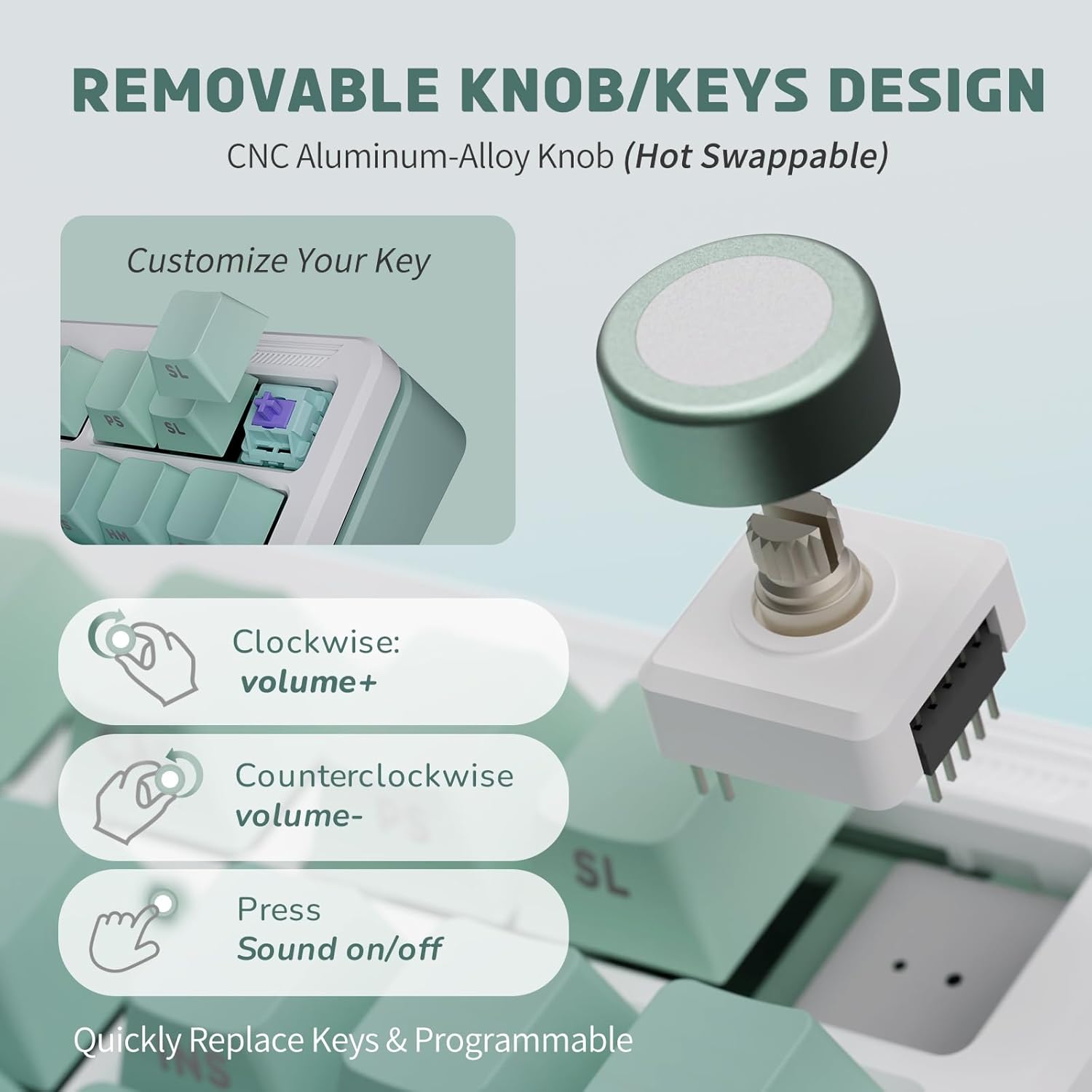
Image: Diagram illustrating the removable volume knob, its hot-swappable nature, and its functions for volume control and mute.
RGB Backlight Control
The iLovBee B87 features 24+ RGB lighting effects. You can control the backlight directly from the keyboard:
- Switch Lighting Effects: Use specific key combinations (refer to the keyboard's keycap legends or QMK/VIA for default mappings).
- Adjust Brightness: Increase or decrease backlight intensity.
- Adjust Speed: Change the speed of dynamic lighting effects.

Image: The iLovBee B87 keyboard displaying its vibrant RGB backlighting, highlighting the side-printed PBT keycaps.
QMK/VIA Software Customization
The iLovBee B87 supports QMK/VIA, an open-source firmware that allows extensive customization:
- Key Remapping: Change the function of any key.
- Macro Recording: Create complex key sequences.
- Backlight Customization: Fine-tune RGB effects, colors, and patterns.
- Layout Adjustment: Modify the keyboard layout to suit your preferences.
To use QMK/VIA, download the software from the official QMK/VIA website and follow their instructions for flashing firmware and customizing your keyboard. This provides a powerful tool for personalizing your typing experience.
Hot-Swappable Switches
The keyboard features a hot-swappable PCB, supporting 3-pin and 5-pin switches. This allows you to easily change switches without soldering, enabling quick customization of your typing feel and sound.
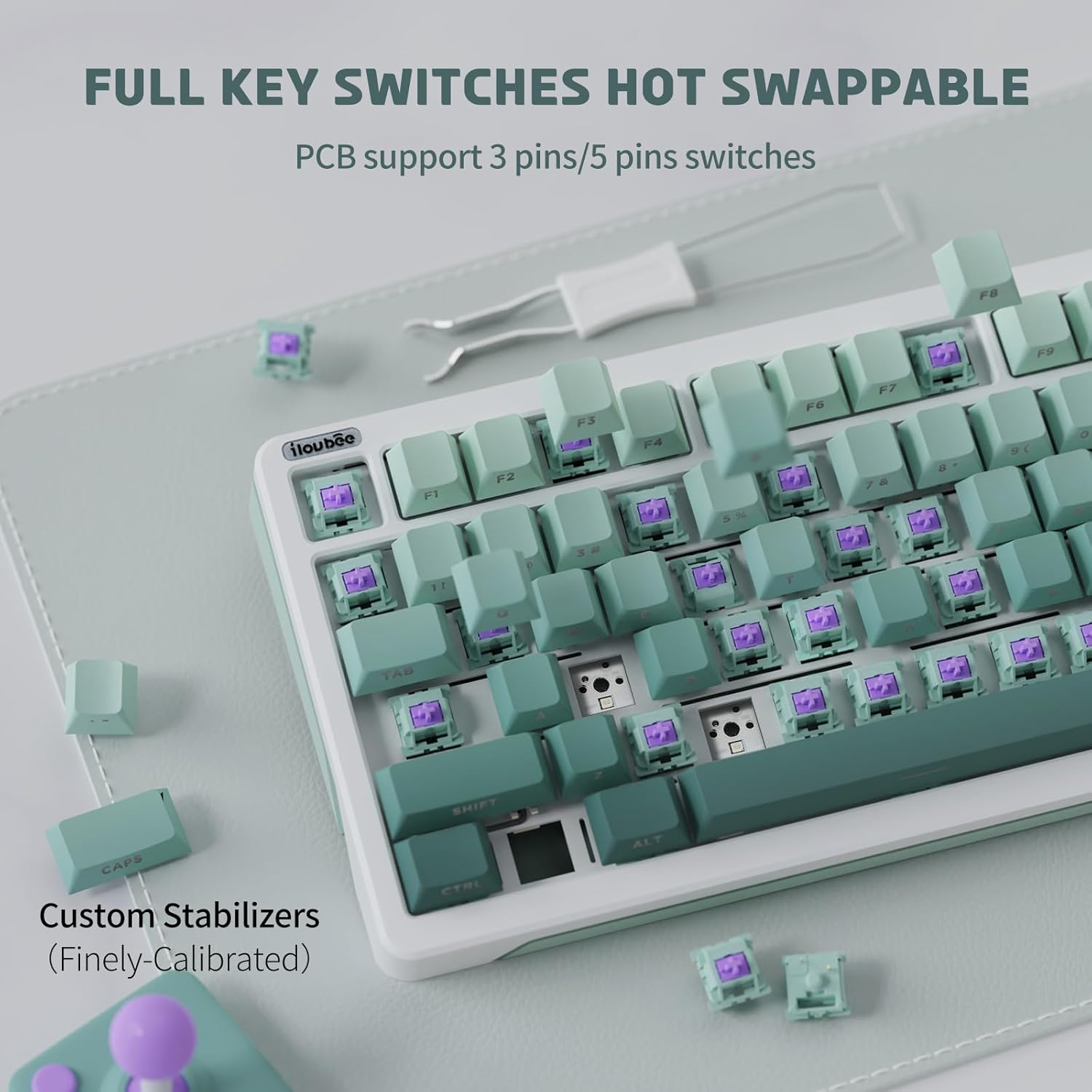
Image: A close-up view of the iLovBee B87 keyboard with several keycaps and switches removed, demonstrating the hot-swappable sockets.
The keyboard comes with Linear Aster Switches, designed for gaming with a shorter actuation point and faster response time. Their specifications are:
- Type: Linear
- Operating Travel: 2.00 ± 0.4mm
- Total Travel: 3.40 ± 0.4mm
- Operating Force: 45 ± 5gf

Image: Detailed diagram of an Aster Switch, showing its internal components and key specifications like operating travel and force.
Maintenance
- Cleaning Keycaps:
Use a soft, damp cloth to wipe down the PBT keycaps. For deeper cleaning, use the provided keycap puller to remove keycaps and clean them with mild soap and water. Ensure they are completely dry before reattaching.
- Cleaning Switches:
Periodically use compressed air to remove dust and debris from between the keycaps and switches. If a switch feels inconsistent, you can use the switch puller to remove it and inspect for obstructions.
- Cable Management:
Keep the USB-C cable neatly organized to prevent damage and ensure a stable connection.
Troubleshooting
| Problem | Possible Cause | Solution |
|---|---|---|
| Keyboard not responding | Loose USB-C connection; Faulty USB port; Driver issue. | Ensure the USB-C cable is securely connected to both the keyboard and the computer. Try a different USB port on your computer. Restart your computer. |
| Backlight not working or incorrect | Backlight turned off; Incorrect lighting mode selected. | Check keyboard shortcuts for backlight control (e.g., Fn + specific keys). Use QMK/VIA software to verify backlight settings. |
| Specific keys not working | Loose or faulty switch; Keycap not properly seated. | Remove the keycap and ensure the switch is fully seated. If the issue persists, use the switch puller to remove the switch and reinsert it, or replace it with one of the spare switches. |
| Volume knob not functioning | Knob not properly seated; Software conflict. | Ensure the knob is firmly pressed into its socket. Check if any other software is interfering with multimedia controls. Reset keyboard settings via QMK/VIA if necessary. |
Specifications
| Feature | Detail |
|---|---|
| Model Number | B87 |
| Layout | 75% Compact (87 Keys) |
| Connectivity | USB-C Wired |
| Switch Type | Linear Aster Switch (Hot-Swappable 3/5-pin) |
| Keycaps | Side-Printed PBT Keycaps |
| Backlighting | RGB (24+ effects) |
| Knob | CNC Alloy Volume Knob (Hot-Swappable, Programmable) |
| Structure | Gasket Mount, Leaf Spring, 5-Layer Filling |
| Dimensions | 14.49 x 5.67 x 1.77 inches |
| Weight | 2.27 pounds |
| Compatible Devices | Laptop, Gaming Console, PC |
| Software Support | QMK/VIA |
Warranty and Support
iLovBee products are manufactured to high quality standards. For warranty information and support, please refer to the warranty card included with your product or visit the official iLovBee website. You may also contact the seller directly for assistance with product-related inquiries.
For QMK/VIA software support and community resources, please visit the official QMK and VIA websites:
Ask a question about this manual
Ask about setup, troubleshooting, compatibility, parts, safety, or missing instructions. Manuals+ will review the question and use this page’s manual context to help answer it.