
Introduction
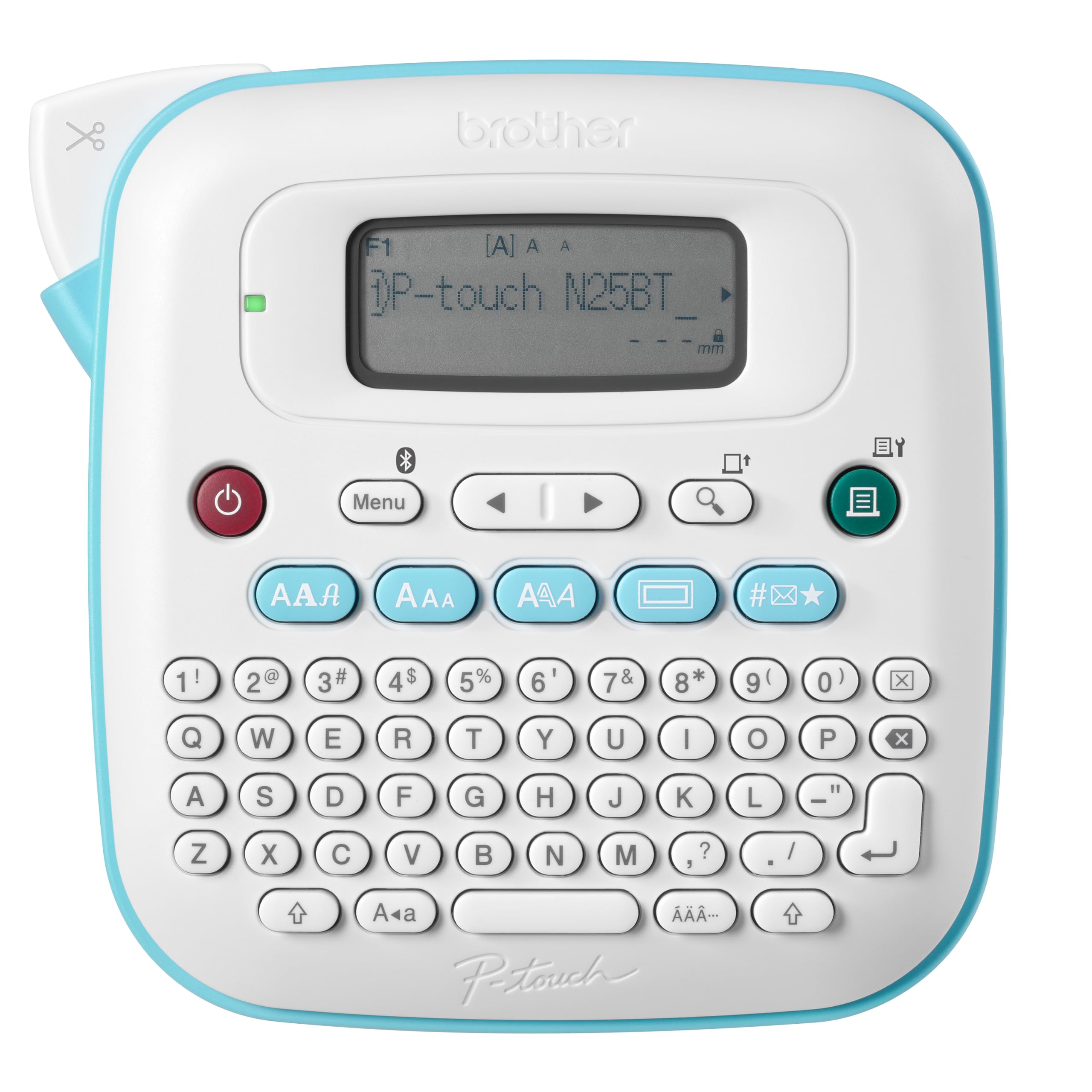
The Brother P-Touch PT-N25BT is a personal connected label maker designed for versatile labeling tasks. It features Bluetooth connectivity, allowing integration with the free Brother Design&Print2 app for enhanced customization options including templates, fonts, symbols, emojis, frames, and patterns. This device is compatible exclusively with Brother Btag ½ inch (12mm) wide label tapes, available in various colors. It includes a full QWERTY keyboard and a 16-character display for direct label creation and preview. The PT-N25BT supports printing up to two lines of text with a combined height of 9mm and can save up to 10 frequently used labels for quick re-printing.
1. Setup
1.1 Power Options
The PT-N25BT label maker can be powered by either an AC adapter or 6 AAA batteries. Both the AC adapter and batteries are sold separately. Ensure you use new, identical AAA batteries if opting for battery power.
1.2 Loading Label Tape
- Open the tape cassette cover located on the back of the label maker.
- Insert a Brother Btag ½ inch (12mm) label tape cassette into the compartment, ensuring it clicks into place.
- Close the tape cassette cover securely.

1.3 Connecting via Bluetooth and App Installation
The label maker features Bluetooth connectivity for use with the Brother Design&Print2 app. Download the free Design&Print2 app from your device's app store. Once installed, enable Bluetooth on your smartphone or tablet and follow the app's instructions to pair with the PT-N25BT.
2. Operation
2.1 Creating Labels Using the QWERTY Keyboard
The integrated QWERTY keyboard allows for direct text input. Type your desired label text. Use the dedicated buttons to adjust font styles (e.g., underline, italic), add frames, or insert symbols. The 16-character display screen allows you to preview your label layout before printing, helping to prevent errors and minimize tape waste.
2.2 Designing Labels with the Design&Print2 App
For advanced customization, use the Brother Design&Print2 app. The app provides access to a wider selection of fonts, frames, and symbols. You can design labels with up to two lines of text. The app also offers various templates and alignment options to create unique labels. Once designed, send the label to the PT-N25BT for printing via Bluetooth.

2.3 Printing and Cutting Labels
After creating your label, press the print button on the device or within the app. The label maker features a built-in cutter to provide clean, smooth edges for each label. The device can save up to 10 labels for quick re-printing of frequently used designs.
3. Maintenance
3.1 Replacing Label Tapes
When the label tape runs out or you wish to change colors, open the tape cassette cover and remove the empty or desired cassette. Insert a new Brother Btag ½ inch (12mm) label tape cassette. Ensure the tape is properly aligned before closing the cover.
3.2 Cleaning the Label Maker
To maintain optimal performance, periodically clean the print head and cutter blade. Use a soft, dry cloth to wipe the exterior of the device. For the print head, refer to the detailed cleaning instructions in the full user guide available on the Brother support website.
4. Troubleshooting
- Label Tape Not Sticking: Ensure the surface is clean and dry. Brother Btag tapes feature an easy-peel backing; ensure it is fully removed before application.
- Batteries Draining Quickly: The device requires 6 AAA batteries. For extended use, consider purchasing the optional AC adapter. Ensure batteries are new and of the same type.
- Display Screen Difficult to Read: The 16-character LCD screen is not backlit. Ensure adequate lighting when operating the device.
- Bluetooth Connectivity Issues: Ensure Bluetooth is enabled on your mobile device and the label maker is within range. Restart both devices and attempt to re-pair through the Design&Print2 app.
- Print Quality Issues: Check if the tape cassette is correctly installed. Ensure the print head is clean.
- Labels Not Centered (Two Lines): When printing two lines of text, the centering may vary. Adjust text alignment within the Design&Print2 app for more precise control.
5. Specifications
| Feature | Detail |
|---|---|
| Brand | Brother |
| Model Name | PTN25BT |
| Connectivity Technology | Bluetooth |
| Printing Technology | Thermal |
| Special Feature | Portable |
| Color | White |
| Printer Output | Color |
| Maximum Print Speed (Color) | 12 mm/second |
| Max Printspeed Monochrome | 12 mm/second |
| Item Weight | 1.1 pounds |
| Item Dimensions (D x W x H) | 6"D x 6"W x 2.9"H |
| Controller Type | App, Touch |
| Print Media | Labels |
| Compatible Devices | Smartphones, Tablets |
| Ink Color | Multiple (up to 17 colors, specifically the varieties available for Brother Btag Label Tapes) |
| Display Type | LCD |
| Resolution | 180 x 180 dpi |
| Maximum Media Size | 12mm |
| Power Source | 6 x AAA batteries (sold separately) or AC adapter (sold separately) |
| Included in Box | 1x PT-N25BT Personal Connected Label Maker, 1x Btag Blue on White Sample Label Tape (0.47" x 6.5' / 12 mm x 2 m), User Guide |
6. Warranty Information
The Brother P-Touch PT-N25BT Personal Connected Label Maker comes with a 1 Year Limited Warranty. For specific terms and conditions, please refer to the warranty documentation included with your product or visit the official Brother support website.
7. Support
For further assistance, detailed user guides, software downloads, and frequently asked questions, please visit the official Brother support website. You can also contact Brother customer service for technical support.


