1. Product Overview
The RadioShack USB Type-C Headset is designed for clear audio communication and comfortable listening on computers and laptops. It features 40mm drivers for quality sound and an omnidirectional microphone for effective voice capture. The headset connects via a USB Type-C port, offering a stable and reliable connection.
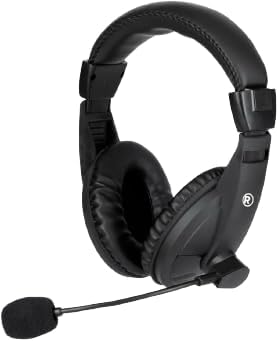
Image 1.1: Front view of the RadioShack USB Type-C Headset, showcasing its over-ear design and integrated microphone.

Image 1.2: Side view of the headset, highlighting the adjustable headband and the flexible microphone arm.
2. Setup Instructions
- Connect the Headset: Locate an available USB Type-C port on your computer or laptop. Insert the USB Type-C connector of the headset firmly into the port.
- Driver Installation: The headset is plug-and-play. Your operating system (Windows, macOS, Linux) should automatically detect and install the necessary drivers. This process typically takes a few seconds.
- Verify Audio Settings: After connecting, open your computer's sound settings. Ensure the RadioShack USB Headset is selected as the default playback and recording device.

Image 2.1: A close-up view of the USB Type-C connector, which plugs into your device.
3. Operating the Headset
3.1 Wearing and Adjusting
- Adjusting the Headband: Extend or retract the headband slides on both sides to achieve a comfortable fit over your head.
- Positioning the Ear Pads: Ensure the soft, cushioned ear pads fully cover your ears for optimal sound isolation and comfort.

Image 3.1: A person wearing the headset, demonstrating the ergonomic design and comfortable fit for extended use.
3.2 Using the Microphone
- Microphone Placement: Gently bend the flexible microphone arm to position the omnidirectional microphone approximately 1-2 inches (2.5-5 cm) from your mouth for clear voice pickup.
- Mute/Unmute: If your headset features an in-line remote control, use the designated button to mute or unmute the microphone as needed.
3.3 Volume Control
- Remote Control: Utilize the remote control integrated into the cable to adjust the volume up or down.
- System Volume: Alternatively, adjust the volume directly through your computer's operating system sound settings.
4. Maintenance
- Cleaning: Use a soft, dry cloth to wipe down the headset, ear pads, and microphone. Avoid using harsh chemicals or abrasive materials.
- Storage: Store the headset in a clean, dry place away from extreme temperatures and direct sunlight. Avoid tangling the cable.
- Cable Care: The 110cm (3.5 feet) cable provides ample length. Avoid sharp bends or excessive pulling on the cable to prevent damage.

Image 4.1: The headset displaying its 110cm (3.5 feet) cable, offering broad length for comfortable movement.
5. Troubleshooting
- No Sound from Headset:
- Ensure the USB Type-C connector is fully inserted into the port.
- Check your computer's sound settings to confirm the RadioShack USB Headset is selected as the default playback device.
- Increase the volume using the in-line remote control or your computer's system volume.
- Try connecting the headset to a different USB Type-C port or another computer to rule out port or device issues.
- Microphone Not Working:
- Verify the microphone is not muted via the in-line remote or your computer's sound settings.
- Confirm the RadioShack USB Headset is selected as the default recording device in your computer's sound settings.
- Adjust the microphone's physical position closer to your mouth.
- Check privacy settings on your operating system that might restrict microphone access for certain applications.
- Distorted Audio:
- Lower the volume to see if distortion reduces.
- Ensure the audio source is not the cause of the distortion.
- Update your computer's audio drivers if available.
6. Specifications
| Feature | Detail |
|---|---|
| Model Number | 2604800 |
| Connectivity Technology | USB Type-C |
| Audio Driver Type | Dynamic Driver (40mm) |
| Microphone Type | Omnidirectional |
| Earpiece Shape | Over Ear |
| Cable Length | 110 cm (3.5 feet) |
| Control Method | Remote (in-line) |
| Compatible Devices | Computers, Laptops |
| Material | Acrylonitrile Butadiene Styrene (ABS) |
| Item Weight | 10.6 ounces (0.66 Pounds) |
| Color | Black |
7. Warranty and Support
For warranty information and customer support, please refer to the official RadioShack website or contact their customer service directly. Keep your purchase receipt as proof of purchase for any warranty claims.
Online Support: Visit www.radioshack.com for FAQs, product registration, and contact options.


