
1. Introduction
This manual provides essential information for the safe operation and maintenance of your SIMREX X800 Drone. Please read it thoroughly before first use to ensure proper functionality and to maximize your flying experience. The SIMREX X800 is a compact and versatile drone designed for both beginners and experienced users, featuring a 1080P camera, altitude hold, and various intelligent flight modes.

2. What's in the Box
Verify that all components are present before proceeding with setup:
- SIMREX X800 Drone (Black)
- Remote Control
- Modular Batteries (2x 1000mAh)
- USB Charging Cable
- Spare Propeller Blades (1 set)
- Phone Holder for Remote Control
- User Manual

3. Setup Guide
3.1. Battery Charging
The drone comes with two 1000mAh modular batteries. Ensure both are fully charged before use.
- Connect the USB charging cable to the drone battery.
- Plug the other end of the USB cable into a USB power adapter (not included) or a computer's USB port.
- The indicator light on the battery will show charging status (refer to battery specific indicators for details).
- Charging typically takes approximately 60-90 minutes per battery.
3.2. Installing Drone Battery
- Unfold the drone arms.
- Insert the fully charged modular battery into the battery compartment on the drone until it clicks securely into place.
3.3. Remote Control Setup
The remote control requires 2 LR44 batteries (included). Install them into the battery compartment on the back of the remote.
- Attach the phone holder to the top of the remote control.
- Place your smartphone securely into the phone holder.
- Download and install the SIMREX drone application (refer to the QR code in the included manual for the app).
- Power on the drone, then power on the remote control.
- Connect your smartphone to the drone's Wi-Fi network (usually named 'SIMREX-XXXXXX').
- Open the SIMREX app to establish a connection and view the camera feed.
3.4. Propeller Installation/Check
The drone comes with propellers pre-installed. If replacement is necessary, ensure correct orientation (A and B propellers) as indicated on the drone arms and propellers themselves.
4. Operating Instructions
Familiarize yourself with the drone's controls and features before attempting flight.
4.1. Basic Flight Preparation
- Ensure the drone is placed on a flat, level surface.
- Perform gyroscope calibration by pushing both joysticks down and to the left/right simultaneously (refer to the specific manual for exact combination).
- Ensure a stable Wi-Fi connection between your phone and the drone for FPV (First Person View) and app control.
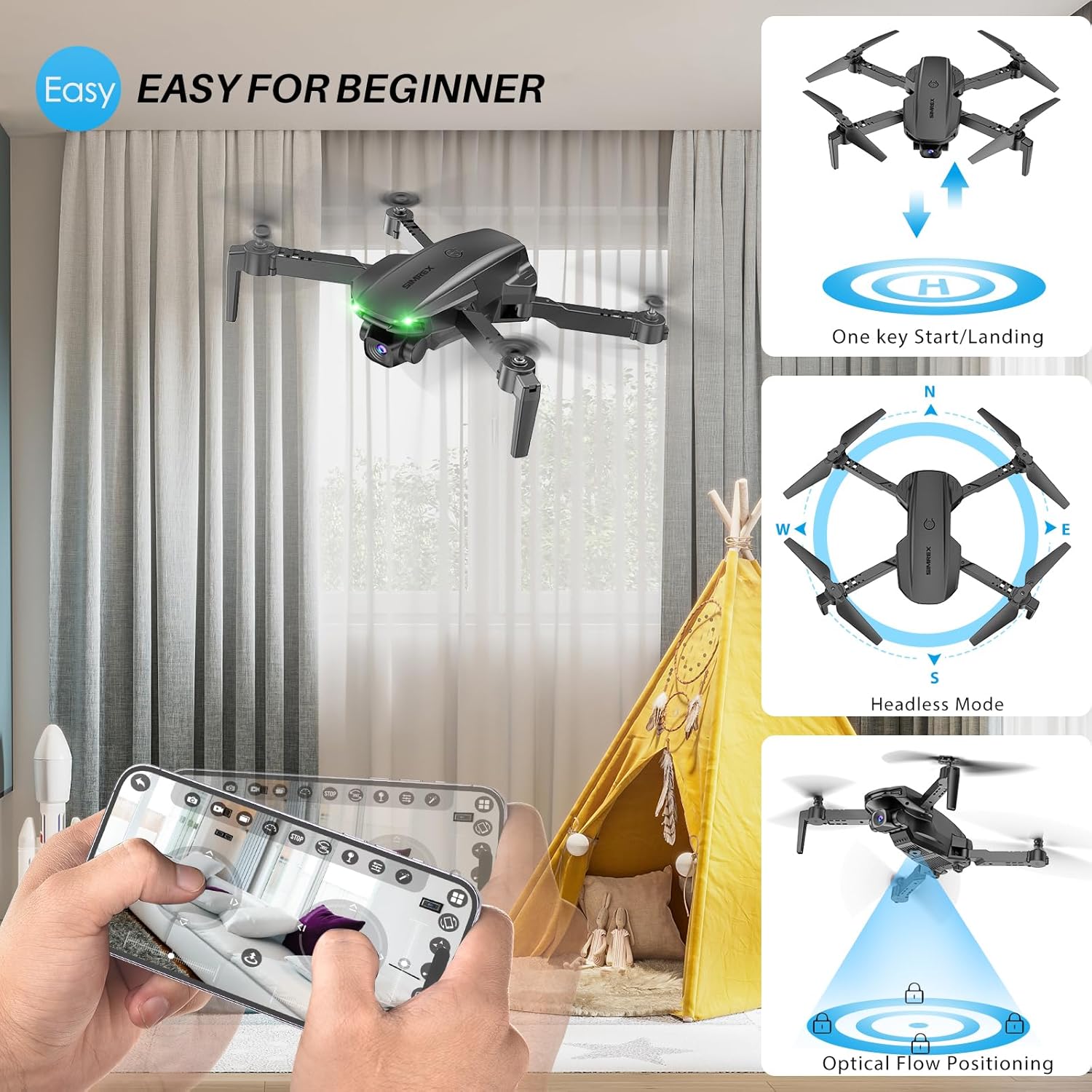
4.2. One Key Start/Landing
This feature simplifies takeoff and landing, making it ideal for beginners.
- Press the One Key Start button on the remote control or in the app. The drone will automatically take off and hover at a stable altitude.
- Press the One Key Landing button. The drone will slowly descend and land automatically.
4.3. Altitude Hold & Optical Flow Positioning
These features contribute to stable flight and precise hovering.
- Altitude Hold: The drone maintains a fixed height, allowing for stable video and photo capture without constant throttle input.
- Optical Flow Positioning: Utilizes a bottom-mounted camera to detect ground patterns, enabling the drone to hover accurately in position, especially useful indoors or in low-wind conditions.

4.4. Headless Mode
In Headless Mode, the drone's orientation is relative to the pilot, not the drone's front. This simplifies control, as pushing the joystick forward will always move the drone away from you, regardless of which way the drone is facing.
- Activate Headless Mode by pressing the dedicated button on the remote.
- Calibrate Headless Mode before flight for accurate control.
4.5. Waypoint Fly
Plan your flight path directly on your smartphone screen.
- Open the SIMREX app and select the Waypoint Fly function.
- Draw a desired flight path on the map displayed on your phone.
- The drone will automatically follow the designated route.
4.6. 3D Flip
Perform exciting aerial acrobatics with a single button press.
- Ensure sufficient altitude (at least 3 meters) before attempting a 3D flip.
- Press the 3D Flip button and move the right joystick in the desired flip direction (forward, backward, left, or right).
4.7. Speed Adjustment
The drone offers three speed modes to suit different skill levels and flying conditions.
- Toggle between Low, Medium, and High speeds using the speed switch button on the remote.
- Start with Low speed for learning and indoor flight, gradually increasing as you gain confidence.

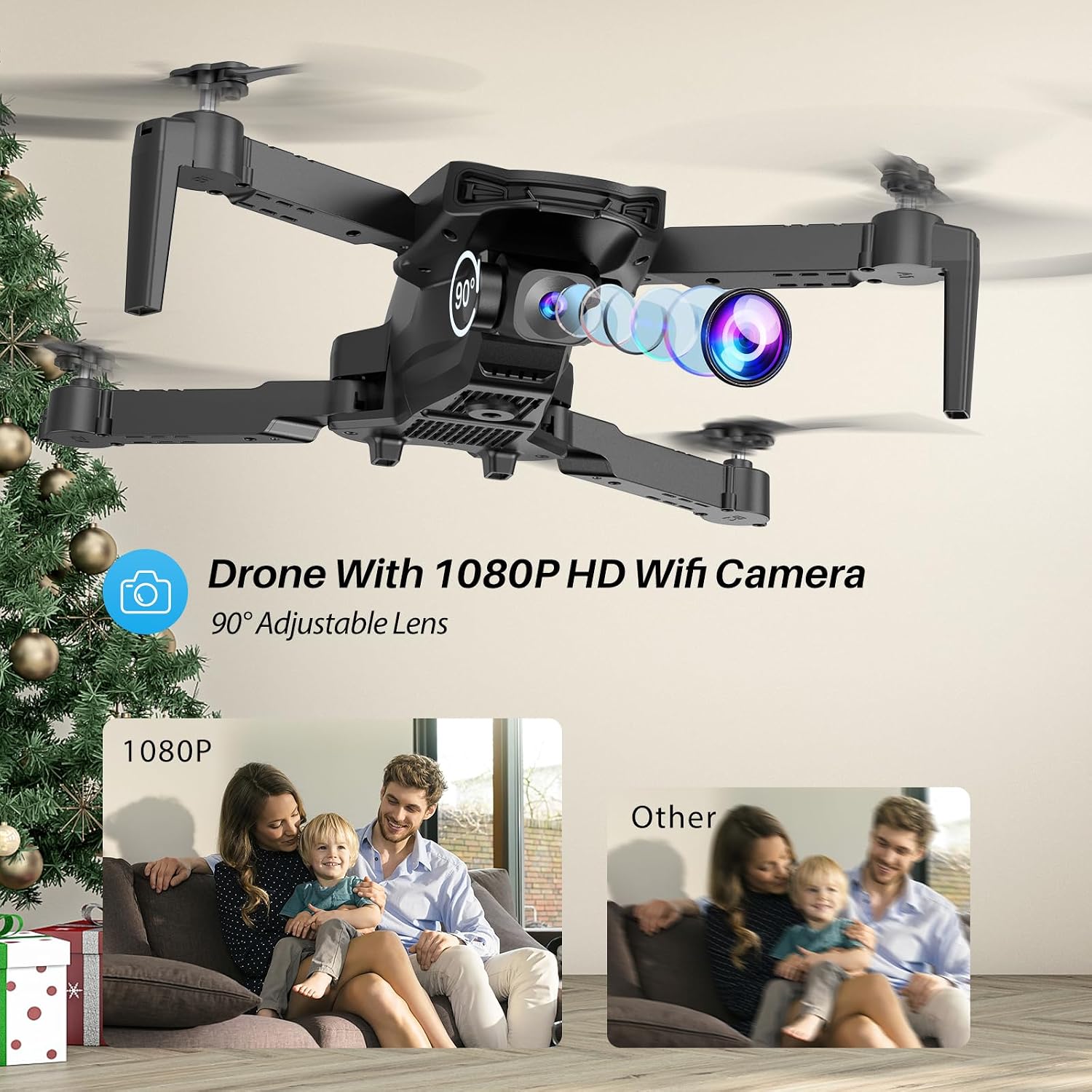
4.8. Camera Operation
The SIMREX X800 is equipped with a 1080P camera with a 90° adjustable lens.
- View the live camera feed on your smartphone via the SIMREX app.
- Use the app to capture photos and record videos directly to your phone's storage.
- Adjust the camera lens angle manually before flight for optimal viewing.
4.9. Gravity Control
Control the drone's flight motion by tilting your mobile phone.
- Activate Gravity Control within the SIMREX app.
- Tilt your phone forward, backward, left, or right to control the drone's corresponding movement.
4.10. Flight Environment Considerations
- The SIMREX X800 is recommended for indoor use.
- If flying outdoors, operate only in windless conditions to maintain control and prevent loss.
- Always maintain visual line of sight with the drone.
- Avoid flying near obstacles, people, or animals.
5. Maintenance
Regular maintenance ensures the longevity and optimal performance of your drone.
5.1. Cleaning
- Use a soft, dry cloth to clean the drone body and camera lens.
- Avoid using harsh chemicals or solvents.
- Ensure no dust or debris obstructs the optical flow sensor on the bottom of the drone.
5.2. Propeller Replacement
In case of damage, replace propellers promptly.
- Power off the drone.
- Carefully remove the damaged propeller.
- Install a new propeller, ensuring it matches the 'A' or 'B' marking on the drone arm and the propeller itself. Incorrect installation will prevent flight.
5.3. Battery Care
- Do not overcharge or over-discharge the batteries.
- Store batteries in a cool, dry place away from direct sunlight and extreme temperatures.
- If not used for an extended period, charge batteries to approximately 50% capacity.
6. Troubleshooting
Refer to this section for solutions to common issues.
| Problem | Possible Cause | Solution |
|---|---|---|
| Drone does not respond to remote. | Not paired; low battery (drone/remote); interference. | Ensure drone and remote are powered on and paired. Charge batteries. Move to an area with less interference. |
| Drone drifts during flight. | Gyroscope not calibrated; windy conditions; uneven propeller. | Perform gyroscope calibration. Fly in windless conditions. Check propellers for damage and replace if necessary. |
| No camera feed on phone. | No Wi-Fi connection; app not open; phone settings. | Connect phone to drone's Wi-Fi. Open the SIMREX app. Check phone's Wi-Fi settings. |
| Short flight time. | Battery not fully charged; aged battery; aggressive flying. | Ensure batteries are fully charged. Consider replacing old batteries. Fly at lower speeds. |
| Drone crashes unexpectedly. | Out of range; low battery; strong wind; pilot error. | Keep drone within control range. Monitor battery levels. Avoid windy conditions. Practice basic controls. |
7. Specifications
| Feature | Detail |
|---|---|
| Brand | SIMREX |
| Model Name | X800 |
| Color | Black |
| Video Capture Resolution | 1080p |
| Special Features | 360 Degree Flip, Adjustable Camera, Foldable Design, Long Battery Life, One Key Rotation (Start/Landing), Altitude Hold, Optical Flow Positioning, Headless Mode, Waypoint Fly, Gravity Control, 3 Speeds |
| Connectivity Technology | USB (for charging), Bluetooth (Remote Control) |
| Included Components | Drone, Remote Control, 2x Batteries, USB Charger, Spare Blades, Phone Holder |
| Skill Level | All (Beginner-friendly) |
| Item Weight | 0.21 Pounds (approx. 96g) |
| Material | Plastic |
| Battery Cell Composition | Lithium Ion (Drone), LR44 (Remote) |
| Product Dimensions | 1.9"L x 4.5"W x 1.3"H (Folded) |
| Flight Time | Up to 22 minutes (with 2 batteries) |
8. Support and Warranty
For any questions, technical assistance, or warranty claims regarding your SIMREX X800 Drone, please contact the seller or manufacturer directly through your purchase platform. Keep your proof of purchase for any warranty-related inquiries.
Optional protection plans are available for purchase separately to extend coverage beyond the standard manufacturer's warranty.
