
viqee C24U
viqee S24 Ultra Unlocked 5G Cell Phone User Manual
Model: C24U
1. Introduction
This manual provides essential information for the proper use and maintenance of your viqee S24 Ultra Unlocked 5G Cell Phone. Please read this manual thoroughly before using your device to ensure optimal performance and longevity. Keep this manual for future reference.
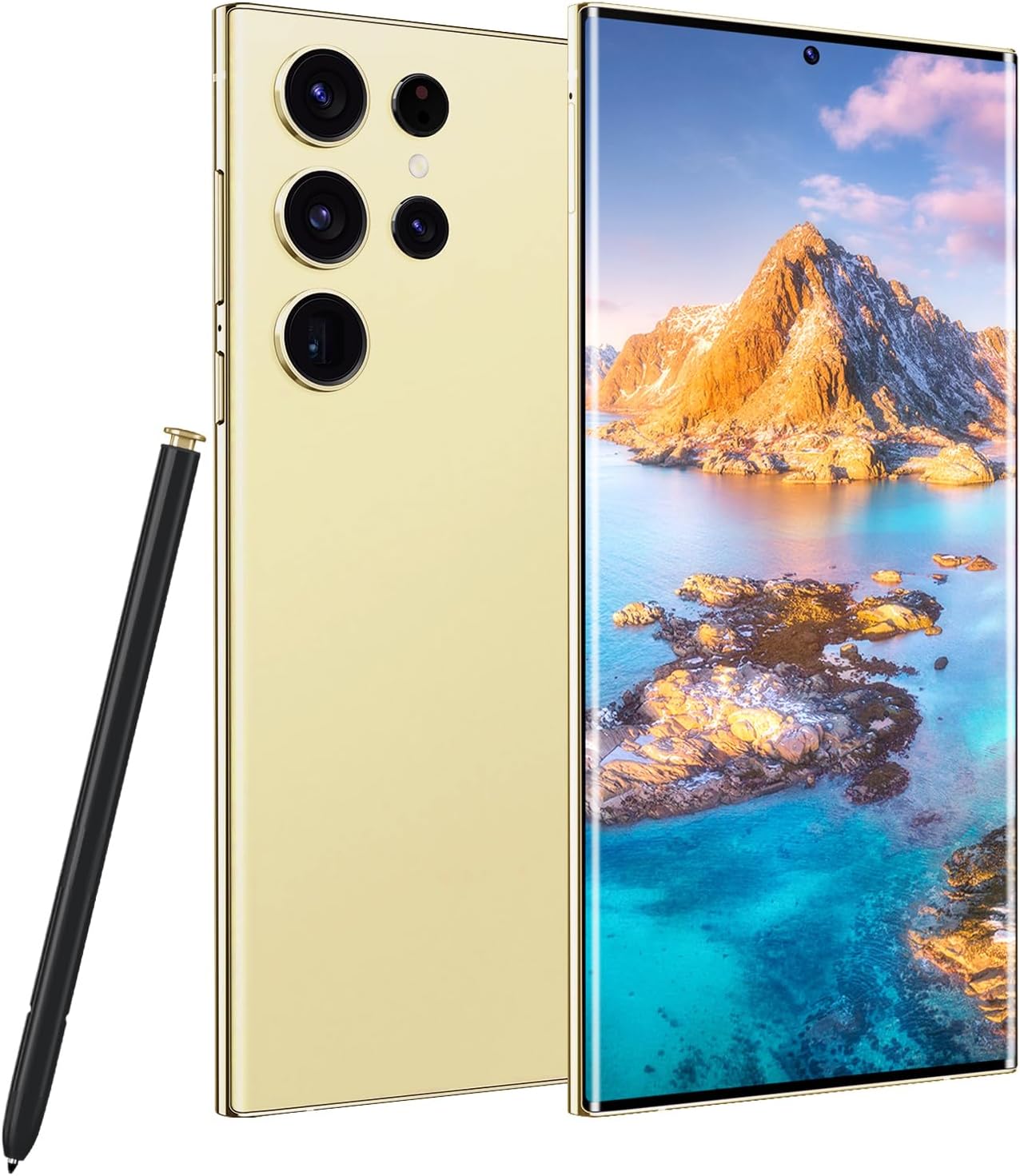
Image 1.1: The viqee S24 Ultra 5G Cell Phone in Gold, shown with its accompanying tool pen.
2. Package Contents
Verify that all items listed below are present in your product package:
- viqee S24 Ultra 5G Cell Phone
- Mobile Phone Cases
- USB Charging/Data Cable (Date line)
- Charger (Type may vary: US, UK, AU, or EU)
- Screen Protector
- Mobile Manual (this document)
- Headset
- SIM Ejector Tool (Needle)
- USB OTG Adapter

Image 2.1: Visual representation of the items included in the viqee S24 Ultra product package.
3. Device Overview
Familiarize yourself with the physical components of your viqee S24 Ultra.
3.1 Front View
- Display: 6.8-inch screen.
- Front Camera: Located at the top center of the display.
- Earpiece: For calls, located above the front camera.
3.2 Rear View
- Rear Cameras: Multiple lenses for various photographic functions.
- Flash: For illumination in low-light conditions.
3.3 Side Views
- Power Button: Typically on the right side, used to turn the device on/off or wake/sleep the screen.
- Volume Buttons: Typically on the right side, used to adjust media and call volume.
- SIM/SD Card Tray: Slot for inserting SIM cards and a microSD card.
- USB-C Port: For charging and data transfer, located at the bottom.
- Speaker: Audio output, located at the bottom.
- Microphone: For voice input.
- Tool Pen Slot: Integrated slot for the E-Pen.
4. Setup
4.1 Inserting SIM and MicroSD Cards
- Locate the SIM/SD card tray on the side of your phone.
- Insert the SIM ejector tool into the small hole next to the tray and press gently until the tray pops out.
- Place your Nano-SIM card(s) and/or microSD card into the designated slots on the tray. Ensure the gold contacts face downwards.
- Carefully reinsert the tray into the phone until it clicks into place.

Image 4.1: Illustration of the dual SIM and dedicated microSD card slot for expandable storage.
4.2 Initial Power On and Basic Setup
- Press and hold the Power button until the viqee logo appears.
- Follow the on-screen prompts to select your language, connect to a Wi-Fi network, and set up your Google account.
- You may be prompted to transfer data from an old device. Follow the instructions or skip this step to set up as a new device.
- Set up a screen lock (PIN, pattern, password, or fingerprint) for security.
4.3 Charging the Device
Connect the USB cable to the phone's USB-C port and the other end to the provided charger. Plug the charger into a power outlet. The battery indicator on the screen will show charging status. For optimal battery life, avoid fully discharging the battery frequently.
5. Operating Your Device
5.1 Navigation
Your viqee S24 Ultra runs on Android 14, offering intuitive navigation through gestures or traditional on-screen buttons. You can customize navigation settings in the 'Settings' menu.

Image 5.1: The Android 14 operating system interface, showcasing various applications and a clean design.
5.2 Making Calls and Sending Messages
- Calls: Open the 'Phone' app, enter the number, and tap the call icon.
- Messages: Open the 'Messages' app, tap 'Start chat', enter the recipient, and type your message.
5.3 Camera Usage
The viqee S24 Ultra features a 50MP front camera and a 108MP rear camera with a 200MP sensor and Adaptive Pixel Technology for enhanced image quality.
- Open the 'Camera' app.
- Select your desired mode (Photo, Video, Portrait, etc.).
- Tap the shutter button to capture an image or start/stop recording a video.
5.4 Using the Tool Pen (E-Pen)
The integrated E-Pen allows for precise interaction with your device. It can be used for writing notes, drawing, editing photos, and navigating the interface.
- To remove the E-Pen, gently press its end until it clicks out, then pull it from its slot.
- When the E-Pen is removed, a special menu or application may automatically launch, providing quick access to pen-specific functions.
- To reinsert, push the E-Pen back into its slot until it clicks securely.

Image 5.2: A user demonstrating the use of the E-Pen for drawing and note-taking on the viqee S24 Ultra screen.
5.5 Connectivity
- Wi-Fi: Go to 'Settings' > 'Network & internet' > 'Wi-Fi' to connect to available networks.
- Bluetooth: Go to 'Settings' > 'Connected devices' > 'Bluetooth' to pair with other Bluetooth devices.
- 5G Mobile Data: Ensure your SIM card supports 5G and your plan includes 5G data. Enable mobile data in 'Settings' > 'Network & internet' > 'Mobile network'.
- GPS Navigation: The device supports GPS for location services and navigation applications.
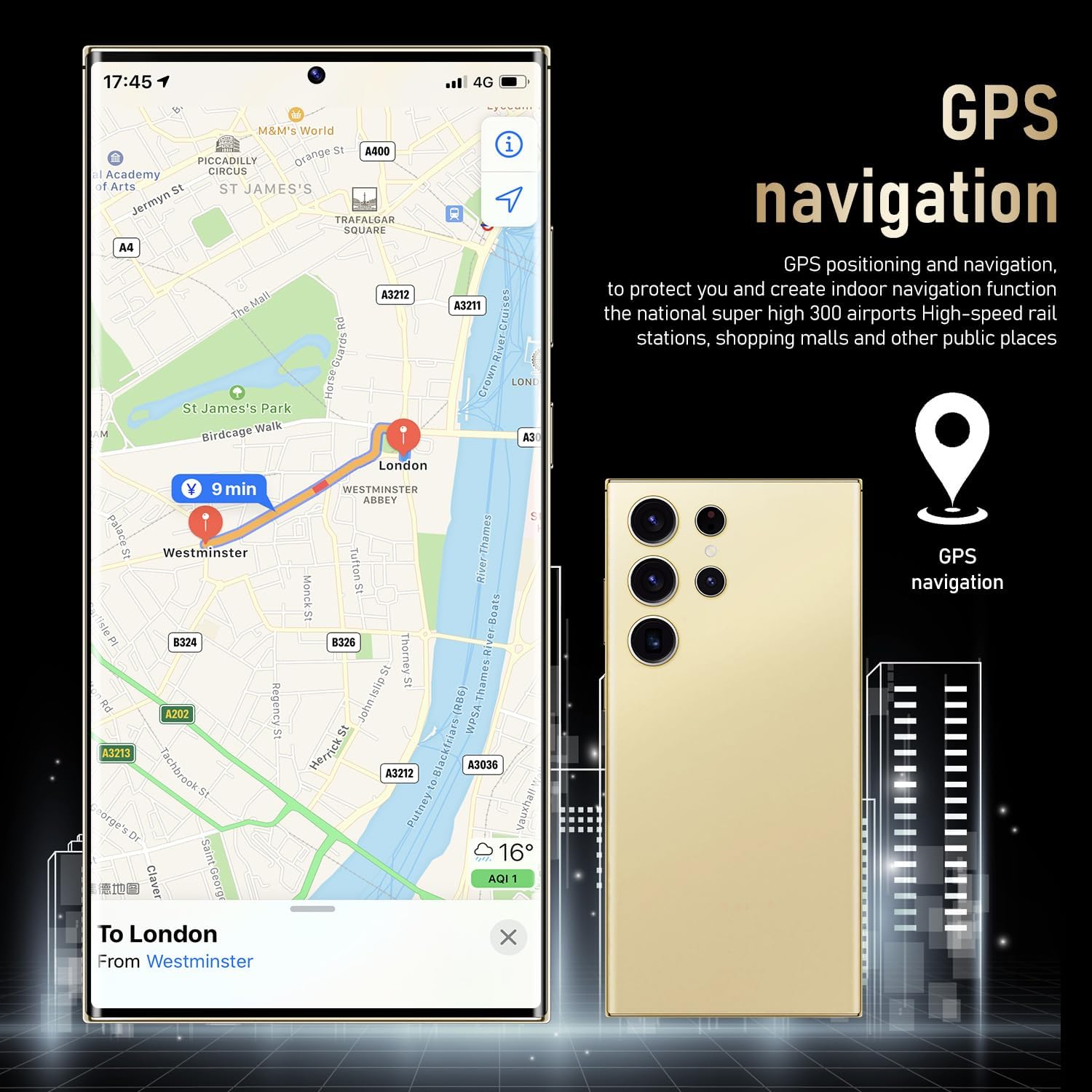
Image 5.3: The viqee S24 Ultra displaying a GPS navigation map, highlighting its location capabilities.
5.6 Security Features
The viqee S24 Ultra supports zero-light face recognition for secure unlocking.

Image 5.4: A visual representation of the zero-light face recognition feature, allowing secure unlocking in various lighting conditions.
6. Maintenance
6.1 Battery Care
- Use only the provided charger and cable.
- Avoid exposing the phone to extreme temperatures.
- Do not leave the phone charging for extended periods after it reaches 100%.
- For optimal battery health, try to keep the charge level between 20% and 80%.
6.2 Cleaning Your Device
Use a soft, lint-free cloth to clean the screen and body of the phone. Avoid using harsh chemicals or abrasive materials. For stubborn smudges, slightly dampen the cloth with water or a screen cleaner designed for electronics.
6.3 Software Updates
Regularly check for and install software updates to ensure your device has the latest features, security patches, and performance improvements. Go to 'Settings' > 'System' > 'System update' to check for updates.
6.4 Backup and Restore
Regularly back up your data to a cloud service (e.g., Google Drive) or a computer to prevent data loss. You can find backup options in 'Settings' > 'System' > 'Backup'.
7. Troubleshooting
| Problem | Possible Solution |
|---|---|
| Phone does not turn on. | Ensure the battery is charged. Connect the charger and wait a few minutes before attempting to power on again. If unresponsive, press and hold the Power button for 10-15 seconds to force a restart. |
| Apps are crashing or freezing. | Close and reopen the app. Clear the app's cache and data in 'Settings' > 'Apps'. Ensure the app and your phone's software are up to date. Restart the phone. |
| Poor battery life. | Check battery usage in 'Settings' > 'Battery' to identify power-consuming apps. Reduce screen brightness, disable unnecessary features (GPS, Bluetooth, Wi-Fi) when not in use. Limit background app activity. |
| Cannot connect to Wi-Fi. | Ensure Wi-Fi is enabled. Restart your phone and router. Forget the network in 'Settings' > 'Network & internet' > 'Wi-Fi' and reconnect. Verify the Wi-Fi password. |
| SIM card not detected. | Ensure the SIM card is correctly inserted into the tray. Restart the phone. Check if the SIM card is active with your carrier. |
8. Specifications

Image 8.1: Overview of key features and specifications for the viqee S24 Ultra.
| Feature | Detail |
|---|---|
| Model Name | C24U |
| Operating System | Android 14 |
| RAM | 6 GB |
| Internal Storage | 256 GB (Expandable via microSD) |
| Screen Size | 6.8 Inches |
| Resolution | 2340 x 1080 |
| Rear Camera | 108MP (with 200MP Sensor, Adaptive Pixel Technology) |
| Front Camera | 50MP |
| Battery Capacity | 6800 mAh |
| Connectivity | 5G, Wi-Fi, Bluetooth, GPS |
| SIM Support | Dual SIM Dual Standby |
| Dimensions (Package) | 7.17 x 3.74 x 1.85 inches |
| Item Weight | 14.4 ounces |
| Included Accessories | USB OTG Adapter, Tool Pen |
9. Warranty and Support
9.1 Warranty Information
Please refer to the warranty card included in your product package for detailed warranty terms and conditions. The warranty typically covers manufacturing defects for a specified period from the date of purchase. Damage caused by misuse, accidents, or unauthorized modifications is generally not covered.
9.2 Customer Support
For technical assistance, troubleshooting beyond this manual, or warranty claims, please contact viqee customer support. Contact information can usually be found on the official viqee website or on the warranty card.
Manufacturer: viqee
Date First Available: August 27, 2024
Ask a question about this manual
Ask about setup, troubleshooting, compatibility, parts, safety, or missing instructions. Manuals+ will review the question and use this page’s manual context to help answer it.