
1. Introduction
This manual provides comprehensive instructions for the installation, operation, and maintenance of your VECHTEL 9-inch Android 13 Car Stereo. This unit is designed to enhance your driving experience with advanced features such as wireless CarPlay, Android Auto, GPS navigation, Wi-Fi connectivity, Bluetooth, and support for a rear camera. Please read this manual thoroughly before installation and use to ensure proper functionality and safety.
2. Package Contents
Verify that all items listed below are included in your package:
- 1 x Car Stereo Unit
- 1 x Power Cable
- 1 x Rear View Camera
- 1 x GPS Antenna
- 1 x Rear Camera Input Cable
- 1 x RCA Cable
- 2 x USB Cables
- 1 x Instruction Manual
- 1 x Radio Antenna
- 1 x Microphone
- 1 x Canbus Decoder (if applicable for your vehicle)

Image: Contents of the VECHTEL car stereo package, including the main unit, rear camera, and various cables.
3. Compatible Car Models
This car stereo is designed for specific Volkswagen, Seat, and Skoda models. Please ensure your vehicle is listed below and verify the shape of your original car stereo and center console before installation.

Image: A list of compatible car models for the VECHTEL car stereo, including various VW, Seat, and Skoda models.
Volkswagen (VW)
- Golf 5, Golf 6
- Passat (B6, B7, CC, NMS, TSI, V6, Variant)
- Magotan (Variant, V6)
- Jetta, Sagitar
- Caddy
- EOS
- T5 (Multzvan)
- Tiguan, Tiguan GP
- Touran
- Polo
- R36 Variant
- Scirocco
- Sharan
- Sportline
- Beetle
- Bora
Seat
- Altea (from 05/2004)
- Toledo (from 12/2004)
- Leon (from 09/2005)
- Altea XL, Alhambra (from 04/2007)
Skoda
- Fabia Limousine (02/2007 - 2012)
- Fabia Combi (04/2007 - 2012)
- Praktik (04/2007 - 2012)
- Roomster (04/2006 - 2012)
- Octavia Combi (06/2004 - Facelift)
Important Note: Compatibility depends on the specific year and model of your car, as well as the shape of your original car stereo and center console. If you are unsure, please consult customer service with your car's model, year, and a photo of your center console.

Image: Visual guide showing examples of compatible (green checkmark) and incompatible (red X) car stereo slots in various car dashboards.
4. Setup and Installation
Professional installation is recommended. Ensure the vehicle's power is disconnected before beginning installation.
4.1 Pre-Installation Check
- Verify all package contents are present.
- Confirm compatibility with your car model and dashboard configuration.
- If your car has a 52-pin connector, contact customer service for assistance before proceeding. The package includes 36 and 40-pin connectors.
4.2 Wiring Connections
Connect the provided cables according to your vehicle's wiring diagram. The unit supports a plug-and-play connection for compatible models.
- Power Cable: Connect to the vehicle's power harness.
- GPS Antenna: Mount in a location with a clear view of the sky for optimal signal reception.
- Radio Antenna: Connect for FM/RDS radio functionality.
- Rear Camera: Connect the rear camera input cable to the unit and install the camera at the rear of the vehicle.
- USB Cables: Connect the two USB cables for external device connectivity.
- RCA Cable: Use for audio/video output connections, including subwoofer output.
- Microphone: Connect the external microphone for improved call quality.
- Canbus Decoder: If your vehicle requires a Canbus decoder for steering wheel controls or other vehicle data integration, connect it as per the vehicle's specific instructions.

Image: A detailed view of the wiring harness and connectors for the VECHTEL car stereo, including the 52-pin connector note.
4.3 Mounting the Unit
Carefully insert the car stereo into the dashboard opening, ensuring all cables are properly routed and secured. Fasten the unit using the appropriate mounting brackets and screws.
5. Operating Instructions
Your VECHTEL car stereo runs on Android 13 and features a 9-inch HD touchscreen for intuitive control.
5.1 Wireless CarPlay and Android Auto
Connect your smartphone wirelessly via Bluetooth or wired via USB to access CarPlay or Android Auto. This allows for seamless integration of navigation, music, calls, and voice control (Siri/Google Assistant).
- Wireless Connection: Enable Bluetooth on your phone and pair it with the car stereo. Follow the on-screen prompts to activate CarPlay or Android Auto.
- Wired Connection: Connect your phone to one of the USB ports using a compatible USB cable.
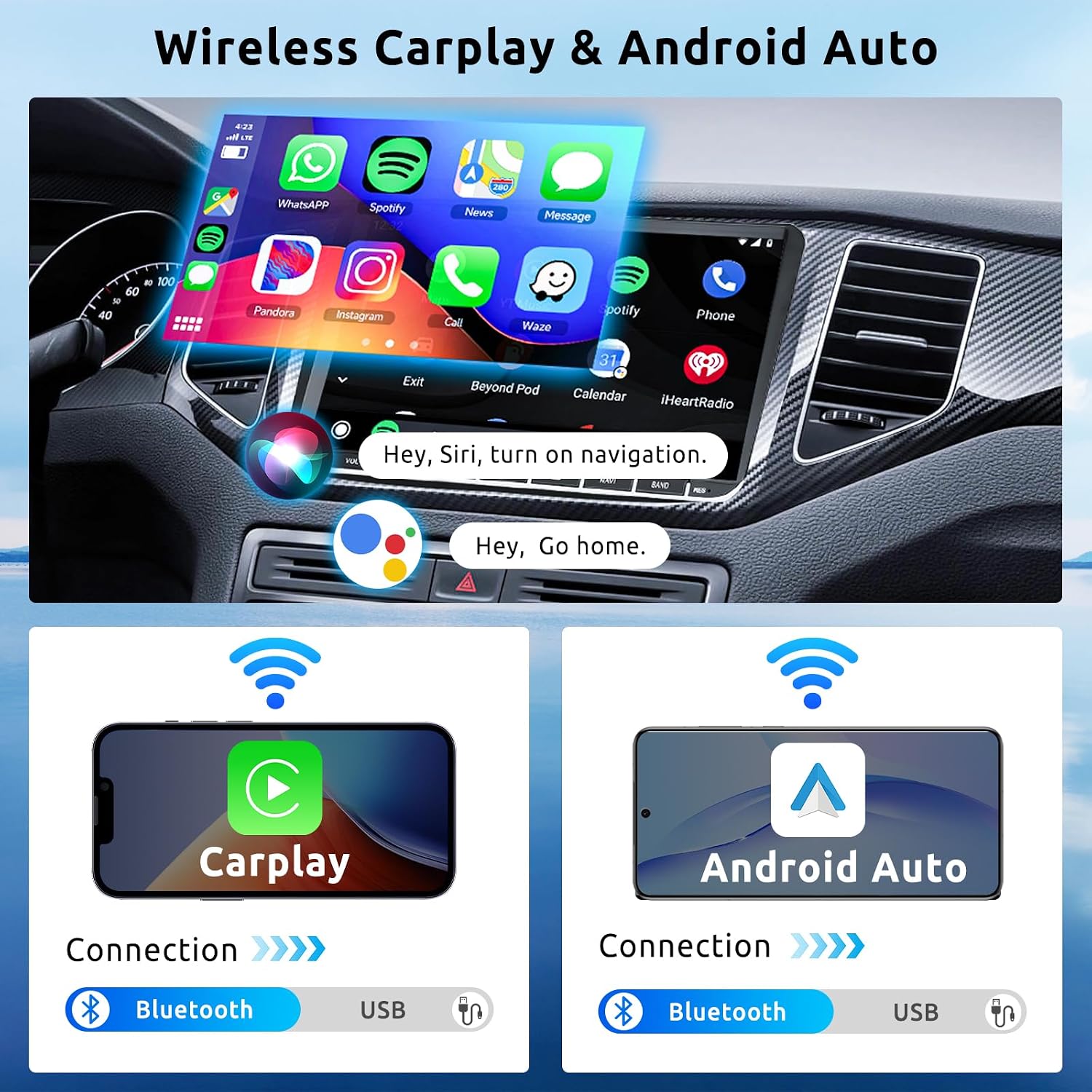
Image: The car stereo display showing the CarPlay interface with various app icons, and diagrams illustrating wireless and wired connections for CarPlay and Android Auto via Bluetooth and USB.
5.2 GPS Navigation
The unit includes a built-in GPS module. You can use pre-installed offline maps or download online maps via Wi-Fi.
- Offline Maps: Access pre-loaded maps without an internet connection.
- Online Maps: Connect to Wi-Fi to use real-time navigation services and traffic updates.

Image: Screenshots demonstrating online and offline GPS navigation on the car stereo, showing map interfaces and route details.
5.3 Wi-Fi Connectivity
Connect the car stereo to a Wi-Fi network or your phone's hotspot to access online features.
- App Installation: Download and install applications from the Google Play Store.
- Online Video: Stream videos from platforms like YouTube.
- Online Navigation: Utilize real-time map services.

Image: Displays showing online map usage, online video streaming (YouTube, Netflix, TikTok), and various app icons accessible via Wi-Fi connection.
5.4 Bluetooth Functionality
Pair your phone via Bluetooth for hands-free calling and audio streaming.
- Hands-Free Calls: Make and receive calls directly from the car stereo. Synchronize your phonebook for easy access to contacts.
- Music Streaming: Play audio from your phone through the car's speakers.
5.5 FM/RDS Radio
Tune into FM radio stations. The RDS (Radio Data System) feature displays station information where available.
- Preset Stations: Save up to 18 of your favorite stations for quick access.
5.6 Rear Camera Support
When the vehicle is in reverse, the display automatically switches to the rear camera view, providing a clear image for safe parking and maneuvering.
- The included camera offers HD resolution, waterproof design, night vision, and a wide-angle view.
5.7 Steering Wheel Control (SWC)
If your vehicle supports it and the Canbus decoder is correctly installed, you can control basic functions of the car stereo (e.g., volume, track skipping) directly from your steering wheel buttons.
5.8 Mirror Link
Mirror Link allows you to display your smartphone's screen content directly onto the car stereo's display.
5.9 Split Screen Functionality
The 9-inch touchscreen supports split-screen mode, allowing you to run two applications simultaneously (e.g., navigation and music player).

Image: A collage showing various features: HD rear camera view, steering wheel control interface, FM/RDS radio display, and Bluetooth call interface.
6. Specifications
| Brand | VECHTEL |
| Model Number | 7b2555ed-a449-4467-b7d2-e0d4d6e070b9 |
| Operating System | Android 13 |
| RAM | 2GB |
| ROM | 64GB |
| Screen Size | 9 Inches |
| Display Type | HD Touchscreen |
| Connectivity Technology | Bluetooth, USB, Wi-Fi |
| Special Features | Built-in Bluetooth, Wireless CarPlay, Wireless Android Auto, GPS Navigation, Built-in Wi-Fi, Touchscreen |
| Compatible Devices | Smartphone |
| Audio Output Mode | Stereo |
| Surround Sound Channel Configuration | 5.1 |
| Output Power | 180 Watts (4*45W) |
| Control Method | Touch, Wireless Control |
| Digital Media Format | AIFF, AVI, MP3 audio, MPEG, WAV, MKV, RMVB, MP4, MDV |
| Dimensions (L x W x H) | 21.4 x 13.3 x 5.5 cm |
| Country of Origin | China |
7. Troubleshooting
This section addresses common issues you might encounter. For problems not listed here, please contact customer support.
7.1 No Power / Unit Not Turning On
- Check all power connections to ensure they are secure.
- Verify the vehicle's fuse for the car stereo is intact.
- Ensure the car's ignition is on.
7.2 No Sound or Distorted Sound
- Check speaker wire connections.
- Adjust the volume level on the unit and ensure it is not muted.
- Verify audio settings (EQ, balance, fader) are correctly configured.
- If using Bluetooth audio, ensure the phone's volume is also up.
- User review mentioned sound cutting out at certain volumes: If sound cuts out at high volumes, reduce the volume. This could indicate an impedance mismatch or power supply issue. Consult a professional installer if the problem persists.
7.3 Bluetooth Disconnection Issues
- Ensure your phone is within range and Bluetooth is enabled.
- Delete the device pairing from both the car stereo and your phone, then re-pair.
- Restart both the car stereo and your phone.
- Check for any interference from other wireless devices.
7.4 GPS Signal Loss or Inaccuracy
- Ensure the GPS antenna is securely connected and mounted in a location with a clear view of the sky, away from obstructions.
- Check GPS settings on the unit.
- Update map data if available.
7.5 Rear Camera Not Displaying
- Verify the rear camera and its input cable are correctly connected to the unit.
- Ensure the camera's power supply is correctly wired (usually to the reverse light circuit).
- Check the camera settings in the car stereo menu.
- User review mentioned inability to connect rear camera: Double-check all wiring connections, especially the trigger wire that signals the unit to switch to camera view when reversing. If issues persist, contact support.
7.6 Incompatible Wiring Harness or Fit
- If the provided harness does not match your vehicle's connectors or the unit does not fit your dashboard, do not force installation.
- Contact customer service immediately with your car's model, year, and photos of your original car stereo and connectors.
8. Maintenance
8.1 Cleaning the Screen
Use a soft, lint-free cloth to gently wipe the touchscreen. For stubborn smudges, slightly dampen the cloth with water or a screen-safe cleaner. Avoid abrasive materials or harsh chemicals.
8.2 Software Updates
Periodically check for software updates via the system settings menu (requires Wi-Fi connection). Keeping your system updated ensures optimal performance and access to new features.
8.3 General Care
- Avoid exposing the unit to extreme temperatures or direct sunlight for prolonged periods.
- Do not spill liquids on the unit.
- Ensure proper ventilation around the unit to prevent overheating.
9. Warranty and Support
9.1 Warranty Information
This VECHTEL car stereo comes with a three-year warranty from the date of purchase. This warranty covers manufacturing defects and malfunctions under normal use. It does not cover damage caused by improper installation, misuse, accidents, or unauthorized modifications.
9.2 Customer Support
For technical assistance, warranty claims, or any questions regarding your product, please contact VECHTEL customer support. When contacting support, please provide your product model number (7b2555ed-a449-4467-b7d2-e0d4d6e070b9) and a detailed description of the issue.
You can typically find contact information for VECHTEL through the retailer where you purchased the product or on the official VECHTEL website.

Image: A graphic illustrating steps to contact VECHTEL customer support, emphasizing 24/7 technical support.