
ROADOM White
ROADOM Portable DVD Player User Manual
Model: White
Brand: ROADOM
Introduction
This manual provides essential information for the safe and efficient operation of your ROADOM Portable DVD Player. Please read it thoroughly before use and retain it for future reference. This device offers versatile entertainment options with its high-resolution screen, multiple playback modes, and portable design.
What's in the Box
- User Manual
- Remote Control
- 12V/1.5A Power Adapter

Image: The ROADOM Portable DVD Player, its remote control, and power adapter, as typically found in the product packaging.
Product Overview & Key Features
The ROADOM Portable DVD Player is designed for convenience and high-quality entertainment on the go. It integrates multiple functionalities into a compact form factor.
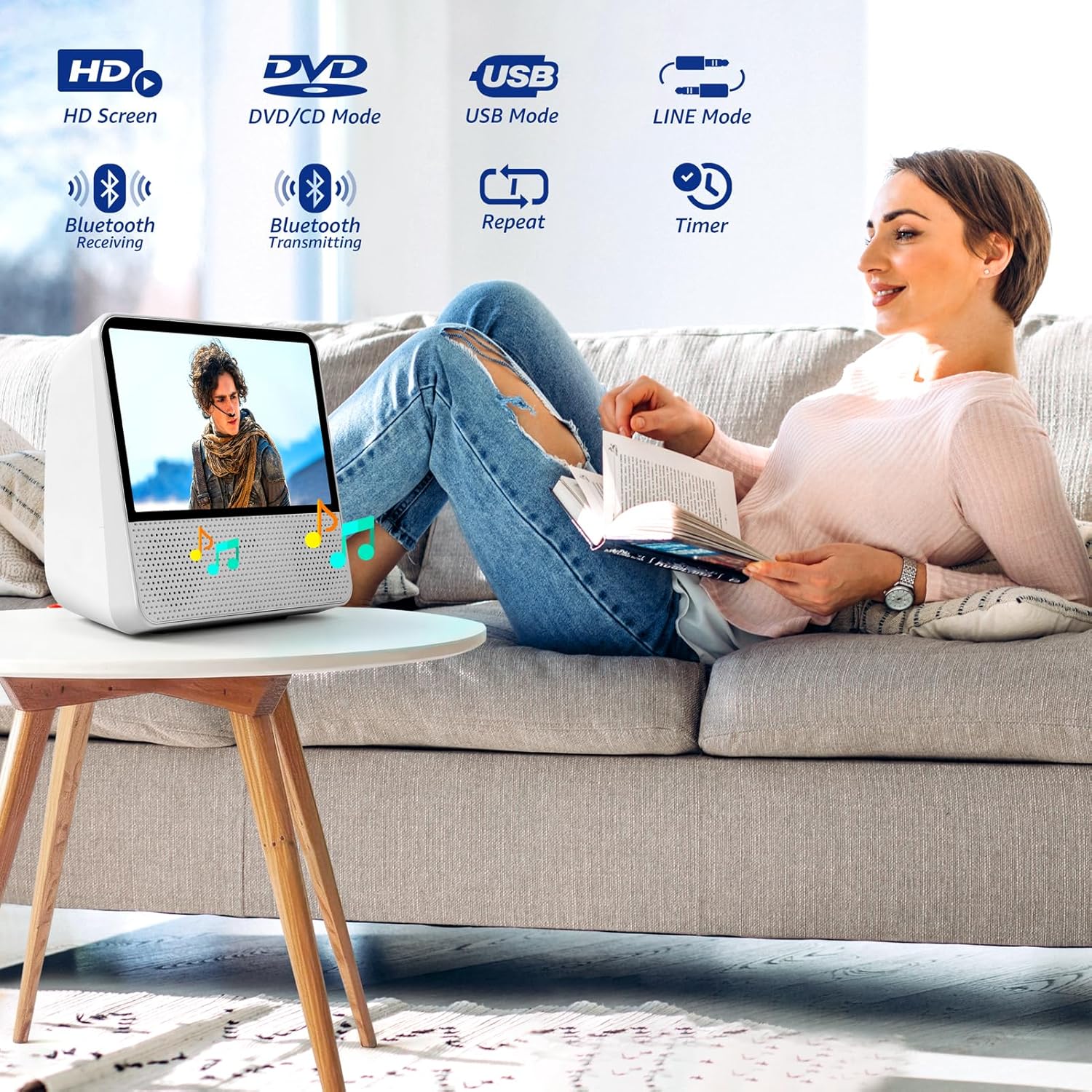
Image: Overview of the player's versatile modes, including DVD/CD, USB, Bluetooth, and Line-in, suitable for various entertainment needs.
1. High-Resolution Digital Screen
Enjoy stunning visuals with the player's 1024 × 600 high-resolution digital screen. The sharp and vibrant display delivers an immersive and lifelike experience, gentle on your eyes for extended viewing sessions.
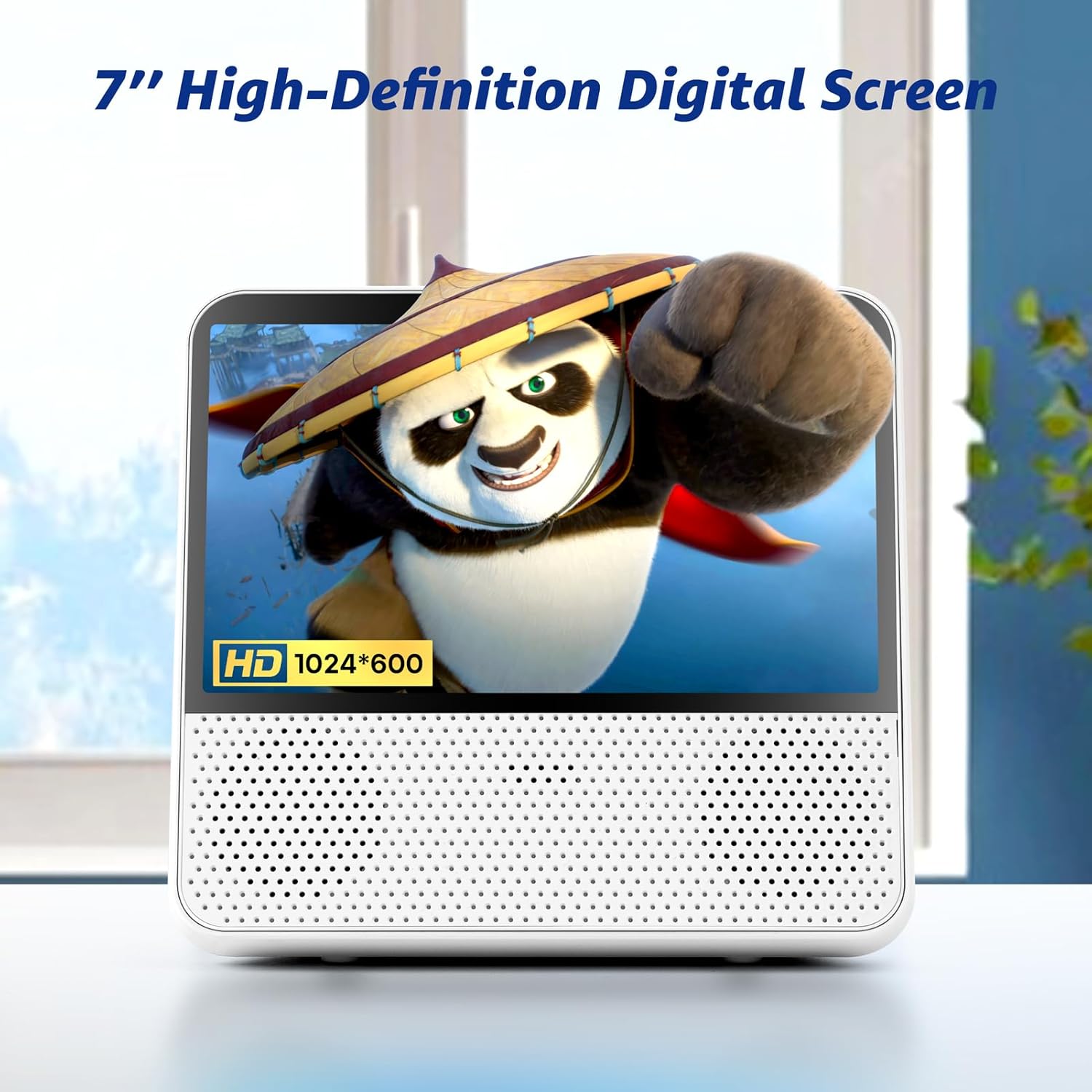
Image: The 7-inch high-definition digital screen, providing clear and detailed visuals.
2. Powerful 4000mAh Battery
The built-in 4000mAh battery provides up to 5 hours of continuous entertainment, perfect for long trips or relaxing at home. An included AC adapter ensures you can keep the fun going wherever you are.

Image: The portable DVD player's long-lasting 4000mAh battery, ideal for on-the-go entertainment.
3. Hi-Fi Stereo Sound
Coupled with Hi-Fi stereo sound technology, this DVD player offers crystal-clear audio with rich, distortion-free surround sound, even at maximum volume.

Image: The player's Hi-Fi stereo sound capability, delivering clear and immersive audio.
4. Protective Disc Cover
The player features a protective cover for your DVD/CD disk to shield it from dust. Playback will automatically stop if the cover is opened accidentally during operation, ensuring disc safety.

Image: The protective cover for the DVD/CD slot, designed to prevent dust and accidental interruptions.
Setup Guide
1. Charging the Device
Connect the provided 12V/1.5A power adapter to the DC 12V Power Supply port on the player and plug it into a wall outlet. The battery indicator will show charging status. A full charge provides up to 5 hours of continuous playback.
2. Powering On/Off
Press the Power ON/OFF button located on the side of the device to turn it on or off.
3. Inserting a Disc
Gently open the protective cover on the top of the player. Insert your DVD or CD disc with the label side facing up. Close the cover securely. Playback will automatically stop if the cover is opened during operation.
Operating Instructions
1. DVD/CD Playback
Insert a DVD or CD. The player will automatically switch to DVD mode and begin playback. Use the remote control or the top panel buttons for navigation (Play/Pause, Previous/Next Track, Volume +/-).
2. USB Playback
Insert a USB flash drive into the USB Port (U Disk). The player will switch to USB mode. You can browse and play video, audio, or image files stored on the USB drive. This port can also charge your phone or other devices.

Image: Demonstrates the use of the USB port for media playback and device charging.
3. Bluetooth Mode
Bluetooth Receiving Mode
The player can act as a compact Bluetooth speaker. Enable Bluetooth on your smartphone, tablet, or computer and pair with the ROADOM DVD Player. Stream your audio playlist wirelessly.

Image: Illustrates the Bluetooth Receiving Mode, allowing the player to function as a wireless speaker.
Bluetooth Transmitting Mode
The Bluetooth transmitter feature lets you connect the DVD player to Bluetooth headphones or speakers, eliminating the need for tangled cables and providing ultimate convenience for a wireless audio experience while watching DVDs.

Image: Shows the Bluetooth Transmitting Mode, enabling wireless audio output to headphones or speakers.
4. LINE Mode (AUX)
Connect external audio devices like headphones or speakers via the 3.5mm AUX Port for a wired audio experience. You can also connect the player to a phone, pad, or computer using a 3.5mm AUX cable (not included) to use it as a wired Hi-Fi speaker.

Image: Explains how to use the 3.5mm AUX port for audio output to external devices or as a wired speaker for other devices.
5. Sync to TV (AV Output)
Use an AV cable (not included) to connect the player's AV Output to your television's AV input. This allows you to enjoy content on a larger screen.

Image: Demonstrates connecting the portable DVD player to a TV for a larger viewing experience.
6. Timer Function
Set a timer for the player to automatically stop playing. Intervals include 30, 60, 90, 120, 150, and 180 minutes. This is useful for falling asleep to music or movies without leaving the device on all night.

Image: The timer function, allowing the player to automatically stop after a set duration.
7. Repeat Function
The player supports various repeat modes: Repeat One (REP 1), Repeat All (REP ALL), Shuffle Play (RANDOM), and A-B Repeat (REPEAT A-B). Select the desired mode for continuous playback.

Image: The repeat function, offering various playback options like repeating a single track or shuffling all.
8. Resume Playback (Break-Point Memory)
The intelligent Break-Point Memory feature remembers where you left off, allowing you to resume your movie or audio without hassle.

Image: Illustrates the resume playback feature, which remembers the last stopped point.
9. Controls Overview
The device features intuitive controls on the top panel and a comprehensive remote control. Refer to the diagram below for port locations and button functions.

Image: Detailed diagram of the player's side ports and top panel controls.
Maintenance
Cleaning
Wipe the player's exterior with a soft, dry cloth. Do not use liquid cleaners or abrasive materials. For the disc lens, use a specialized DVD/CD lens cleaner.
Battery Care
To prolong battery life, avoid fully discharging the battery frequently. Charge the device regularly, even if not in use for extended periods.
Protective Cover
Keep the protective disc cover closed when not in use to prevent dust accumulation and accidental damage.
Troubleshooting
| Problem | Possible Cause | Solution |
|---|---|---|
| No Power | Battery is low or depleted. | Connect the power adapter and charge the device. |
| Disc Not Playing | Disc is dirty, scratched, or inserted incorrectly. | Clean the disc, check for scratches, and re-insert it correctly (label side up). Ensure the protective cover is fully closed. |
| No Sound | Volume is too low or muted. Headphones/external speakers not connected properly. | Increase volume. Check headphone/speaker connections. |
| Poor Picture Quality | Disc quality is low. Screen brightness setting. | Try a different disc. Adjust screen brightness using the top panel buttons. |
| Bluetooth Connection Issues | Device not in pairing mode. Player too far from Bluetooth device. | Ensure both devices are in pairing mode. Reduce distance between devices. |
| Player Freezes/Unresponsive | Temporary software glitch. | Press and hold the Power ON/OFF button for 10 seconds to force a restart. |
Specifications
| Feature | Detail |
|---|---|
| Brand | ROADOM |
| Model Number | White |
| Product Dimensions | 7.09 x 6.69 x 3.35 inches |
| Item Weight | 2.13 pounds |
| Screen Size | 7 Inches |
| Display Type | LED |
| Screen Resolution | 1024 x 600 HD Digital Screen |
| Battery Capacity | 4000 mAh |
| Battery Life | Up to 5 hours (continuous playback) |
| Media Types Supported | DVD-R, CD-R, DVD-ROM, DVD+RW, CD-ROM |
| Connectivity | Bluetooth 5.1 (Transmitting & Receiving), USB, 3.5mm AUX Port, AV Output |
| Power Supply | DC 12V/1.5A |
Warranty and Support
ROADOM provides reliable customer support. For any questions or assistance, please contact our dedicated customer support team. We aim to respond within 24 hours to ensure your satisfaction.
Refer to the product packaging or official ROADOM website for specific warranty details and terms.
Product Video
Official product video showcasing the ROADOM 9.8" Portable DVD Player with Screen, highlighting its features and various modes of operation. Duration: 1 minute 30 seconds.
Ask a question about this manual
Ask about setup, troubleshooting, compatibility, parts, safety, or missing instructions. Manuals+ will review the question and use this page’s manual context to help answer it.