
Introduction
This manual provides comprehensive instructions for the operation and maintenance of your Crosseagle SK601 32GB Digital Voice Activated Recorder. Please read this manual thoroughly before using the device to ensure proper functionality and to maximize your user experience. Keep this manual for future reference.
Product Overview
The Crosseagle SK601 is a compact digital voice recorder designed for high-quality audio capture. It features 32GB of internal storage, supporting up to 3072Kbps PCM recording with advanced noise reduction technology. Key functionalities include voice-activated recording, A-B repeat playback, MP3 player capabilities, and password protection for secure data management.
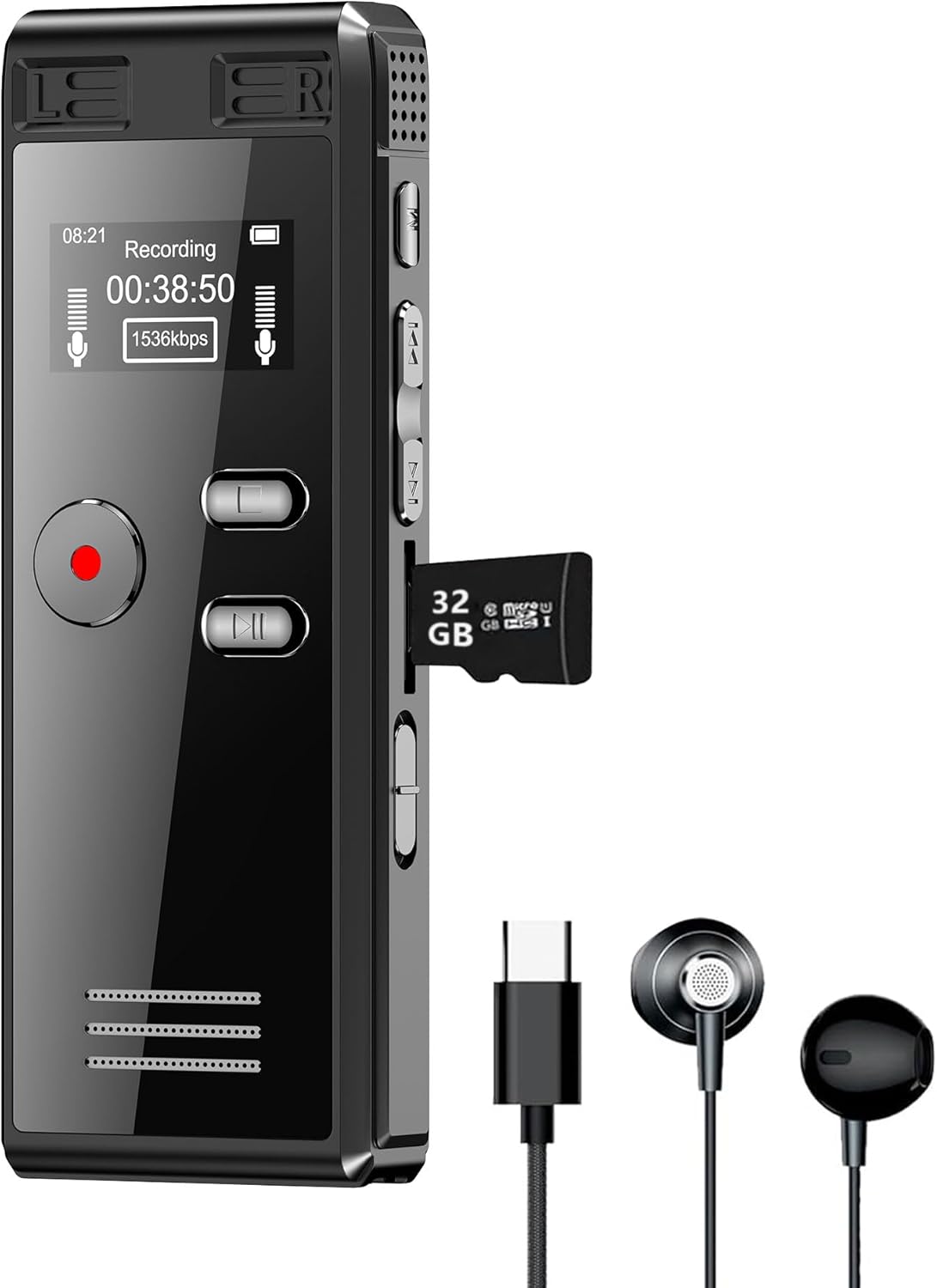
Image 1: The Crosseagle SK601 Digital Voice Activated Recorder shown with its included headphones and USB-C data cable. A 32GB TF card is inserted into the side slot.
Package Contents
Verify that all items are present in the package:
- Crosseagle SK601 Digital Voice Recorder (with 32GB TF Card pre-installed)
- Headphones
- USB-C Data Cable
- User Manual (this document)
Key Features
The Crosseagle SK601 recorder offers a range of features designed for versatile and reliable audio recording:
- Clear PCM Recording: Supports up to 3072Kbps PCM recording for high-fidelity audio.
- DSP Noise Reduction: Dynamic noise reduction technology with dual microphones for clear recordings in various environments.
- Password Protection: Secures confidential recordings from unauthorized access.
- Long Battery Life: Up to 100 hours of continuous recording (at 32kbps) on a single charge.
- Auto Save: Automatically saves recordings when the battery is low.
- File Management: Records in MP3 or WAV format and functions as a removable data storage device.
- One-Key Operation: Simple controls for recording, saving, and playback.
- Voice Control Mode (VOX): Adjustable sensitivity (1-5 levels) for automatic recording activation.
- A-B Repeat: Allows for repeated playback of specific audio segments.
- File Timestamps: Records creation date and time for easy organization.

Image 2: Visual summary of key features including one-button recording, 32GB TF card, password protection, DSP noise reduction, compact size, voice activated recording, automatic save, and A-B repeat.

Image 3: Detailed view of A-B Repeat mode for improved learning, password protection for personal information, and the intelligent save function.

Image 4: Overview of the 32GB storage capacity (4552 hours audio storage), 100 hours continuous recording, 20 hours earphone playing, and included 32GB TF card.
Device Layout
Familiarize yourself with the buttons and ports on your recorder.

Image 5: Front and side view of the Crosseagle SK601, indicating the location of the MENU/DEL button, UP/DOWN navigation buttons, TF card slot, USB port, and Power ON/OFF switch. The device measures approximately 3.54 inches in length, 1.38 inches in width, and 0.63 inches in thickness.
- REC Button (Red Circle): Initiates recording.
- PLAY/PAUSE Button: Starts or pauses playback.
- STOP Button: Saves current recording and stops playback.
- MENU/DEL Button: Accesses menu options or deletes files.
- UP/DOWN Buttons: Navigates through menus and adjusts settings.
- VOL+/- Buttons: Adjusts playback volume.
- TF Card Slot: For inserting the included 32GB TF card.
- USB Port: For charging and data transfer.
- Power ON/OFF Switch: Turns the device on or off.
- Headphone Jack (3.5mm): For connecting headphones.
Setup
1. Charging the Device
Before first use, fully charge the recorder. Connect the device to a computer's USB port or a USB wall adapter (not included) using the provided USB-C data cable. The battery indicator on the screen will show charging status. A full charge typically takes approximately 2-3 hours.
2. Power On/Off
- To Power On: Slide the Power ON/OFF switch to the "ON" position.
- To Power Off: Slide the Power ON/OFF switch to the "OFF" position.
3. Initial Settings
Upon first power-on or after a factory reset, you may need to set the date, time, and language. Navigate through the menu using the UP/DOWN buttons and confirm selections with the PLAY button.
Operating Instructions
1. Basic Recording
- Ensure the device is powered on.
- Press the REC button to start recording. The screen will display "Recording" and the elapsed time.
- To save the recording, press the STOP button. The file will be saved automatically.

Image 6: Illustration of the recorder's simple one-button operation for recording, stopping, playing, and accessing the menu.
2. Voice Activated Recording (VOX)
This mode allows the recorder to start recording automatically when sound is detected and pause when silence occurs, saving storage space.
- Short press the PLAY button to enter the main menu.
- Navigate to "Voice Control Mode" using the UP/DOWN buttons and press PLAY to confirm.
- Select "Voice Switch" and activate it.
- Adjust "Sensitivity Adjustment" from 1 to 5 levels (1 being least sensitive, 5 being most sensitive).
- Press PLAY to confirm settings.
- Exit the menu. The device is now in VOX mode. Press REC to start recording in this mode.
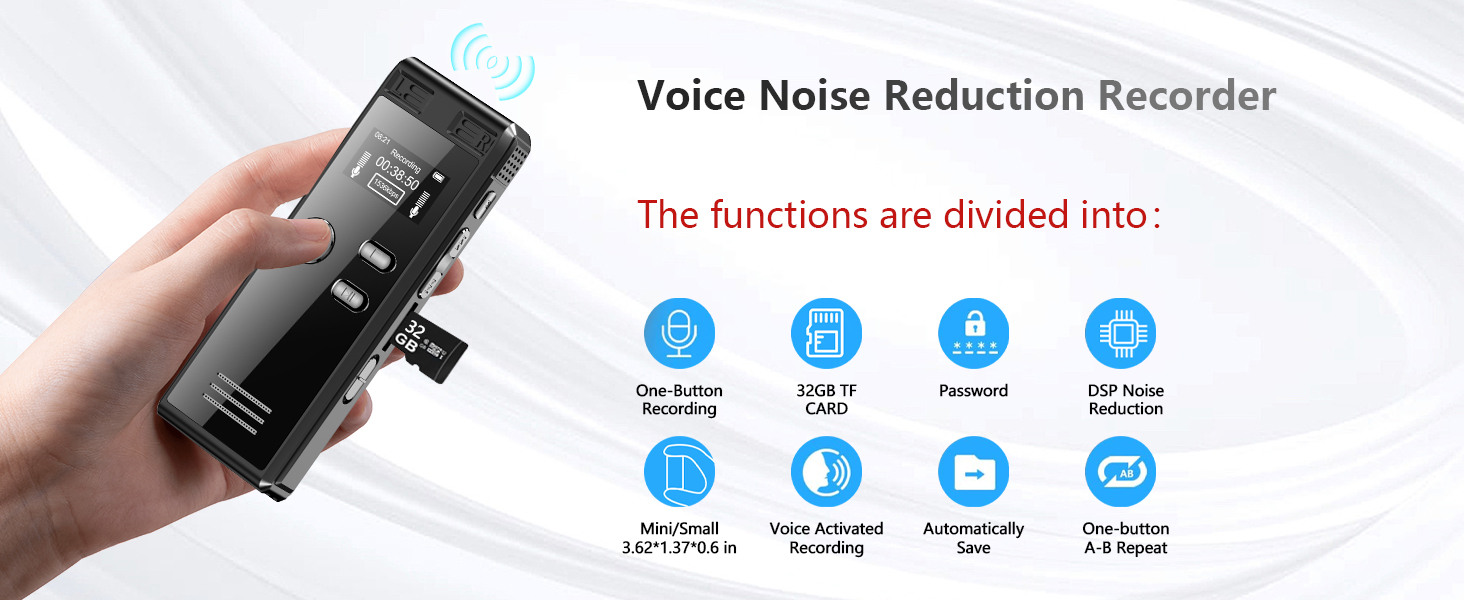
Image 7: Visual representation of voice activation, showing how recording starts when sound exceeds a set decibel threshold (e.g., 45dB) and pauses when it falls below.
3. Timed Recording
Schedule recordings to start and stop at specific times.
- Access the main menu and navigate to "Timed Recording".
- Set the start time, end time, and repeat cycle (once, workday, every day).
- Confirm settings. The device will automatically record during the scheduled periods.
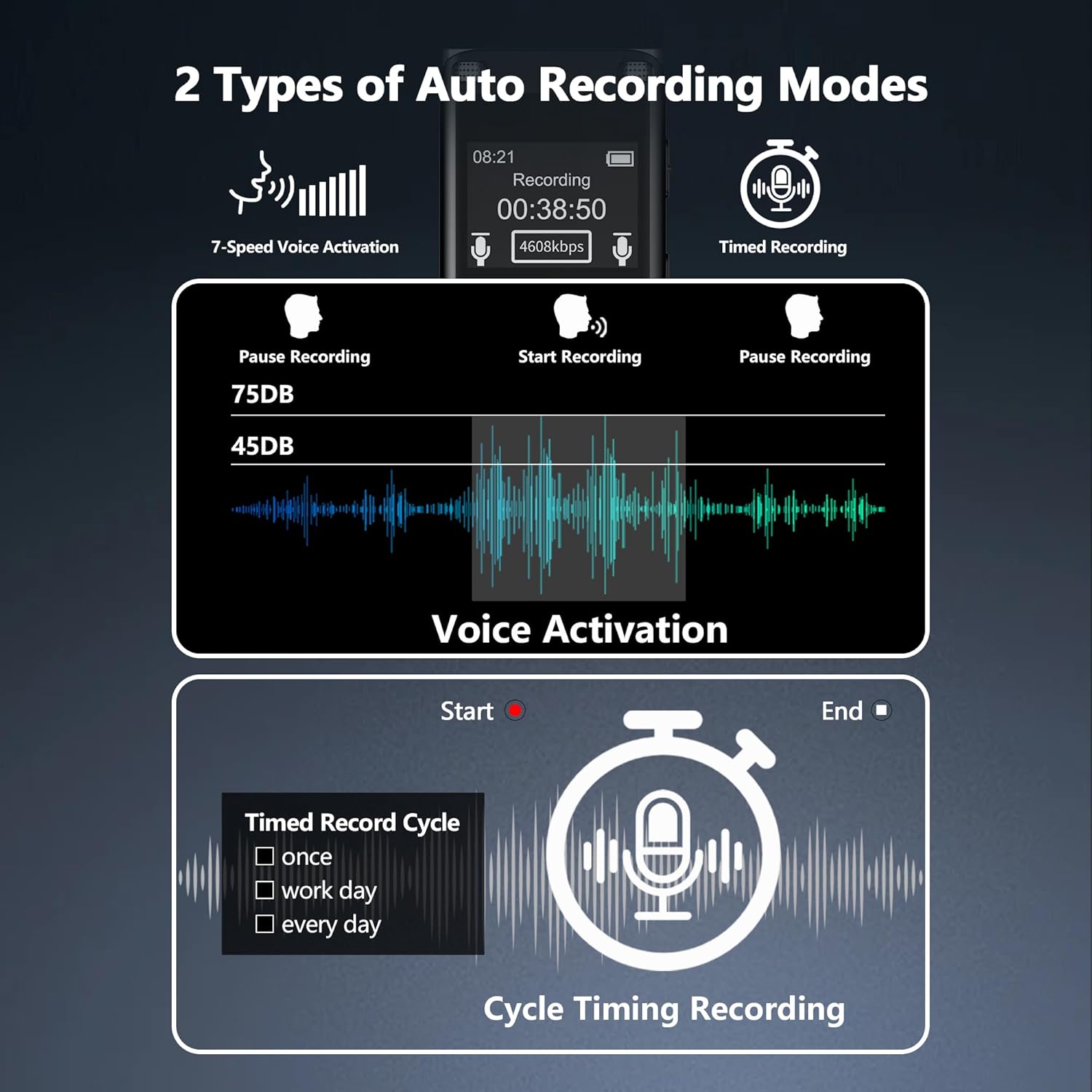
Image 8: Illustration of the two automatic recording modes: 7-speed voice activation and cycle timing recording.
4. Playback
- From the main screen, press the PLAY button to access the recording list.
- Use the UP/DOWN buttons to select the desired file.
- Press PLAY again to start playback.
- During playback, use VOL+/- to adjust volume, UP/DOWN for fast forward/rewind.
- Press STOP to end playback.
5. A-B Repeat
This function allows you to repeat a specific segment of an audio file.
- During playback, press the MENU/DEL button once to set point A.
- Press the MENU/DEL button again to set point B. The segment between A and B will now repeat.
- Press MENU/DEL a third time to exit A-B repeat mode.
6. File Management (Transfer to PC)
To transfer files to your computer:
- Connect the recorder to your computer using the provided USB-C data cable.
- The device will appear as a removable disk drive on your computer.
- You can now drag and drop audio files (MP3 or WAV format) to and from the device.
7. Password Protection
Secure your recordings with a password.
- Access the main menu and navigate to "Password Protection".
- Enable the password function and set a 4-digit password.
- Remember your password. If forgotten, you may need to perform a factory reset, which will erase all data.
8. Noise Reduction
The device features DSP noise reduction technology to enhance recording clarity.

Image 9: Illustration of the noise cancellation feature, demonstrating how background noise is reduced by up to 45dB for clearer voice recordings.
This feature is typically active by default. Refer to the device's menu for specific noise reduction settings if available.
Maintenance
- Battery Care: To prolong battery life, avoid fully discharging the device frequently. Charge it regularly, even if not in use for extended periods.
- Storage: Store the recorder in a cool, dry place away from direct sunlight, extreme temperatures, and humidity.
- Cleaning: Use a soft, dry cloth to clean the device. Do not use liquid cleaners or solvents.
- Data Backup: Regularly back up important recordings to your computer to prevent data loss.
Troubleshooting
- Device does not power on:
- Ensure the power switch is in the "ON" position.
- Charge the device for at least 30 minutes.
- Cannot record:
- Check if the device has sufficient battery.
- Verify that there is enough storage space on the 32GB TF card.
- Poor recording quality:
- Ensure the microphones are not obstructed.
- Adjust the recording quality settings (e.g., 3072Kbps PCM for highest quality).
- Reduce background noise in the recording environment.
- Device not recognized by computer:
- Ensure the USB-C cable is securely connected to both the recorder and the computer.
- Try a different USB port or cable.
- Restart your computer.
- Forgot password:
- A factory reset may be required, which will erase all data. Contact customer support if you need assistance.
Specifications
| Model Number | SK601 |
| Memory Storage Capacity | 32 GB (TF Card Included) |
| Recording Format | MP3 Audio, WAV |
| Recording Quality | Up to 3072Kbps PCM |
| Battery Type | 1 Lithium Polymer (Included) |
| Continuous Recording Time | Up to 100 hours (at 32kbps) |
| Screen Size | 1 Inch |
| Product Dimensions | 1.25 x 1.11 x 1.2 inches (approx.) |
| Item Weight | 3.17 ounces |
| Hardware Interface | USB 2.0 |
| Headphones Jack | 3.5 millimeters |
Warranty and Support
Crosseagle products are designed for reliability and performance. This product comes with a standard warranty against manufacturing defects. For specific warranty terms and conditions, please refer to the warranty card included in your package or contact Crosseagle customer support.
For technical assistance, troubleshooting, or any inquiries regarding your Crosseagle SK601 Digital Voice Activated Recorder, please contact our customer support team. Contact information can typically be found on the product packaging or the official Crosseagle website.
- Technical Support: Lifetime
- Replacement Service: 365 Days
- Response Time: Within 12 Hours