
MARVO M360
MARVO M360 Wired Gaming Mouse User Manual
Model: M360
Introduction
This user manual provides comprehensive instructions for the setup, operation, and maintenance of your MARVO M360 Wired Gaming Mouse. Please read this manual carefully before using the product to ensure optimal performance and longevity.
Product Overview
The MARVO M360 is a high-performance wired gaming mouse designed for precision and comfort. It features an optical sensor, customizable DPI settings, and dynamic LED lighting to enhance your gaming experience.

Figure 1: Top View. This image displays the top of the MARVO M360 mouse, highlighting the main left and right click buttons, the scroll wheel, and the dedicated DPI adjustment button. The vibrant LED lighting along the scroll wheel and body is also visible.

Figure 2: Angled View (Right Side). This perspective shows the ergonomic design of the mouse, along with the two programmable side buttons located on the left side, typically used for forward and backward navigation. The dynamic LED lighting is prominent.

Figure 3: Front Angled View. This image provides a view from the front-right, emphasizing the textured scroll wheel and the robust USB cable connection point. The LED lighting around the scroll wheel is clearly visible.

Figure 4: Side View (Left Side). This profile view highlights the ergonomic contour of the mouse, designed for comfortable grip during extended use. The two side buttons are clearly visible.
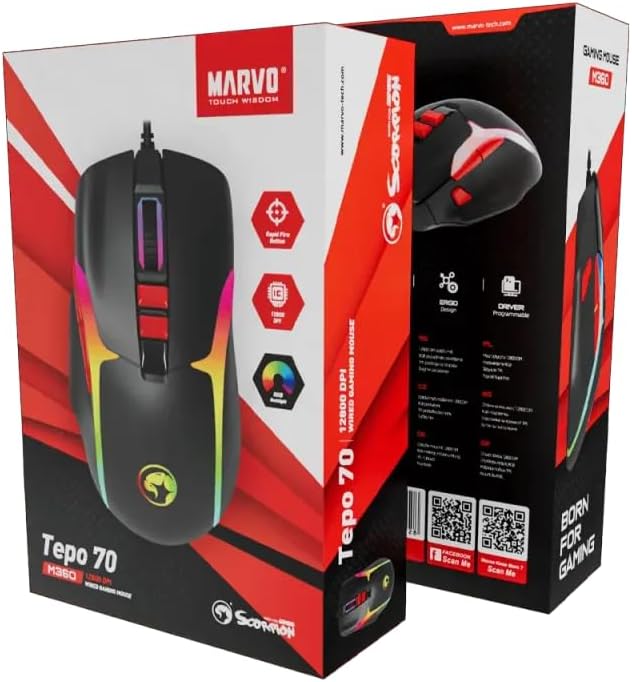
Figure 5: Product Packaging. This image shows the retail box for the MARVO M360 mouse, displaying key features such as 12800 DPI, Rapid Fire Action, and programmable driver support.
Package Contents:
- MARVO M360 Wired Gaming Mouse
- User Manual (this document)
Setup
- Connect the Mouse: Locate an available USB port on your computer. Insert the USB connector of the MARVO M360 mouse firmly into the USB port.
- Driver Installation: The MARVO M360 is a plug-and-play device. Your operating system (Windows, macOS, Linux) will automatically detect and install the necessary drivers. No additional software installation is typically required for basic functionality.
- Verification: Once connected, the mouse's LED lighting should illuminate, indicating it is powered on. Move the mouse to confirm cursor movement on your screen.
Operating Instructions
Basic Functions:
- Left Click: Primary action button.
- Right Click: Secondary action button, typically for context menus.
- Scroll Wheel: Used for vertical scrolling. Can also be pressed as a middle click button.
- Side Buttons: (Typically located on the left side) Default functions are usually "Forward" and "Backward" in web browsers or file explorers. These may be programmable via software (if available, not specified in input).
DPI Adjustment:
The MARVO M360 features a dedicated DPI (Dots Per Inch) button, usually located behind the scroll wheel. Pressing this button cycles through different sensitivity levels, allowing you to adjust cursor speed on the fly. The mouse supports up to 12800 DPI, providing precise control for various tasks and gaming scenarios.
LED Lighting:
The mouse features dynamic LED lighting. The lighting effects are pre-programmed and activate automatically upon connection. There is no explicit control mentioned for changing lighting modes directly on the mouse.
Maintenance
- Cleaning: Use a soft, dry cloth to wipe the surface of the mouse. For stubborn dirt, a slightly damp cloth can be used, but ensure no liquid enters the mouse. Do not use harsh chemicals or abrasive cleaners.
- Sensor Cleaning: Occasionally, dust or debris may accumulate around the optical sensor on the bottom of the mouse. Use a cotton swab or compressed air to gently clean the sensor area.
- Cable Care: Avoid sharp bends or excessive pulling on the USB cable to prevent damage.
- Storage: When not in use, store the mouse in a clean, dry environment away from extreme temperatures.
Troubleshooting
- Mouse not detected or not responding:
- Ensure the USB cable is securely plugged into a working USB port on your computer.
- Try plugging the mouse into a different USB port.
- Restart your computer.
- Test the mouse on another computer to determine if the issue is with the mouse or your system.
- Cursor movement is erratic or jumpy:
- Ensure the optical sensor on the bottom of the mouse is clean and free of debris.
- Use the mouse on a clean, non-reflective, and uniform surface (e.g., a mouse pad).
- Adjust the DPI setting using the DPI button to see if a different sensitivity level resolves the issue.
- LED lights are not working:
- Check if the mouse is properly connected and receiving power.
- If the mouse functions otherwise, the LED issue might indicate a hardware fault.
Specifications
| Brand | MARVO |
| Model | M360 |
| Type | Wired Gaming Mouse |
| Connectivity | USB |
| Tracking Method | Optical |
| Color | Black |
| DPI | Up to 12800 (as per packaging) |
| Special Features | Portable, Lightweight, Ergonomic Design, LED Lights, Rapid Fire Action |
| Package Dimensions | 18.2 x 12.2 x 5.2 cm |
| Weight | 180 g |
Warranty and Support
MARVO products are designed for reliability and performance. For specific warranty information, please refer to the warranty card included with your product or visit the official MARVO website.
For technical support, product inquiries, or further assistance, please visit the official MARVO website:
Ask a question about this manual
Ask about setup, troubleshooting, compatibility, parts, safety, or missing instructions. Manuals+ will review the question and use this page’s manual context to help answer it.