Introduction
This manual provides essential instructions for setting up, operating, maintaining, and troubleshooting your Canon PIXUS TS3730 A4 Inkjet Multifunction Printer. Please read this manual thoroughly before using the product to ensure correct and safe operation. Keep this manual for future reference.

Figure 1: Canon PIXUS TS3730 A4 Inkjet Multifunction Printer (Black)
1. Setup Guide
1.1 Unpacking and Initial Placement
Carefully remove the printer from its packaging. Ensure all protective tapes and packing materials are removed from the exterior and interior of the printer. Place the printer on a stable, flat surface with adequate space around it for ventilation and operation.
1.2 Power Connection
- Connect the supplied power cord to the printer's power input.
- Plug the other end of the power cord into a wall outlet.
- Press the power button to turn on the printer.
1.3 Ink Cartridge Installation
The Canon PIXUS TS3730 uses BCI-365 (Black) and BCI-366 (Color) series ink cartridges. Follow these steps to install them:
- Open the printer's top cover to access the cartridge holder.
- Remove the new ink cartridges from their packaging. Be careful not to touch the electrical contacts or print nozzles.
- Insert the black cartridge into the left slot and the color cartridge into the right slot until they click into place.
- Close the top cover. The printer will perform an initial setup process.

Figure 2: Ink cartridge installation area with BCI-365 and BCI-366 cartridges.
1.4 Paper Loading
This printer features a rear paper tray. To load paper:
- Open the rear paper tray cover.
- Gently slide the paper guides to the edges.
- Load up to 60 sheets of A4 plain paper (or other supported media) into the tray, print side facing up.
- Adjust the paper guides to fit the paper stack snugly.

Figure 3: Rear paper feed tray with paper loaded.
1.5 Software Installation and Network Connection
To use the printer's full functionality, install the drivers and software on your computer or connect via Wi-Fi.
1.5.1 Driver Installation (for Computer)
Download the latest drivers and software from the official Canon website. Follow the on-screen instructions for installation.
1.5.2 Wi-Fi Connection
The printer supports Wireless LAN. You can connect it to your home network using the printer's 1.5-inch LCD panel for setup or via WPS (Wi-Fi Protected Setup) if your router supports it. Refer to the on-screen instructions on the printer's display for detailed steps.
2. Operating Instructions
2.1 Basic Printing
To print a document or photo from your computer:
- Ensure the printer is powered on and connected to your computer or network.
- Open the document or photo you wish to print.
- Select Print from the application's menu (e.g., File > Print).
- Choose your Canon PIXUS TS3730 printer from the list.
- Adjust print settings (paper size, print quality, color/grayscale) as needed.
- Click Print.
2.2 Copying Documents
To make a copy using the printer's control panel:
- Lift the document cover and place the document face-down on the scanner glass. Align it with the alignment mark.
- Close the document cover gently.
- On the printer's control panel, select Copy.
- Use the navigation buttons to select copy settings (e.g., number of copies, color or black & white).
- Press the Start button (Color or Black) to begin copying.
2.3 Scanning Documents
To scan a document to your computer:
- Place the document face-down on the scanner glass.
- On your computer, open the scanning software (e.g., Canon IJ Scan Utility).
- Select your printer model.
- Choose the desired scan settings (document type, resolution, destination folder).
- Click Scan. The scanned image will be saved to your computer.
2.4 Printing from Mobile Devices
The Canon PIXUS TS3730 supports printing from smartphones and tablets via Wi-Fi. Download the Canon PRINT Inkjet/SELPHY app from your device's app store.
- Ensure your mobile device is connected to the same Wi-Fi network as your printer.
- Open the Canon PRINT Inkjet/SELPHY app.
- Select the document or photo you wish to print from within the app.
- Adjust print settings as required.
- Tap Print.
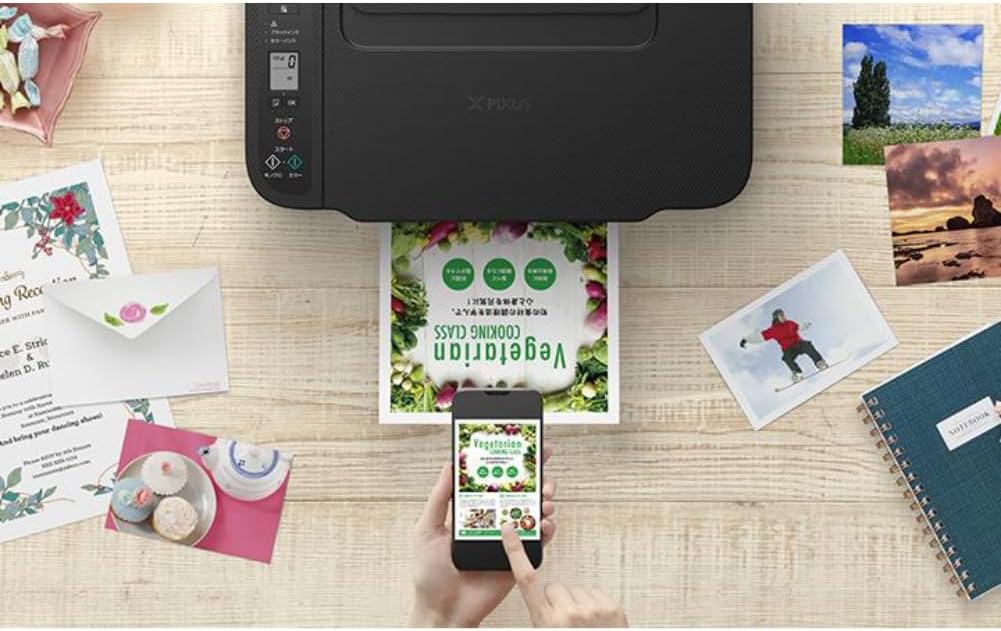
Figure 4: Printing a document wirelessly from a smartphone.
3. Maintenance
3.1 Replacing Ink Cartridges
When an ink cartridge runs low or is empty, replace it promptly to maintain print quality. Refer to section 1.3 for installation steps. Use genuine Canon BCI-365/366 series cartridges for optimal performance.
3.2 Cleaning the Printer
Regular cleaning helps maintain print quality and extends the printer's lifespan.
- Exterior Cleaning: Wipe the exterior of the printer with a soft, damp, lint-free cloth. Do not use abrasive cleaners or solvents.
- Print Head Cleaning: If print quality declines (e.g., streaks, missing colors), perform a print head cleaning from the printer's maintenance menu or through the printer driver on your computer.
- Paper Path Cleaning: If paper jams occur frequently or paper feed is inconsistent, clean the paper path using the utility in the printer driver or by following instructions on the printer's LCD panel.
4. Troubleshooting
This section addresses common issues you might encounter.
4.1 Printer Not Responding
- Ensure the printer is powered on and the power cord is securely connected.
- Check the Wi-Fi connection. Ensure the printer and your device are on the same network.
- Restart both the printer and your computer/mobile device.
- Verify that the correct printer is selected in your application's print dialog.
4.2 Poor Print Quality
- Check ink levels and replace any empty or low cartridges.
- Perform a print head cleaning and nozzle check from the printer's maintenance menu.
- Ensure you are using appropriate paper for your print settings.
- Verify that the print quality settings in your printer driver are set correctly.
4.3 Paper Jams
- Turn off the printer and unplug it.
- Carefully open all covers and gently remove any jammed paper. Avoid tearing the paper.
- Ensure paper is loaded correctly in the rear tray and the paper guides are adjusted.
- Remove any foreign objects from the paper path.
- Close all covers, plug in the printer, and turn it on.
5. Specifications
| Feature | Specification |
|---|---|
| Model Name | PIXUS TS3730 |
| Functions | Print, Copy, Scan |
| Print Technology | Inkjet |
| Max Print Resolution (Color) | 4800 x 1200 dpi |
| Max Print Speed (Monochrome) | 7.7 pages/minute |
| Max Print Speed (Color) | 4 pages/minute |
| Ink Type | 4-color (Dye/Pigment Hybrid Ink) |
| Compatible Ink Cartridges | BCI-365 (Black), BCI-366 (Color) series |
| Max Paper Size | A4 |
| Paper Feed | Rear paper tray (Max 60 sheets A4 plain paper) |
| Duplex Printing | No |
| Connectivity | Wi-Fi |
| Display | 1.5-inch LCD panel |
| Dimensions (W x D x H) | 43.5 x 32.7 x 14.5 cm |
| Weight | 5.11 kg |
| Included Components | Inkjet Cartridges (may vary by region/retailer) |
6. Warranty and Support
6.1 Product Warranty
This product comes with a limited warranty. Please refer to the warranty card included with your product or visit the official Canon website for detailed warranty terms and conditions specific to your region.
6.2 Customer Support
For technical assistance, driver downloads, or further inquiries, please visit the official Canon support website or contact Canon customer service in your region. Support contact information can typically be found on the Canon website or in the documentation provided with your printer.