1. Introduction
This manual provides detailed instructions for the setup, operation, and maintenance of your YUNZII B75 Mechanical Keyboard. The YUNZII B75 is a 75% layout mechanical keyboard featuring hot-swappable switches, RGB backlighting, a gasket-mounted design, and double-shot PBT keycaps. It is designed for compatibility with Windows and Mac operating systems.

Figure 1: YUNZII B75 Mechanical Keyboard Overview
2. Package Contents
Verify that all items are present in your package:
- YUNZII B75 Mechanical Keyboard
- Dust Cover
- Keycap Puller
- USB Cable (Type-C to Type-A)
- Extra Keycaps and Switches
- User Manual (this document)

Figure 2: Keyboard and Included Accessories
Unboxing and Initial Inspection
Upon opening the package, carefully remove the keyboard and all accessories. Inspect for any visible damage. The keyboard is protected by a dust cover during transit.
Video 1: YUNZII B75 Black Hot Swappable Mechanical Keyboard with Knob - Unboxing and Overview
3. Setup
3.1 Connecting the Keyboard
The YUNZII B75 keyboard connects via a detachable USB-C cable. Ensure the cable is securely connected to both the keyboard and your computer.
- Locate the USB-C port on the back of the keyboard.
- Connect the USB-C end of the provided cable to the keyboard.
- Connect the USB-A end of the cable to an available USB port on your computer.
- For Mac users with only USB-C ports, a USB hub or adapter may be required.
Video 2: How to connect your B75 Keyboard to your devices
3.2 Adjusting Keyboard Height
The keyboard features dual-stage adjustable stands on the underside to customize the typing angle for ergonomic comfort.
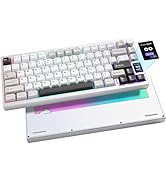
Figure 3: Dual-Stage Adjustable Feet
4. Operating the Keyboard
4.1 Key Layout and Design
The B75 features a 75% layout, providing a compact form factor while retaining essential keys, including a dedicated function row and arrow keys. The keyboard incorporates a gasket-mounted structure and multi-layer padding for a consistent and comfortable typing experience.

Figure 4: Gasket Keyboard Structure Diagram
4.2 RGB Backlighting Control
The keyboard features customizable RGB backlighting with multiple effects and colors. Use the following shortcuts to adjust the lighting:
- Fn + Backspace: Turn ON/OFF backlights.
- Fn + Insert: Change backlight mode (19 types available).
- Fn + End: Change backlight color (9 types available).
- Fn + PgUp: Change lighting effect direction.
- Fn + Up Arrow: Increase brightness (5 levels).
- Fn + Down Arrow: Decrease brightness (5 levels).
- Fn + Left Arrow: Decrease blinking speed (5 levels).
- Fn + Right Arrow: Increase blinking speed (5 levels).
Video 3: Backlight Adjustment of YUNZII B75 Mechanical Keyboard

Figure 5: RGB Shortcuts
4.3 Multi-Function Rotary Knob
The keyboard includes a rotary knob for quick adjustments. Long press the knob to switch between RGB control mode and Multimedia control mode.
- Multimedia Mode: Rotate to adjust volume (+/-), press to mute/unmute.
- RGB Mode: Rotate to adjust backlight brightness, press to change backlight mode.

Figure 6: Multi-Function Rotary Knob
4.4 FN Key Shortcuts
Utilize the FN key in combination with the F-row keys for quick access to various functions:
| FN Shortcut | Function |
|---|---|
| Fn + F1 | Computer |
| Fn + F2 | Homepage |
| Fn + F3 | Calculator |
| Fn + F4 | Player |
| Fn + F5 | Previous Song |
| Fn + F6 | Next Song |
| Fn + F7 | Play/Pause |
| Fn + F8 | Stop |
| Fn + F9 | Mute |
| Fn + F10 | Volume Down |
| Fn + F11 | Volume Up |
| Fn + F12 |
4.5 Custom Software
The YUNZII B75 supports custom software (Windows only) for advanced personalization. This software allows you to:
- Program macro keys.
- Customize lighting colors and effects.
- Set custom shortcut keys.
- Edit macros.
- Adjust sleep time settings.

Figure 7: Custom Software Interface
5. Maintenance
5.1 Cleaning the Keyboard
To maintain optimal performance and appearance, regularly clean your keyboard:
- Use the provided dust cover when the keyboard is not in use.
- Gently wipe the keycaps and frame with a soft, damp cloth.
- For deeper cleaning, use the keycap puller to remove keycaps and clean underneath.
5.2 Hot-Swappable Switches and Keycaps
The YUNZII B75 features hot-swappable switch sockets, allowing you to easily change mechanical switches without soldering. It supports both 3-pin and 5-pin mechanical switches.

Figure 8: Hot-Swappable Switches
The keyboard comes with durable double-shot PBT keycaps in a Cherry profile, known for their resistance to wear and shine. Use the included keycap puller to safely remove and replace keycaps.

Figure 9: Double-Shot PBT Keycaps
6. Troubleshooting
6.1 Connection Issues
If the keyboard is not responding or backlights are off after connecting:
- Ensure the USB-C cable is fully inserted into both the keyboard and the computer.
- Try connecting the keyboard to a different USB port on your computer.
- If using a USB hub, try connecting the keyboard directly to the computer or a different hub port.
- Test with a different USB-C cable if available.
6.2 Resetting the Keyboard
To reset the keyboard to its factory default settings (white backlight, default speed):
- Press and hold Fn + ESC for 3-5 seconds.
- The keyboard will reset, and the backlights will restore to white.
6.3 Windows Key Lock
To lock or unlock the Windows key:
- Press Fn + Win. The WIN indicator light will illuminate when locked and turn off when unlocked.
7. Specifications
| Feature | Detail |
|---|---|
| Product Dimensions | 13.17 x 13.17 x 1.66 inches |
| Item Weight | 1.76 pounds |
| Manufacturer | YUNZII |
| Item Model Number | B75 |
| Compatible Devices | iOS, Windows, Mac, Android |
| Connectivity Technology | USB-C |
| Keyboard Description | Mechanical |
| Special Features | Backlit, Ergonomic, Hot-Swappable, Customizable Display Keys |
| Keyboard Backlighting Color Support | RGB |
| Material | Polybutylene Terephthalate (PBT) |
8. Warranty and Support
For warranty information, technical support, or any product-related inquiries, please refer to the official YUNZII website or contact their customer service directly. Contact details are typically provided on the product packaging or the manufacturer's official support page.


