1. Introduction
This manual provides detailed instructions for the setup, operation, maintenance, and troubleshooting of your SWGOTA Kids Smart Watch Fitness Tracker. Please read this manual carefully before using the device to ensure proper function and safety.
2. Product Overview
The SWGOTA Kids Smart Watch is designed for children, offering features like two-way calling, SOS emergency function, precise real-time positioning, and activity tracking. It aims to provide peace of mind for parents while offering engaging features for kids.

2.1 Key Features
- Clear and Stable Two-Way Call: Ensures smooth communication between children and parents even in noisy environments.
- SOS Emergency Function: Double-click the Home button to automatically dial pre-set emergency contacts.
- Precise Real-time Positioning: Tracks your child's movements and records location history.
- Alarm Function: Set alarms to remind children of tasks.
- Intelligent Game: Includes a math game for entertainment and learning.
- Flashlight: A small built-in flashlight for convenience.
3. Setup Guide
3.1 What's in the Box
- SWGOTA Kids Smart Watch Fitness Tracker
- Charging Cable
- User Manual
3.2 Initial Charging
- Connect the charging cable to the watch's charging port.
- Plug the other end of the cable into a standard USB power adapter (not included).
- Charge the watch for at least 2 hours before first use.
3.3 SIM Card Installation (if applicable)
- Locate the SIM card slot on the watch.
- Insert a compatible Nano-SIM card with an active data plan, ensuring correct orientation.
- Close the SIM card slot cover securely.
3.4 App Pairing
- Download the companion app (e.g., 'SeTracker' or similar) from your smartphone's app store.
- Register an account and log in.
- Scan the QR code displayed on the watch screen or enter the device ID manually to bind the watch to your account.
- Configure emergency contacts and safe zones within the app.
4. Operating Instructions
4.1 Basic Navigation
The watch features a touch screen and physical buttons for navigation.
- Touch Screen: Swipe left/right to navigate menus, tap to select.
- Home Button: Press to return to the main clock interface. Double-press for SOS function.
- Call Button: Press to initiate a call to a pre-set contact.
4.2 Making and Receiving Calls
The watch supports two-way communication with pre-approved contacts.
- To make a call: Navigate to the 'Contacts' menu, select a contact, and tap the call icon. Alternatively, use the dedicated Call Button if configured.
- To receive a call: Tap the green answer icon on the screen when an incoming call is displayed.
4.3 SOS Emergency Function
In an emergency, the child can activate the SOS function.
- Double-click the Home button rapidly.
- The watch will automatically dial the pre-set emergency contacts in sequence until one answers.
4.4 Location Tracking and Safe Zones
Monitor your child's location and set up geofences through the companion app.


- Real-time Positioning: View the watch's current location on the map within the app.
- Historical Route: Review past locations and routes taken by the watch.
- Safe Zones (Electronic Fence): Define specific areas (e.g., home, school). If the watch enters or exits these zones, an alert will be sent to the parent's phone.
4.5 Fitness Tracking
The watch tracks daily activity.
- Pedometer: Counts steps taken throughout the day.
- Activity Data: View activity summaries on the watch or in the app.
4.6 Other Functions
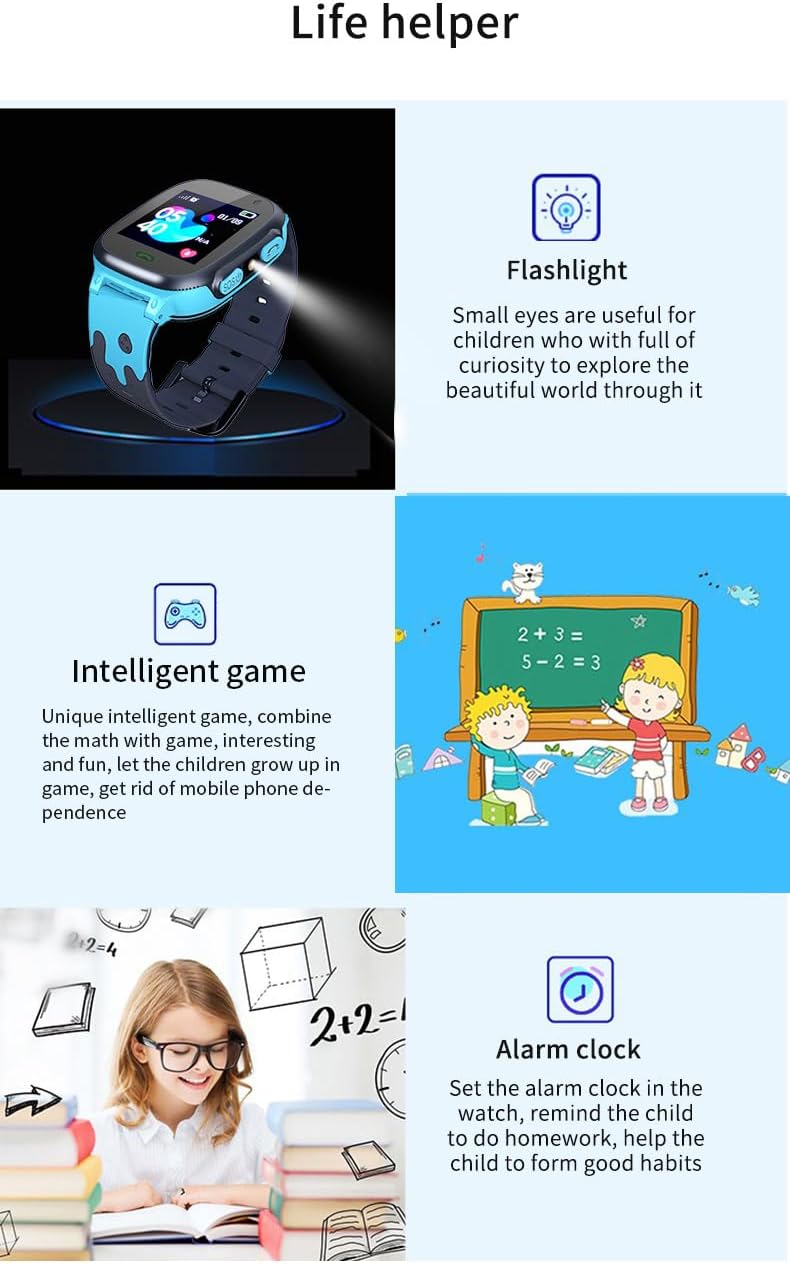
- Alarm Clock: Set multiple alarms for reminders (e.g., wake up, homework).
- Intelligent Game: Engage with pre-installed educational games.
- Flashlight: Activate the built-in flashlight for convenience.
- Voice Chat: Send and receive short voice messages with approved contacts via the app.
5. Care and Maintenance
Proper care will extend the life of your SWGOTA Kids Smart Watch.
- Keep the watch dry. Avoid prolonged exposure to water. While it may be splash-proof, it is not designed for swimming or showering.
- Clean the watch regularly with a soft, dry cloth. Do not use harsh chemicals or abrasive cleaners.
- Avoid extreme temperatures. Do not expose the watch to direct sunlight for extended periods or to very cold environments.
- Protect the screen from scratches.
- Charge the battery regularly, even if not in use, to maintain battery health.
6. Troubleshooting
| Problem | Possible Cause | Solution |
|---|---|---|
| Watch won't turn on | Low battery | Charge the watch for at least 30 minutes. |
| Watch won't turn on | System crash | Press and hold the power button for 10-15 seconds to force restart. |
| Cannot make/receive calls | No SIM card or inactive SIM | Ensure a compatible, active SIM card is correctly inserted. Check network signal. |
| Cannot make/receive calls | Contacts not set up in app | Add contacts to the watch's whitelist via the companion app. |
| Inaccurate location | Poor GPS signal | Ensure the watch is in an open area with clear sky view. Location accuracy may vary indoors. |
| App cannot bind with watch | Incorrect device ID or QR code | Verify the device ID or QR code. Ensure the watch is powered on and has network connectivity. |
| Battery drains quickly | Frequent use of features (e.g., calls, GPS) | Reduce frequency of calls or location updates. Adjust screen brightness. |
| Time is incorrect | No network connection or incorrect time zone setting | Ensure the watch has network connectivity to sync time. Check time zone settings in the app. |
7. Product Specifications
| Feature | Detail |
|---|---|
| Model Number | c5d832f2-182e-428f-889d-1bf650aa39e5 |
| Brand | SWGOTA |
| Screen Size | 1.4 Inches |
| Visible Screen Diagonal | 2" / 4 cm |
| Operating System | Android |
| Connectivity Technology | Bluetooth |
| Wireless Communication Standard | Bluetooth |
| Battery Type | 1 Lithium Ion batteries required (included) |
| Battery Cell Composition | Lithium Ion |
| Package Dimensions | 28 x 10 x 2.3 cm |
| Weight | 160 g |
| Colour | Silver |
| Shape | Square |
| Target Audience | Kids |
| Special Feature | Alarm Clock, Time Display |
| Date First Available | 3 Sept. 2024 |
8. Warranty and Support
For warranty information and technical support, please refer to the contact details provided with your purchase or visit the official SWGOTA website. Keep your purchase receipt as proof of purchase.


