
1. Product Overview
The ORICO D10 M.2 NVMe SSD is a high-performance internal solid-state drive designed to significantly enhance your system's speed and responsiveness. Utilizing a PCIe Gen3 interface and advanced TLC NAND Flash, it offers impressive read and write speeds, making it ideal for system upgrades, gaming, and demanding applications.

Image: The ORICO D10 NVMe SSD, highlighting its role in boosting PC performance.
Key Features:
- High-Speed Performance: Upgrade to NVMe with read speeds up to 1,700 MB/s and write speeds up to 1,100 MB/s, featuring a PCIe Gen3 interface for faster system boot times and improved overall responsiveness.
- Advanced TLC NAND Flash: Built with advanced TLC NAND flash and the latest controller, ensuring stability and safety through rigorous testing.
- Reliable Technologies: Supports global wear leveling (GWL), bad block management (BBM), dynamic power management (DPM), garbage collection (GC), SMART, and TRIM for superior performance and reliability.
- Wide Compatibility: Compatible with various devices including desktops, laptops, mini PCs, and Raspberry Pi 5, enhancing system responsiveness in space-constrained devices.

Image: Detailed view of the ORICO D10 SSD, emphasizing its TLC NAND Flash technology.
2. Package Contents
Before proceeding with installation, please verify that all items are present in the package:
- 1 x ORICO D10 M.2 NVMe SSD
- 1 x Thermal Silicone Pad
- 1 x User Manual (this document)
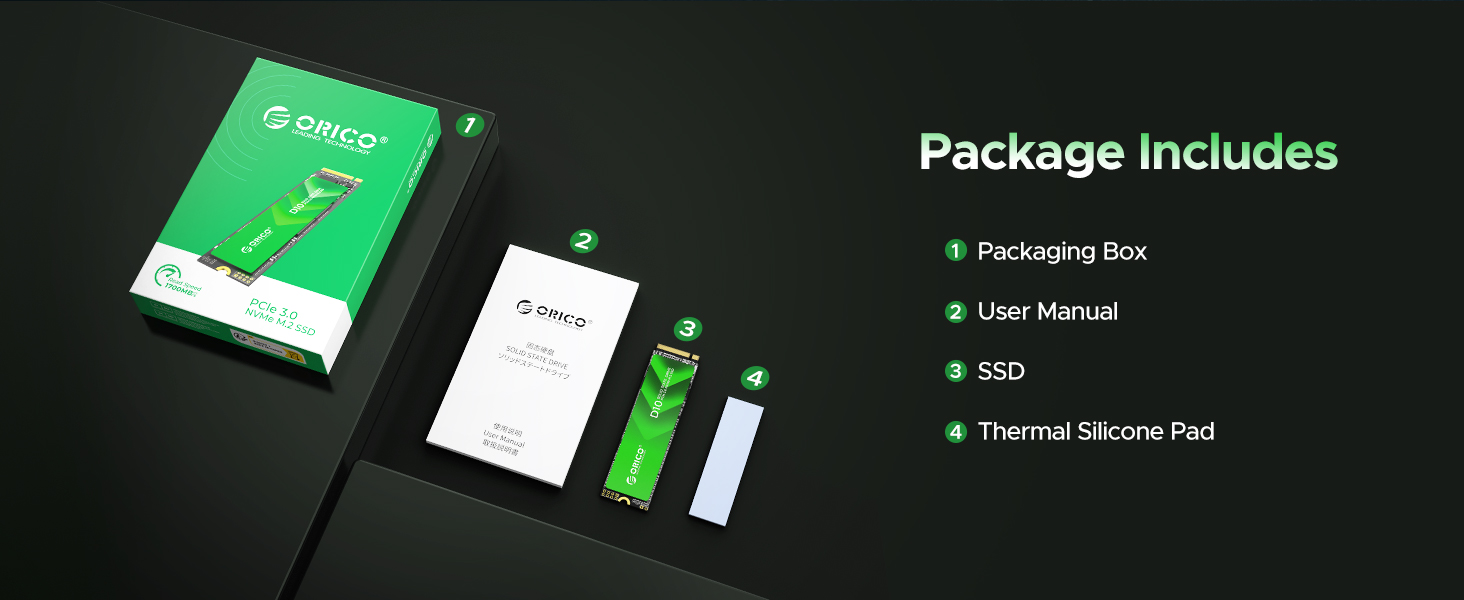
Image: Illustration of the ORICO D10 SSD package contents.
3. Installation Guide
Installing the ORICO D10 M.2 NVMe SSD requires opening your computer case. Please ensure you take necessary precautions, such as grounding yourself to prevent static discharge, and refer to your computer's motherboard manual for specific M.2 slot locations and screw types.
For Desktop PCs:
- Power Off: Shut down your computer completely and unplug all power cables.
- Open Case: Open your computer case to access the motherboard.
- Locate M.2 Slot: Identify an available M.2 slot on your motherboard. It typically looks like a small horizontal slot with a screw hole at the end.
- Insert SSD: Gently insert the ORICO D10 M.2 NVMe SSD into the M.2 slot at a 30-degree angle. Push it in until it is fully seated.
- Secure SSD: Press the SSD down and secure it with the small screw provided with your motherboard or the SSD.
- Apply Thermal Pad (Optional but Recommended): If your motherboard or SSD came with a heatsink, apply the thermal silicone pad between the SSD and the heatsink for optimal heat dissipation.
- Close Case: Close your computer case and reconnect all power cables.
For Laptops:
- Power Off: Shut down your laptop and disconnect the power adapter. Remove the battery if it's external.
- Access Internal Components: Refer to your laptop's service manual to locate and open the access panel for the M.2 slot. This often involves removing screws from the bottom cover.
- Locate M.2 Slot: Identify the M.2 slot. Some laptops may have an existing SSD that needs to be removed first.
- Insert SSD: Insert the ORICO D10 M.2 NVMe SSD into the slot at a slight angle and gently push it in.
- Secure SSD: Secure the SSD with the retaining screw.
- Reassemble: Replace the access panel and battery (if removed).

Image: Visual representation of the ORICO D10 SSD being installed into a compatible M.2 slot on a motherboard.
Video: An official ORICO video demonstrating the installation and benefits of upgrading to an ORICO NVMe SSD.
4. Initial Setup and Operation
After physical installation, the SSD needs to be initialized and formatted before it can be used.
For Windows:
- Boot System: Start your computer.
- Open Disk Management: Right-click on the Start button and select "Disk Management".
- Initialize Disk: You should see your new ORICO D10 SSD listed as "Disk [number]" and "Unallocated". Right-click on the disk number (not the unallocated space) and select "Initialize Disk". Choose GPT (GUID Partition Table) for modern systems.
- Create New Simple Volume: Right-click on the "Unallocated" space on your new SSD and select "New Simple Volume". Follow the wizard to assign a drive letter and format the drive (NTFS is recommended for Windows).
- Ready to Use: Your SSD is now ready for use. You can install your operating system on it or use it for data storage.
For macOS:
- Boot System: Start your Mac.
- Open Disk Utility: Go to Applications > Utilities > Disk Utility.
- Erase and Format: Select your new ORICO D10 SSD from the sidebar. Click "Erase". Choose a name, format (APFS for macOS 10.13 or later, Mac OS Extended (Journaled) for older versions), and scheme (GUID Partition Map). Click "Erase" again to confirm.
- Ready to Use: Your SSD is now formatted and ready for use.
For Linux:
- Boot System: Start your Linux system.
- Identify Disk: Use commands like
lsblkorfdisk -lto identify your new SSD (e.g., /dev/nvme0n1). - Partition and Format: Use partitioning tools like
fdiskorgpartedto create partitions and then format them with your desired file system (e.g., ext4). - Mount: Mount the new partition to a directory to access it.

Image: Performance comparison highlighting the speed advantage of the ORICO D10 NVMe SSD over traditional SATA SSDs.
5. Maintenance and Best Practices
To ensure the longevity and optimal performance of your ORICO D10 NVMe SSD, consider the following maintenance tips:
- Enable TRIM: Ensure TRIM is enabled on your operating system. TRIM helps the SSD manage its free space efficiently, preventing performance degradation over time. Most modern operating systems enable this by default for SSDs.
- Avoid Defragmentation: Do not defragment an SSD. Defragmentation is designed for HDDs and can reduce the lifespan of an SSD by causing unnecessary write cycles.
- Keep Firmware Updated: Check the ORICO website periodically for firmware updates for your D10 SSD. Firmware updates can improve performance, stability, and compatibility.
- Monitor Health (SMART): Use disk utility tools (like CrystalDiskInfo for Windows or Disk Utility for macOS) to monitor the SSD's S.M.A.R.T. (Self-Monitoring, Analysis, and Reporting Technology) data. This can provide early warnings of potential issues.
- Maintain Free Space: Try to keep at least 10-15% of the SSD's capacity free. This allows the SSD's wear-leveling algorithms to work effectively and maintain performance.
- Proper Shutdown: Always shut down your computer properly. Abrupt power loss can lead to data corruption or damage to the SSD.

Image: Overview of the comprehensive smart technologies supported by the ORICO D10 SSD for enhanced reliability and performance.
6. Troubleshooting
If you encounter issues with your ORICO D10 NVMe SSD, try the following troubleshooting steps:
- SSD Not Detected:
- Ensure the SSD is properly seated in the M.2 slot.
- Check your motherboard's BIOS/UEFI settings to ensure the M.2 slot is enabled and configured correctly (e.g., PCIe mode).
- Try the SSD in a different M.2 slot if available, or on another compatible system to rule out a motherboard issue.
- Ensure your operating system is up-to-date and has the necessary drivers.
- Slow Performance:
- Verify that TRIM is enabled (as mentioned in Maintenance).
- Ensure the SSD is connected to a PCIe Gen3 x4 M.2 slot for optimal speeds. Older slots or SATA M.2 slots will limit performance.
- Check for background processes or applications consuming disk resources.
- Ensure sufficient free space on the SSD (at least 10-15%).
- Check for firmware updates.
- Data Corruption or Instability:
- Run a disk check utility (e.g.,
chkdskon Windows, First Aid in Disk Utility on macOS). - Ensure your system's power supply is stable.
- Check for overheating. Ensure proper airflow in your case and consider using a heatsink if not already.
- If issues persist, back up your data immediately and consider contacting ORICO support.
- Run a disk check utility (e.g.,
7. Specifications
| Feature | Detail |
|---|---|
| Brand | ORICO |
| Model Number | D10-128GB |
| Digital Storage Capacity | 128 GB |
| Hard Disk Interface | Solid State (NVMe PCIe Gen3) |
| Connectivity Technology | PCIe 3.0 |
| Max Read Speed | Up to 1700 MB/s |
| Max Write Speed | Up to 1100 MB/s |
| NAND Flash Type | TLC |
| Form Factor | M.2 2280 |
| Compatible Devices | Desktop, Laptop, Mini PC, Raspberry Pi 5 |
| Item Weight | 0.352 ounces |
| Product Dimensions | 3.94 x 3.15 x 2.36 inches (Packaging) |
| Manufacturer | SHENZHEN ORICO TECHNOLOGIES CO.,LTD |
| First Available Date | August 26, 2024 |

Image: Detailed product specifications including capacity, read speed, write speed, and total writes for various ORICO D10 models.
8. Warranty and Support
The ORICO D10 M.2 NVMe SSD comes with a 5-year limited warranty, or based on Total Bytes Written (TBW), whichever comes first. This warranty covers defects in materials and workmanship under normal use.
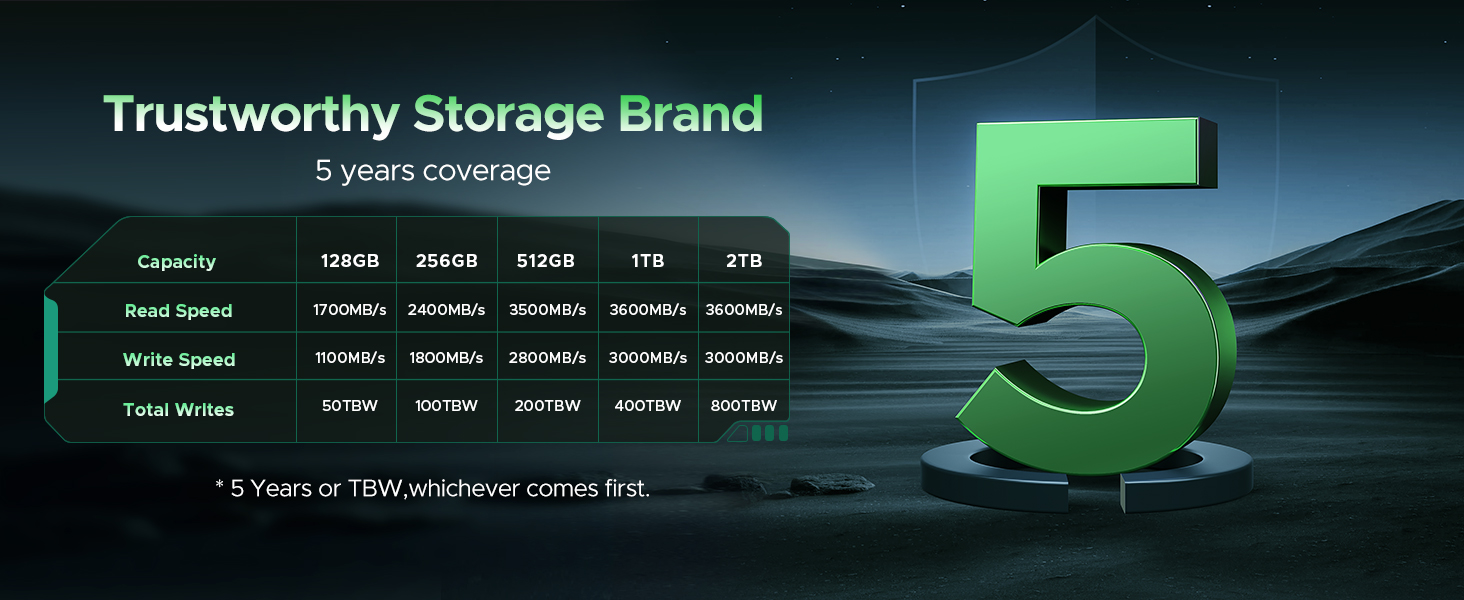
Image: ORICO's commitment to quality with a 5-year coverage for their storage products.
Customer Support:
For technical support, warranty claims, or further inquiries, please visit the official ORICO website or contact their customer service through the details provided on their packaging or website.
ORICO Official Website: www.orico.com.cn
ORICO Direct US Store on Amazon: Visit Store
