
Introduction
This manual provides detailed instructions for the setup, operation, and maintenance of your ECONTROLLY RMF-TX811U Voice Remote Control. This remote is designed as a replacement for specific Sony 4K Smart Google TV models, offering voice control functionality and essential TV navigation.
Please read this manual thoroughly before using the remote control to ensure proper functionality and to maximize your viewing experience.
Package Contents
- 1 x ECONTROLLY RMF-TX811U Voice Remote Control
Note: AAA ALKALINE batteries are required and are not included in the package.
Setup
1. Battery Installation
To power your remote control, you will need two (2) AAA ALKALINE batteries. Ensure you use new, non-rechargeable alkaline batteries for optimal performance.
- Locate the battery compartment cover on the back of the remote control.
- Slide the cover downwards or press the latch (if present) to open the compartment.
- Insert two AAA ALKALINE batteries, matching the positive (+) and negative (-) terminals as indicated inside the compartment.
- Replace the battery compartment cover, ensuring it clicks securely into place.
Important: Do not use rechargeable batteries. Using rechargeable batteries may result in improper operation or damage to the remote control.
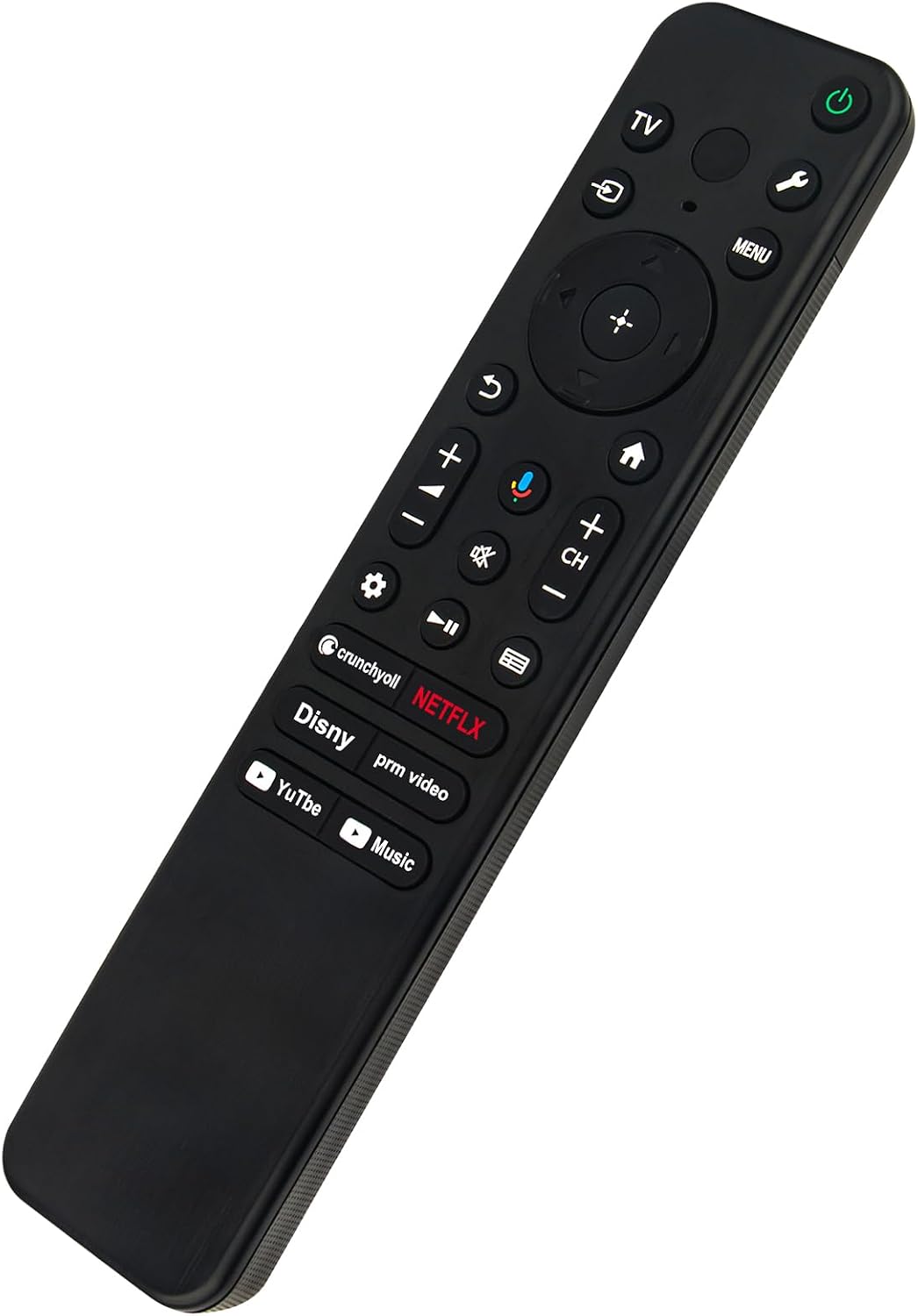
Image: Front view of the ECONTROLLY RMF-TX811U Voice Remote Control. This image displays the layout of the buttons, including navigation, volume, channel, and dedicated app buttons.
2. Pairing Instructions
The RMF-TX811U remote control requires pairing with your Sony 4K Smart Google TV to enable full functionality, especially the voice control feature. Follow these steps to pair the remote:
- Ensure your TV is powered on.
- Point the remote control towards your TV.
- Simultaneously press and hold the VOL- (Volume Down) button and the Google Assistant key (microphone icon) for approximately 2 seconds.
- Release the buttons when a pairing confirmation message appears on your TV screen.
- Follow any on-screen prompts to complete the pairing process.
If pairing is unsuccessful, ensure the batteries are correctly installed and try the process again. You may need to move closer to the TV during pairing.
Operating the Remote Control
The RMF-TX811U remote control provides intuitive access to your Sony 4K Smart Google TV features. Below is a general guide to its primary functions:
Button Functions Overview
- Power Button (⏻): Turns the TV on or off.
- TV Button: Switches to TV input.
- Input Button (⎌): Cycles through available input sources (HDMI, AV, etc.).
- Menu Button: Accesses the TV's main menu or settings.
- Navigation Pad (Up, Down, Left, Right, Enter): Used to navigate menus and select options.
- Back Button (↶): Returns to the previous screen or menu.
- Home Button (⌂): Returns to the TV's home screen.
- Volume Up/Down (VOL+/VOL-): Adjusts the TV's volume.
- Mute Button (🔇): Mutes or unmutes the TV sound.
- Channel Up/Down (CH+/CH-): Changes TV channels.
- Google Assistant Key (Microphone Icon): Activates voice control (requires pairing).
- Settings Button (⚙): Quick access to TV settings.
- Play/Pause Button (⏸): Controls media playback.
- Dedicated App Buttons (Crunchyroll, Netflix, Disney, Prime Video, YouTube, Music): Direct access to these streaming applications.

Image: A person using the ECONTROLLY RMF-TX811U remote control with a Sony 4K Smart Google TV setup. This illustrates the remote's intended use in a home entertainment environment.
Voice Control Functionality
Once paired, the Google Assistant key allows you to use voice commands to control your TV. Press and hold the Google Assistant key, speak your command clearly into the remote's microphone, and then release the button. Examples of commands include:
- "Open Netflix"
- "Change to HDMI 1"
- "Search for action movies"
- "What's the weather?"
Compatible TV Models
This remote control is compatible with the following Sony 4K Smart Google TV models:
- KD-85X77L
- KD-43X77L
- KD-65X77CL
- KD-75X77L
- KD-75X77CL
- KD-65X77L
- KD-50X77L
- KD-55X77L
Compatibility is specifically for these models. Functionality with other Sony TV models or non-Sony TVs is not guaranteed.
Maintenance
- Cleaning: Wipe the remote control with a soft, dry cloth. Do not use liquid cleaners or abrasive materials.
- Battery Replacement: Replace batteries when the remote's response becomes sluggish or if the voice control feature stops working reliably. Always replace both batteries at the same time with new AAA ALKALINE batteries.
- Storage: If the remote control will not be used for an extended period, remove the batteries to prevent leakage and potential damage.
- Environment: Avoid exposing the remote to extreme temperatures, direct sunlight, or high humidity.
Troubleshooting
| Problem | Possible Cause / Solution |
|---|---|
| Remote is not responding. |
|
| Voice control is not working. |
|
| Specific buttons are not working. |
|
Specifications
- Model Number: RMF-TX811U
- Brand: ECONTROLLY
- Special Feature: Voice Search
- Color: Black
- Compatible Devices: Sony 4K Smart Google Television (Specific models listed in "Operating" section)
- Power Source: 2 x AAA ALKALINE Batteries (not included)
- Product Dimensions: 6.95 x 1.51 x 0.56 inches (approximately 17.65 x 3.84 x 1.42 cm)
- Item Weight: 1.76 ounces (approximately 50 grams)

Image: The ECONTROLLY RMF-TX811U remote control displayed with its approximate length (6.9 inches) and width (1.5 inches) measurements. This provides a visual reference for the remote's physical size.
Warranty and Support
For any questions, technical assistance, or warranty inquiries regarding your ECONTROLLY RMF-TX811U Voice Remote Control, please contact the seller or manufacturer directly through your purchase platform. Please refer to your purchase documentation for specific warranty terms and contact information.