
ORICO ORICO Multi-Storage Solution Kit (5-Pack Cases + 2.5" Enclosure)
ORICO Multi-Storage Solution Kit
User Manual
1. Introduction
Thank you for choosing the ORICO Multi-Storage Solution Kit. This kit provides a comprehensive solution for protecting and accessing your valuable data. It includes a 5-pack of durable protective cases designed for both 3.5-inch and 2.5-inch SSD/HDD, and a high-speed USB 3.0 to SATA 2.5-inch External Hard Drive Enclosure.
The protective cases offer robust protection against everyday knocks, bumps, moisture, static, and dust, ensuring the longevity of your hard drives. The external enclosure provides a convenient, tool-free way to connect your 2.5-inch SATA drives to any computer via USB 3.0, offering ultra-fast data transfer speeds.
2. Package Contents
Please verify that all items are present in your package:
- 5 x ORICO Hard Drive Protective Cases (for 3.5"/2.5" drives)
- 1 x ORICO USB 3.0 to SATA 2.5" External Hard Drive Enclosure
- 1 x USB 3.0 Data Cable

Image: The complete ORICO Multi-Storage Solution Kit, featuring the sleek 2.5-inch external hard drive enclosure with its USB cable, and a stack of five grey protective cases, one of which is open to show a 3.5-inch hard drive inside.
3. Setup Instructions
3.1. Using the 2.5-inch External Hard Drive Enclosure
- Open the Enclosure: Gently slide the cover of the ORICO 2.5-inch enclosure off. It is designed for tool-free installation.
- Insert the Drive: Carefully insert your 2.5-inch SATA SSD or HDD into the enclosure, ensuring the SATA connector aligns correctly.
- Close the Enclosure: Slide the cover back onto the enclosure until it clicks securely into place.
- Connect to Computer: Use the provided USB 3.0 data cable to connect the enclosure to an available USB port on your computer. The LED indicator on the enclosure will light up, indicating power and activity.

Image: A visual representation of the ORICO 2.5-inch external enclosure, highlighting its compatibility with both 7mm and 9.5mm thick 2.5-inch SATA HDDs and SSDs. The image shows a drive being inserted into the enclosure.
3.2. Using the Hard Drive Protective Cases
- Open the Case: The protective cases feature a book-opening design with a secure buckle. Gently unlatch the buckle and open the case.
- Insert the Drive: Place your 3.5-inch or 2.5-inch hard drive into the designated slot within the case. The internal bracket allows for storing up to four 2.5-inch drives or one 3.5-inch drive.
- Close the Case: Close the lid and secure the buckle to ensure the drive is fully protected from moisture, static, and dust.
- Labeling (Optional): Each case includes a label area where you can write information about the stored drive and its contents for easy organization.
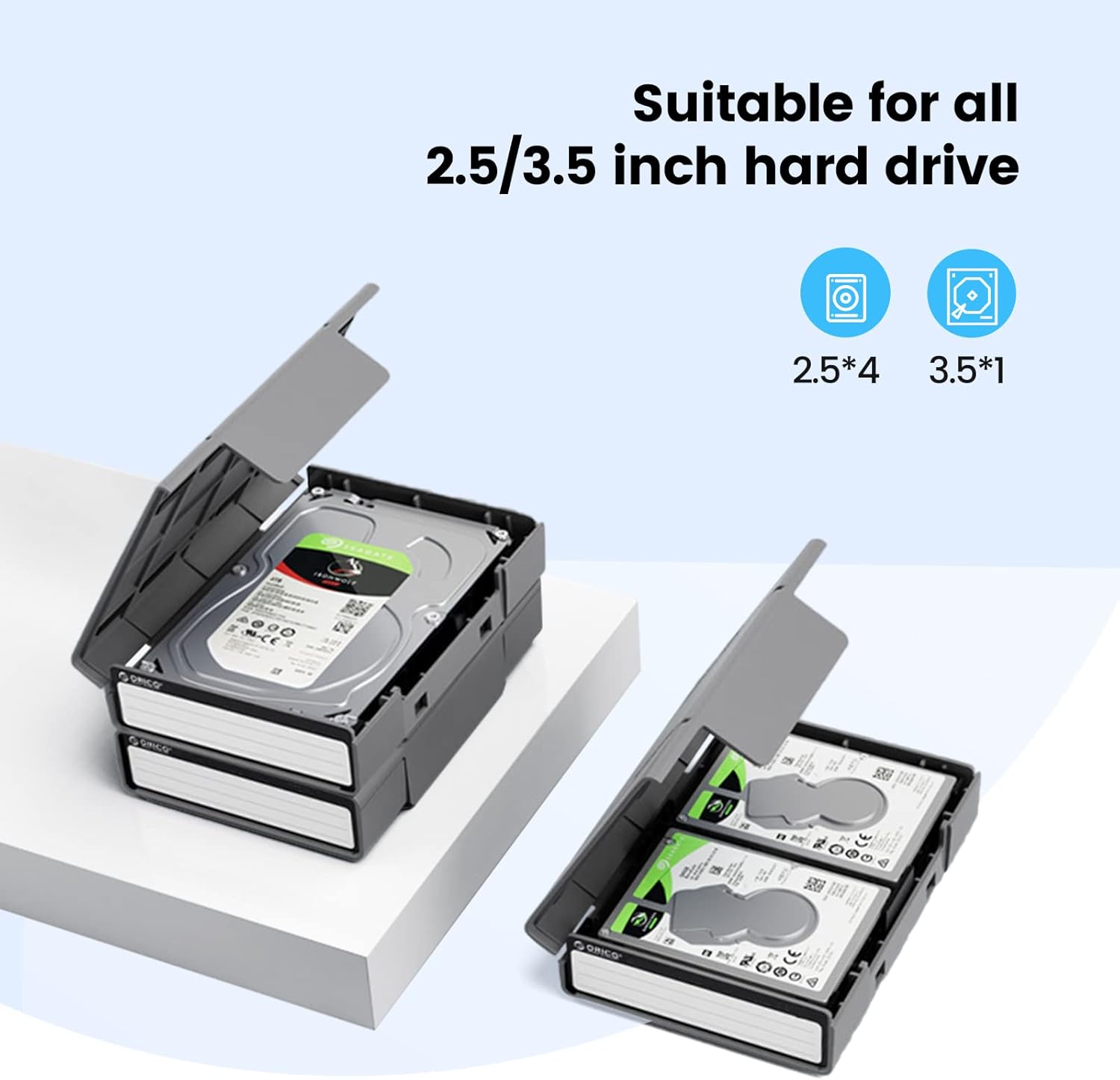
Image: Two ORICO protective cases are shown open. One case contains a 3.5-inch hard drive, while the other demonstrates how two 2.5-inch hard drives can be stored within the same case, illustrating the versatile storage options.

Image: A close-up view of an ORICO protective case with a hand holding a pen, writing on the integrated label area. This highlights the feature allowing users to classify and organize their stored data.

Image: A detailed view of the ORICO protective case, illustrating its unique book-shaped design. Arrows indicate the easy opening mechanism, showcasing how the lid lifts to reveal the interior for drive insertion or removal.
4. Operating Instructions
4.1. Data Transfer with the 2.5-inch Enclosure
Once your 2.5-inch SSD/HDD is installed in the enclosure and connected to your computer via the USB 3.0 cable, it will be recognized as an external storage device. You can then perform standard file operations such as:
- Copying files to and from the drive.
- Backing up important data.
- Running applications directly from the external drive.
- Recovering files from old or broken PCs.
The USB 3.0 interface supports data transfer rates of up to 5Gbps. If your computer and drive support UASP (USB Attached SCSI Protocol), you can experience up to 20% faster transfer speeds compared to standard USB 3.0.

Image: A graphic illustrating the ultra-fast data transfer capabilities of the ORICO 2.5-inch enclosure. It shows a laptop connected to the enclosure, with icons representing various data types (photos, videos, documents) being transferred at 5Gbps, emphasizing that 1GB can be transferred in 3 seconds.
4.2. System Compatibility
The 2.5-inch enclosure is widely compatible with various operating systems and devices:
- Operating Systems: Windows 2000/98/XP/Vista/7/8/10, Linux, Mac OS 9.1/10.8.4 and above.
- Devices: PCs, Laptops, TVs, Game Consoles, Routers, Streaming Devices, etc.
No driver installation is required; it is plug-and-play.

Image: A visual chart demonstrating the broad compatibility of the ORICO 2.5-inch enclosure with over 1000 devices, including PCs, laptops, TVs, game consoles, routers, and streaming devices. It also lists supported operating systems: Windows, Mac OS, and Linux.
4.3. Using Protective Cases for Storage
The protective cases are ideal for organizing and safeguarding your hard drives when not in use or during transport. Their book-like design allows them to fit neatly on shelves alongside books, optimizing storage space.
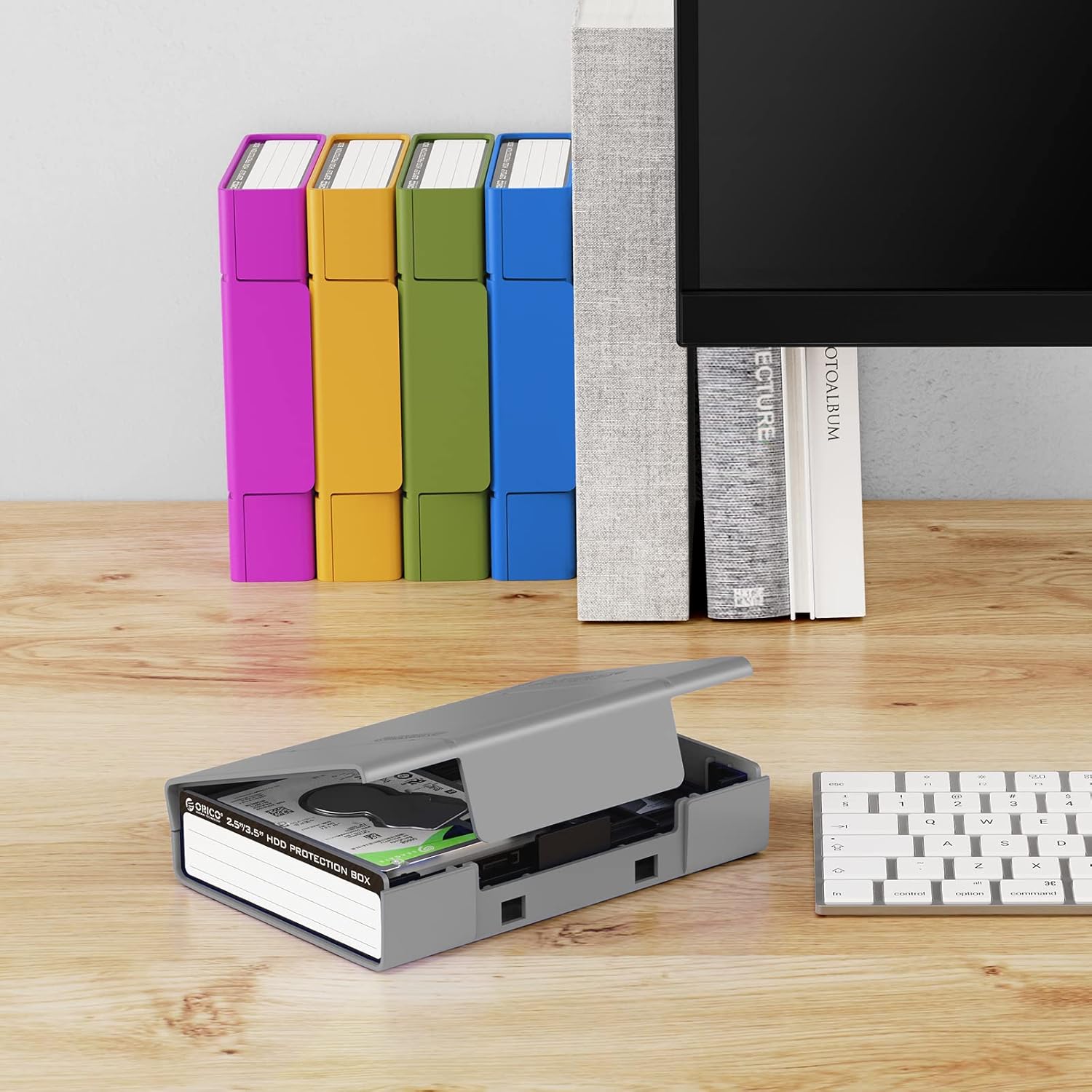
Image: Several colorful ORICO protective cases are neatly arranged on a wooden desk, standing upright like books next to a computer monitor and other office items, showcasing their space-saving and organizational design.

Image: A graphic illustrating the ORICO 2.5-inch enclosure's capability to support up to 6TB of storage. It visually represents the vast amount of data that can be stored, such as 1,200,000+ photos, 200,000+ music files, or 3,000+ movies.
5. Maintenance
To ensure the longevity and optimal performance of your ORICO products, follow these maintenance guidelines:
- Cleaning: Use a soft, dry cloth to wipe the exterior of the enclosure and cases. Avoid using liquid cleaners or abrasive materials.
- Storage: Store the protective cases and enclosure in a cool, dry place away from direct sunlight and extreme temperatures.
- Handling: Handle the products with care to prevent drops or impacts, which could damage internal components or the stored drives.
- Dust Protection: Always keep the cases closed when drives are stored inside to prevent dust accumulation.
6. Troubleshooting
If you encounter issues with your ORICO Multi-Storage Solution Kit, please refer to the following common solutions:
| Problem | Possible Cause | Solution |
|---|---|---|
| Enclosure LED not lighting up. | No power or loose connection. | Ensure the USB cable is securely connected to both the enclosure and the computer. Try a different USB port or cable. |
| Drive not recognized by computer. | Drive not properly seated, unformatted drive, or driver issue. | Re-insert the drive into the enclosure, ensuring it's fully seated. Check Disk Management (Windows) or Disk Utility (Mac) to see if the drive appears (it might need formatting). Try connecting to another computer. |
| Slow data transfer speed. | Connected to USB 2.0 port, UASP not supported, or drive issue. | Ensure you are connected to a USB 3.0 port (usually blue). Verify if your system and drive support UASP. Check the health of your hard drive. |
| Protective case not closing properly. | Drive not seated correctly or foreign object. | Ensure the hard drive is fully seated within the case and there are no obstructions preventing the lid from closing. |
7. Specifications
| Feature | Detail |
|---|---|
| Product Type | Hard Drive Protective Cases (5-Pack) & 2.5" External Enclosure |
| Brand | ORICO |
| Compatible Drive Sizes (Cases) | 3.5" HDD, 2.5" SSD/HDD (up to 4 x 2.5" drives or 1 x 3.5" drive per case) |
| Compatible Drive Sizes (Enclosure) | 2.5" SATA HDD/SSD (7mm/9.5mm thickness) |
| Enclosure Interface | USB 3.0 (backward compatible with USB 2.0) |
| Data Transfer Rate | Up to 5Gbps (USB 3.0), supports UASP acceleration |
| Max Supported Storage (Enclosure) | 6TB |
| Case Material | High-hardness PP & ABS |
| Enclosure Material | Acrylonitrile Butadiene Styrene (ABS), Polypropylene |
| Color | Black (Enclosure), Grey (Cases) |
| Compatible OS | Windows 2000/98/XP/Vista/7/8/10, Linux, Mac OS 9.1/10.8.4 and above |
| Installation | Tool-free, Hot-swappable (Enclosure) |
8. Warranty and Support
ORICO products come with a standard manufacturer's warranty. For specific warranty terms and conditions, please refer to the warranty card included with your product or visit the official ORICO website.
If you require technical assistance, have questions about product usage, or need to report a defect, please contact ORICO customer support through their official channels. You can typically find contact information on the ORICO website or on the product packaging.
For more information, visit the ORICO Store on Amazon.
Related documentsORICO Multi-Storage Solution Kit (5-Pack Cases + 2.5" Enclosure)


Ask a question about this manual
Ask about setup, troubleshooting, compatibility, parts, safety, or missing instructions. Manuals+ will review the question and use this page’s manual context to help answer it.