
TOKQI M01
Smartphone Gimbal Stabilizer User Manual
TOKQI M01 3-Axis Phone Gimbal
Introduction
This manual provides instructions for the TOKQI M01 3-Axis Phone Gimbal Stabilizer. This device is designed to provide stable and smooth video footage when using your smartphone, enhancing your mobile videography experience. It features intelligent tracking and is compatible with a wide range of smartphone models.
What's in the Box

Image: Contents of the TOKQI M01 Gimbal box. The image displays the gimbal unit, a mini tripod, a USB charging cable, and the user manual, all neatly arranged next to the product packaging.
Upon unboxing your TOKQI M01 Gimbal, please verify that all the following components are present:
- TOKQI M01 3-Axis Phone Gimbal Stabilizer
- Mini Tripod
- USB Charging Cable
- User Manual
Setup
1. Charging the Gimbal
Before first use, fully charge the gimbal. Connect the USB charging cable to the gimbal's charging port and a suitable USB power adapter (not included). The indicator lights will show charging status.
2. Installing the Gimbal Show App
For full functionality, download and install the "Gimbal Show" application on your smartphone. Scan the QR codes below or search for "Gimbal Show" in your app store.
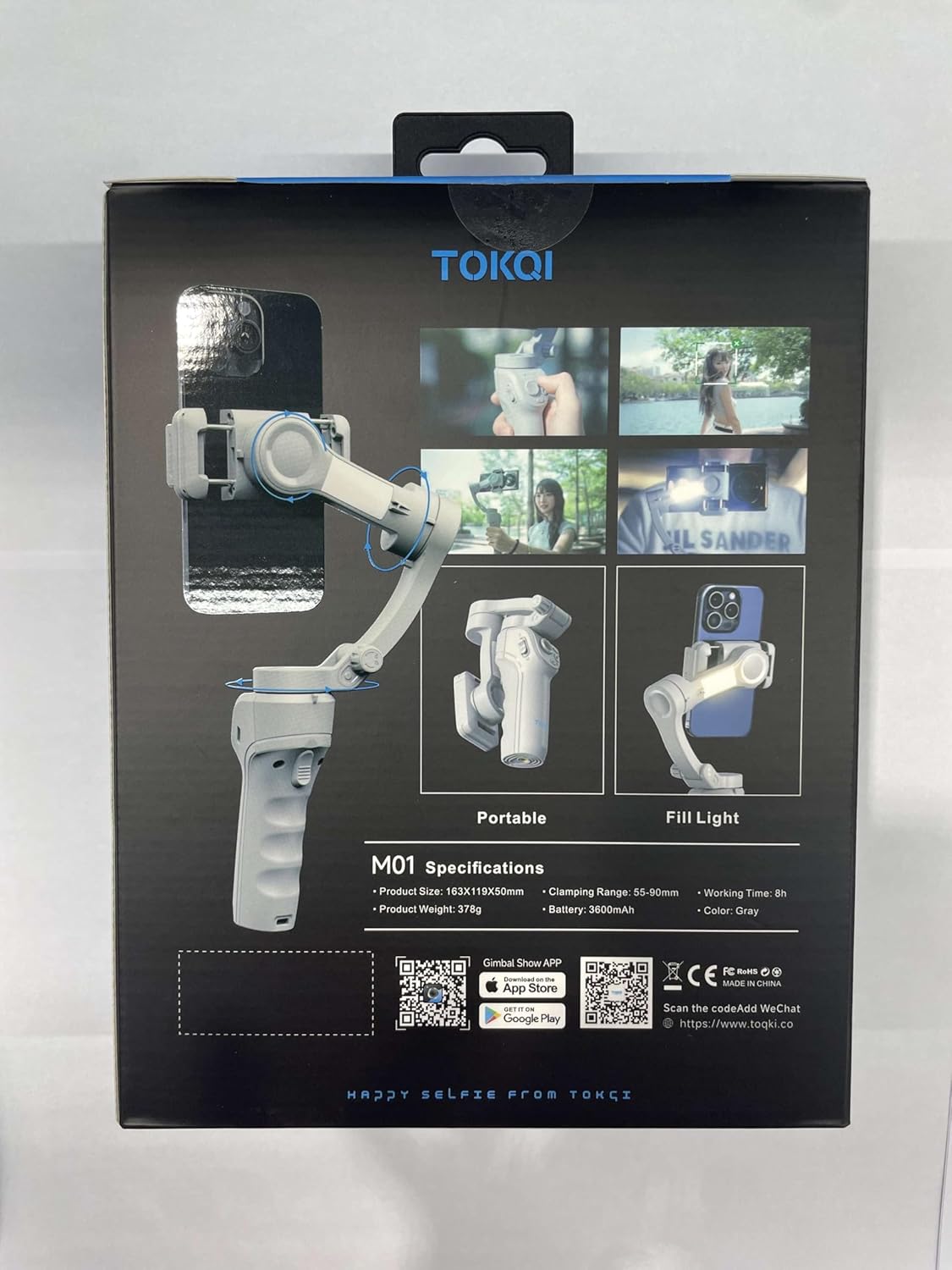
Image: Rear view of the TOKQI M01 Gimbal product box. This side displays key specifications such as product size, weight, clamping range, battery capacity, and working time. It also features QR codes for downloading the "Gimbal Show" app from the App Store and Google Play, along with a WeChat contact QR code.
Note: Specific app store links are placeholders. Please refer to the QR codes on the product packaging for direct links.
3. Mounting Your Smartphone
- Extend the phone clamp arm.
- Carefully place your smartphone into the clamp, ensuring it is centered and secure.
- Adjust the phone's position to achieve balance. The phone should remain level when the gimbal is powered off.

Image: Front view of the TOKQI M01 Gimbal. This image highlights the main control panel with its joystick, power button, mode button, and fill light button, providing a clear view of the user interface.
Operating the Gimbal
Power On/Off
Press and hold the power button (usually marked with a power symbol) for 3 seconds to turn the gimbal on or off.
Control Buttons Overview
- Joystick: Controls pan and tilt movements of the phone.
- Power Button: Long press to power on/off. Short press for specific functions (refer to app for customization).
- Mode Button (M): Cycles through different gimbal modes (e.g., Pan Follow, Lock Mode, FPV Mode).
- Fill Light Button (*): Activates or adjusts the integrated fill light.
- Shutter Button (Camera Icon): Triggers photo capture or video recording when connected via Bluetooth to the app.
Gimbal Modes
The TOKQI M01 typically offers several operating modes to suit different shooting scenarios. Use the Mode button to switch between them:
- Pan Follow (PF): The camera pans left/right following your hand movements, while tilt and roll axes are locked.
- Lock Mode (L): All three axes are locked, keeping the camera pointing in a fixed direction regardless of gimbal movement.
- FPV Mode (FPV): All three axes follow your hand movements, providing a first-person view effect.
- Additional modes may be available via the Gimbal Show app.
Intelligent Target Tracking
To use the intelligent target tracking feature, ensure your gimbal is connected to the "Gimbal Show" app via Bluetooth. Within the app, select the tracking function and draw a box around the subject you wish to track on your phone's screen. The gimbal will automatically adjust to keep the subject in frame.
Using the Fill Light
Press the Fill Light button to turn on the integrated fill light. Press again to cycle through brightness levels or turn off the light. This feature is useful for illuminating subjects in low-light conditions.
Attaching the Tripod
The included mini tripod can be screwed into the 1/4-inch screw hole at the bottom of the gimbal handle. This allows you to place the gimbal on a flat surface for stable shots or time-lapses.
Maintenance
- Cleaning: Use a soft, dry cloth to clean the gimbal. Do not use liquid cleaners or solvents.
- Storage: Store the gimbal in a cool, dry place, away from direct sunlight and extreme temperatures. When storing for extended periods, ensure the battery is charged to approximately 50% to prolong its lifespan.
- Avoid Impact: Protect the gimbal from drops and impacts, which can damage the motors and internal components.
Troubleshooting
| Problem | Possible Cause | Solution |
|---|---|---|
| Gimbal does not power on. | Low battery. | Charge the gimbal fully. |
| Gimbal vibrates or is unstable. | Phone not balanced correctly. | Re-balance the phone in the clamp. Ensure it is centered. |
| Cannot connect to app via Bluetooth. | Bluetooth off on phone; app not open; gimbal not in pairing mode. | Ensure phone Bluetooth is on. Open Gimbal Show app. Restart gimbal and try pairing again. |
| Tracking feature not working. | Poor lighting; subject too far/fast; app not configured. | Ensure adequate lighting. Keep subject within optimal range. Verify tracking settings in the app. |
Specifications
- Model: M01
- Product Size: 163 x 119 x 50 mm
- Product Weight: 378 g (approx. 0.83 lbs)
- Item Weight (Shipping): 1.5 pounds
- Clamping Range: 55 - 90 mm
- Battery Capacity: 3600 mAh
- Working Time: Up to 8 hours
- Compatible Devices: Smartphones, Cellphones
- Color: Gray
- Manufacturer: TOKQI
- First Available: February 13, 2025
Warranty and Support
For product support, technical assistance, or warranty inquiries, please contact TOKQI customer service. You may also find additional resources and FAQs on the official TOKQI website or through the Gimbal Show app.
For direct communication, you can scan the WeChat QR code found on the product packaging or visit the link below:
Please retain your proof of purchase for warranty claims.
Related documentsM01


Ask a question about this manual
Ask about setup, troubleshooting, compatibility, parts, safety, or missing instructions. Manuals+ will review the question and use this page’s manual context to help answer it.