
1. Introduction
This manual provides detailed instructions for the installation, operation, and maintenance of your Zunate RTL8852BE AX1800H Mini PCIe Network Adapter. This high-performance wireless card is designed to provide fast and stable network connectivity for compatible devices, supporting Wi-Fi 6 (802.11ax) with dual-band operation (2.4GHz and 5GHz) and Bluetooth 5.2. It offers wireless speeds up to 1800Mbps (574Mbps on 2.4GHz and 1200Mbps on 5GHz) and utilizes MU-MIMO technology for efficient multi-device communication.

Figure 1: Front view of the Zunate RTL8852BE AX1800H Mini PCIe Network Adapter.
2. Installation Guide
The Zunate RTL8852BE AX1800H is a Mini PCIe card designed for internal installation in compatible devices such as laptops or desktop computers with a Mini PCIe slot.
2.1 Safety Precautions
- Always power off and unplug your device before opening its casing.
- Discharge any static electricity from your body by touching a grounded metal object.
- Handle the network adapter by its edges to avoid touching the gold connectors or components.
- Refer to your device's manufacturer manual for specific instructions on opening the casing and accessing the Mini PCIe slot.
2.2 Hardware Installation
- Prepare your device: Power down your computer completely and disconnect it from the power source.
- Open the casing: Carefully open your computer's casing to access the internal components, specifically the Mini PCIe slot.
- Locate the Mini PCIe slot: Identify an available Mini PCIe slot on your motherboard.
- Insert the network adapter: Gently align the Zunate RTL8852BE AX1800H network adapter with the Mini PCIe slot. Insert the card firmly but carefully until it is seated properly.
- Secure the card: Use the provided screws (refer to Figure 2) to secure the network adapter in place.
- Connect antennas (if applicable): If your device uses external antennas, connect them to the "1MAIN" and "2AUX" connectors on the card (refer to Figure 3).
- Close the casing: Carefully close your computer's casing and reconnect the power.

Figure 2: The network adapter module shown with two securing screws.

Figure 3: Front view of the network adapter showing "1MAIN" and "2AUX" antenna connectors, and the back view showing the PCB.
2.3 Driver Installation
After physical installation, you may need to install drivers for the operating system to recognize and utilize the network adapter.
- Automatic Installation: Modern operating systems (e.g., Windows 10/11, recent Linux distributions) may automatically detect and install the necessary drivers upon startup.
- Manual Installation: If drivers are not installed automatically, visit the Zunate official website or the chipset manufacturer's website (RTL8852BE) to download the latest drivers for your operating system. Follow the provided installation instructions.
3. Operation
3.1 Wi-Fi Connection
- Once drivers are installed, your computer's Wi-Fi functionality should be enabled.
- Access your operating system's network settings.
- Select the desired Wi-Fi network (SSID) from the list of available networks.
- Enter the network password (if required) and connect.
- The adapter supports dual-band (2.4GHz and 5GHz) Wi-Fi 6 (802.11ax) for optimal performance.
3.2 Bluetooth Pairing
- Ensure Bluetooth is enabled in your computer's settings.
- Put your Bluetooth device (e.g., headphones, mouse, keyboard) into pairing mode.
- In your computer's Bluetooth settings, search for new devices.
- Select your device from the list and follow any on-screen prompts to complete the pairing process.
- The adapter supports Bluetooth 5.2 for enhanced connectivity.
3.3 MU-MIMO Technology
This network adapter features MU-MIMO (Multi-User, Multiple-Input, Multiple-Output) technology. When paired with a compatible MU-MIMO router, this technology allows the router to communicate with multiple devices simultaneously, improving network efficiency and overall speed, especially in environments with many connected devices.
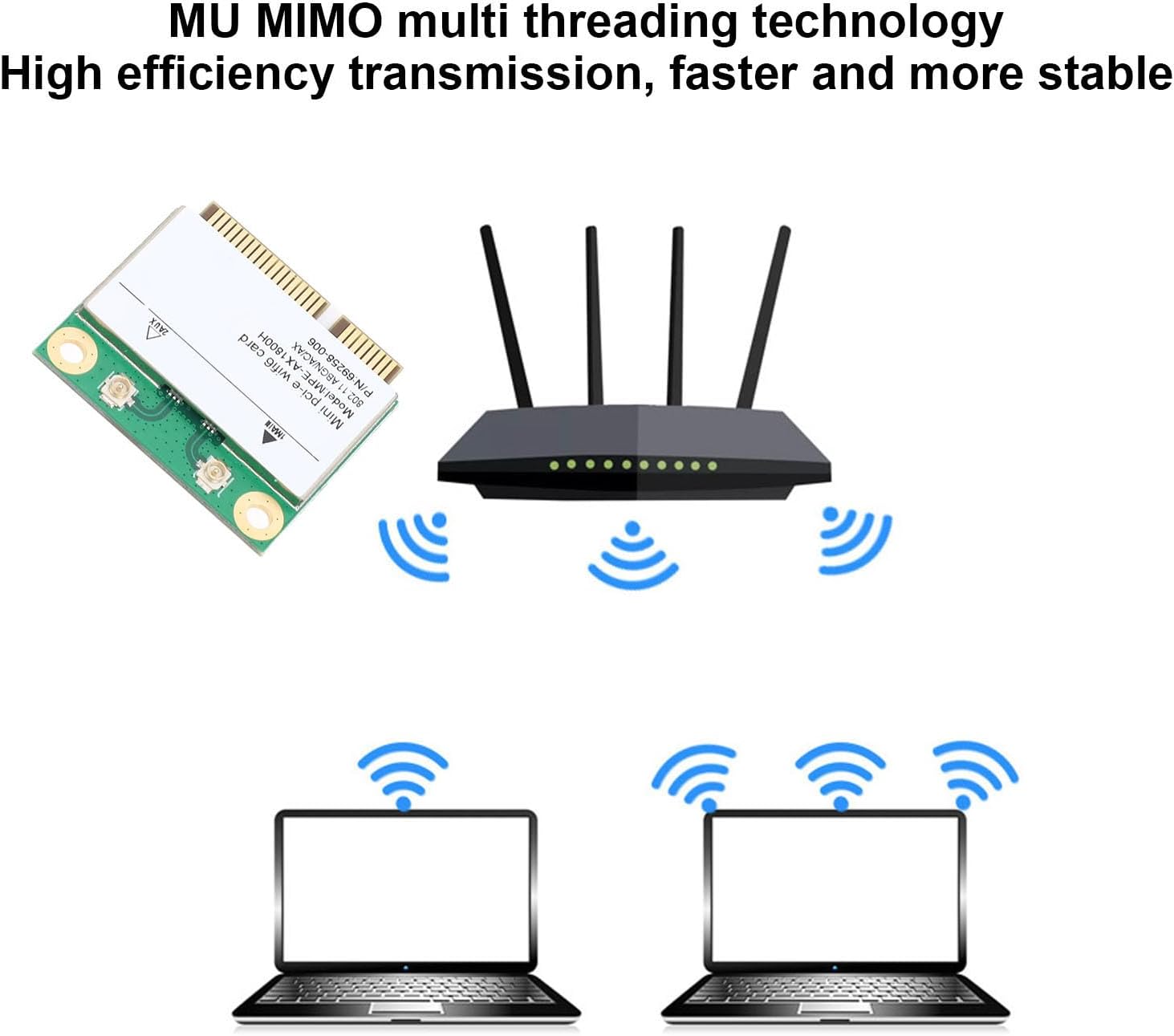
Figure 4: Illustration of MU-MIMO technology providing seamless connection to multiple devices.
4. Maintenance
- Driver Updates: Regularly check the Zunate or chipset manufacturer's website for updated drivers. Keeping your drivers current can improve performance, stability, and security.
- Physical Inspection: Periodically inspect the card for any signs of damage or loose connections, especially if you experience connectivity issues.
- Cleanliness: Ensure the internal environment of your computer is clean and free of dust to prevent overheating and maintain optimal performance of all components, including the network adapter.
5. Troubleshooting
| Problem | Possible Cause | Solution |
|---|---|---|
| Wi-Fi not detected or no networks found. |
|
|
| Slow Wi-Fi speeds or unstable connection. |
|
|
| Bluetooth device not pairing. |
|
|
6. Specifications
| Feature | Detail |
|---|---|
| Model | RTL8852BE AX1800H (Zunateqpzm6yfw0d) |
| Interface | Mini PCIe |
| Wi-Fi Standard | 802.11ax (Wi-Fi 6) |
| Frequency Bands | 2.4GHz, 5GHz |
| Max Wi-Fi Speed (2.4GHz) | 574Mbps |
| Max Wi-Fi Speed (5GHz) | 1200Mbps |
| Total Max Wi-Fi Speed | 1800Mbps |
| Bluetooth Version | 5.2 |
| Technology Support | MU-MIMO |
| System Compatibility | Windows, Linux (specific versions may vary) |
| Material | PCB |
| Package Dimensions | 2.36 x 1.57 x 0.39 inches |
| Item Weight | 0.141 ounces |
7. Warranty Information
For specific warranty details regarding your Zunate RTL8852BE AX1800H Mini PCIe Network Adapter, please refer to the warranty card included with your product or visit the official Zunate website. Warranty terms and conditions may vary by region and retailer.
8. Customer Support
If you encounter any issues or have questions not covered in this manual, please contact Zunate customer support. You can typically find contact information on the official Zunate website or through your product's purchase platform.