
1. Introduction
Thank you for choosing the Vixic LM1600 Label Maker Machine. This portable and versatile label maker is designed for efficient organization in various environments, from home to office. It features both a QWERTY keyboard for direct input and Bluetooth connectivity for smartphone integration, offering flexibility in label creation. This manual provides detailed instructions for setup, operation, maintenance, and troubleshooting to ensure optimal performance of your device.

Image: The Vixic LM1600 Label Maker shown alongside various colored label tapes, highlighting the product and its consumables.
2. Safety Information
Please read and understand all safety instructions before using the Vixic LM1600 Label Maker. Failure to follow these instructions may result in injury or damage to the device.
- Do not expose the device to water or excessive humidity.
- Avoid dropping or subjecting the device to strong impacts.
- Use only Vixic-approved label tapes and accessories.
- Keep the device away from direct sunlight and heat sources.
- Do not attempt to disassemble or repair the device yourself. Contact customer support for assistance.
- Keep out of reach of children.
3. Package Contents
Verify that all items are present in your package:
- Vixic LM1600 Label Maker (Gray) x 1
- White on Black 1/2 inch (12mm) x 23 feet (7m) Label Tape (3D35) x 4
- Black on White 1/2 inch (12mm) x 23 feet (7m) Label Tape (3D21) x 1
- Type-C Charging Cable x 1
- User Manual (this document) x 1
4. Setup
4.1 Charging the Device
The LM1600 label maker features a built-in 1200 mAh rechargeable lithium battery. Before first use, fully charge the device.
- Connect the provided Type-C charging cable to the charging port on the side of the label maker.
- Connect the other end of the cable to a standard USB power adapter (not included) or a computer USB port.
- The charging indicator light will illuminate. A full charge typically takes approximately 2 hours.
- Once fully charged, the device can continuously print up to 50 meters of tape.

Image: The Vixic LM1600 Label Maker being charged via its Type-C port, illustrating the rechargeable feature.
4.2 Installing Label Tape
Proper installation of the label tape is crucial for clear printing and to prevent jamming.
- Ensure the label maker is powered off.
- Locate the tape compartment cover on the top of the device.
- Gently push the release latch and lift the cover to open the compartment.
- Insert the Vixic DZ series label tape cassette into the compartment, ensuring the tape feeds through the guide slot. The tape should click into place.
- Close the tape compartment cover firmly until it latches.
- The device features an auto-shrink ribbon function to reduce jamming.
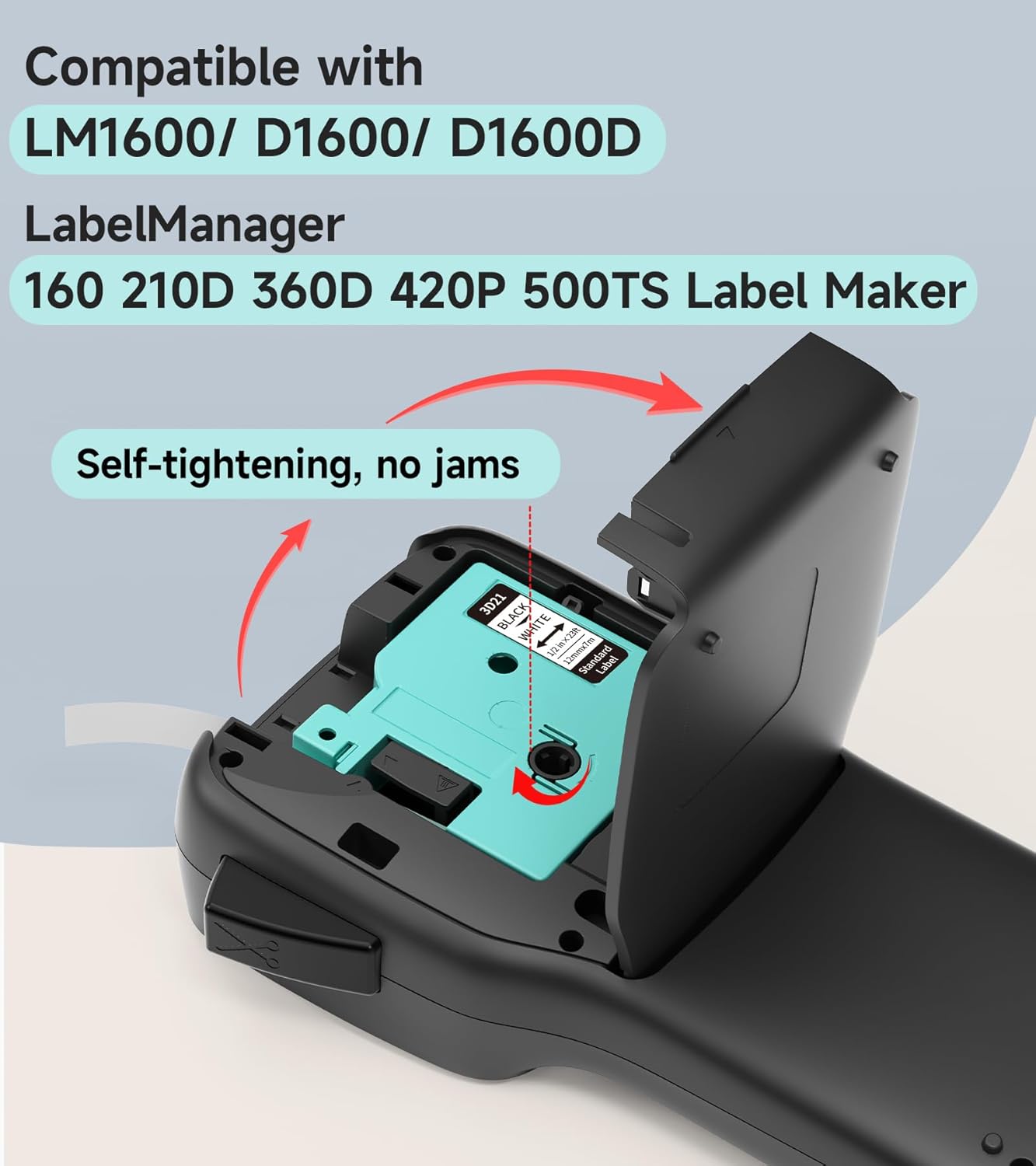
Image: An exploded view of the Vixic LM1600 Label Maker's tape compartment, demonstrating the correct way to insert a label tape cassette.
4.3 Powering On/Off
- To power on: Press and hold the power button (usually marked with a power symbol) until the LCD screen illuminates.
- To power off: Press and hold the power button again until the LCD screen turns off. The device also features an auto-off function after 5 minutes of inactivity to conserve battery.
5. Operating Instructions
5.1 Basic Label Creation (QWERTY Keyboard)
The LM1600 features a full QWERTY keyboard for direct text input, ideal for quick labeling without a smartphone.
- Power on the device.
- Use the QWERTY keyboard to type your desired text. The text will appear on the backlighting LCD screen.
- Use the navigation keys (Menu, OK, Esc, directional arrows) to adjust text formatting, such as font size, bold, italic, and alignment.
- Press the "Print" button to print the label. The built-in cutter will automatically cut the label.

Image: A user operating the Vixic LM1600 Label Maker, demonstrating the QWERTY keyboard and the visibility of the backlighting LCD screen in different lighting conditions.
5.2 Using the Mobile App (Bluetooth Connectivity)
For advanced features and design flexibility, connect your LM1600 to your smartphone via Bluetooth.
- Download the official Vixic label printing app from your smartphone's app store (compatible with Android & iOS).
- Ensure Bluetooth is enabled on your smartphone and the LM1600 label maker.
- Open the Vixic app and follow the on-screen instructions to pair with your LM1600 device.
- Once connected, you can access multiple pre-templates, fonts, icons, borders, and languages within the app to design your labels.
- Send your design to the label maker for printing via Bluetooth.

Image: The Vixic LM1600 Label Maker shown with a smartphone displaying its companion app, illustrating the Bluetooth connectivity and mobile editing capabilities.

Image: The Vixic LM1600 Label Maker displaying its high-resolution printing capability (203 DPI) with examples of diverse label designs, including QR codes and multi-language text.
6. Label Tape Features
The Vixic DZ series label tapes are designed for durability and versatility, compatible with LM1600, D1600, D1600D, and Dymo LabelManager 160, 280, 210D label makers.
6.1 Waterproof and Durable Labels
Vixic label tapes are engineered to withstand various conditions, making them suitable for a wide range of applications.
- Waterproof: Labels maintain integrity even when exposed to water.
- Smudge and Scratch-Resistant: Printed content remains clear and legible.
- Strongly Self-Adhesive: Ensures labels stick firmly to surfaces.
- Fade-Resistant: Utilizes thermal transfer technology for long-lasting print, even in high/low temperatures or sunlight.

Image: A label applied to a mug being held under running water, illustrating the waterproof characteristic of the Vixic label tapes.
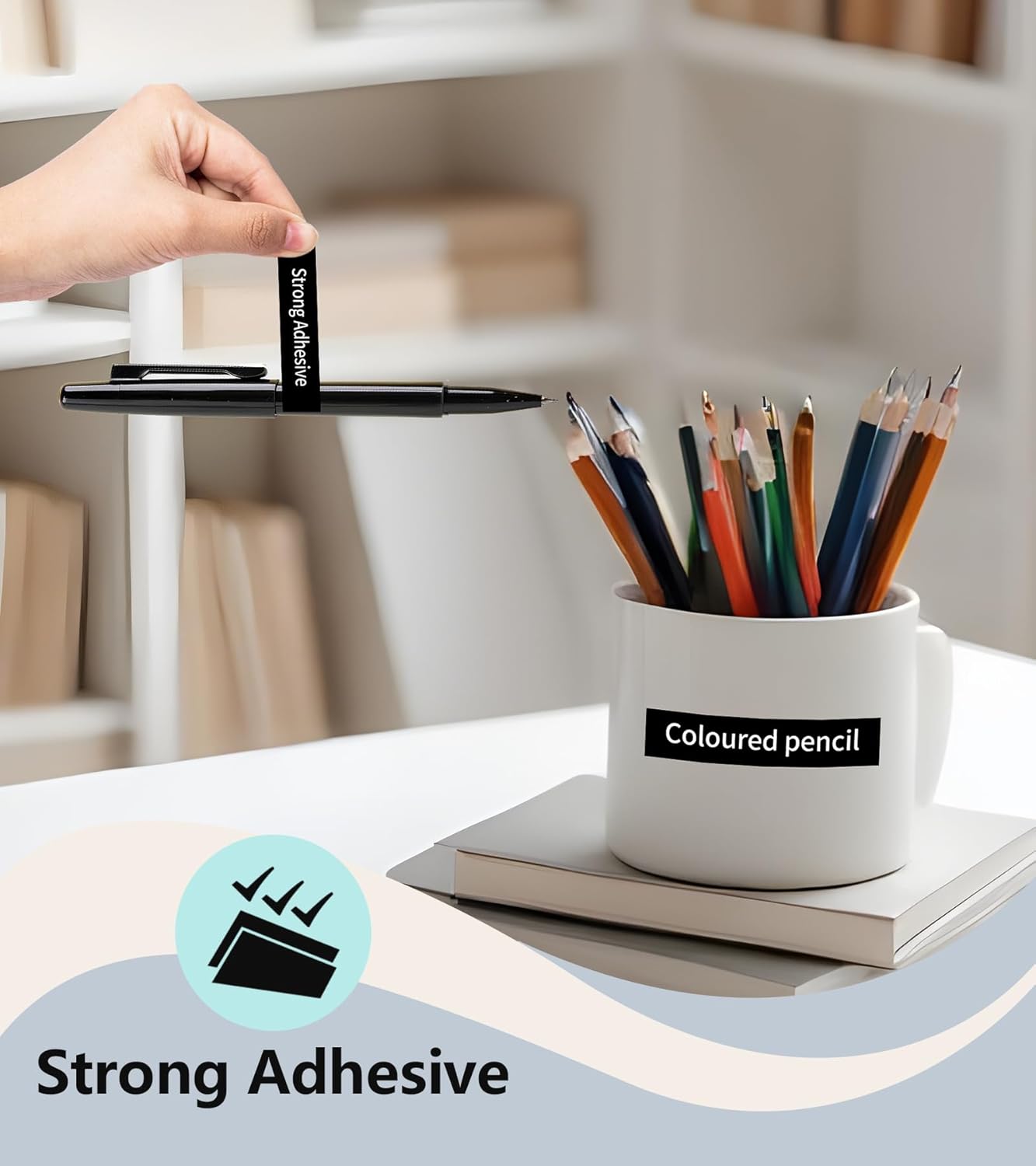
Image: A label adhered to a mug, showcasing the strong adhesive property of the Vixic label tapes.
6.2 Easy Peeling
Vixic label tapes feature a split-back design for effortless peeling, making application quick and convenient.
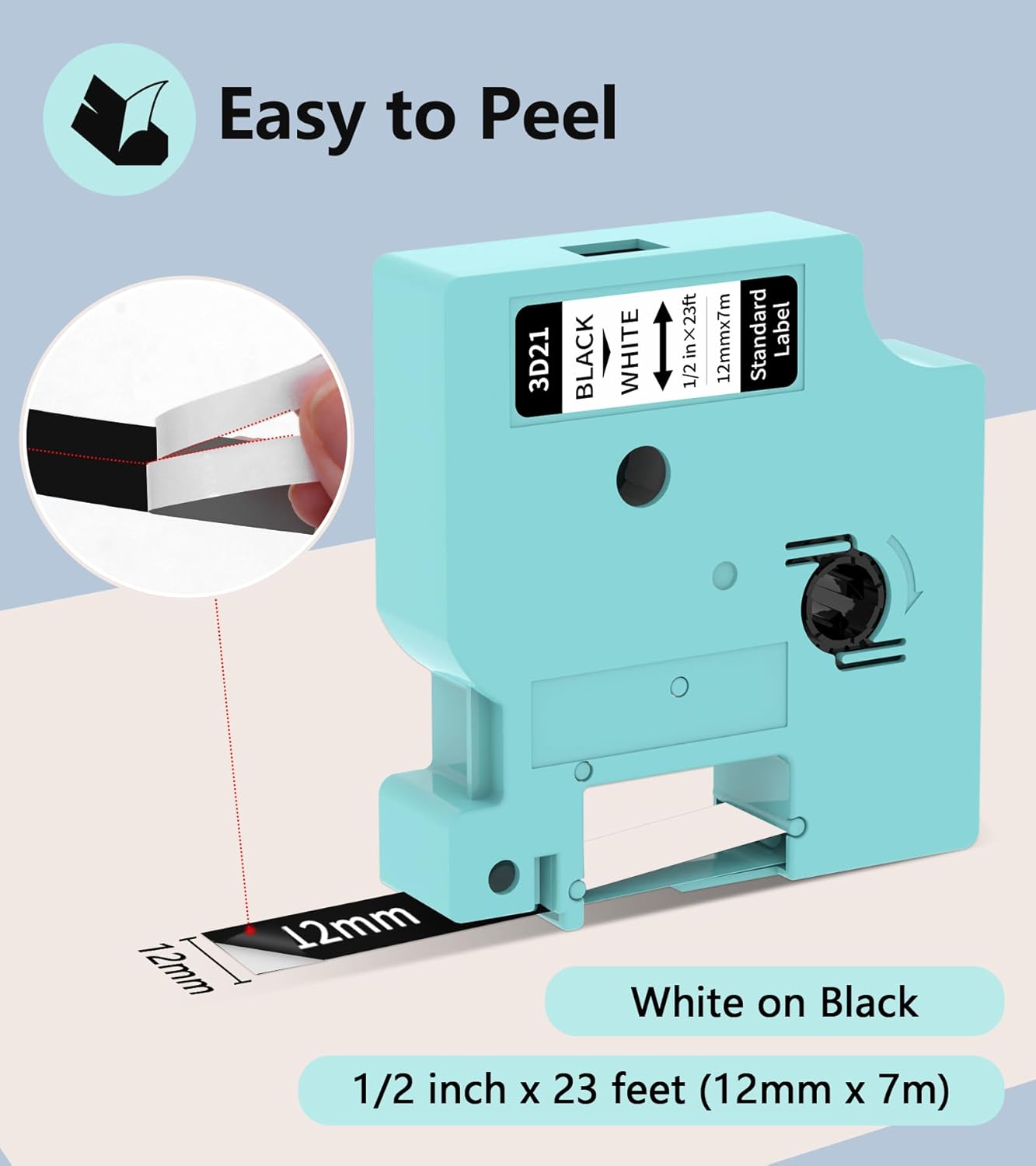
Image: A close-up view of a Vixic label tape demonstrating its split-back design, which facilitates easy peeling and application.
7. Maintenance
7.1 Cleaning the Device
Regular cleaning helps maintain the performance and longevity of your label maker.
- Ensure the device is powered off and unplugged before cleaning.
- Use a soft, dry, lint-free cloth to wipe the exterior of the label maker.
- To clean the print head, gently wipe it with a cotton swab lightly dampened with isopropyl alcohol. Allow it to dry completely before use.
- Do not use abrasive cleaners or solvents.
7.2 Storing Label Tapes
Store unused label tape cassettes in a cool, dry place away from direct sunlight and extreme temperatures to preserve their adhesive and print quality.
8. Troubleshooting
If you encounter issues with your Vixic LM1600, refer to the following common problems and solutions:
| Problem | Possible Cause | Solution |
|---|---|---|
| Device does not power on. | Low battery or no charge. | Charge the device fully using the provided Type-C cable. |
| Poor print quality (faded, incomplete). | Dirty print head; incorrect tape installation; low battery. | Clean the print head. Reinstall the label tape correctly. Charge the device. |
| Label tape jams. | Improper tape installation; foreign object in compartment. | Ensure tape is installed correctly and fully seated. Check for any obstructions in the tape path. The auto-shrink ribbon function helps prevent jams. |
| Bluetooth connection fails. | Bluetooth off on device/phone; device too far; app issue. | Ensure Bluetooth is enabled on both devices. Move devices closer. Restart the app and label maker. |
| Labels not peeling easily. | Incorrect peeling method. | Utilize the split-back design by bending the label slightly to separate the backing. |
9. Specifications
| Feature | Detail |
|---|---|
| Model Name | LM1600 |
| Brand | Vixic |
| Connectivity Technology | Bluetooth |
| Printing Technology | Thermal Transfer |
| Printer Output | Monochrome |
| Maximum Print Resolution | 203 dpi |
| Display Type | LCD (Backlighting) |
| Compatible Devices | Smartphones (Android & iOS) |
| Maximum Media Size | 1/2 Inch (12mm) |
| Battery Capacity | 1200 mAh Lithium Battery |
| Charging Port | Type-C |
| Special Features | Portable, QWERTY Keyboard, Built-in Cutter, Auto Shrink Ribbon Function |
10. Warranty Information
The Vixic LM1600 Label Maker comes with a limited warranty. Please refer to the warranty card included in your package or contact Vixic customer support for specific terms and conditions regarding warranty coverage and claims.
11. Customer Support
For any questions, technical assistance, or warranty inquiries, please contact Vixic customer support. You can typically find contact information on the Vixic official website or through the retailer where you purchased the product.
We are committed to providing excellent service and support for your Vixic LM1600 Label Maker.


