
Introduction
This manual provides instructions for the Xtrike Me 12800 DPI Gaming Mouse. It covers setup, operation, maintenance, troubleshooting, and product specifications. Please read this manual thoroughly before using the device to ensure proper function and longevity.
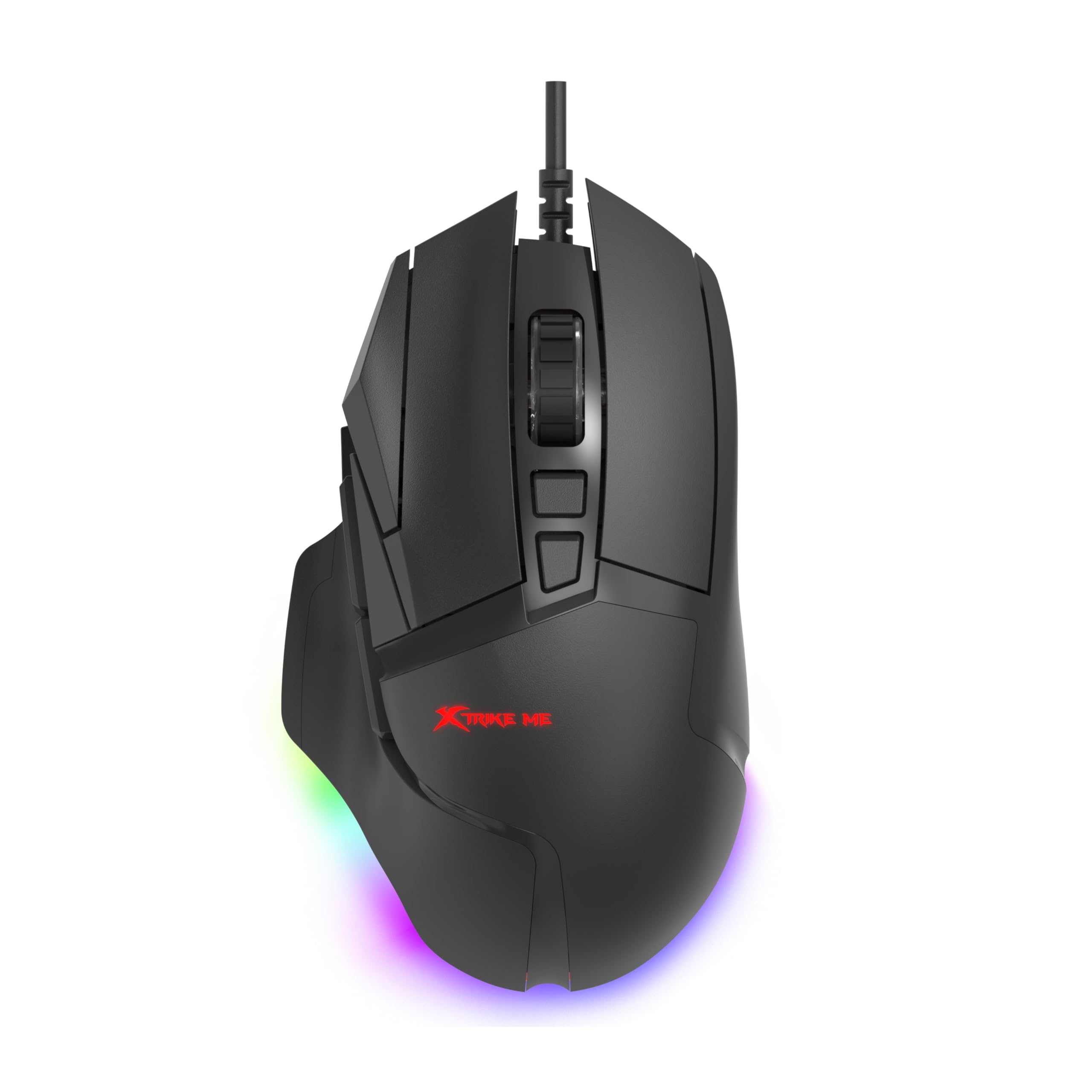
Figure 1: Xtrike Me 12800 DPI Gaming Mouse. This image shows the gaming mouse from a side angle, highlighting its ergonomic shape and dynamic RGB lighting along the base, set against a dark, illuminated gaming setup.
Product Overview
The Xtrike Me 12800 DPI Gaming Mouse is designed for precision and customization. It features an advanced optical sensor, 8 programmable buttons, and dynamic RGB backlighting.
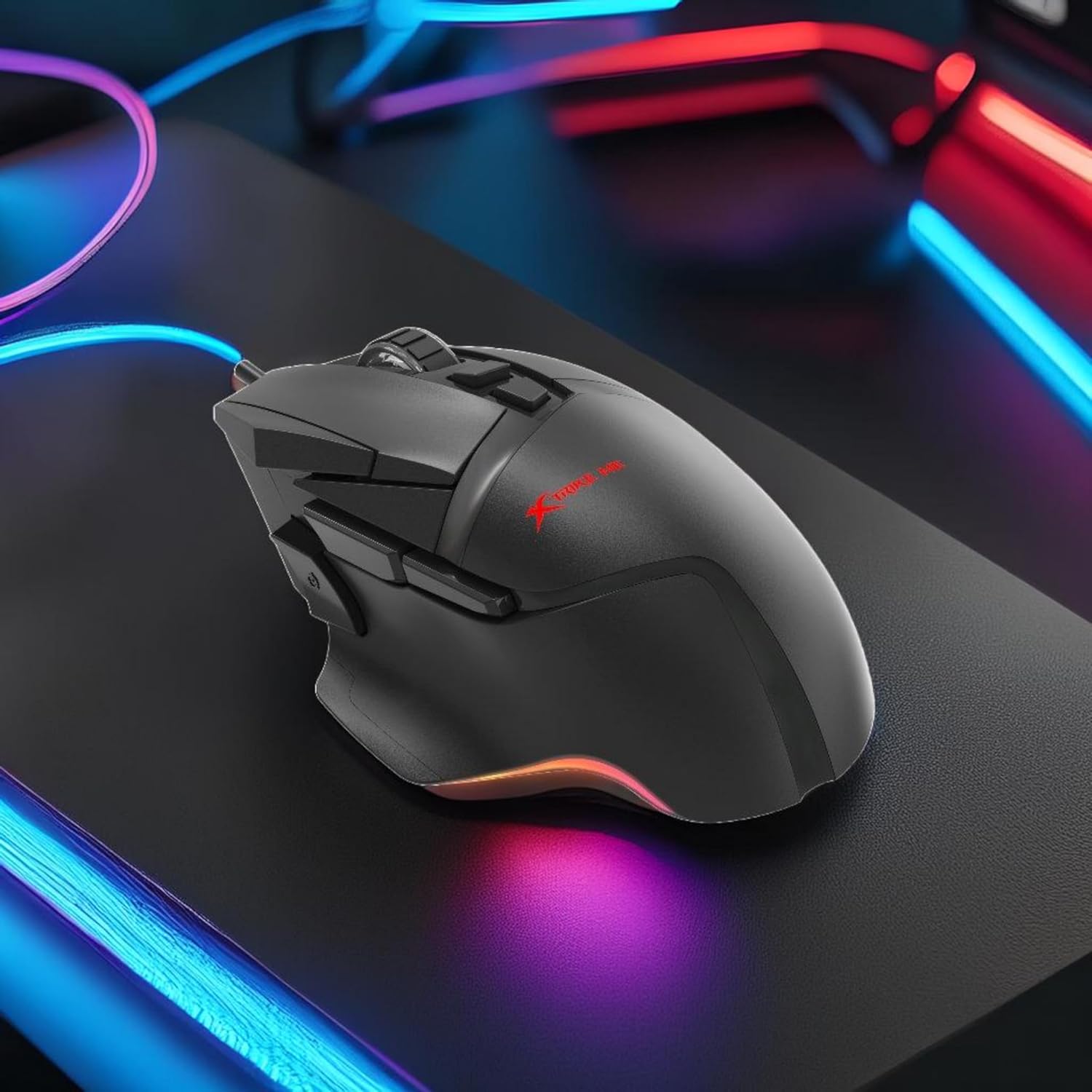
Figure 2: Top-angled view of the mouse. This image provides a clear view of the mouse's top surface, showcasing the scroll wheel, main click buttons, and several programmable side buttons, along with the Xtrike Me logo.

Figure 3: Top-down view of the mouse. This image presents the mouse from directly above, emphasizing its symmetrical design and the layout of its primary buttons and scroll wheel.
Key Features:
- 12800 DPI Optical Sensor: Adjustable sensitivity for precise control.
- 8D Programmable Buttons: Customizable commands and shortcuts.
- 13 RGB Lighting Effects: Personalize lighting to match your setup.
- 5 Million Click Rating: Durable switches for extended use.
- 1000Hz Polling Rate: Ultra-smooth and responsive tracking.
- Ergonomic Design: Comfortable for prolonged gaming sessions.
- 1.6m Braided Cable: Durable and tangle-free connectivity.
Setup
- Connect the Mouse: Plug the USB connector of the Xtrike Me Gaming Mouse into an available USB port on your computer (PC or Mac).
- Automatic Driver Installation: Your operating system (Windows XP and newer, or Mac) should automatically detect and install the necessary drivers.
- Software Installation (Optional): For advanced customization, including button programming and RGB lighting effects, download the dedicated software from the Xtrike Me official website. Follow the on-screen instructions to complete the installation.

Figure 4: Mouse connected via USB. This image shows the Xtrike Me gaming mouse positioned on a desk, with its braided USB cable clearly visible, indicating its wired connectivity.
Operating Instructions
DPI Adjustment:
The mouse features an adjustable DPI (Dots Per Inch) sensor, allowing you to change sensitivity on the fly. Use the dedicated DPI buttons (usually located near the scroll wheel) to cycle through preset DPI levels (800, 1600, 2400, 3200, 4800, 6400, 12800 DPI). The current DPI setting may be indicated by a change in the mouse's RGB lighting color or pattern.
Programmable Buttons:
The 8D programmable buttons can be assigned various functions, macros, or shortcuts. To customize these buttons:
- Ensure the optional software is installed.
- Open the Xtrike Me Gaming Mouse software.
- Navigate to the "Button Assignment" or "Macro" section.
- Select the button you wish to program and assign your desired function.
- Save your changes.
RGB Backlighting Control:
The mouse features 13 dynamic RGB lighting effects. These can typically be controlled via the optional software. Within the software, you can select different lighting modes, adjust brightness, speed, and choose specific colors or turn the lighting off entirely.

Figure 5: Side view with RGB. This image captures the side profile of the Xtrike Me gaming mouse, highlighting its ergonomic curve and the vibrant RGB lighting emanating from its base, creating an ambient glow.
Maintenance
- Cleaning: Use a soft, dry cloth to clean the mouse surface. For stubborn dirt, slightly dampen the cloth with water. Avoid harsh chemicals or abrasive cleaners.
- Sensor Care: Keep the optical sensor on the underside of the mouse clean and free from dust or debris to ensure accurate tracking.
- Cable Management: Avoid sharp bends or excessive pulling on the braided cable to prevent damage.
- Storage: When not in use, store the mouse in a clean, dry environment away from extreme temperatures.
Troubleshooting
- Mouse not responding:
- - Ensure the USB cable is securely plugged into a working USB port.
- - Try plugging the mouse into a different USB port or another computer to rule out port issues.
- - Restart your computer.
- Inaccurate tracking or cursor lag:
- - Clean the optical sensor on the underside of the mouse.
- - Ensure you are using the mouse on a suitable surface (e.g., a mouse pad). Avoid highly reflective or transparent surfaces.
- - Adjust the DPI settings to a lower value if the cursor is too sensitive.
- RGB lighting not working:
- - Check the optional software settings to ensure lighting is enabled and configured correctly.
- - Ensure the mouse is properly connected to your computer.
- Programmable buttons not working:
- - Verify that the Xtrike Me software is installed and running.
- - Check the button assignments within the software and ensure they are saved.
- - Ensure the software is up to date.
Specifications
| Feature | Detail |
|---|---|
| Brand | Xtrike Me |
| Model | 12800 DPI Gaming Mouse |
| Connectivity Technology | USB Wired |
| Movement Detection Technology | Optical |
| Mouse Maximum Sensitivity | 12800 DPI (Adjustable: 800-12800 DPI) |
| Polling Rate | 1000Hz |
| Button Quantity | 8 (Programmable) |
| Click Rating | 5 Million Clicks |
| Cable Length | 1.6 meters (Braided) |
| Backlighting | RGB (13 effects) |
| Hand Orientation | Ambidextrous |
| Compatible Devices | Gaming Console, Personal Computer |
| Operating System | Windows XP and newer, Mac |
| Item Weight | 180 Grams |
| Material | Plastic |
| Colour | Black |
| Manufacturer | Xtrike Me |
Warranty and Support
Warranty Information:
The product warranty is provided "As Per Amazon" policy. Please refer to your purchase documentation or Amazon's customer service for detailed warranty terms and conditions.
Manufacturer Contact:
For technical support or further inquiries, please contact the manufacturer:
Manufacturer: Xtrike Me
Contact Information: White Cloud Ventures Canada
For the most up-to-date support information, please visit the official Xtrike Me website or contact your retailer.


