Introduction
This manual provides detailed instructions for the Xtrike Me 9D Wired Gaming Mouse, Model 415. Please read this manual thoroughly before using the product to ensure proper setup and operation. This gaming mouse is designed for precision and customization, offering an enhanced experience for various computing tasks and gaming environments.
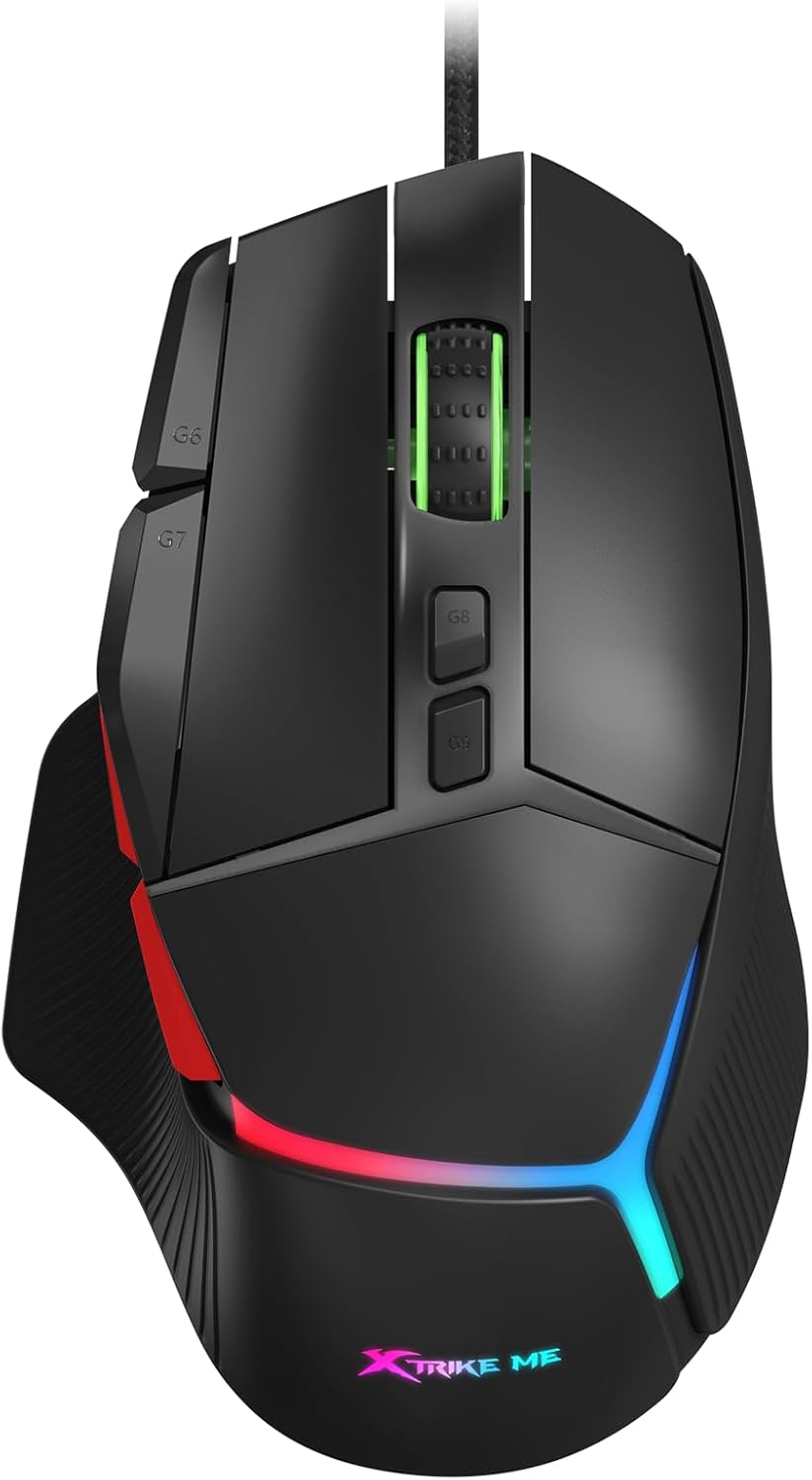
Image: Front view of the Xtrike Me 9D Wired Gaming Mouse, showcasing its ergonomic design and vibrant RGB lighting.
Setup
The Xtrike Me 9D Wired Gaming Mouse is designed for plug-and-play functionality, requiring minimal setup. Follow these steps to begin using your mouse:
- Unpack the Mouse: Carefully remove the mouse from its packaging.
- Connect to Computer: Plug the USB connector of the mouse into an available USB port on your computer.
- Driver Installation: Your operating system (Windows XP and newer) should automatically detect and install the necessary drivers. No additional software installation is typically required for basic functionality. For advanced customization, such as programming buttons or specific RGB settings, driver support may be available from the manufacturer's website.
- Test Functionality: Move the mouse and click the buttons to ensure it is working correctly.

Image: The Xtrike Me 9D Wired Gaming Mouse positioned on a gaming mat, illustrating its readiness for use after connection.
Key Features
The Xtrike Me 9D Wired Gaming Mouse offers a range of features designed to enhance your control and experience:
- 8000 DPI Optical Sensor: Adjustable sensitivity from 800 to 8000 DPI for precise tracking.
- 9D Programmable Buttons: Nine customizable buttons for assigning commands and shortcuts.
- RGB Backlighting: Dynamic and customizable lighting effects.
- 8 Million Click Rating: Durable switches designed for extended use.
- 125Hz Polling Rate: Ensures smooth and accurate tracking with minimal lag.
- Lightweight Design: Weighs 58g (excluding wire) for agile and responsive movement.
- 1.8m Braided Cable: Durable and tangle-free cable for reliable connectivity.
- Ergonomic Shape: Designed for comfort during prolonged use.

Image: An overhead view of the mouse, visually indicating its key features such as DPI sensor, RGB backlight, and polling rate.
Operating Instructions
Understanding the functions of your Xtrike Me 9D Wired Gaming Mouse will allow you to optimize your experience.
DPI Adjustment
The mouse features an adjustable DPI (Dots Per Inch) setting, allowing you to change cursor sensitivity on the fly. The DPI can be adjusted from 800 to 8000. Typically, there are dedicated buttons (often labeled G8 and G9 or similar) near the scroll wheel for this purpose. Pressing these buttons will cycle through predefined DPI levels.
Image: A detailed view of the mouse's top surface, highlighting the G8 and G9 buttons used for DPI adjustment.
Programmable Buttons
The mouse is equipped with 9 programmable buttons. These buttons can be customized to perform specific functions, macros, or shortcuts. To program these buttons, you may need to download and install the official driver software from the Xtrike Me website. Refer to the software's instructions for detailed customization options.
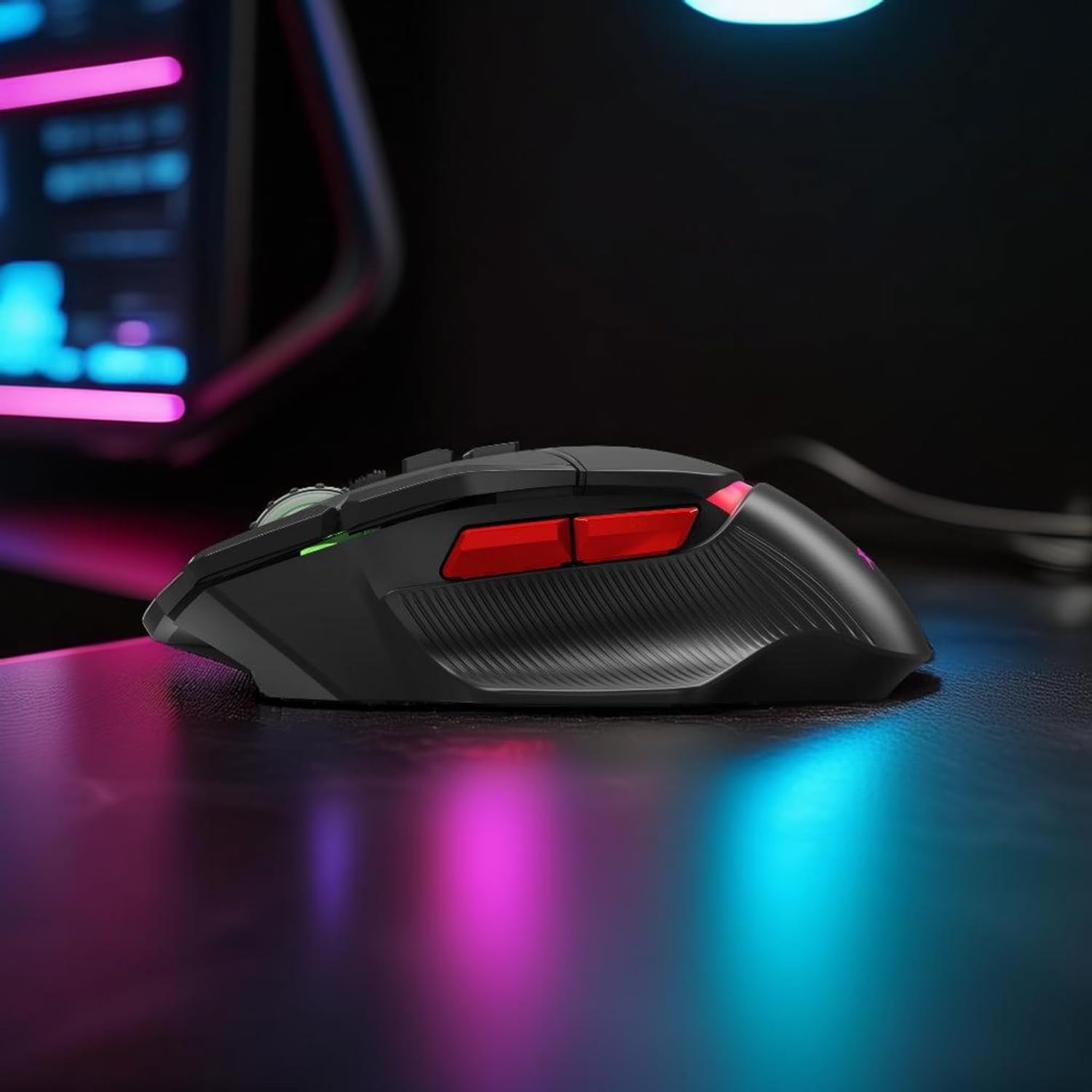
Image: A side profile of the mouse, illustrating the placement of the additional programmable buttons.
RGB Backlighting Control
The integrated RGB backlighting can be customized to match your preferences. Depending on the model and driver software, you may be able to:
- Change lighting colors.
- Select different lighting effects (e.g., static, breathing, wave).
- Adjust brightness or turn off the lighting.
These settings are typically managed through the dedicated driver software. Consult the software's user interface for specific instructions.
Maintenance
Proper care and maintenance will extend the lifespan of your gaming mouse:
- Cleaning: Use a soft, dry cloth to wipe the surface of the mouse. For stubborn dirt, a slightly damp cloth can be used, ensuring no liquid enters the mouse. Avoid harsh chemicals or abrasive materials.
- Sensor Cleaning: Occasionally, dust or debris may accumulate around the optical sensor on the bottom of the mouse. Use a cotton swab or compressed air to gently clean the sensor area.
- Cable Care: Avoid sharply bending or twisting the USB cable. Store the cable neatly to prevent tangles and damage.
- Storage: When not in use, store the mouse in a clean, dry environment away from extreme temperatures.

Image: The underside of the mouse, displaying the optical sensor and glide feet, important areas for cleaning and maintenance.
Troubleshooting
If you encounter issues with your Xtrike Me 9D Wired Gaming Mouse, refer to the following common solutions:
- Mouse Not Detected:
- Ensure the USB cable is securely plugged into a working USB port.
- Try plugging the mouse into a different USB port on your computer.
- Restart your computer.
- Check your computer's Device Manager (Windows) or System Information (Mac) to see if the mouse is recognized.
- Erratic Cursor Movement:
- Clean the optical sensor on the bottom of the mouse.
- Ensure you are using the mouse on a suitable surface (e.g., a mouse pad). Avoid highly reflective or transparent surfaces.
- Check for any software conflicts or outdated drivers.
- Buttons Not Responding:
- Ensure the mouse is properly connected.
- If using programmable buttons, verify that the driver software is installed and the buttons are correctly configured.
- Test the mouse on another computer to rule out a system-specific issue.
- RGB Lighting Not Working:
- Check the driver software for lighting settings and ensure they are enabled.
- Ensure the mouse is receiving sufficient power from the USB port.
Specifications
| Feature | Detail |
|---|---|
| Brand | Xtrike Me |
| Model | 415 |
| Connectivity Technology | USB Wired |
| Movement Detection Technology | Optical |
| DPI Sensor | 800-8000 DPI (Adjustable) |
| Polling Rate | 125Hz |
| Buttons | 9D Programmable Buttons |
| Click Rating | 8 Million Clicks |
| Backlighting | RGB |
| Cable Length | 1.8m Braided Cable |
| Weight | 58g (excluding wire) |
| Dimensions | 128 × 78 × 42mm |
| Material | Plastic |
| Hand Orientation | Ambidextrous |
| Compatible OS | Windows XP and newer |
Warranty and Support
For warranty information and technical support, please refer to the documentation included with your purchase or visit the official Xtrike Me website. Keep your proof of purchase for any warranty claims.


