Introduction
This manual provides essential information for the safe and efficient use of your ASRock 27-inch Phantom Gaming PG27FFT1A Full HD 180Hz Monitor. Please read this guide thoroughly before operating the device and retain it for future reference.

Figure 1: ASRock Phantom Gaming PG27FFT1A Monitor.
Safety Information
Observe the following safety guidelines to prevent damage to the monitor and ensure personal safety:
- Do not expose the monitor to rain or moisture.
- Do not open the monitor casing; refer all servicing to qualified personnel.
- Ensure proper ventilation around the monitor.
- Use only the power adapter and cables supplied with the monitor.
- Avoid placing heavy objects on the power cord.
- Disconnect the power plug from the outlet if the monitor will not be used for an extended period.
Package Contents
Verify that all items are present in the package:
- ASRock 27-inch Phantom Gaming PG27FFT1A Monitor
- Monitor Stand (Base and Neck)
- Power Adapter and Power Cord
- HDMI Cable
- DisplayPort Cable
- User Manual (this document)
- Screws for Stand Assembly
Setup
1. Stand Assembly
Follow these steps to attach the stand to your monitor:
- Carefully place the monitor face down on a soft, clean surface to prevent scratches.
- Attach the stand neck to the back of the monitor, aligning the mounting holes.
- Secure the neck with the provided screws.
- Attach the stand base to the neck, ensuring it clicks into place or is secured with screws, depending on the design.
- Gently lift the monitor and place it upright on a stable, flat surface.

Figure 2: Monitor with stand assembled.
2. Connecting Cables
Connect the necessary cables to the monitor and your computer:
- Power Connection: Connect the power adapter to the monitor's power input, then plug the power cord into a wall outlet.
- Video Connection: Connect one end of the HDMI or DisplayPort cable to the corresponding port on your computer's graphics card and the other end to the HDMI or DisplayPort input on the monitor.
- Audio (Optional): If your monitor has an audio output, you can connect external speakers or headphones.
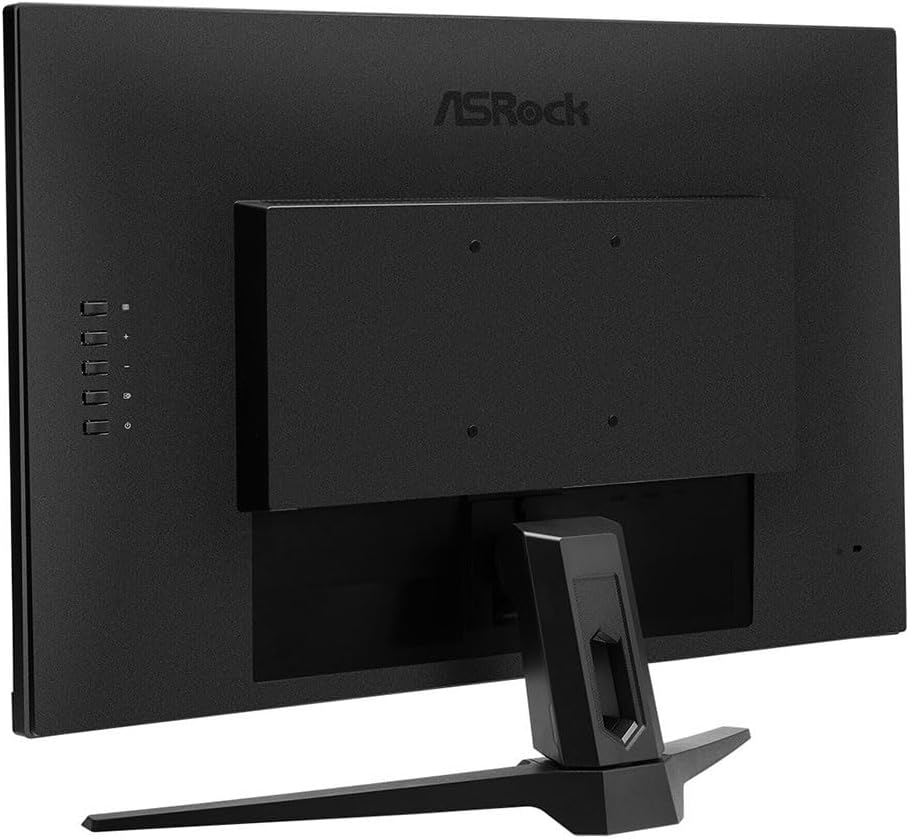
Figure 3: Rear view with input ports.
3. Powering On
Press the power button, usually located on the back or bottom of the monitor, to turn on the display. The power indicator light will illuminate.
Operating Instructions
1. On-Screen Display (OSD) Menu
The OSD menu allows you to adjust various monitor settings. Access it using the control buttons or joystick typically located on the back or bottom of the monitor.
Menu Navigation:
- Press the OSD button/joystick to open the main menu.
- Use the directional controls to navigate through menu options.
- Press the OSD button/joystick again to select an option or confirm a setting.
- Use the 'Exit' or 'Back' option to return to the previous menu or exit the OSD.
2. Picture Settings
Adjust the following settings for optimal viewing:
- Brightness: Controls the overall luminance of the screen.
- Contrast: Adjusts the difference between light and dark areas.
- Color Temperature: Selects preset color modes (e.g., Warm, Cool, User).
- Refresh Rate: Ensure your system is set to 180Hz for the best gaming experience. This setting is usually configured in your operating system's display settings.
- Game Mode: Specific presets optimized for different game genres.
3. Input Selection
If you have multiple devices connected to the monitor, you can switch between inputs:
- Access the OSD menu and navigate to the 'Input' or 'Source' section.
- Select the desired input (e.g., HDMI 1, DisplayPort).
Maintenance
1. Cleaning the Monitor
To clean the monitor screen and casing:
- Turn off the monitor and unplug the power cord.
- Use a soft, lint-free cloth lightly dampened with water or a non-abrasive screen cleaner.
- Do not spray cleaner directly onto the screen.
- Avoid using alcohol, ammonia, or abrasive cleaners.
2. Storage
If storing the monitor for an extended period, ensure it is:
- Stored in a cool, dry place.
- Protected from dust and extreme temperatures.
- Preferably kept in its original packaging.
Troubleshooting
If you encounter issues with your monitor, refer to the following common problems and solutions:
- No Power
- Check if the power cord is securely connected to the monitor and the power outlet.
- Verify that the power outlet is functioning.
- Ensure the power button on the monitor is pressed.
- No Signal
- Confirm that the video cable (HDMI/DisplayPort) is securely connected to both the monitor and the computer.
- Ensure the correct input source is selected in the monitor's OSD menu.
- Check if the computer is powered on and not in sleep mode.
- Try a different video cable or port.
- Distorted or Flickering Image
- Adjust the monitor's resolution and refresh rate settings in your computer's display settings.
- Check for loose cable connections.
- Ensure your graphics card drivers are up to date.
- Test the monitor with another computer or device if possible.
Specifications
| Feature | Specification |
|---|---|
| Brand | ASRock |
| Model Name | Phantom Gaming PG27FFT1A |
| Item Model Number | 90LXA0C0-A0E1A0V |
| Screen Size | 27 Inches |
| Max Screen Resolution | 1920 x 1080 (Full HD) |
| Refresh Rate | 180Hz |
| Aspect Ratio | 16:9 |
| Color | Black |
| Item Weight | 13.5 pounds |
| Manufacturer | ASROCK |
Warranty and Support
ASRock provides a limited warranty for this product. For detailed warranty terms and conditions, please refer to the warranty card included in your package or visit the official ASRock website. For technical support, driver downloads, and further assistance, please visit www.asrock.com.


