
1. Introduction
Thank you for choosing the Acegeek E240 240mm Rainbow Water Cooler. This All-in-One (AIO) liquid CPU cooler is designed to provide efficient and quiet cooling for your processor, featuring vibrant Rainbow RGB lighting. This manual provides detailed instructions for installation, operation, and maintenance to ensure optimal performance and longevity of your product.
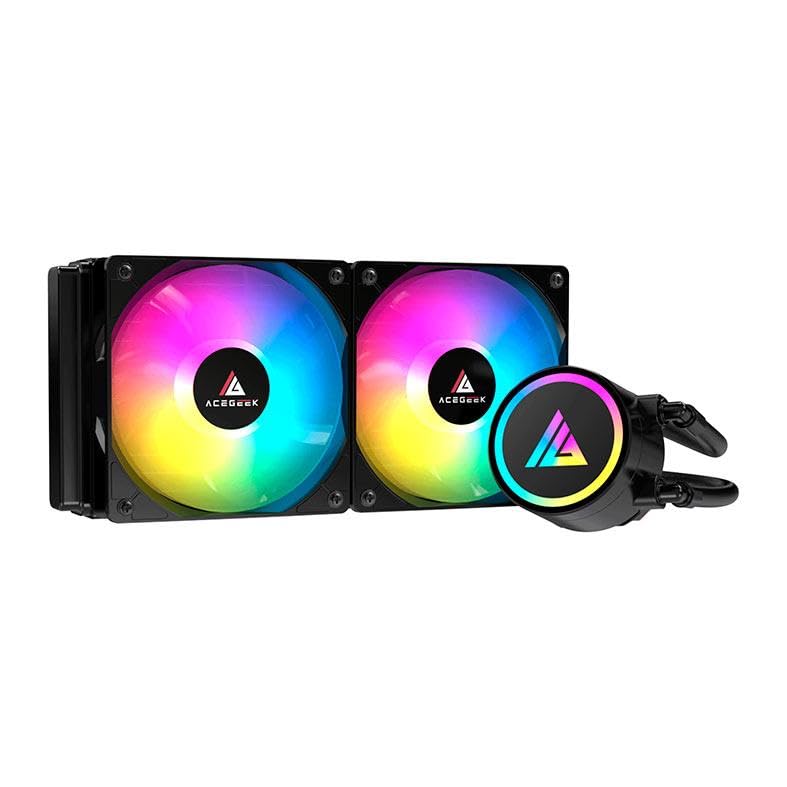
Image 1.1: Acegeek E240 240mm Rainbow Water Cooler overview.
2. Package Contents
Please verify that all components are present in the package before proceeding with installation:
- Acegeek E240 Water Cooler (Radiator, Pump/Block, and Fans pre-assembled)
- Mounting Brackets for Intel Sockets (LGA 115x, 1200, 1700, 2011, 2011-v3, 2066)
- Mounting Brackets for AMD Sockets (AM4, AM5)
- Thermal Paste
- Installation Hardware (screws, standoffs, backplates)
- User Manual (this document)
3. Safety Information
Read these safety instructions carefully before installation and use:
- Always disconnect power from your computer before installing or servicing any components.
- Handle components with care to avoid damage.
- Wear an anti-static wrist strap or frequently touch a grounded metal object to prevent electrostatic discharge (ESD).
- Keep the product away from liquids and extreme temperatures.
- Do not attempt to open the pump or radiator, as this may void the warranty and cause coolant leakage.
4. Setup and Installation
4.1. Preparation
- Ensure your computer is powered off and unplugged from the wall outlet.
- Open your computer case and remove any existing CPU cooler.
- Clean the CPU surface thoroughly with isopropyl alcohol to remove any old thermal paste.
4.2. Installing the Radiator and Fans
The Acegeek E240 comes with two 120mm fans pre-attached to the 240mm radiator. Determine the best mounting location in your PC case (typically top or front) for optimal airflow.
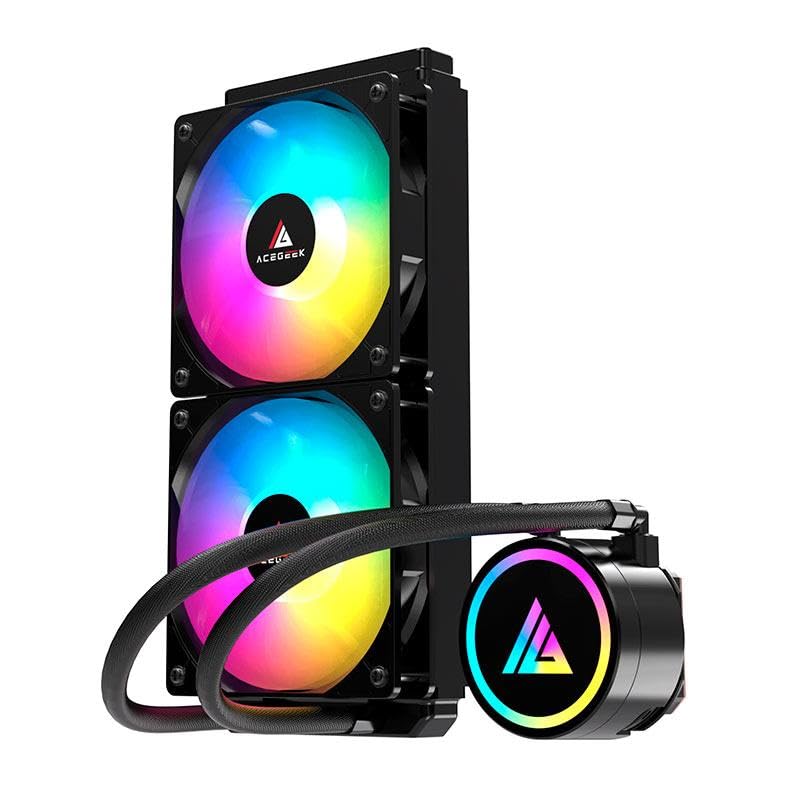
Image 4.1: Radiator and fans assembly.
- Position the radiator and fans in your chosen mounting location.
- Secure the radiator to the case using the provided screws. Ensure the fan cables are routed neatly.
4.3. Installing the CPU Block (Intel)
- Attach the appropriate Intel backplate to the rear of your motherboard.
- Screw in the Intel standoffs through the motherboard's CPU mounting holes into the backplate.
- Apply a small pea-sized amount of thermal paste to the center of your CPU's Integrated Heat Spreader (IHS).
- Place the CPU block onto the standoffs, aligning the holes.
- Secure the CPU block with the Intel mounting screws, tightening them in a diagonal pattern until snug. Do not overtighten.
4.4. Installing the CPU Block (AMD)
- Remove the plastic retention clips from the stock AMD backplate (if present) but keep the backplate.
- Screw in the AMD standoffs into the stock AMD backplate.
- Apply a small pea-sized amount of thermal paste to the center of your CPU's Integrated Heat Spreader (IHS).
- Place the CPU block onto the standoffs, aligning the holes.
- Secure the CPU block with the AMD mounting screws, tightening them in a diagonal pattern until snug. Do not overtighten.
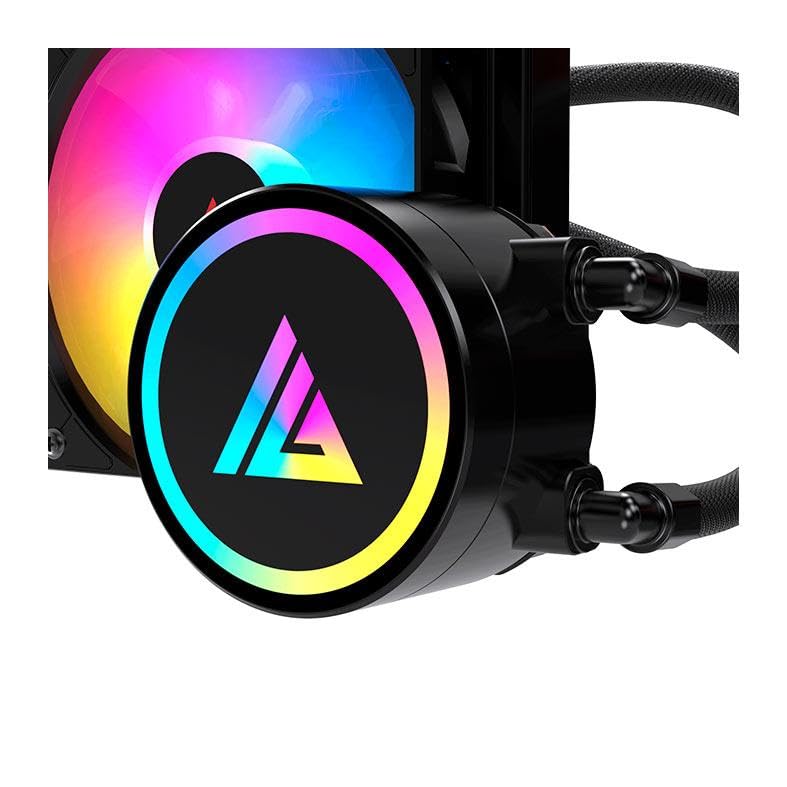
Image 4.2: CPU pump block detail.
4.5. Connecting Cables
- Connect the pump's 4-pin connector to the CPU_FAN or AIO_PUMP header on your motherboard.
- Connect the fans' 4-pin connectors to available fan headers on your motherboard (e.g., CPU_OPT or SYS_FAN). You may need a fan splitter if your motherboard has limited headers.
- Connect the RGB cables from the fans and pump to an available 5V Addressable RGB (ARGB) header on your motherboard. Ensure correct polarity.
5. Operating Instructions
Once installed, the Acegeek E240 Water Cooler operates automatically. The pump and fan speeds are typically controlled by your motherboard's BIOS/UEFI settings based on CPU temperature. The Rainbow RGB lighting will illuminate upon system power-on.
- BIOS/UEFI Settings: Access your motherboard's BIOS/UEFI to configure fan curves for optimal balance between cooling performance and noise levels. Ensure the CPU_FAN or AIO_PUMP header is set to PWM mode for proper speed control.
- RGB Control: The Rainbow RGB lighting is typically controlled via your motherboard's RGB software (e.g., ASUS Aura Sync, MSI Mystic Light, Gigabyte RGB Fusion, ASRock Polychrome Sync) if connected to an ARGB header.
6. Maintenance
The Acegeek E240 is a closed-loop AIO cooler and requires minimal maintenance.
- Dust Cleaning: Periodically (every 3-6 months) use compressed air to clean dust from the radiator fins and fan blades. Ensure the fans are not spinning during cleaning to prevent damage.
- Visual Inspection: Regularly check the tubing and connections for any signs of leaks or damage. While rare, early detection can prevent potential issues.
- Thermal Paste: The pre-applied thermal paste (or included tube) is designed for long-term use. Re-application is generally only necessary if the CPU block is removed from the CPU.
7. Troubleshooting
- No Power/No RGB:
- Check all power and RGB connections to the motherboard.
- Ensure the pump's 4-pin connector is securely plugged into the CPU_FAN or AIO_PUMP header.
- Verify RGB software settings if applicable.
- High CPU Temperatures:
- Confirm the CPU block is securely mounted and making good contact with the CPU.
- Check if the pump is running (you might hear a faint hum or feel vibrations in the tubes).
- Ensure fans are spinning and oriented correctly for airflow (pushing air through the radiator).
- Verify fan speed settings in BIOS/UEFI.
- Excessive Noise:
- Check fan screws for tightness; loose screws can cause vibration.
- Adjust fan speed curves in BIOS/UEFI to reduce RPM at lower temperatures.
- Ensure no cables are interfering with fan blades.
8. Specifications
| Component | Specification |
|---|---|
| Model | AG-E240-BK |
| Socket Compatibility | Intel: LGA 115x, 1200, 1700, 2011, 2011-v3, 2066 AMD: AM5, AM4 |
| Radiator Dimensions (L x W x H) | 277 x 120 x 27 mm |
| Tube Length | 350 mm |
| TDP | 260W |
| Pump Block Dimensions | 73 x 86.5 x 51 mm |
| Pump Connector | 4-PIN |
| Pump Speed | 2500 ± 10% RPM |
| Pump Rated Voltage | 12V |
| Pump Rated Current | 0.3A (MAX) |
| Pump Input Power | 3.6W (MAX) |
| Fan Dimensions | 120 x 120 x 25 mm |
| Fan Connector | 4-PIN |
| Fan Speed | 600-1800 RPM ± 10% |
| Airflow | 62.13 CFM ± 10% |
| Noise Level | 31.3 dBA (MAX) |
| Air Pressure | 1.54 mmH2O (MAX) |
| Bearing Type | Hydraulic Bearing |
| Lifespan | 40,000 Hours |
9. Warranty and Support
Acegeek products are designed for reliability and performance. For warranty information, please refer to the warranty card included with your product or visit the official Acegeek website. If you encounter any issues or have questions not covered in this manual, please contact Acegeek customer support for assistance.