
1. Product Overview
The SOULION C30 2.0 Computer Speakers are designed to provide enhanced audio for various devices, including PCs, laptops, tablets, and smartphones. These speakers feature USB power, 3.5mm AUX and Bluetooth connectivity, and dynamic LED flame lights, all controlled via an easy-to-use pod.

Image 1: SOULION C30 2.0 Computer Speakers, showing the two speaker units, the control pod, and connection cables.
2. Setup Instructions
2.1 Power and Audio Connection
- Power Supply: Plug the USB connector into a USB port on your computer or a 5V/1A-2A USB power adapter (not included).
- 3.5mm AUX Mode:
- Plug the 3.5mm audio jack into the headphone jack of your device (PC, laptop, tablet, smartphone).
- Short press the 'M' button on the control pod to select "Aux Mode".
- Bluetooth Mode:
- Ensure the speakers are powered via USB.
- Short press the 'M' button on the control pod to select "Bluetooth Mode". You will hear a "beep" sound.
- On your smartphone or tablet, search for "C30" in the Bluetooth settings and connect.
- To reset the Bluetooth connection, press and hold the light button on the control pod for three seconds.
2.2 Computer Audio Settings
- For Windows:
- Click the Speaker icon in the taskbar.
- Choose "Realtek High Definition Audio" as the audio output device.
- Alternatively, go to Control Panel/System Preferences > Sound Settings and select "Realtek High Definition Audio" as the audio output, then save changes.

Image 2: Windows audio settings for selecting the speaker output.
- For Mac:
- Go to System Preferences > Sound Settings.
- Select "External Headphones" as the audio output device, then save changes.

Image 3: Mac audio settings for selecting the speaker output.
Video 1: An overview of the SOULION C30 2.0 Channel Computer Speakers, demonstrating their features and connectivity options.
3. Operating Instructions
3.1 Control Pod Functions
The multi-function control pod allows for easy operation of the speakers:
- Power On/Off: Long press the 'M' button for 3 seconds.
- Mode Switching: Short press the 'M' button to switch between 3.5mm AUX and Bluetooth modes.
- Volume Adjustment: Rotate the black knob clockwise to increase volume (+) and counter-clockwise to decrease volume (-).
- LED Light Adjustment: Short press the light button to cycle through LED light modes (Pulsing, Flame Effect, Light Off).
- Bluetooth Reset: Press and hold the light button for three seconds to clear and reset the Bluetooth connection.

Image 4: Detailed view of the control pod with labeled functions for volume, mode selection, and LED light control.
3.2 LED Light Modes
The speakers feature dynamic LED lighting with several modes:
- Pulsing Mode: Lights dynamically pulse and change color in sync with the audio rhythm.
- Flame Effect Mode: Lights mimic the authentic flicker of a dancing flame.
- Light Off: Turns off the LED lights.

Image 5: Pressing the light button to change LED modes.

Image 6: Pressing the 'M' button to switch between AUX and Bluetooth modes.
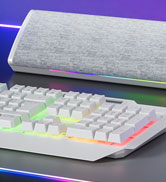
Image 7: Adjusting the volume using the control knob.
4. Maintenance
To ensure the longevity and optimal performance of your SOULION C30 speakers, follow these maintenance guidelines:
- Cleaning: Use a soft, dry cloth to clean the speaker surfaces. Avoid using abrasive cleaners or solvents.
- Liquid Exposure: Do not expose the speakers to water or other liquids. If liquid spills occur, immediately disconnect power and allow to dry completely before reuse.
- Storage: Store the speakers in a cool, dry place away from direct sunlight and extreme temperatures.
- Cable Care: Avoid bending or twisting the cables excessively to prevent damage.
5. Troubleshooting
If you encounter issues with your SOULION C30 speakers, refer to the following troubleshooting steps:
- No Sound / Speakers Not Working:
- Ensure the speakers are not simultaneously connected to two devices as the audio output.
- Verify that "C30" is selected as the audio output device on your computer or smartphone/tablet.
- Confirm that both the computer's volume and the C30 speaker's volume (via the control knob) are turned up, preferably to maximum for testing.
- If using 3.5mm AUX, try plugging both the 3.5mm and USB jacks into different ports, ideally at the back of your computer's host port.
- Test the speakers with another device to determine if the issue is with the speakers or the original device.
- If using Bluetooth, try switching to AUX mode, or vice-versa, to see if the issue persists.
- Bluetooth Connection Issues:
- Ensure the speakers are within the Bluetooth range (10 meters / 33 feet) of your device.
- Long press the light button on the control pod for three seconds to reset the Bluetooth connection, then attempt to pair again.
- Remove "C30" from your device's paired Bluetooth devices list and try pairing again.

Image 8: SOULION C30 speakers integrated into a desktop gaming setup.
6. Specifications
| Feature | Specification |
|---|---|
| Model Name | C30 |
| Speaker Type | 2.0 Channel Computer Speakers |
| Connectivity Technology | Auxiliary, Bluetooth, USB |
| Power Source | DC (USB Powered) |
| Input Voltage | 5 Volts |
| Speaker Maximum Output Power | 6 Watts |
| Frequency Response | 18 KHz |
| Signal-to-Noise Ratio | 65 dB |
| Impedance | 4 Ohms |
| Bluetooth Range | 10 Meters |
| Product Dimensions | 6"D x 3"W x 3"H |
| Item Weight | 1.88 Pounds |
| Material | Composite |
| Special Feature | LED Light, Lightweight, USB Port |
| Included Components | Cable (3.5mm + USB), Control Knob |
| Water Resistance Level | Not Water Resistant |
7. Warranty and Support
The SOULION C30 Computer Speakers come with a Limited Warranty. For specific warranty details, terms, and conditions, please refer to the product packaging or contact SOULION customer support directly.
If you require further assistance or have questions not covered in this manual, please contact the seller or manufacturer through the platform where the product was purchased.


