
1. Introduction
This manual provides comprehensive instructions for the installation, operation, and maintenance of your MekedeTech Android Car Stereo. Designed specifically for Dodge Challenger models from 2008 to 2014, this head unit offers a 9-inch HD touch screen, advanced connectivity, and enhanced audio features. Please read this manual thoroughly before installation and use to ensure proper function and safety.
2. Safety Information
- Professional Installation Recommended: Due to the complexity of car electrical systems, professional installation is highly recommended to prevent damage to the unit or vehicle.
- Power Supply: Ensure the unit is connected to a 12V DC power supply with negative grounding.
- Wiring: Do not modify wiring or connections. Incorrect wiring can cause damage or fire.
- Operation While Driving: Do not operate the unit in a way that distracts you from driving. Always prioritize road safety.
- Temperature: Avoid exposing the unit to extreme temperatures or direct sunlight for prolonged periods.
- Moisture: Keep the unit away from water and excessive moisture.
3. Package Contents
Verify that all items listed below are included in your package:
- 9'' HD Touch Screen Head Unit
- Power cable and Canbus
- USB cables
- RCA harness
- Reverse input cable
- 4G Antenna
- Fakra GPS Antenna
- Microphone (MIC)

Figure 3.1: Included accessories for the MekedeTech Android Car Stereo.
4. Setup and Installation
This head unit is designed for plug-and-play installation in Dodge Challenger models (2008-2014). However, careful attention to wiring and connections is crucial.
4.1 Pre-Installation Check
- Disconnect the vehicle's battery before starting any electrical work.
- Ensure the vehicle's dashboard is clean and free of debris.
- Familiarize yourself with the existing car stereo's removal process.
4.2 Wiring Connections
- Power and Canbus: Connect the provided power cable and Canbus box to the vehicle's wiring harness. The Canbus ensures compatibility with vehicle-specific functions like steering wheel controls.
- USB Cables: Connect the USB cables for external devices or data transfer.
- RCA Harness: Connect the RCA harness for audio output to external amplifiers or subwoofers, and for video input/output.
- Reverse Input Cable: Connect this cable to your vehicle's reverse light signal and a compatible backup camera for automatic display when reversing.
- Antennas: Connect the 4G antenna for cellular data connectivity and the Fakra GPS antenna for navigation. Position these antennas in locations with good signal reception.
4.3 Unit Installation
- Carefully route all cables to avoid pinching or damage.
- Mount the head unit securely into the dashboard opening.
- Reconnect the vehicle's battery.
- Test all functions before fully reassembling the dashboard.

Figure 4.1: Comparison of the dashboard before and after installing the MekedeTech Android Car Stereo.
5. Operating Instructions
5.1 Power On/Off
The unit typically powers on automatically with the vehicle's ignition. To manually power off or restart, use the designated power button on the unit or within the software interface.
5.2 9-inch HD Touch Screen
The 9-inch HD touch screen with 1280x720 resolution provides a clear and responsive interface. Navigate through menus, select applications, and control media playback by touching the screen.
5.3 Wireless CarPlay and Android Auto
Seamlessly integrate your smartphone for navigation, music, calls, and more.
- Connect Bluetooth: First, pair your smartphone with the head unit via Bluetooth.
- Launch Car Link: On the head unit, open the "Car Link" application.
- Wait for Connection: The unit will automatically detect and connect to your phone for Wireless CarPlay (iOS) or Wireless Android Auto (Android). A wired connection via USB is also supported.
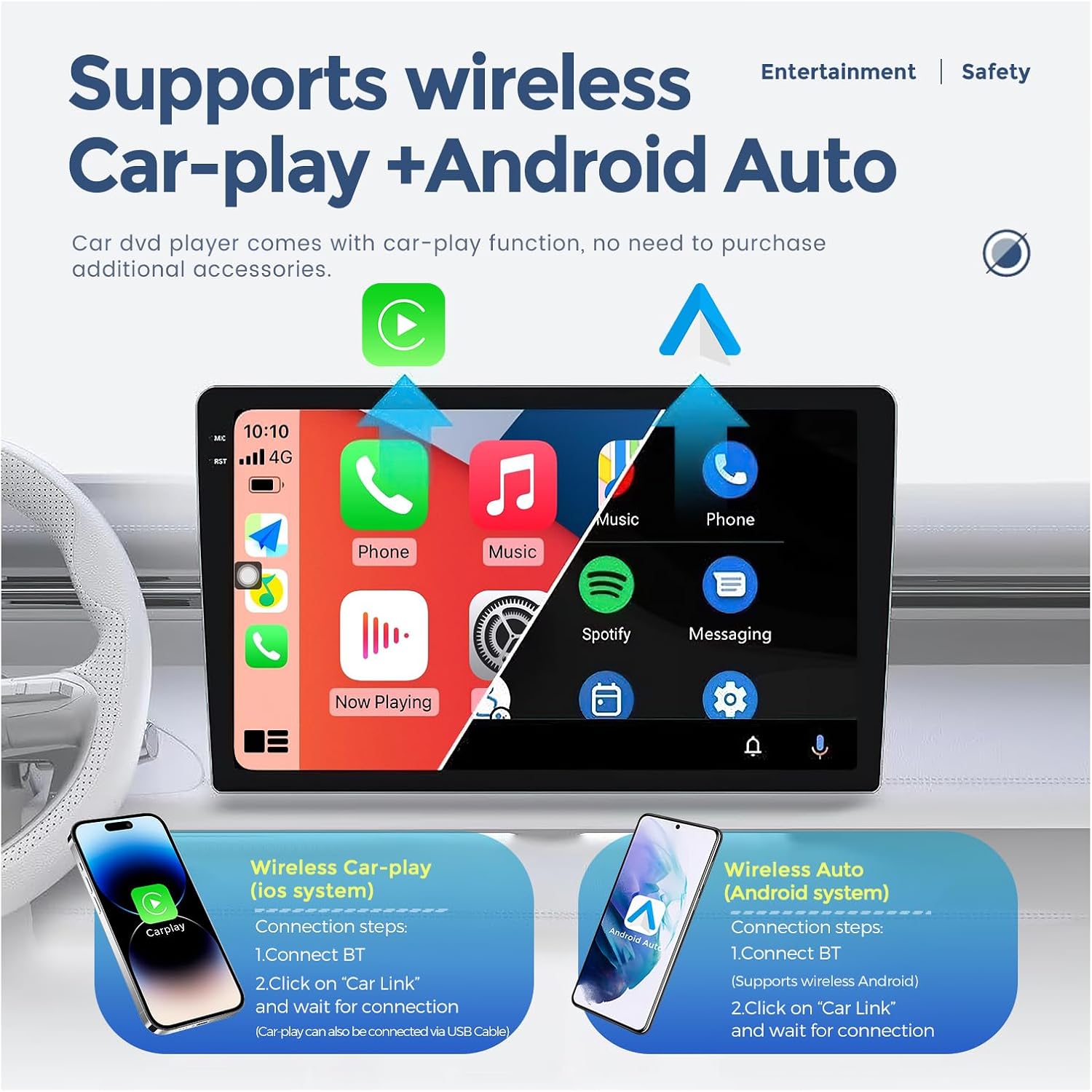
Figure 5.1: Display showing Wireless CarPlay and Android Auto interfaces.

Figure 5.2: Steps to connect Wireless CarPlay.

Figure 5.3: Steps to connect Wireless Android Auto.
5.4 4G LTE Connectivity
The unit supports built-in 4G LTE connectivity. Insert a compatible SIM card into the designated slot to access cellular data directly from the head unit, eliminating the need for a smartphone hotspot.

Figure 5.4: Location of the 4G SIM card slot and a diagram illustrating DSP functionality.
5.5 DSP (Digital Signal Processing)
The integrated DSP enhances audio quality, providing richer bass and clearer highs. Access the DSP settings through the audio menu to customize equalization, sound field, and bass enhancement for an optimized listening experience.

Figure 5.5: User interface for adjusting DSP settings, showing before and after adjustments.
5.6 Steering Wheel Control (SWC)
The head unit supports your vehicle's existing steering wheel controls via the Canbus system. This allows you to manage audio playback, answer calls, and navigate without taking your hands off the wheel.

Figure 5.6: Illustration of steering wheel controls interacting with the car stereo.
5.7 AM/FM Radio
Access local and regional radio stations with the built-in AM/FM tuner. Use the on-screen interface to scan for stations, save presets, and view RDS (Radio Data System) information where available.

Figure 5.7: Example of the AM/FM/RDS radio interface.
5.8 GPS Navigation
Utilize the integrated GPS module for worldwide navigation. Pre-installed or downloadable map applications provide turn-by-turn directions and real-time traffic information (requires data connection).

Figure 5.8: Example of the GPS navigation display.
5.9 Split Screen Functionality
The split-screen feature allows you to run two applications simultaneously, such as navigation and music playback, enhancing multitasking capabilities.

Figure 5.9: Example of the split-screen feature displaying two applications simultaneously.
5.10 Backup Camera Support
The unit supports AHD (Analog High Definition) backup cameras. When connected, the display automatically switches to the camera view when the vehicle is put into reverse, aiding in safe parking and maneuvering.

Figure 5.10: Display showing the view from a connected AHD backup camera.
6. Maintenance
- Screen Cleaning: Use a soft, lint-free cloth to clean the touch screen. Avoid abrasive cleaners or solvents.
- Software Updates: Periodically check for software updates to ensure optimal performance and access to new features. Follow the on-screen instructions for updates.
- General Care: Keep the unit free from dust and debris. Avoid spilling liquids on the unit.
7. Troubleshooting
If you encounter issues with your MekedeTech Android Car Stereo, refer to the following common troubleshooting steps:
- No Power:
- Check all power connections and ensure they are secure.
- Verify the vehicle's fuse related to the stereo is not blown.
- Ensure the vehicle's battery is charged.
- No Sound:
- Check speaker connections and RCA harness.
- Ensure the volume is not muted or set to minimum.
- Verify audio settings in the DSP or equalizer.
- CarPlay/Android Auto Not Connecting:
- Ensure Bluetooth is enabled on your phone and paired with the unit.
- Restart both your phone and the head unit.
- Try a wired USB connection to rule out wireless issues.
- Steering Wheel Controls Not Working:
- Verify the Canbus connection is correct and secure.
- Check the steering wheel control settings within the unit's software.
- GPS Signal Issues:
- Ensure the GPS antenna is properly connected and positioned with a clear view of the sky.
- Check GPS settings within the navigation application.
- Unit Freezes or Responds Slowly:
- Perform a soft reset by pressing the reset button (if available) or by holding the power button.
- Close unnecessary background applications.
If these steps do not resolve the issue, please contact customer support.
8. Specifications
| Feature | Specification |
|---|---|
| Item Weight | 4.77 pounds |
| Package Dimensions | 16.81 x 13.74 x 5.43 inches |
| Item Model Number | 47e02de8-bff0-479a-8e16-af0c1e265c1a |
| Display Size | 9 Inches |
| Display Resolution | 1280x720 |
| Operating System | Android |
| Vehicle Service Type | Car |
| Special Features | 4G LTE, Android Auto, Built-In Bluetooth, Touchscreen, Wireless CarPlay |
| Connectivity Technology | Bluetooth, USB, Wi-Fi, Wireless |
| Map Type | Worldwide |
| Audio Output Mode | Stereo |
| Voice Command | Buttons, Keyboard, Touchscreen |
9. Warranty and Support
9.1 Warranty Information
This MekedeTech Android Car Stereo comes with a 1-Year Warranty from the date of purchase. This warranty covers manufacturing defects and malfunctions under normal use. It does not cover damage caused by improper installation, misuse, accidents, or unauthorized modifications.
9.2 Customer Support
For technical assistance, warranty claims, or any questions regarding your product, please contact MekedeTech customer support through the retailer's platform or the official MekedeTech website. Please have your model number (47e02de8-bff0-479a-8e16-af0c1e265c1a) and proof of purchase ready when contacting support.