
DOOGEE T40
DOOGEE T40 Android 14 Tablet User Manual
Model: T40 | Brand: DOOGEE
1. Product Overview
The DOOGEE T40 is an advanced Android 14 tablet designed for both entertainment and productivity. It features a high-resolution 2.5K display, a powerful Octa-Core processor, and extensive storage capabilities, making it suitable for a wide range of applications from gaming to professional tasks.

Figure 1.1: Front and rear view of the DOOGEE T40 Tablet, highlighting its sleek design and camera module.
Key Features:
- Display: 11-inch 2.5K IPS Ultra Clear Display (2560x1600 resolution) for vibrant visuals.
- Performance: Helio G99 Octa-Core Processor (6nm process technology) for smooth multitasking and gaming.
- Memory & Storage: Up to 20GB RAM (8GB physical + 12GB virtual) and 512GB internal storage, expandable up to 2TB via microSD.
- Battery: 8580mAh large battery with 18W fast charging and reverse charging capability.
- Connectivity: Dual SIM 4G LTE, Dual-band Wi-Fi (2.4G/5G), Bluetooth 5.0.
- Operating System: Android 14 for enhanced productivity and entertainment.
- Audio: Immersive Quad Speakers for rich sound.
- Cameras: 16MP Main Camera and 8MP Front Camera.
Video 1.1: An overview of the DOOGEE T40 Tablet, showcasing its design, display, and key features.
2. What's in the Box
Verify that all items are present in the package before proceeding with setup.
- T40 Tablet x1
- Type-C USB Cable x1
- Charger x1
- Tool for take card x1 (SIM Ejector Tool)
- Anti-explosion film x1 (Pre-applied screen protector)
- Packing box x1
- Manual x1 (This document)
3. Specifications
| Feature | Specification |
|---|---|
| Brand | DOOGEE |
| Model Name | T40 |
| Operating System | Android 14 |
| Screen Size | 10.95 Inches |
| Screen Resolution | 2560 x 1600 pixels (2.5K) |
| Processor | MediaTek Helio G99 Octa-Core |
| RAM | 20GB (8GB physical + 12GB virtual) |
| Internal Storage | 512GB |
| Expandable Storage | Up to 2TB via MicroSD card |
| Battery Capacity | 8580mAh |
| Charging | 18W Fast Charging, Reverse Charging |
| Connectivity | Dual SIM 4G LTE, Wi-Fi 2.4G/5G, Bluetooth 5.0 |
| Cameras | 16MP Main, 8MP Front |
| Dimensions (LxWxH) | 10.09 x 6.61 x 0.3 inches |
| Item Weight | 2.49 pounds |
4. Setup
4.1. Initial Charge
Before first use, fully charge your DOOGEE T40 tablet using the provided Type-C USB cable and charger. Connect the charger to the tablet's USB-C port and plug it into a power outlet. The battery indicator on the screen will show charging progress.

Figure 4.1: Illustration of the tablet's 8580mAh battery and 18W fast charging capability.
4.2. Power On/Off
- To Power On: Press and hold the Power button (located on the side) until the DOOGEE logo appears.
- To Power Off: Press and hold the Power button until the power options menu appears, then select "Power off".
- To Restart: From the power options menu, select "Restart".
4.3. SIM Card and MicroSD Card Installation
The DOOGEE T40 supports Dual SIM 4G LTE and MicroSD card expansion.
- Locate the SIM card tray on the side of the tablet.
- Insert the provided SIM ejector tool into the small hole next to the tray and gently push until the tray pops out.
- Place your Nano-SIM cards and/or MicroSD card into the designated slots on the tray, ensuring correct orientation.
- Carefully push the tray back into the tablet until it clicks into place.

Figure 4.2: Close-up of the Dual SIM and TF (MicroSD) card slot on the DOOGEE T40 Tablet.
4.4. Network Connection
- Wi-Fi: Go to Settings > Network & internet > Wi-Fi, turn Wi-Fi on, select your desired network, and enter the password if required.
- Mobile Data: Ensure your SIM card is installed correctly. Go to Settings > Network & internet > Mobile network and enable mobile data.
5. Operating Instructions
5.1. Navigating Android 14
The DOOGEE T40 runs on Android 14, offering an intuitive user experience.
- Home Screen: Swipe left or right to access different home screens.
- App Drawer: Swipe up from the bottom of the screen to access all installed applications.
- Notifications & Quick Settings: Swipe down from the top of the screen to view notifications and quick settings toggles (Wi-Fi, Bluetooth, etc.).
- Recent Apps: Swipe up from the bottom and hold, then release to see recently used applications.
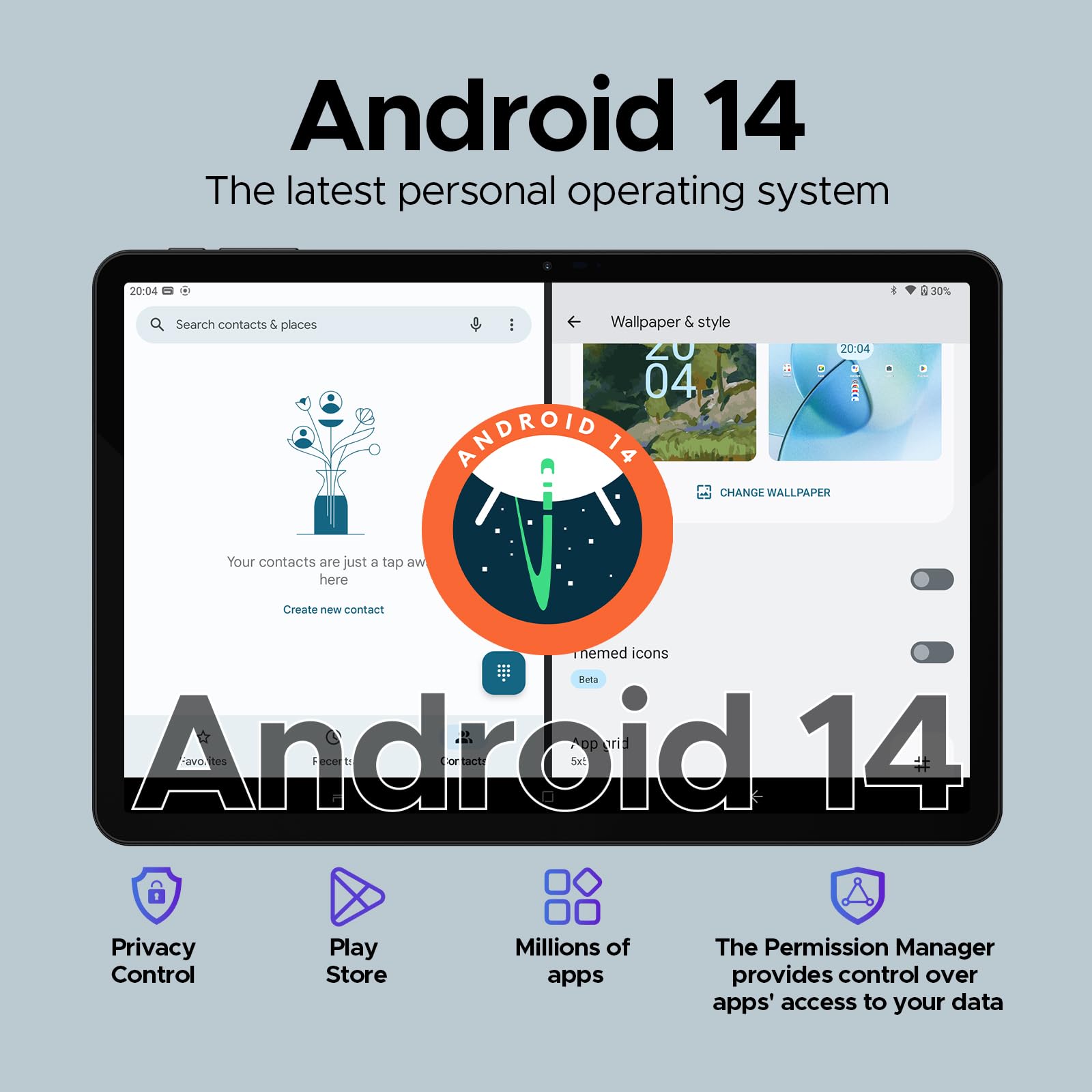
Figure 5.1: Visual representation of the Android 14 operating system interface on the DOOGEE T40.
5.2. Face Unlock
For quick and secure access, configure Face Unlock:
- Go to Settings > Security & privacy > Device unlock > Face unlock.
- Follow the on-screen instructions to register your face.
5.3. Split-Screen Functionality
Multitask efficiently by using two apps simultaneously:
- Open the first app you want to use.
- Swipe up from the bottom and hold to access recent apps.
- Tap the app icon at the top of the first app's card, then select "Split screen".
- Choose the second app from your recent apps or app drawer to fill the other half of the screen.
5.4. OTG (On-The-Go) Functionality
The DOOGEE T40 supports OTG, allowing you to connect USB devices like flash drives, keyboards, or mice directly to the tablet using a compatible OTG adapter (not included).
It also supports reverse charging, allowing the tablet to act as a power bank for other devices. Connect your device to the tablet's USB-C port using a compatible cable.
6. Maintenance
6.1. Battery Care
- Avoid extreme temperatures, as they can degrade battery life.
- Use only the original charger and cable provided with the tablet.
- For optimal battery longevity, avoid frequently draining the battery completely or keeping it at 100% for extended periods.
6.2. Cleaning
- Use a soft, lint-free cloth to clean the screen and body of the tablet.
- For stubborn smudges, slightly dampen the cloth with water or a screen cleaner. Avoid harsh chemicals.
6.3. Software Updates
Regularly check for and install software updates to ensure optimal performance, security, and access to new features.
- Go to Settings > System > System update.
- Follow the on-screen prompts to download and install any available updates. Ensure your tablet is sufficiently charged or connected to power during updates.
7. Troubleshooting
| Problem | Possible Solution |
|---|---|
| Tablet does not power on. | Ensure the battery is charged. Connect the charger and wait a few minutes before attempting to power on again. If unresponsive, press and hold the Power button for 10-15 seconds to force a restart. |
| Wi-Fi connection issues. | Restart the tablet and your Wi-Fi router. Forget the network in Wi-Fi settings and reconnect. Ensure you are within range of the Wi-Fi signal. |
| Apps are crashing or freezing. | Clear the cache and data for the problematic app (Settings > Apps > [App Name] > Storage & cache). Update the app from the Google Play Store. If the issue persists, uninstall and reinstall the app. |
| Slow performance. | Close unused background apps. Clear cache regularly. Consider uninstalling rarely used apps. Ensure sufficient free storage space. Restart the tablet periodically. |
| SIM card not detected. | Ensure the SIM card is correctly inserted into the tray. Restart the tablet. Verify that the SIM card is active with your mobile carrier. |
8. Warranty and Support
The DOOGEE T40 Tablet comes with a 2-year warranty, as stated in the product features. For any technical assistance or warranty claims, please contact the seller directly.
Seller: Tablet flagship store
DOOGEE provides lifetime technical support and full 24/7 customer service for their products.
For further assistance, refer to the official DOOGEE website or contact their customer support channels.
Related documentsT40


Ask a question about this manual
Ask about setup, troubleshooting, compatibility, parts, safety, or missing instructions. Manuals+ will review the question and use this page’s manual context to help answer it.