1. Introduction
This manual provides essential instructions for setting up, operating, maintaining, and troubleshooting your Canon Megatank G3290 All-in-One Wireless Supertank Printer. Please read this manual thoroughly before using the printer to ensure correct and safe operation.

Image 1.1: Canon Megatank G3290 All-in-One Wireless Supertank Printer.
Key Features
- Wireless Print, Copy, and Scan functionality.
- High page yield with integrated ink tanks.
- 2.7-inch LCD Color Touchscreen for intuitive control.
- Automatic 2-sided printing (Auto Duplex).
- Mobile printing capabilities.
2. What's in the Box
Verify that all items are present in the package before proceeding with setup.
- Canon Megatank G3290 All-in-One Wireless Supertank Printer
- GI-20 Ink Bottles (Pigment Black, Cyan, Magenta, Yellow Dye Inks)
- Power Cord
- User Guide / Documentation
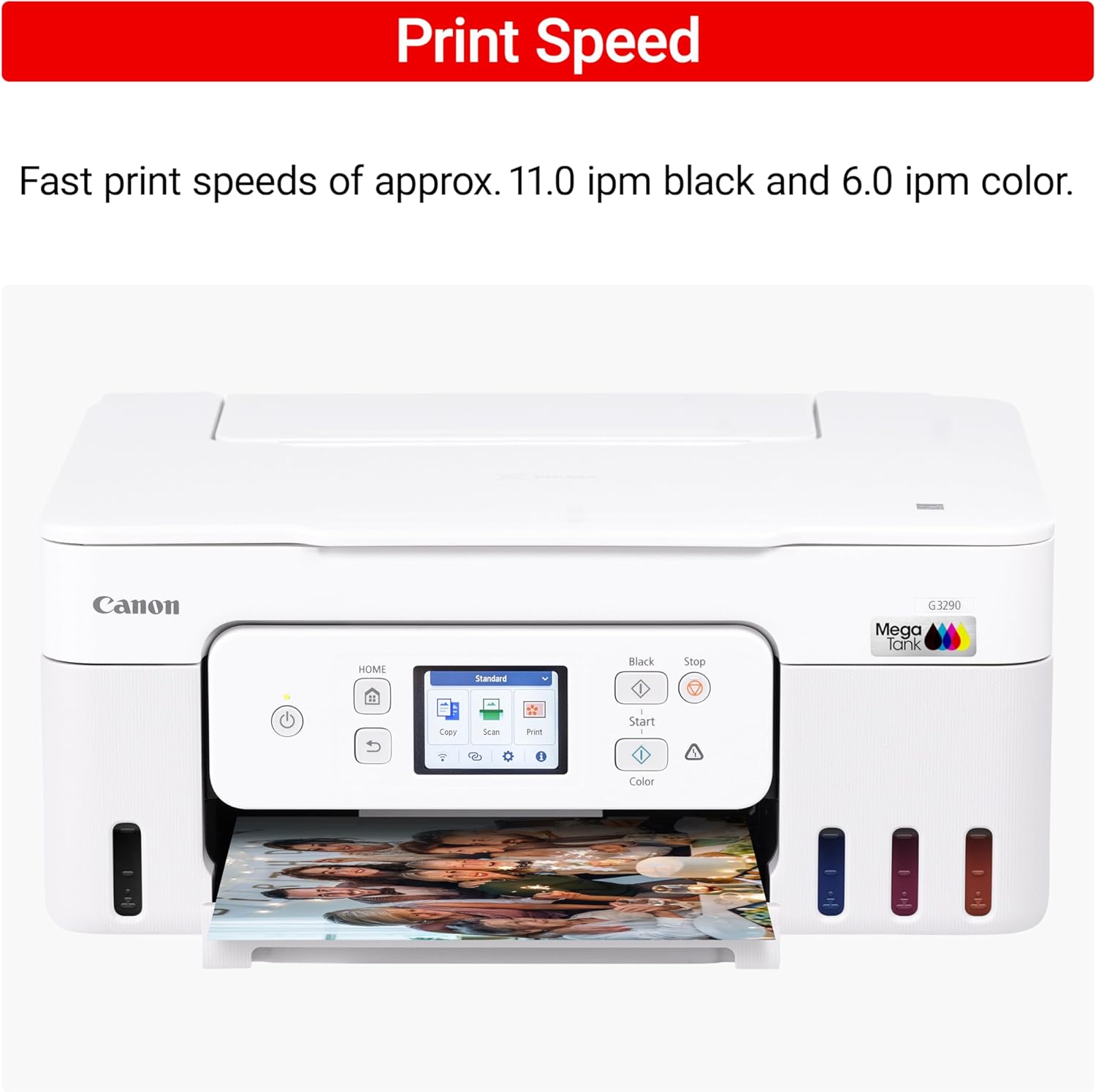
Image 2.1: Product At-A-Glance, illustrating the printer and included ink bottles.
3. Initial Setup
3.1 Unpacking and Placement
- Remove all packaging materials, protective tapes, and films from the printer.
- Place the printer on a stable, level surface with adequate space for paper loading and output.
3.2 Installing Print Heads
The printer requires installation of two print heads (one black, one color). These slide into designated slots. Ensure to remove any protective tape from the print heads before installation.
3.3 Filling Ink Tanks
The Canon Megatank G3290 uses a refillable ink tank system. The ink bottles are keyed to prevent incorrect color filling. Carefully pour the ink into the corresponding tanks, observing the fill line on the printer's transparent tank windows. Stop filling when the ink reaches the 'FULL' line.
3.4 Power Connection
Connect the power cord to the printer and then to a wall outlet. Press the power button to turn on the printer.
3.5 Connectivity (USB & Wi-Fi)
The printer supports both USB and Wi-Fi connections.
- USB Connection: Locate the USB port near the power plug. Connect a USB cable (not included) from the printer to your computer.
- Wi-Fi Connection: Use the 2.7-inch LCD touchscreen to navigate to the Wi-Fi setup menu. Follow the on-screen prompts to connect to your wireless network. For detailed setup, refer to the Canon website or the Canon PRINT app.
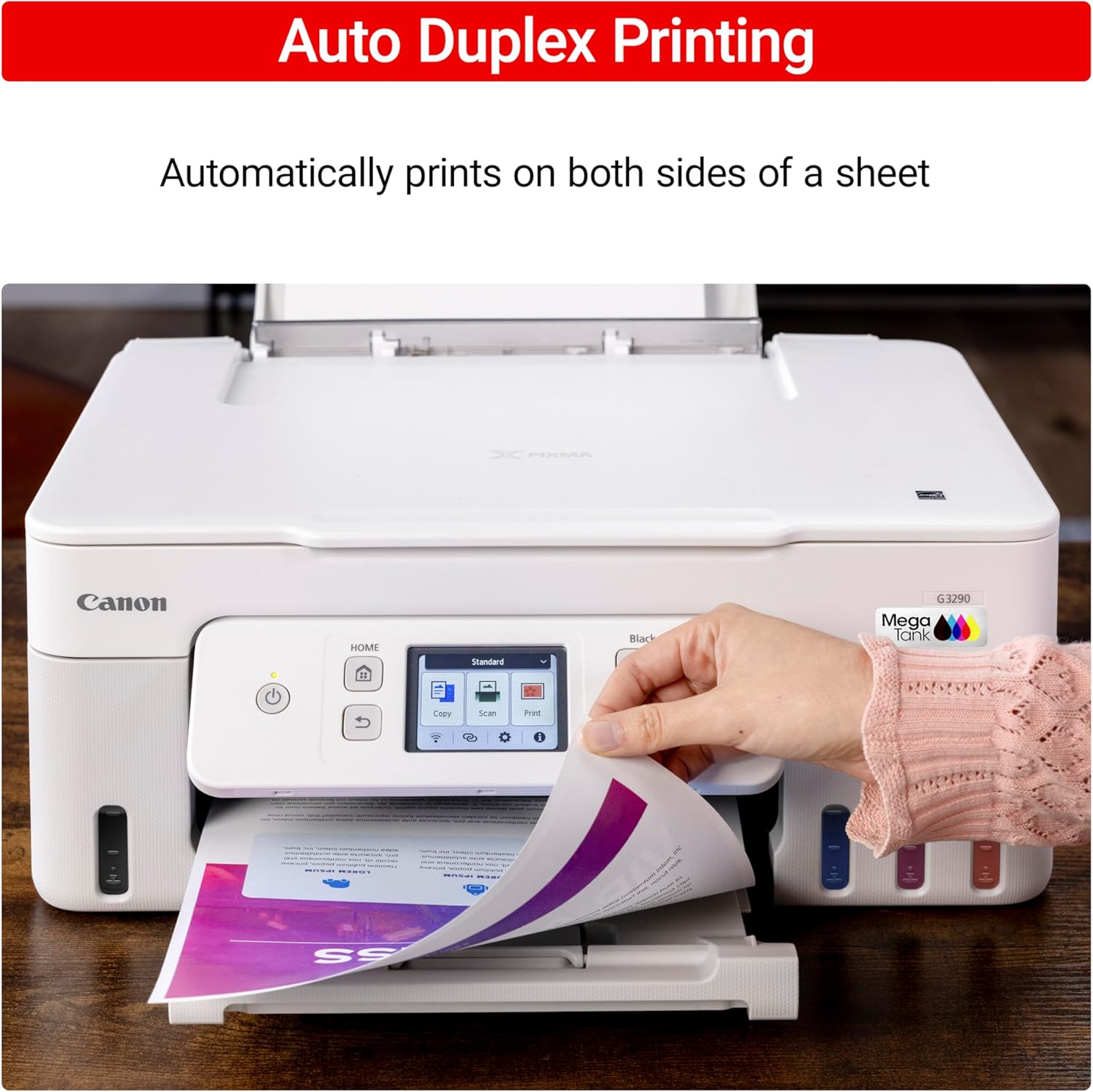
Image 3.1: Operating System Compatibility, showing the printer connected to a laptop.
4. Operating the Printer
4.1 Basic Printing
Load paper into the rear paper tray. From your computer or mobile device, select the Canon G3290 as your printer and choose your desired print settings. The printer offers print speeds of approximately 11.0 images per minute (ipm) for black and 6.0 ipm for color.
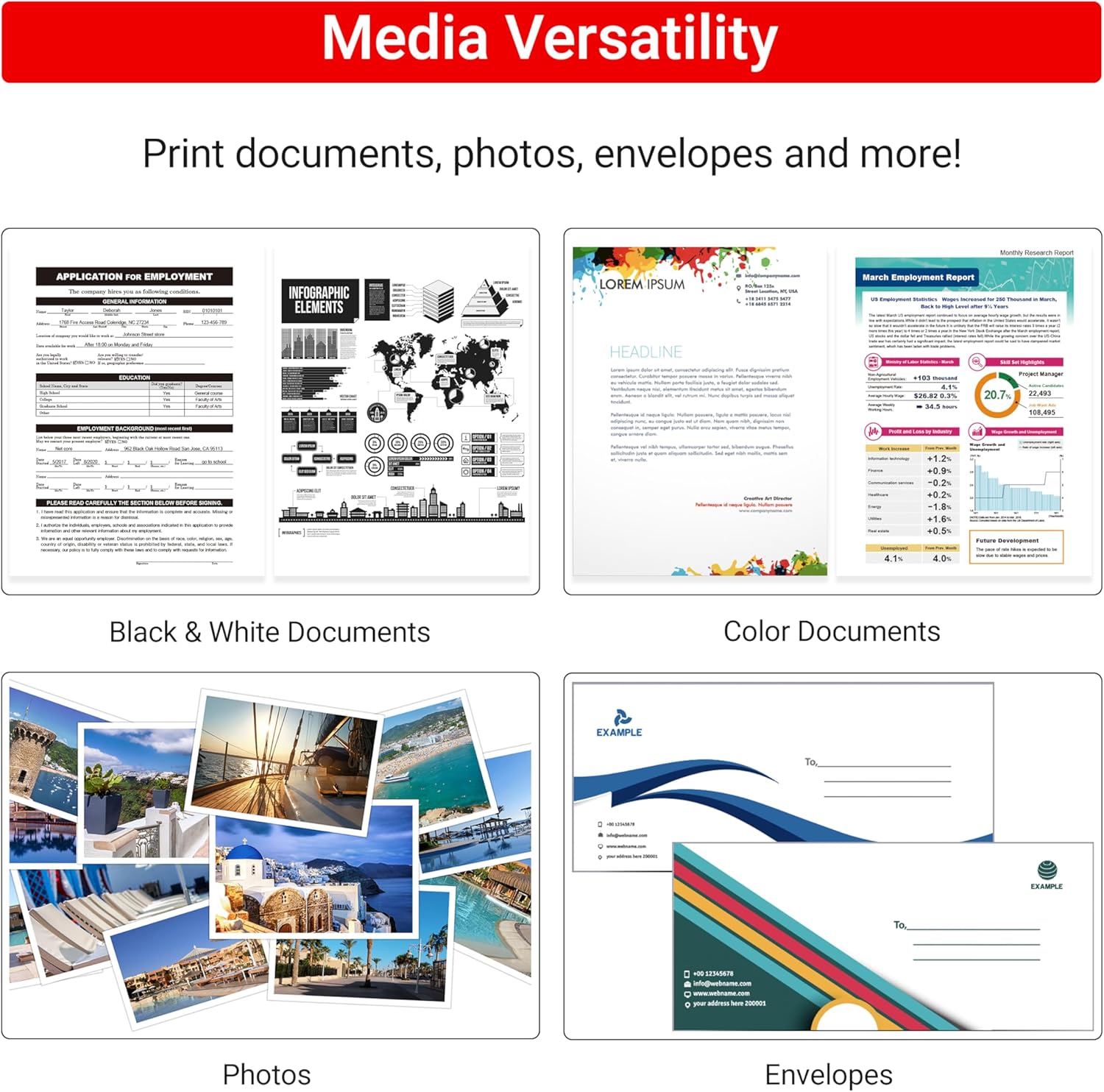
Image 4.1: Printer in operation, demonstrating print speed.
4.2 Copying Documents
Place the document face-down on the scanner glass or face-up in the Automatic Document Feeder (if available). Use the touchscreen to select the 'Copy' function and adjust settings such as number of copies or quality.
4.3 Scanning Documents
Place the document on the scanner glass. Select the 'Scan' function from the touchscreen or initiate scanning from your computer using the Canon software. You can save scanned images or documents to your computer or cloud services.
4.4 Automatic 2-Sided Printing (Auto Duplex)
The printer supports automatic duplex printing, allowing it to print on both sides of the paper without manual intervention. Ensure this option is selected in your print settings.
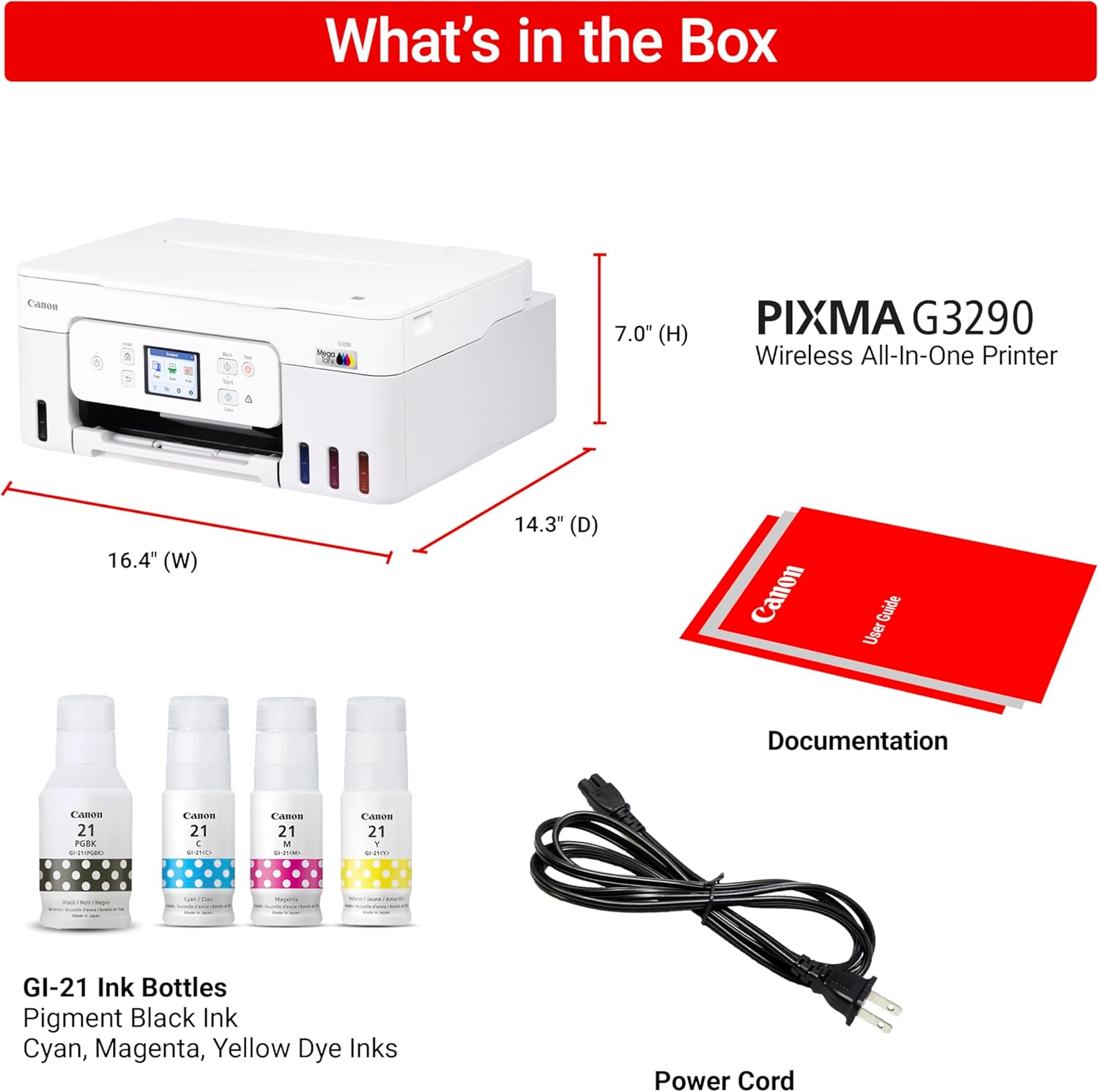
Image 4.2: Demonstrating automatic 2-sided printing.
4.5 Mobile Printing
Print directly from your compatible mobile devices using the Canon PRINT app, Apple AirPrint, or Mopria Print Service. Download the Canon PRINT app from your device's app store.
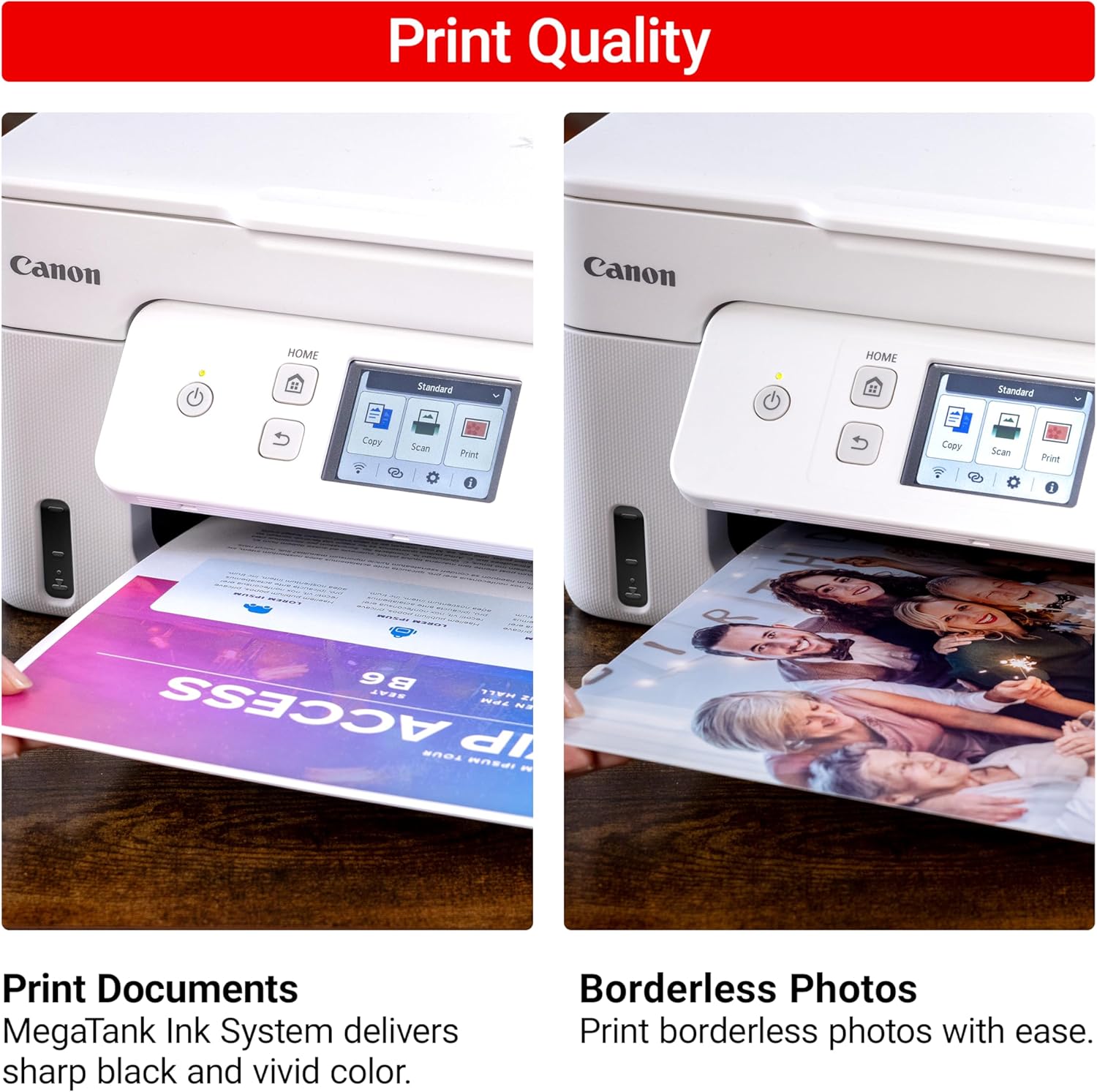
Image 4.3: Mobile compatibility, showing printing from a smartphone.
4.6 Print Quality and Media Versatility
The printer utilizes a hybrid ink system for sharp black text and vivid color photos. It supports various media types and sizes, including plain paper, photo paper, envelopes, and banners.

Image 4.4: Examples of print quality for documents and borderless photos.

Image 4.5: Media versatility, showcasing different print outputs.
5. Maintenance
5.1 Ink Refilling
Monitor ink levels through the transparent windows on the front of the printer. When an ink tank is low, refill it using the corresponding Canon GI-20 ink bottle, following the procedure outlined in Section 3.3.
5.2 Cleaning
Regular cleaning helps maintain print quality. The printer software includes a 'Deep Cleaning' mode for print heads. Refer to the printer's software utility for instructions on performing maintenance tasks.
6. Troubleshooting
6.1 Common Issues and Solutions
- Printer Not Responding: Check power connections, USB cable, or Wi-Fi connection. Restart the printer and your computer/mobile device.
- Poor Print Quality: Check ink levels. Perform a print head cleaning or alignment from the printer's maintenance menu or software.
- Wi-Fi Connectivity Issues: Ensure the printer is within range of your router. Re-enter Wi-Fi credentials using the touchscreen. For initial setup, the small LCD screen can be challenging; consider using the Canon PRINT app for easier configuration after initial connection.
- Slow Printing: This printer may exhibit slower print speeds compared to some models. Ensure you are using appropriate print quality settings for your task.
- USB Port Location: The USB port is located above the power plug, which can be difficult to find.
7. Specifications
| Feature | Specification |
|---|---|
| Product Dimensions | 14.3"D x 16.4"W x 7"H |
| Item Weight | 14.2 pounds |
| Connectivity Technology | USB, Wi-Fi |
| Printing Technology | Inkjet |
| Printer Output | Color |
| Max Print Speed (Monochrome) | 11 ppm |
| Max Print Speed (Color) | 6 ppm |
| Maximum Color Print Resolution | 4800 x 1200 Dots Per Inch |
| Maximum Black and White Print Resolution | 1200 dpi or higher |
| Scanner Type | Flatbed |
| Max Input Sheet Capacity | 100 sheets |
| Duplex Printing | Automatic |
| Control Method | Touch (2.7" LCD Color Touchscreen) |
| Compatible Cartridge | Canon GI-20 |
| Power Consumption | 18 Watts (On-mode) |
8. Warranty and Support
8.1 Limited Warranty
The Canon Megatank G3290 printer comes with a 1-year limited warranty. For specific terms and conditions, please refer to the warranty documentation included with your product or visit the official Canon support website.
8.2 Customer Support
For technical assistance, troubleshooting, or service inquiries, please contact Canon's official Service and Support network. Contact information can typically be found on the Canon website or in your product documentation.


