1. Introduction
The Jemluse Wireless CarPlay Adapter converts your car's existing wired CarPlay system into a wireless one, offering a stable and fast connection for Apple iPhone users. This adapter enhances your driving experience by providing seamless access to CarPlay functionalities without the need for physical cables.
Key features include:
- Easy Setup & Automatic Connection: Plug-and-play functionality with automatic activation within 10 seconds of starting your car.
- Native Quality Playback: Enjoy audio and video quality that mirrors your original car system.
- Full CarPlay Functionality: Access navigation, music playback, voice assistance, and hands-free calling wirelessly.
- Efficient A7 Intelligent Chip: Equipped with 5.8 GHz WiFi, 5.3 Bluetooth, and an 8-core processor for fast data transmission and stable performance across a wide temperature range (-20°C to 70°C).
- Universal Compatibility: Supports iPhone 6 and later models with iOS 10+ and over 800 vehicles with OEM wired CarPlay.
2. What's in the Box
Upon opening the package, you will find the following items:
- Jemluse Wireless CarPlay Adapter
- USB-A to USB-C Cable (integrated with adapter)
- USB-C to USB-A Adapter
- Instruction Manual

Figure 1: Jemluse Wireless CarPlay Adapter and accessories.
3. Setup Instructions
3.1. Preparation Before Connection
- Ensure your car has a wired CarPlay function. This adapter is designed only for vehicles with existing OEM wired CarPlay.
- Verify your iPhone is running iOS 10 or later.
- Identify your car's USB-A or USB-C port for CarPlay data transfer.
3.2. Connecting the Adapter
- Plug the Jemluse Wireless CarPlay Adapter into your car's wired CarPlay USB port. Use the provided USB-C to USB-A adapter if your car has a USB-C port.
- Turn on your car engine. The adapter's indicator light will blink, confirming a successful connection to the car.

Figure 2: Plugging the adapter into the car's USB port for initial setup.
3.3. Pairing with Your iPhone
- On your iPhone, go to Settings > Bluetooth and ensure Bluetooth is enabled.
- Search for available devices and select "SmartDongle-xxxx" (where xxxx is a unique identifier).
- Confirm the pairing request on your iPhone and allow contacts and favorites sync if prompted.
- The adapter will then automatically establish a Wi-Fi connection for CarPlay. Some cars may require you to tap the CarPlay icon on the car's display to start.

Figure 3: Wireless CarPlay connection established on the car's display.
For subsequent connections, simply keep Wi-Fi and Bluetooth enabled on your iPhone. The adapter will automatically connect to the last used iPhone within approximately 10 seconds of starting the car.
4. Operating Instructions
Once connected, your car's display will show the Apple CarPlay interface, allowing you to access various functions wirelessly.
- Navigation: Use Apple Maps, Google Maps, or other compatible navigation apps directly on your car's screen.
- Music & Audio: Play music, podcasts, and audiobooks through your car's sound system.
- Communication: Make and receive calls, send messages, and use voice commands via Siri.
- Voice Control: Activate Siri for hands-free operation of various CarPlay features.

Figure 4: Seamless integration with your car's original controls (touching, pressing, twisting).
5. Performance Features
The Jemluse Wireless CarPlay Adapter is engineered for optimal performance and durability:
- High-Speed Data Transmission: The built-in A7 Intelligent Chip with 5.8 GHz WiFi and 5.3 Bluetooth ensures data transmission rates are up to 40% faster, allowing apps like Google Maps, media, and messaging to display up to 10 times faster than other adapters.
- Robust Construction: Designed with aviation aluminum alloy and high-density braided cables, the adapter is built to withstand over 50,000 tests, offering three times the lifespan of plastic receivers.
- Optimal Temperature Resistance: The unique A7 chip maintains excellent performance in temperatures ranging from -20°C to 70°C, preventing disconnections during long drives.
- Low Power Consumption: Engineered to minimize power draw, ensuring no damage to your car's electrical system or excessive battery drain from your phone.
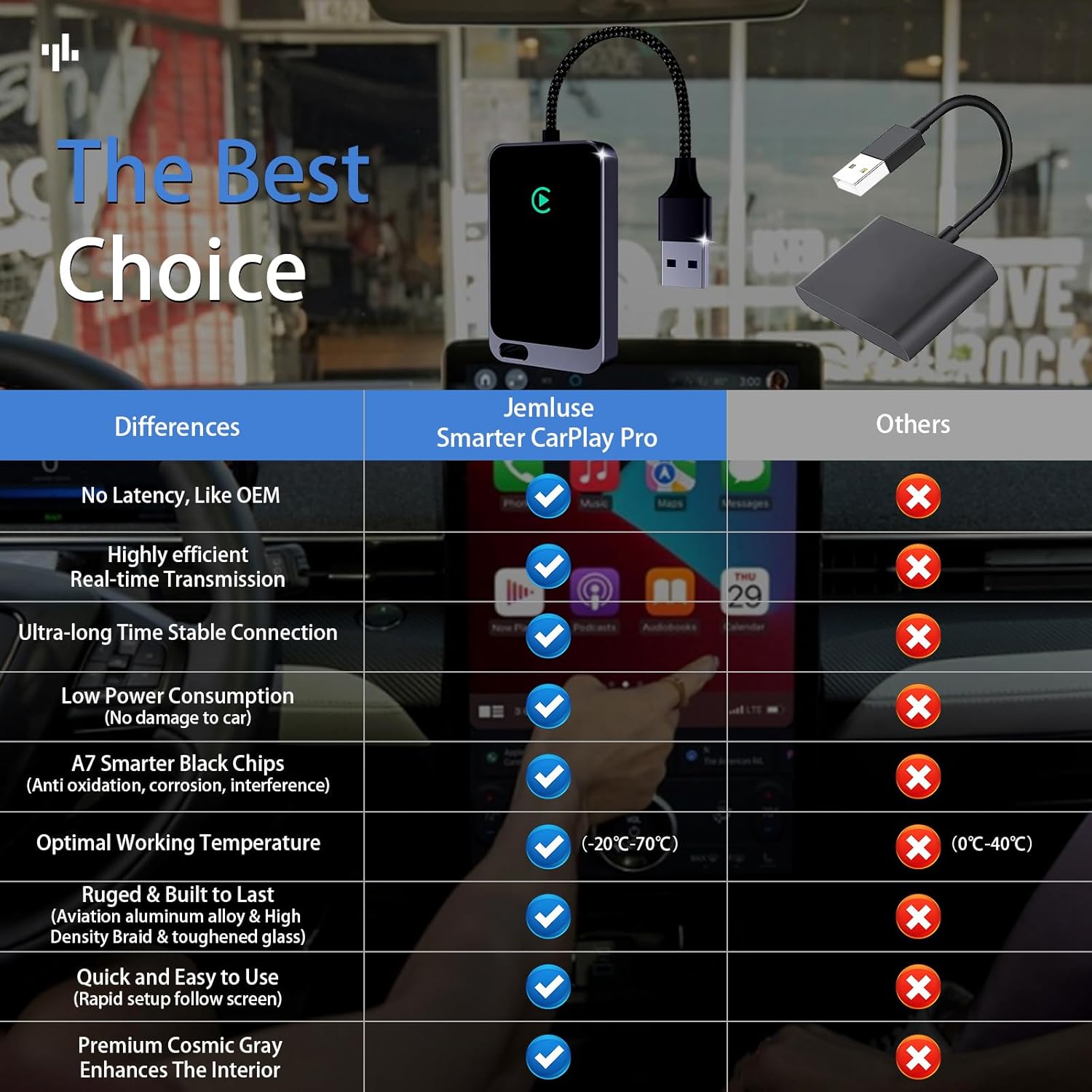
Figure 5: Performance advantages of the Jemluse Wireless CarPlay Adapter.
6. Troubleshooting
If you encounter any issues, please refer to the following common problems and solutions:
- Not working / Fail to connect:
- Unplug the wireless CarPlay adapter and turn off the car engine. Re-following the operation sequence can solve 80% of the operation error problem.
- For the next automatic connection, please keep both Wi-Fi and Bluetooth enabled and not occupied.
- By default, the system will connect back to the last iPhone used. If the iPhone used this time is not the last used iPhone, you need to manually set up the connection. (Repeat steps 2, 3, 4 from "Pairing with Your iPhone" section).
- Blank screen: Ensure the adapter is securely plugged in and the car's infotainment system is set to CarPlay mode.
- Audio is not smooth / Intermittent failure / Connection delay, multimedia delay:
- Check for any signal interference from other devices.
- Ensure your iPhone's Wi-Fi and Bluetooth are not occupied by other connections.
- Restart both the adapter and your iPhone.
- Receipt of defective, damaged products: Contact customer support immediately.
7. Specifications
| Feature | Detail |
|---|---|
| Brand | Jemluse |
| Model | B0DF2X5MGP |
| Connectivity Technology | Bluetooth, Wi-Fi (5.8 GHz) |
| Connector Type | USB Type C (with USB-A adapter) |
| Chipset | A7 Intelligent Chip (8-core processor) |
| Operating Temperature | -20°C to 70°C |
| Item Weight | 2.89 ounces |
| Package Dimensions | 6.1 x 2.91 x 0.75 inches |
| Color | Gray black |
8. Warranty and Support
The Jemluse Wireless CarPlay Adapter comes with a 365-day warranty policy for VIP customers. If you experience any issues or have questions, please contact customer support.
For assistance, contact: service@jemluse.com
Please provide your Order ID when contacting support to receive prompt assistance.