
Introduction
Welcome to the SteelSeries Apex Pro TKL Gen 3 HyperMagnetic Gaming Keyboard user manual. This guide provides comprehensive instructions for setting up, operating, maintaining, and troubleshooting your new keyboard. Featuring OmniPoint 3.0 switches, adjustable actuation, Rapid Trigger, Rapid Tap, an OLED Smart Display, and durable PBT keycaps, this keyboard is designed for precision and speed.
To fully utilize all features, including customization and game-specific presets, it is recommended to install the SteelSeries GG software.
Package Contents
Verify that all items are present in your package:
- SteelSeries Apex Pro TKL Gen 3 Keyboard
- Detachable USB-C Cable
- Magnetic Wrist Rest
- User Guide (this document)

Image: Front view of the SteelSeries Apex Pro TKL Gen 3 keyboard, showcasing its compact design and vibrant RGB lighting.
Setup Guide
1. Connecting the Keyboard
- Connect the detachable USB-C cable to the USB-C port on the keyboard.
- Plug the other end of the USB-C cable into an available USB port on your PC.
- The keyboard will automatically be recognized by your operating system.
2. Attaching the Magnetic Wrist Rest
Align the magnetic wrist rest with the bottom edge of the keyboard. The magnets will securely attach it, providing ergonomic support during use.
3. Software Installation (SteelSeries GG)
For full customization, including adjustable actuation, Rapid Trigger, Rapid Tap, RGB lighting effects, and key remapping, download and install the SteelSeries GG software from the official SteelSeries website:

Image: The SteelSeries Apex Pro TKL Gen 3 keyboard, illustrating its connection via USB-C and the optional magnetic wrist rest.
Operating Instructions
OmniPoint 3.0 Switches and Adjustable Actuation
The Apex Pro TKL Gen 3 features OmniPoint 3.0 switches, allowing you to adjust the actuation point of each key from 0.1mm to 4.0mm. This enables precise control, whether you need ultra-fast response for gaming or a deeper press for typing accuracy.
- Rapid Trigger: This feature allows keys to reset instantly when lifted, enabling faster repeated presses and more responsive movements in games.
- Rapid Tap: Optimize key presses for quick, successive inputs, enhancing speed and precision.
Adjust these settings via the SteelSeries GG software or directly on the keyboard's OLED Smart Display.

Image: A close-up view of the keyboard's OLED display, illustrating the Rapid Trigger and Rapid Tap functionalities.
OLED Smart Display
The integrated OLED Smart Display provides real-time information and allows for on-the-fly adjustments to settings such as actuation points, RGB effects, and profiles without needing to alt-tab out of your game. Use the clickable metal roller and media key to navigate the display menu.
Programmable Keys and Volume Roller
- Programmable Keys: All keys can be remapped and assigned macros using the SteelSeries GG software.
- Volume Roller: The dedicated metal roller allows for quick and easy volume adjustments. Pressing it typically mutes/unmutes audio.
Protection Mode
An exclusive SteelSeries function, Protection Mode reduces the sensitivity of surrounding keys to prevent accidental triggers, minimizing typing errors during intense gameplay or fast typing.
RGB Illumination
The keyboard features per-key RGB illumination. Customize lighting effects, colors, and patterns through the SteelSeries GG software to match your setup or mood.
GG QuickSet Presets
Leverage GG QuickSet to access pre-configured settings optimized for popular games. These presets can be applied with a few clicks within the SteelSeries GG software, providing an immediate competitive advantage.

Image: Screenshot of the SteelSeries GG software interface, highlighting the QuickSet feature with game-specific presets.
Maintenance
Cleaning the Keyboard
- Keycaps: Use a soft, damp cloth with mild soap and water to clean the PBT keycaps. Ensure they are completely dry before reattaching.
- Chassis: Wipe the keyboard chassis with a soft, lint-free cloth. Avoid abrasive cleaners or solvents.
- Dust: Use compressed air to remove dust and debris from between the keycaps and switches.
General Care
Avoid exposing the keyboard to extreme temperatures, direct sunlight, or excessive moisture. Do not attempt to disassemble the keyboard, as this may void your warranty.
Troubleshooting
Common Issues and Solutions
- Keyboard Not Responding:
- Ensure the USB-C cable is securely connected to both the keyboard and your PC.
- Try connecting the keyboard to a different USB port.
- Restart your computer.
- RGB Lighting Not Working/Incorrect:
- Check SteelSeries GG software for lighting settings and ensure a profile is active.
- Update SteelSeries GG software to the latest version.
- Keys Not Registering Correctly:
- Clean the affected key area for any debris.
- Verify actuation settings in SteelSeries GG; a very low actuation point might be too sensitive for some users.
- Ensure Protection Mode is not interfering if specific keys are not registering.
If you encounter persistent issues, please visit the official SteelSeries support website for further assistance or to contact customer service.
Technical Specifications
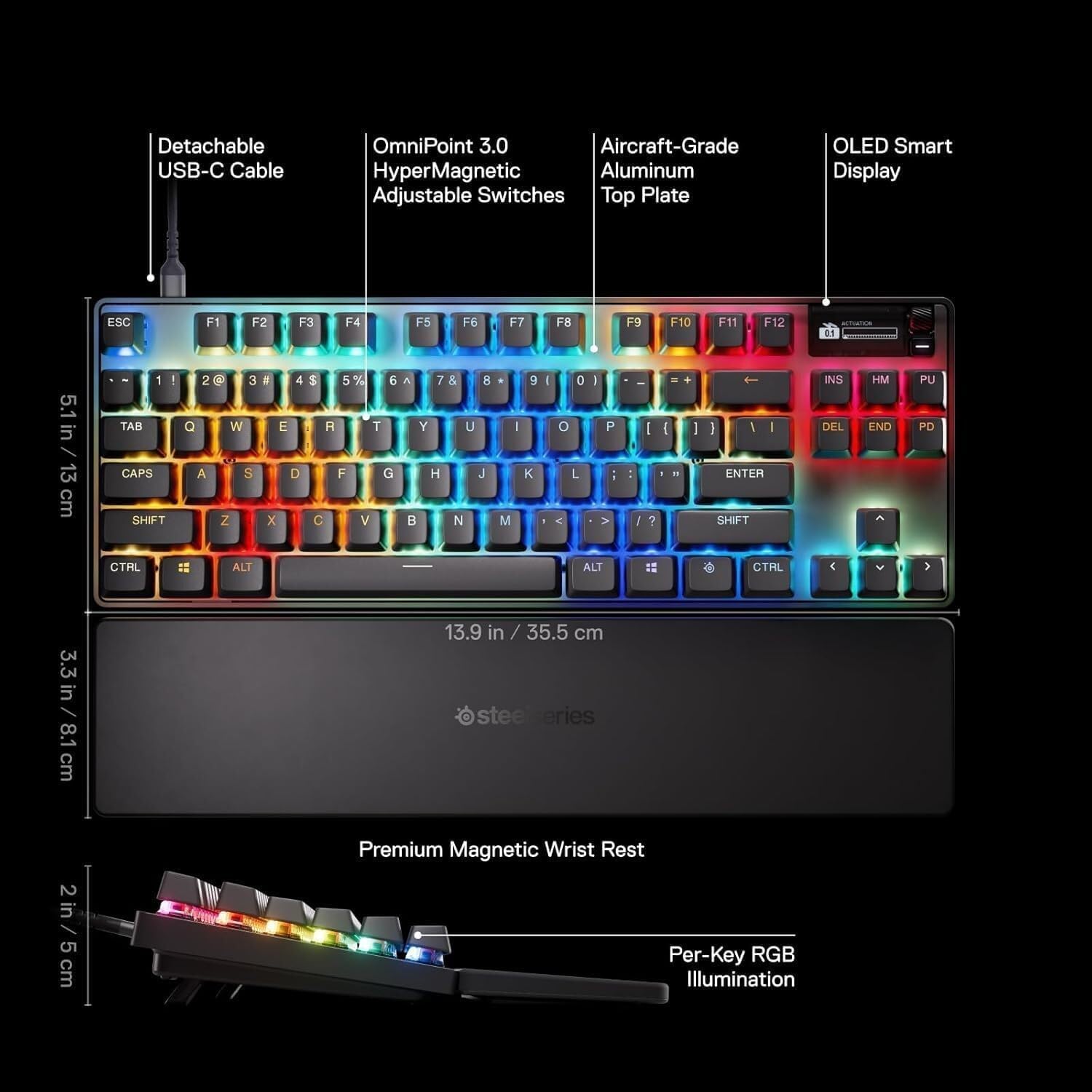
Image: Detailed diagram illustrating the dimensions and key features of the SteelSeries Apex Pro TKL Gen 3 keyboard.
| Brand | SteelSeries |
| Model Name | Apex Pro TKL American Layout |
| Model Number | 64740 |
| Connectivity Technology | USB-C (Wired) |
| Keyboard Description | Mechanical, HyperMagnetic OmniPoint 3.0 Switches |
| Keyboard Layout | QWERTY (American Keyboard) |
| Special Features | Backlit (RGB), Programmable Keys, Volume Roller, OLED Smart Display, Wrist Rest, Rapid Trigger, Rapid Tap, Protection Mode |
| Compatible Devices | PC (Windows) |
| Product Dimensions (L x W x H) | 13.99" x 5.05" x 1.65" (35.5cm x 12.8cm x 4.2cm) |
| Item Weight | 974 g |
| Generation | 3rd Generation |
Warranty and Support
The SteelSeries Apex Pro TKL Gen 3 keyboard comes with a 2-Year Warranty. For warranty claims, technical support, or additional product information, please visit the official SteelSeries website or contact their customer service directly.
Online Support: steelseries.com/support
Please retain your proof of purchase for warranty purposes.