
OHYEAHSPIN Portable Monitor
OHYEAHSPIN MWE 43-inch 4K Smart Touch Screen Portable TV
Instruction Manual
1. Introduction
This manual provides essential information for the safe and efficient operation of your OHYEAHSPIN MWE 43-inch 4K Smart Touch Screen Portable TV. Please read it thoroughly before using the device and retain it for future reference.
2. Safety Information
- Power Supply: Use only the provided power adapter. Ensure the voltage matches your local power supply.
- Placement: Do not place the TV in direct sunlight or in outdoor environments. Avoid exposure to rain, moisture, or extreme temperatures.
- Ventilation: Ensure adequate ventilation around the TV to prevent overheating. Do not block ventilation openings.
- Cleaning: Disconnect the power before cleaning. Use a soft, dry cloth. Avoid liquid cleaners or aerosols.
- Handling: Handle the TV with care. The screen is fragile. When moving, ensure the stand is stable and the wheels are unlocked.
- Repairs: Do not attempt to repair the device yourself. Contact qualified service personnel for assistance.
3. Package Contents
Verify that all items are present in the package:
- 43-inch Screen Panel
- Connection Part (for screen to stand)
- Round Base with Wheels
- Screw Bag (for assembly)
- User Manual
- GaN Charger (Power Adapter)
- AAA Batteries (for remote)
- Remote Control
4. Setup and Assembly
4.1 Assembling the Stand
- Attach the connection part to the screen panel using the screws from the screw bag.
- Secure the screen panel (with the attached connection part) to the main stand pole.
- Attach the main stand pole to the round base, ensuring it is stable and all screws are tightened.
4.2 Connecting Power
Connect the provided GaN charger to the power input port on the TV and then plug it into a wall outlet. The TV is designed for continuous wired use and does not operate on an internal battery.

Image: The 43-inch portable TV on its wheeled stand, connected to a power outlet, demonstrating its screen rotation feature.
5. Operating Instructions
5.1 Initial Power-On and Android OS
Press the power button on the TV or remote control to turn on the device. The TV runs on Android OS, providing access to various applications. Follow the on-screen prompts for initial setup, including Wi-Fi connection and Google account login.

Image: The TV screen showing the Android operating system interface with popular streaming and social media application icons.
5.2 Touch Screen and Remote Control
The 43-inch display features a 10-point capacitive touchscreen for direct interaction. Alternatively, use the provided remote control for navigation. The remote can also function as a mouse for precise control.
5.3 Display Adjustments
The TV offers flexible positioning options:
- Rotation: The screen can rotate 360 degrees for both landscape and portrait viewing.
- Tilt: Adjust the screen tilt up to 20 degrees.
- Height Adjustment: The screen can be adjusted vertically up to 10 inches.

Image: Illustrations detailing the screen's ability to rotate 360 degrees, tilt 20 degrees, and adjust vertically by 6 inches.
5.4 Connectivity
The TV supports various connectivity options:
- HDMI Port: Connect external devices such as gaming consoles or Blu-ray players.
- USB Ports: Connect USB drives for media playback or peripherals like a wireless mouse and keyboard.
- Type-C Port: For additional connectivity options.
- Wi-Fi: Connect to your home network for internet access and streaming.
- Bluetooth: Pair with Bluetooth accessories like speakers or headphones.
- Screen Mirroring: Project content from your smartphone, computer, or tablet to the TV.

Image: Examples of the TV's versatile use in various indoor settings, emphasizing its 'plug and play' operation.
6. Maintenance
6.1 Cleaning the Screen
Gently wipe the screen with a soft, lint-free cloth. For stubborn marks, slightly dampen the cloth with water or a screen-specific cleaning solution. Do not spray liquids directly onto the screen.
6.2 Cleaning the Stand and Base
Wipe the stand and base with a dry or slightly damp cloth. Avoid abrasive cleaners.
7. Troubleshooting
- No Power: Ensure the power cable is securely connected to both the TV and the wall outlet. Verify the outlet is functional.
- No Picture: Check if the TV is turned on. If using an external source (HDMI), ensure the correct input is selected.
- No Sound: Check the volume level. Ensure external speakers (if connected) are powered on and properly paired/connected.
- Remote Not Responding: Replace the AAA batteries in the remote control. Ensure there are no obstructions between the remote and the TV.
- Wi-Fi Connection Issues: Restart your router and the TV. Re-enter the Wi-Fi password. Ensure the TV is within range of your Wi-Fi network.
- Touchscreen Unresponsive: Restart the TV. Ensure the screen is clean and free of debris.
8. Specifications
| Feature | Detail |
|---|---|
| Screen Size | 43 inches |
| Display Technology | 4K UHD LCD |
| Resolution | 3840 x 2160 pixels (4K) |
| Refresh Rate | 60Hz |
| Aspect Ratio | 16:9 |
| Operating System | Android OS |
| Processor | MTK 8788 Octa-core |
| Memory (RAM) | 8GB |
| Storage (ROM) | 128GB |
| Connectivity | HDMI, USB, Type-C, Wi-Fi (2.4G/5G), Bluetooth 4.2 |
| Product Dimensions | 9"D x 20"W x 52"H |
| Item Weight | 62.9 pounds |
| Manufacturer | OHYEAHSPIN (Marvel Technology CO.) |
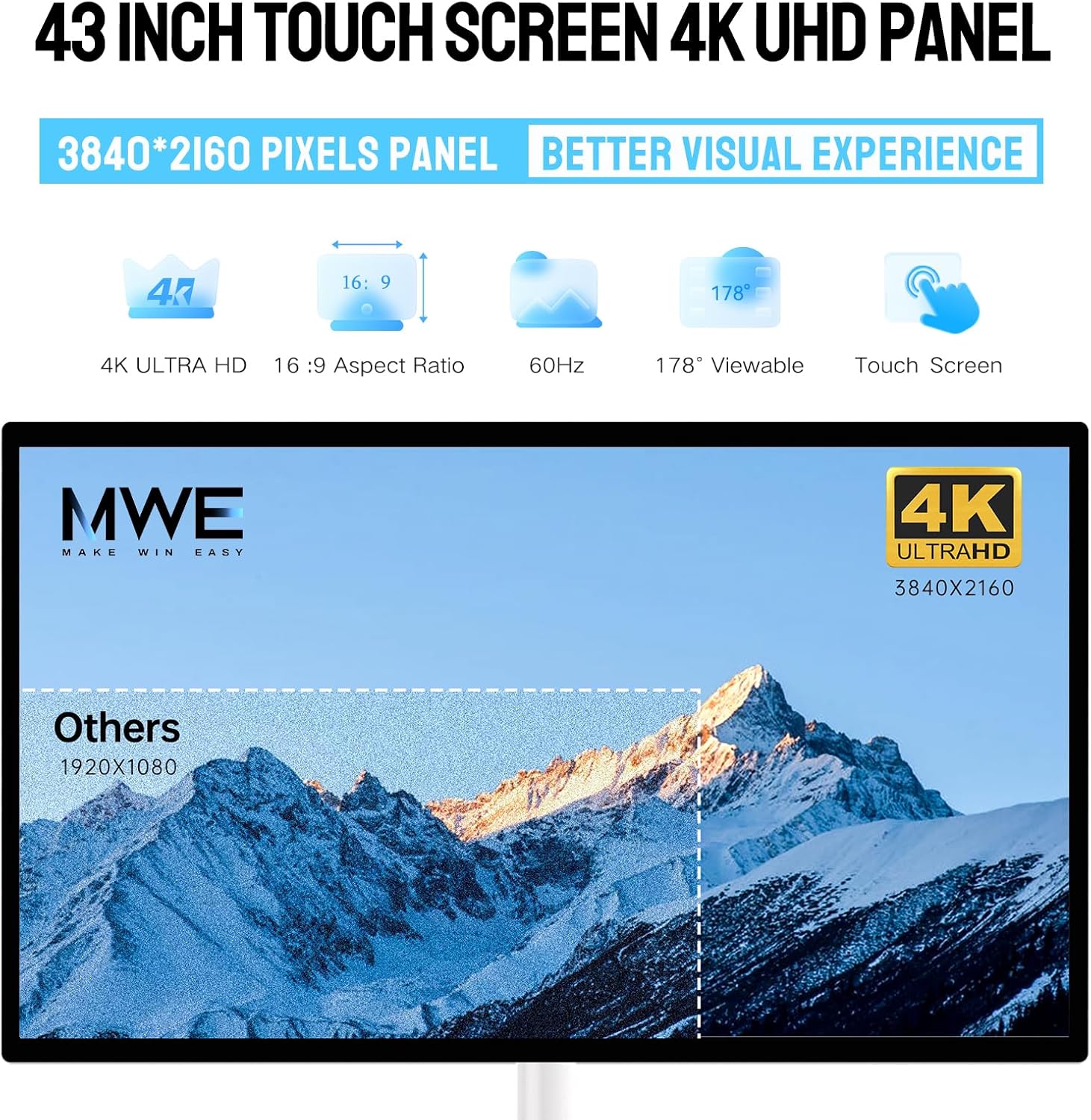
Image: Visual representation of the 4K UHD panel specifications, including resolution and refresh rate.
9. Warranty and Support
The OHYEAHSPIN MWE 43-inch Portable TV comes with a 3-year warranty for products with quality defects. For technical assistance, troubleshooting, or warranty claims, please contact the professional technical team at Marvel Technology CO. (MWE) through the seller's contact information on the purchase platform.
Online support is available to provide quick help and solutions to any questions or problems you may encounter.
Related Documents - Portable Monitor
 |
Type C Portable Monitor User Manual and Specifications User manual for the Type C portable monitor, detailing its features, connection methods via Type-C and HDMI, menu settings, supported devices, technical specifications, packing list, maintenance, safety precautions, and warranty information. |
 |
Portable Monitor User Manual - 18.5 Inch GS185CM1 User manual for the 18.5-inch GS185CM1 portable monitor. Includes setup, operation, safety instructions, troubleshooting, product parameters, and warranty information. |
 |
Multi-functional Smart Display D1 User Guide and Setup Comprehensive guide for the Multi-functional Smart Display D1, covering packing list, setup, connection, port definitions, Q&A, and usage tips. |
 |
Type C Portable Monitor User Manual User manual for the Type C portable monitor, covering setup, connections, menu functions, specifications, and precautions. |
 |
18.5 Inch 1080P Portable Monitor M185E05 User Manual User manual for the 18.5-inch 1080P portable monitor (Model M185E05). Includes technical specifications, port definitions, bracket functionality, and troubleshooting guide. |
 |
GS156CM2-B 15.6-Inch Portable Monitor User Manual User manual for the GS156CM2-B 15.6-inch portable monitor, detailing setup, connections, safety precautions, product specifications, OSD menu functions, frequently asked questions, and warranty information. |
Ask a question about this manual
Ask about setup, troubleshooting, compatibility, parts, safety, or missing instructions. Manuals+ will review the question and use this page’s manual context to help answer it.