
PARKVISION PJ-DSH68
PARKVISION 4K HD Bicycle/Motorcycle Dash Camera User Manual
Model: PJ-DSH68
1. Introduction
This user manual provides detailed instructions for the operation and maintenance of your PARKVISION 4K HD Bicycle/Motorcycle Dash Camera, model PJ-DSH68. This device is designed to capture high-resolution video recordings during your rides, ensuring clear and detailed footage. It features 4K UHD recording, IP66 waterproof and dustproof rating, a parking monitoring mode, and seamless smartphone connectivity via Wi-Fi.
Please read this manual thoroughly before using the product to ensure proper operation and to maximize its performance and longevity.
2. Safety Information
- Always ensure the camera is securely mounted before riding to prevent detachment and potential hazards.
- Do not attempt to disassemble or modify the device. Unauthorized modifications can void the warranty and cause damage.
- Keep the camera away from extreme temperatures (above 70°C or below -20°C) and direct sunlight for prolonged periods to prevent damage to internal components and battery.
- While the camera is IP66 rated for water and dust resistance, avoid submerging it in water or exposing it to high-pressure water jets.
- Use only the provided charging cable and recommended power sources to charge the device.
- Ensure the lens is clean and free from obstructions for optimal recording quality.
- Adhere to all local laws and regulations regarding the use of dash cameras in vehicles and on public roads.
3. Product Overview
3.1. Components

Figure 3.1: Included Product Components
The package includes the PARKVISION Dash Camera unit, a user manual, a charging cable, and various mounting accessories. A 64GB high-performance storage card is also included for extended recording.
3.2. Key Features
- 4K HD Recording: Captures video in 4K UHD resolution, ensuring clear and detailed footage day and night.
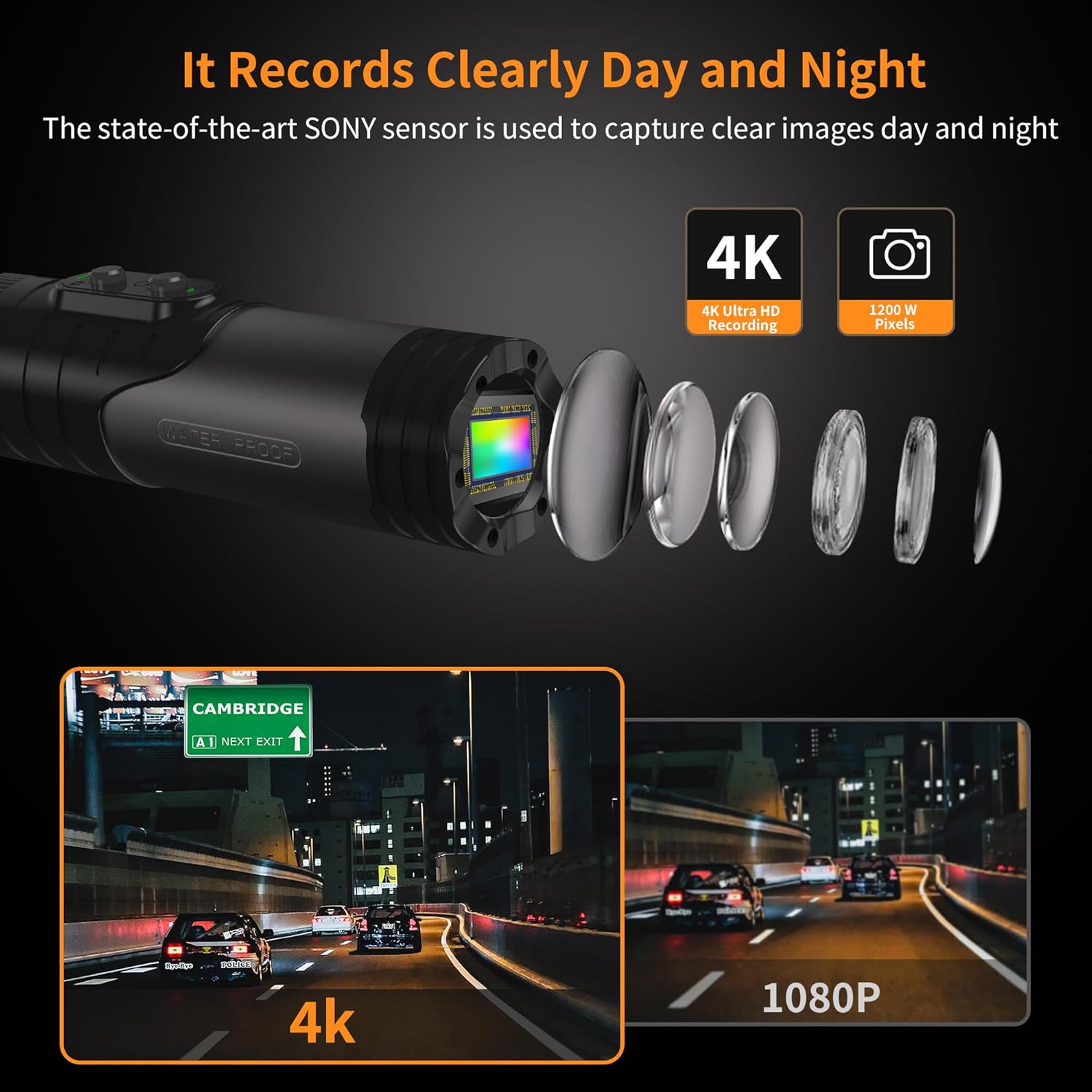
Figure 3.2: Day and Night Recording Clarity with 4K UHD
Equipped with a state-of-the-art SONY sensor, the camera records with exceptional clarity, capturing fine details in various lighting conditions.
- Advanced Parking Surveillance Mode: Provides 24-hour protection, recording events even when parked. Features loop recording and G-sensor functionality to secure critical footage.
- All-Weather Performance (IP66): The camera is IP66 rated, making it waterproof and dustproof, ensuring consistent performance in challenging outdoor environments. It operates reliably in temperatures ranging from -20°C to 70°C.
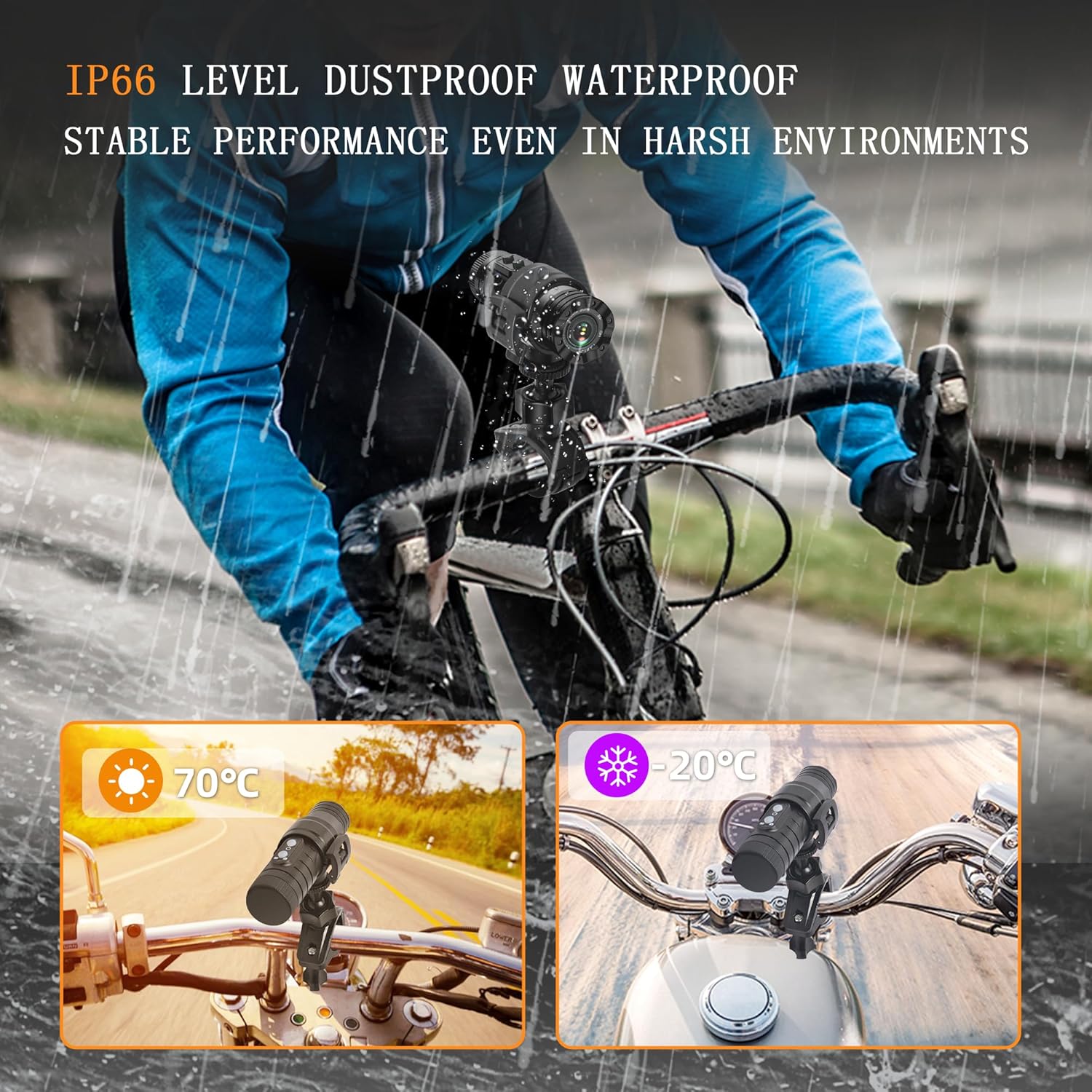
Figure 3.3: IP66 Rating for All-Weather Use
This rating ensures the camera's durability against rain, splashes, and dust, making it suitable for various outdoor sports and riding conditions.
- Wireless Connectivity & Smartphone Integration: Connects effortlessly via 2.4GHz Wi-Fi to your smartphone for real-time preview, video playback, and sharing, eliminating the need for SD card removal or computer connection.

Figure 3.4: Seamless Smartphone Connection for Control and Playback
The dedicated app allows for easy setup, recording control, image playback, and sharing directly from your smartphone.
- 120° Ultra Wide-angle Lens with Anti-Vibration: Provides an optimal field of view and wider shooting range, capturing more complete images. Features 4K HD anti-vibration technology for stable footage.

Figure 3.5: Wide-Angle View and Anti-Vibration Performance
The advanced anti-vibration technology ensures smooth and clear recordings even during bumpy rides, providing superior image stability compared to other products.
- Versatile Mounting Support: Supports various installation needs including handlebars, helmets, bicycles, outdoor sports gear, and rearview mirrors.
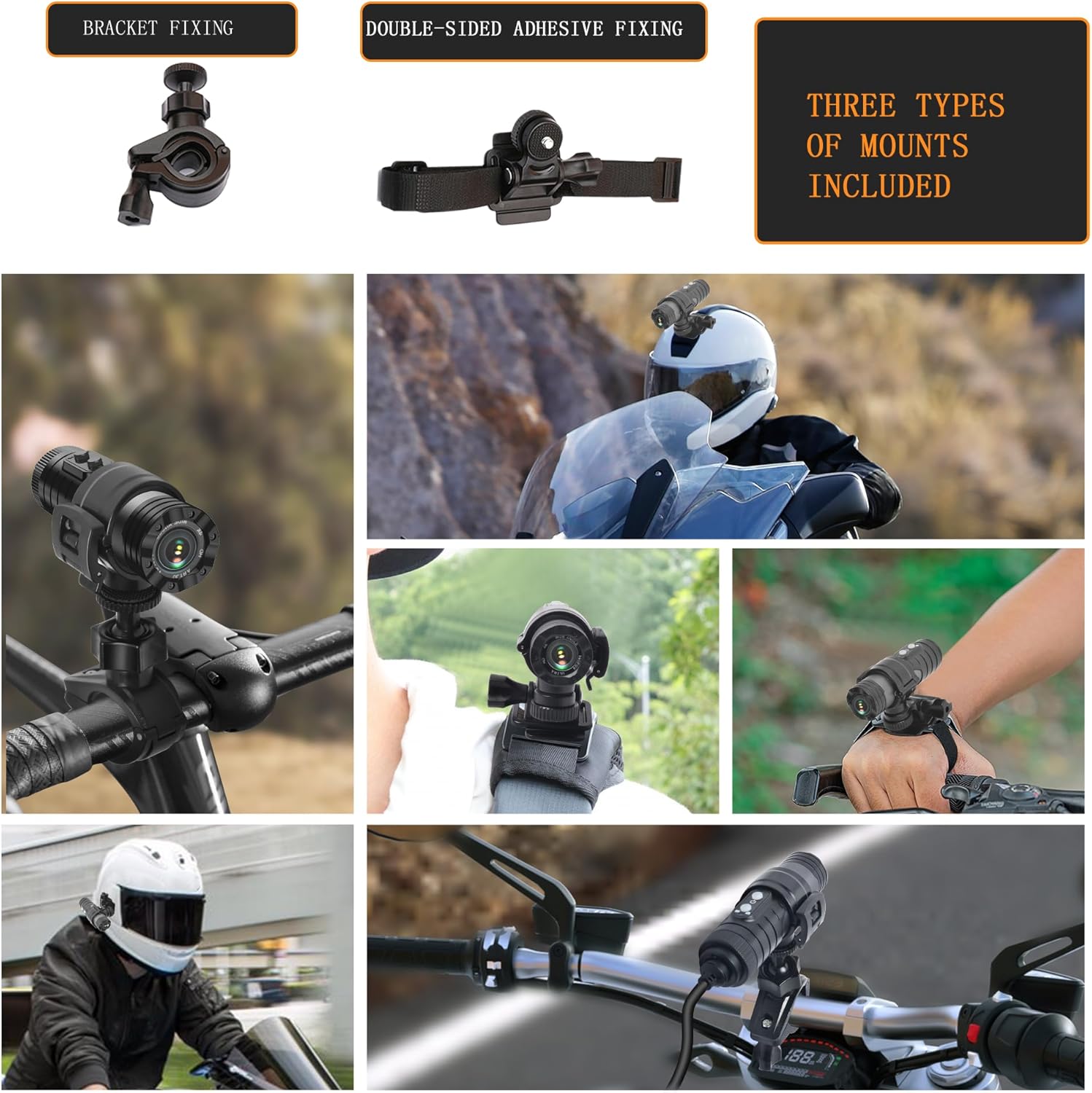
Figure 3.6: Examples of Versatile Mounting Options
The camera comes with bracket fixing and double-sided adhesive fixing options, allowing for flexible placement on various surfaces.
- Long Battery Life & Charging: Features a robust 1600mAh battery, providing over 2 hours of continuous video recording. It can be easily charged via a power bank or car charger for uninterrupted use.

Figure 3.7: Type-C Charging Interface and Power Supply Options
The camera supports charging while recording, making it ideal for long journeys when connected to an external power source.
4. Setup
4.1. Charging the Device
Before first use, fully charge the camera. Connect the provided USB Type-C charging cable to the camera's charging port and the other end to a USB power adapter (not included), power bank, or car charger. The charging indicator light will show the charging status. A full charge takes approximately 2 hours.
4.2. Inserting the MicroSD Card
The camera comes with a 64GB MicroSD card. Locate the MicroSD card slot on the camera. Gently insert the card with the gold contacts facing down until it clicks into place. To remove, press the card in again until it springs out.
4.3. Installation
The PARKVISION dash camera offers versatile mounting options. Choose the most suitable method for your bicycle, motorcycle, or helmet.
- Handlebar Mount: Use the bracket fixing mount to attach the camera securely to your bicycle or motorcycle handlebars. Ensure the mount is tightened to prevent movement during rides.
- Helmet Mount: Utilize the double-sided adhesive fixing mount for helmet installation. Clean the helmet surface thoroughly before applying the adhesive for a strong bond. Position the camera to capture the desired field of view.
- Other Applications: The camera can also be mounted on rearview mirrors or used for various outdoor sports activities using the appropriate accessories.

Figure 4.1: Camera with included 64GB SD card and various mounting options.
5. Operating Instructions
5.1. Powering On/Off
- Power On: Press and hold the power button for a few seconds until the indicator light illuminates.
- Power Off: Press and hold the power button again until the indicator light turns off.
5.2. Recording Modes
- Continuous Loop Recording: The camera automatically records video in segments. When the memory card is full, it will overwrite the oldest unlocked footage. This ensures continuous recording without manual intervention.
- G-Sensor (Emergency Recording): The built-in G-sensor detects sudden impacts or collisions. When triggered, the current video segment is automatically locked and protected from being overwritten, serving as crucial evidence.
- Parking Monitor: When enabled, the camera will automatically start recording if it detects motion or impact while the vehicle is parked. This provides surveillance even when you are away from your vehicle.
5.3. Wi-Fi Connection and Smartphone App
The camera features a 2.4GHz Wi-Fi module for seamless connection to your smartphone.
- Download the App: Search for the official PARKVISION app on your smartphone's app store (iOS App Store or Android Google Play Store).
- Enable Wi-Fi on Camera: Refer to your camera's specific button layout for Wi-Fi activation. Typically, a short press of a dedicated Wi-Fi button or a combination of buttons will activate it. The Wi-Fi indicator light will blink.
- Connect to Camera Wi-Fi: On your smartphone, go to Wi-Fi settings and connect to the camera's Wi-Fi network (e.g., "PARKVISION_XXXX"). The default password is usually "12345678" or found in the quick start guide.
- Open the App: Launch the PARKVISION app. You should now see a live preview from the camera.
- App Functions:
- Live Preview: View real-time footage from the camera.
- Recording Control: Start/stop recording, take photos.
- Playback: Access recorded videos and photos stored on the MicroSD card.
- Download & Share: Download footage to your phone's gallery and share directly to social media platforms.
- Settings: Adjust camera settings such as resolution, loop recording duration, G-sensor sensitivity, and parking monitor options.
6. Maintenance
- Cleaning: Use a soft, dry cloth to clean the camera body. For the lens, use a specialized lens cleaning cloth and solution to avoid scratches. Do not use abrasive cleaners or solvents.
- Storage: When not in use for extended periods, store the camera in a cool, dry place, away from direct sunlight and extreme temperatures. Ensure the battery is partially charged (around 50%) before storage to prolong its lifespan.
- Firmware Updates: Periodically check the PARKVISION official website or app for any available firmware updates. Keeping your camera's firmware up-to-date ensures optimal performance and access to new features.
- MicroSD Card Care: Format the MicroSD card regularly (e.g., once a month) using the camera's formatting function or the app. This helps maintain card performance and prevents data corruption.
7. Troubleshooting
| Problem | Possible Cause | Solution |
|---|---|---|
| Camera does not power on. | Low battery; faulty charging cable/adapter. | Charge the camera fully. Try a different charging cable or adapter. |
| Cannot record video. | MicroSD card full or corrupted; card not inserted correctly. | Format the MicroSD card. Reinsert the card. Replace the card if corrupted. |
| Wi-Fi connection issues. | Incorrect Wi-Fi password; camera Wi-Fi not enabled; app issues. | Ensure correct password. Activate camera Wi-Fi. Restart camera and app. |
| Poor video quality. | Dirty lens; low light conditions; incorrect resolution settings. | Clean the lens. Ensure adequate lighting. Check resolution settings in the app. |
| Camera freezes or crashes. | Firmware issue; MicroSD card issue. | Perform a soft reset (if available). Format or replace MicroSD card. Check for firmware updates. |
If the problem persists after trying these solutions, please contact PARKVISION customer support for further assistance.
8. Specifications
| Feature | Detail |
|---|---|
| Brand | PARKVISION |
| Manufacturer | PARKVISION |
| Model Name | PJ-DSH68 |
| Part Number | DSH68 |
| Video Resolution | 4K UHD |
| Waterproof/Dustproof Rating | IP66 |
| Key Features | Loop Recording, Parking Monitor, G-Sensor, Wi-Fi Connectivity |
| Battery Capacity | 1600mAh (Built-in) |
| Recording Time | Over 2 hours (approx.) |
| Included Components | User Manual, Charging Cable, 64GB MicroSD Card, Mounting Hardware |
| Product Dimensions | 13 x 5 x 5 cm |
| Product Weight | 360 grams |
| ASIN | B0DF2G6Y5N |
| First Available Date | August 31, 2024 |
| Direction | Rear |
9. Warranty and Support
For warranty information, please refer to the warranty card included with your product or visit the official PARKVISION website. If you encounter any issues or have questions regarding your PARKVISION dash camera, please contact PARKVISION customer support. Details for contacting support can typically be found on the product packaging or the official website.
Online Resources: For the latest drivers, firmware updates, and FAQs, please visit the official PARKVISION support page.
Related documentsPJ-DSH68

Ask a question about this manual
Ask about setup, troubleshooting, compatibility, parts, safety, or missing instructions. Manuals+ will review the question and use this page’s manual context to help answer it.