
1. Introduction
Thank you for choosing the GTPLAYER Electric Standing Desk. This desk is designed to enhance your workspace with its ergonomic height adjustment, integrated storage, convenient power solutions, and dynamic LED lighting. This manual provides essential information for assembly, operation, maintenance, and troubleshooting to ensure you get the most out of your new desk.

Figure 1.1: Overview of the GTPLAYER Electric Standing Desk.
2. Safety Information
WARNING:
- Do not exceed the recommended maximum weight limit of 220 lbs (100 kg). Overloading the desk can cause damage or injury.
- Ensure the desk is properly grounded before connecting to a power source.
- Do not touch the lifting mechanism during operation to avoid electrical shock or pinching.
- Keep children and pets away from the desk during operation.
- Avoid placing liquids directly on the control panel or power outlets.
- Always unplug the desk from the power outlet before cleaning or performing maintenance.
3. Package Contents
Please verify that all components are present and undamaged before beginning assembly. If any parts are missing or damaged, please contact customer support.
- Desk Desktop (48 x 24 inches)
- Electric Lifting Columns (Legs)
- Monitor Stand
- Integrated Storage Drawer
- Control Panel with LED Display
- Built-in Power Strip (2 AC outlets, 2 USB charging ports)
- RGB LED Light Strip
- Headphone Hooks (2)
- Cable Management Accessories
- Anti-slip Mouse Pad
- Assembly Tools and Hardware
- Instruction Manual

Figure 3.1: Key components of the GTPLAYER Electric Standing Desk.
4. Setup
The GTPLAYER Electric Standing Desk is designed for easy assembly with pre-drilled holes, typically taking around 30 minutes. All necessary assembly tools and instructions are included in the package.
4.1 Assembly Steps
- Unpack all components and lay them out on a clean, flat surface.
- Attach the lifting columns (legs) to the desktop using the provided hardware.
- Install the monitor stand and storage drawer according to the detailed instructions.
- Mount the control panel to the designated area on the desk.
- Connect all electrical cables, including the power strip and LED light strip, ensuring secure connections.
- Attach the headphone hooks and implement cable management as desired.
- Carefully flip the desk upright and place it in its desired location.
For a visual guide, refer to the detailed installation video available online (link not provided in this manual).

Figure 4.1: Desk dimensions and layout for assembly planning.
5. Operating Instructions
5.1 Height Adjustment
The desk features an electric lifting system for smooth height adjustments between 28.3 inches and 48 inches. The control panel allows for precise control and memory presets.
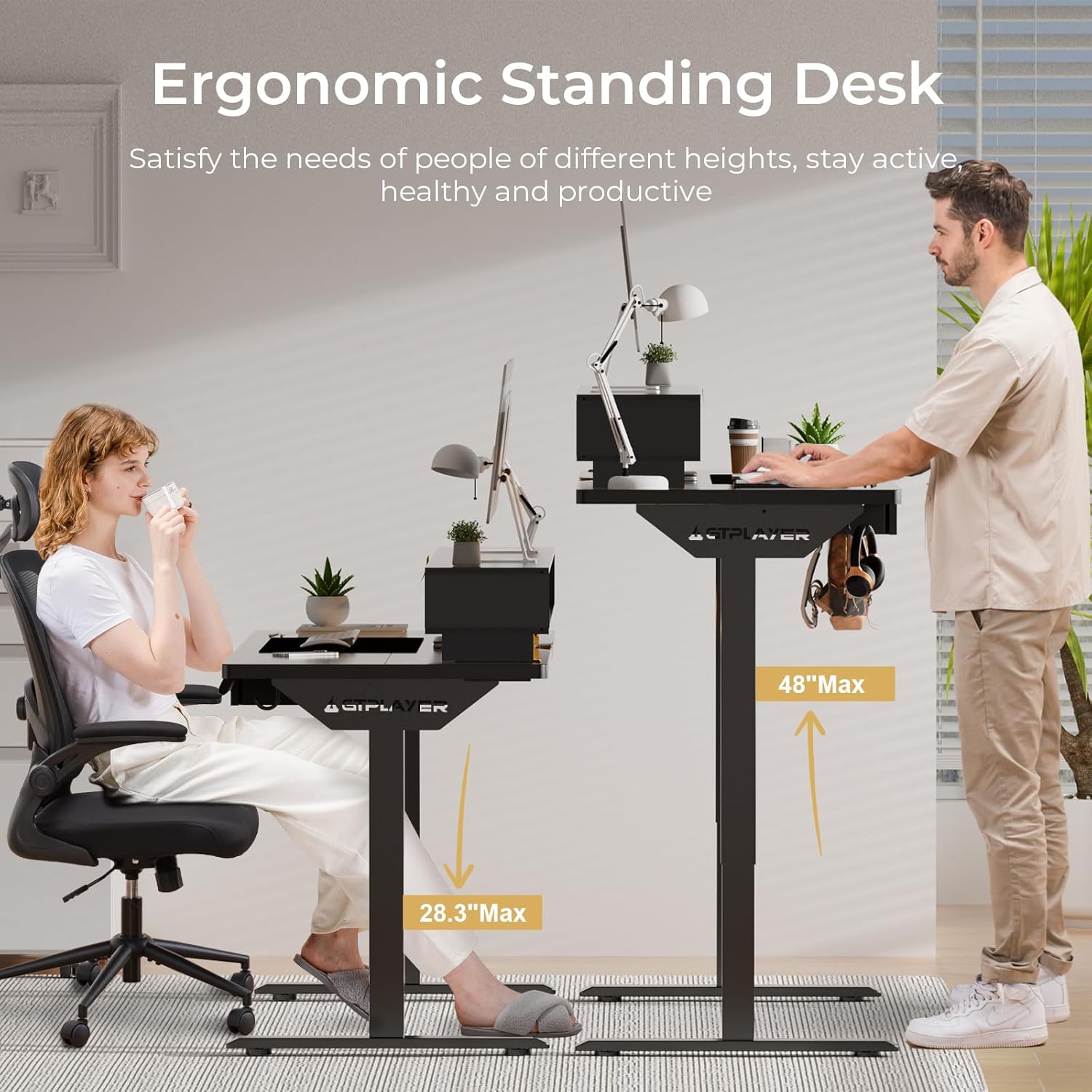
Figure 5.1: Height adjustment range of the standing desk.
Control Panel Functions:

Figure 5.2: Multi-function control panel with LED display.
- UP/DOWN Arrows: Press and hold to continuously adjust the desk height. Release to stop.
- LED Display: Shows the current desk height in inches.
- Memory Presets (1, 2, 3): To save a height, adjust the desk to the desired position, then press the 'S' button followed by the desired preset number (1, 2, or 3). To recall a saved height, simply press the corresponding preset number.
- 'S' Button (Set/Lock): Used to save memory presets. Can also be used for button lock/unlock functionality (refer to specific instructions for locking).
5.2 RGB LED Lights
The integrated RGB LED light strip offers customizable lighting to enhance your environment.
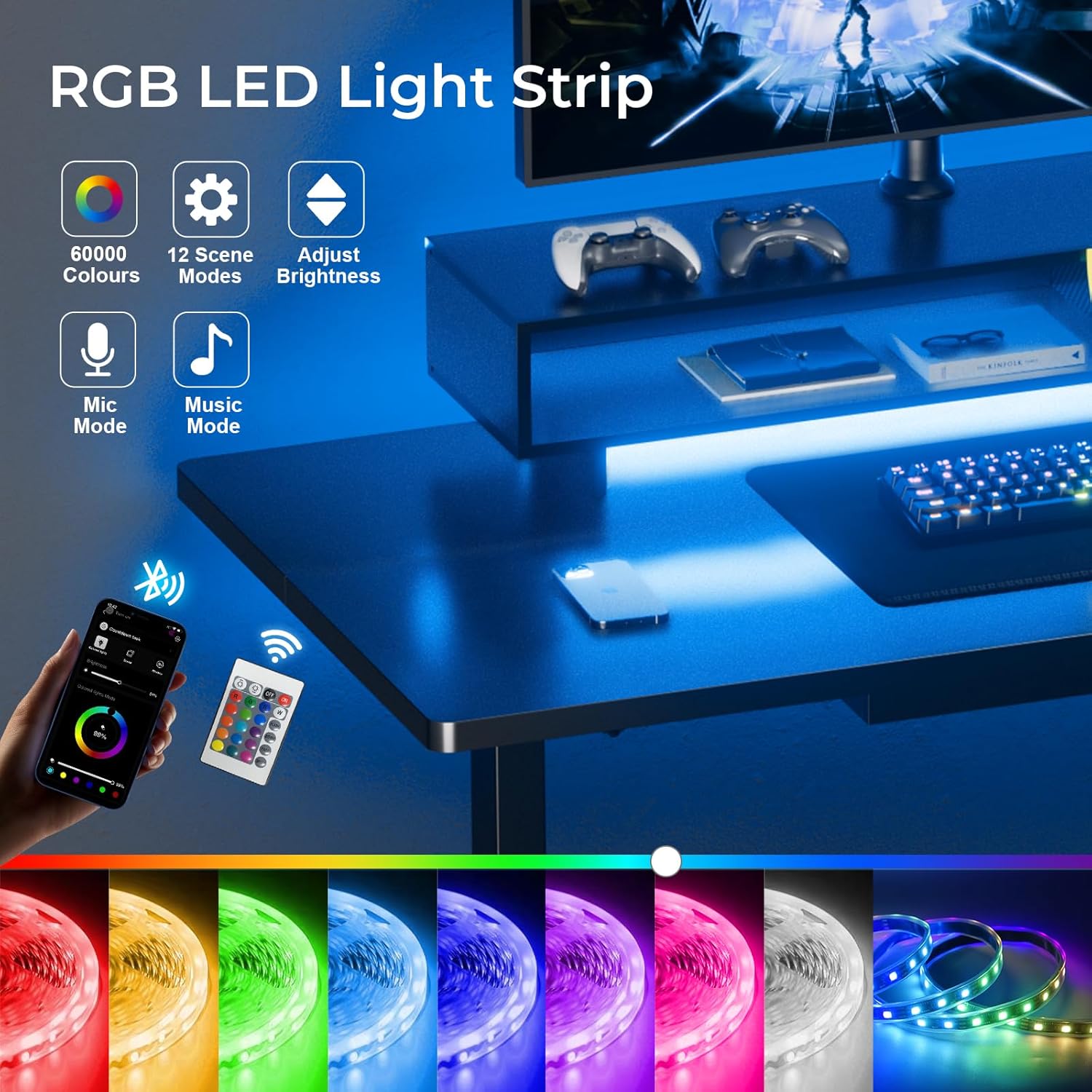
Figure 5.3: RGB LED light strip in operation.
- The LED lights feature 12 scene modes and 5 adjustable brightness levels.
- Control the lights using the included remote control or a compatible mobile application (if applicable, refer to product packaging for app details).
- Cycle through modes and adjust brightness as desired.
5.3 Power Outlets & USB Charging
The desk includes a built-in power strip for convenient device charging and power access.
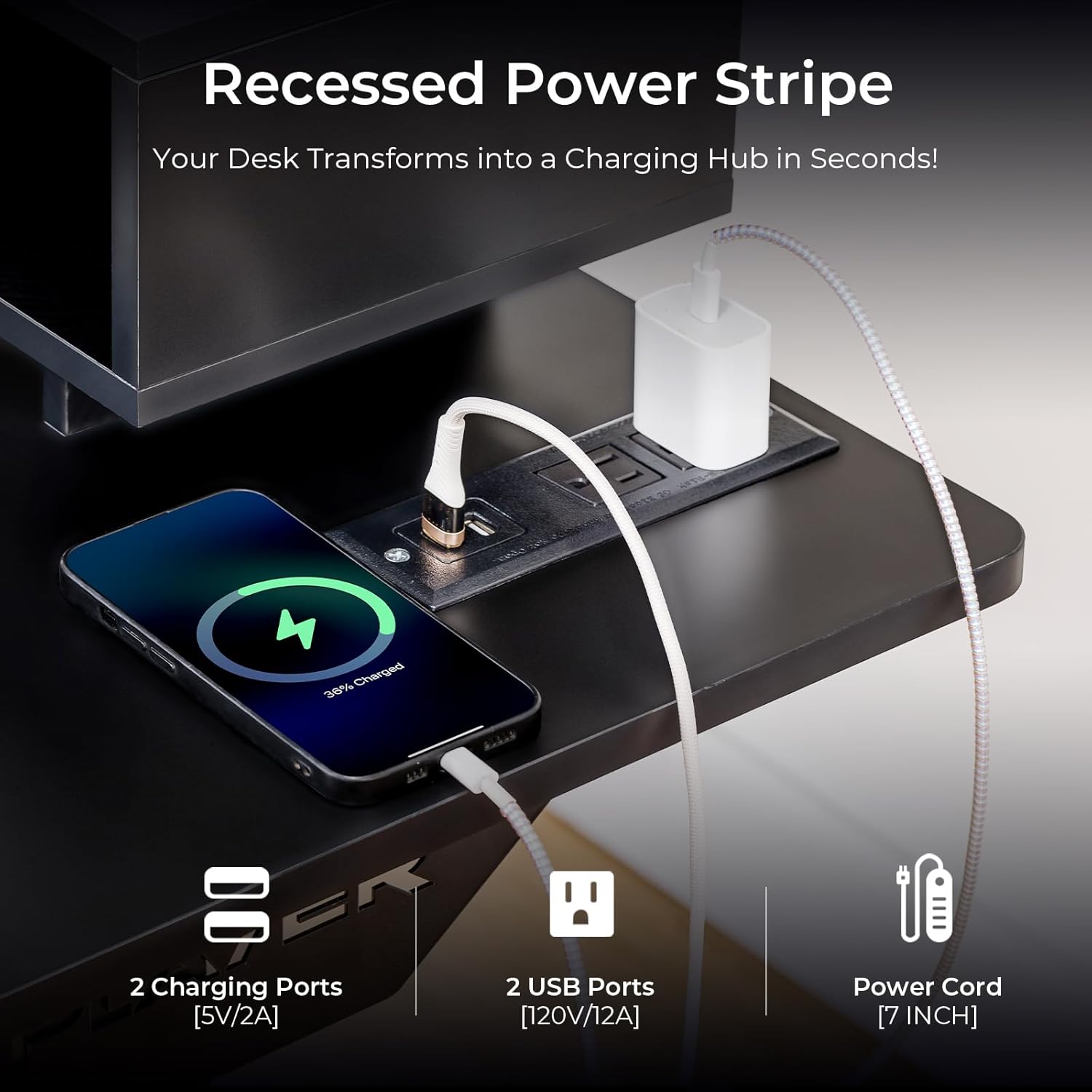
Figure 5.4: Recessed power strip for charging.
- Features 2 AC outlets (120V/12A) and 2 USB charging ports (5V/2A).
- Simply plug in your devices such as cell phones, tablets, or notebooks for charging.
- The power cord is approximately 7 inches long.
5.4 Storage Drawer & Monitor Stand
The desk is equipped with a pull-out drawer and an elevated monitor stand for improved organization and ergonomics.

Figure 5.5: Integrated storage drawer for accessories.
- The pull-out drawer provides ample storage for home office supplies, keeping your desktop tidy.
- The ergonomic monitor shelf elevates your display, raising your eye view and promoting better posture to protect your cervical spine.
- Two versatile hooks are included for additional storage, such as headphones or bags.
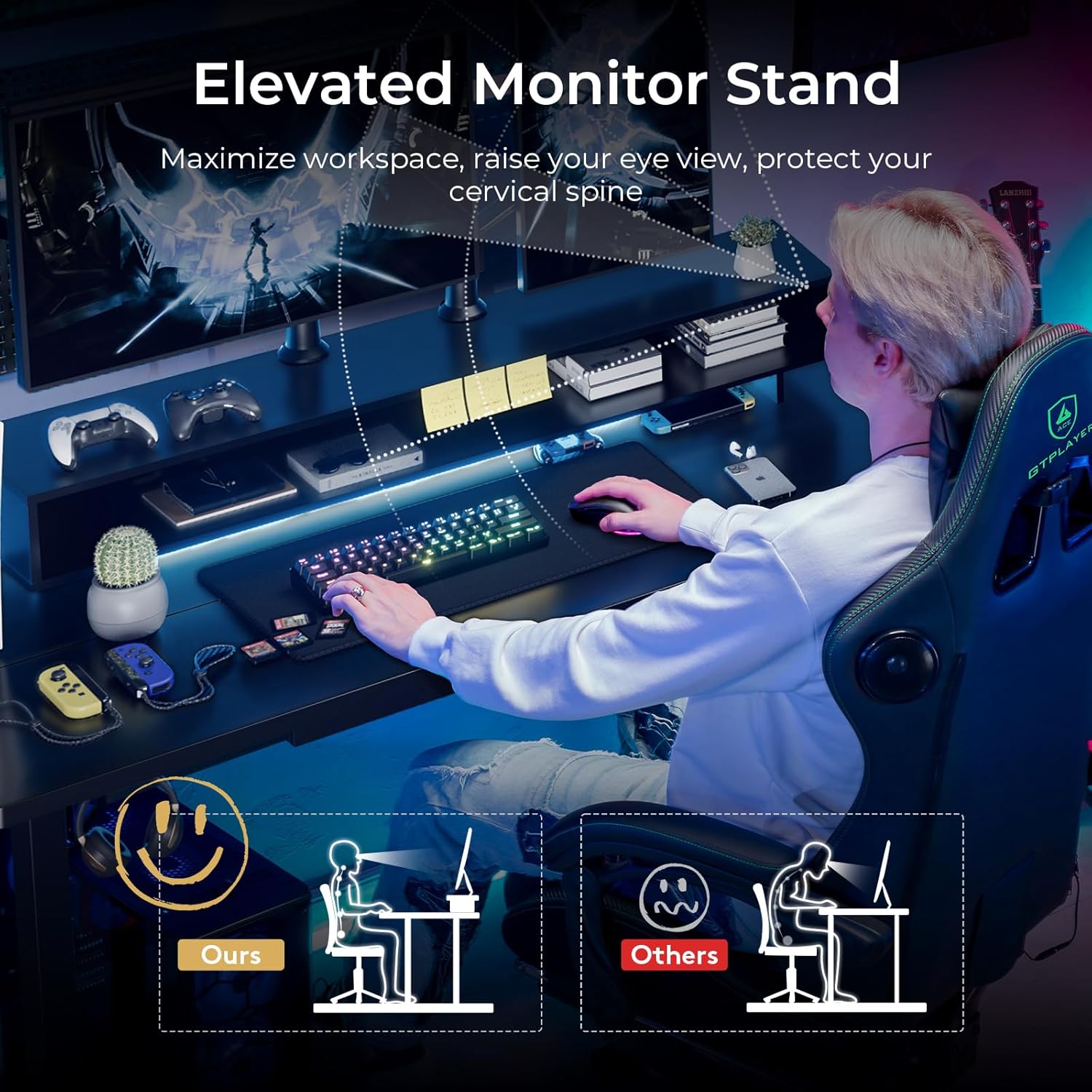
Figure 5.6: Elevated monitor stand for improved ergonomics.
6. Maintenance
Proper maintenance ensures the longevity and optimal performance of your GTPLAYER Electric Standing Desk.
- Cleaning: Use a soft, damp cloth to wipe down the desk surface and legs. Avoid abrasive cleaners or harsh chemicals that could damage the finish.
- Weight Distribution: Distribute weight evenly across the desktop. Avoid placing heavy items on one side or corner.
- Cable Management: Regularly check and organize cables to prevent tangles and damage.
- Motor Care: The high-quality motor produces less than 55dB of noise. If you notice unusual sounds or performance, refer to the troubleshooting section or contact support.
- Regular Checks: Periodically check all screws and connections to ensure they are tight and secure.
7. Troubleshooting
If you encounter any issues with your GTPLAYER Electric Standing Desk, please refer to the following common troubleshooting tips:
- Desk Not Moving:
- Check if the power cord is securely plugged into both the desk and the wall outlet.
- Ensure the wall outlet is functional by testing it with another device.
- Verify that no cables are tangled or obstructing the lifting mechanism.
- Uneven Movement:
- Ensure the desk is placed on a level surface.
- Check that the weight on the desk is evenly distributed and not exceeding the maximum limit.
- Control Panel Not Responding:
- Unplug the desk from the power source for 10-15 seconds, then plug it back in to reset the system.
- Check for any error codes on the LED display and consult the full product manual (if available) for specific code meanings.
- LED Lights Not Working:
- Ensure the LED light strip is properly connected to the power source.
- Check the remote control battery if applicable.
If the issue persists after attempting these steps, please contact GTPLAYER customer support for further assistance.
8. Specifications
| Feature | Detail |
|---|---|
| Brand | GTPLAYER |
| Model Number | GTS228-333 |
| Product Dimensions (D x W x H) | 24"D x 48"W x 28.3"H |
| Color | Black |
| Minimum Height | 28.3 inches |
| Maximum Height | 48 inches |
| Maximum Weight Capacity | 220 lbs (100 kg) |
| Base Material | Alloy Steel |
| Top Material Type | Wood |
| Motor Noise Level | Less than 55dB |
| Power Outlets | 2 AC (120V/12A) |
| USB Charging Ports | 2 USB (5V/2A) |
| LED Lights | RGB, 12 Scene Modes, 5 Brightness Levels |
| Number of Drawers | 1 |
| Assembly Required | Yes |
| Item Weight | 64.1 Pounds |
| UPC | 810170301490 |
9. Warranty and Support
The GTPLAYER Electric Standing Desk comes with a Limited Warranty. Please refer to the warranty card included with your product for specific terms and conditions.
For any questions during assembly, operation, or if you require technical support, please contact GTPLAYER customer service. We are committed to providing a hassle-free experience.
Contact information (e.g., website, email, phone number) typically found on product packaging or official brand website.